VWAP Authority ShowMe
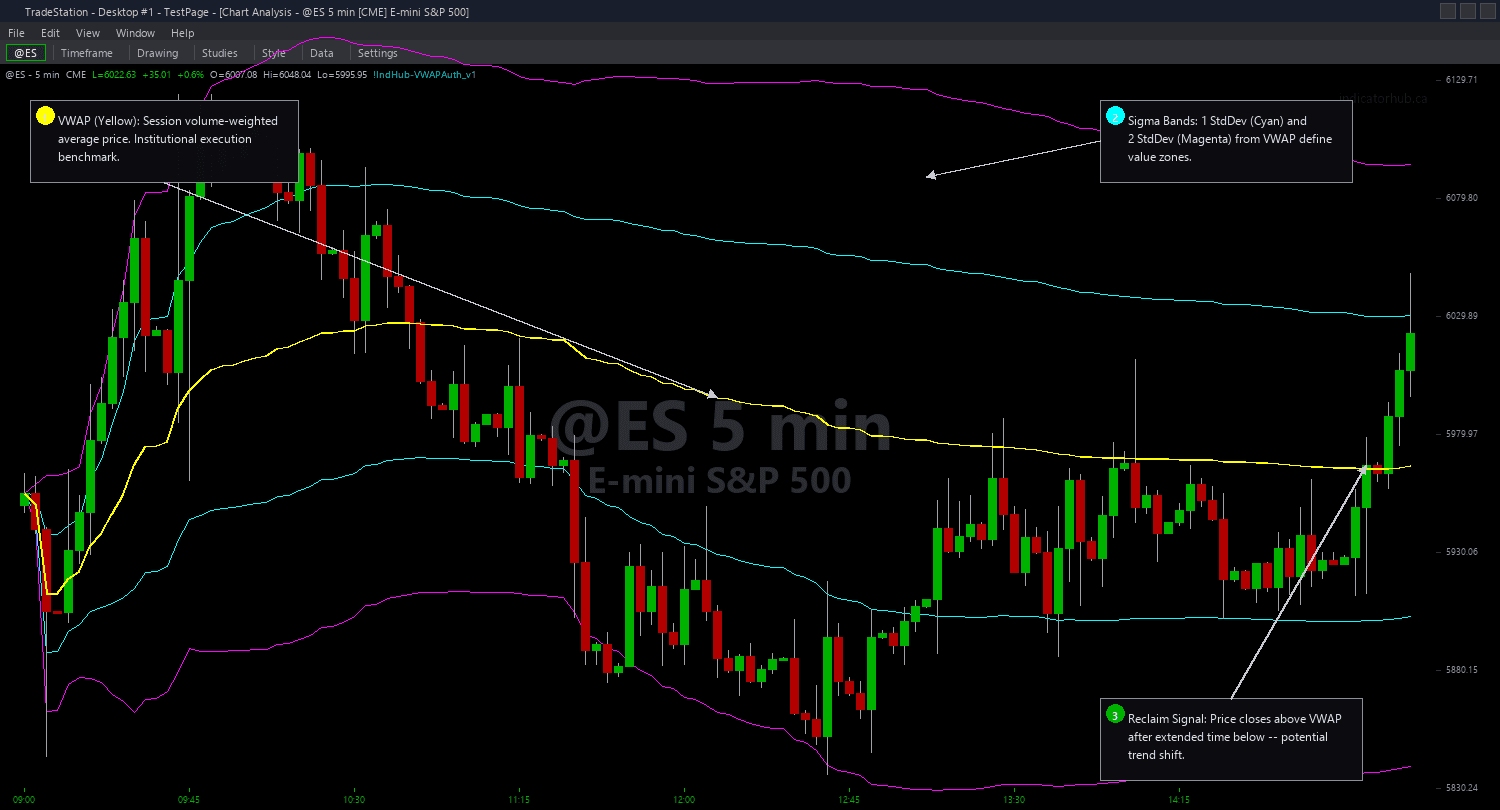
VWAP Authority ShowMe places colored dots directly on your price chart when key VWAP signals fire. A green dot appears below the bar when a VWAP Reclaim signal triggers, meaning price closed above VWAP after at least 10 consecutive bars closing below it. A red dot appears above the bar when a Sigma2 Rejection triggers, meaning price reached the 2nd deviation upper band but closed back below the 1st deviation band.
Dot positioning adapts automatically to each instrument's volatility. The offset is calculated as a percentage of the 14-bar Average True Range, so dots stay cleanly separated from price bars whether you are trading a $5 stock or ES futures at 5000. You can customize the offset percentage, dot colors, and alert settings.
This study is designed as a companion to the VWAP Authority chart overlay. The chart indicator shows you the bands and VWAP line. The ShowMe marks the exact bars where actionable signals fire, making it easy to spot entries at a glance even when scrolling through history.
30-Day Money-Back Guarantee
Try it risk-free. Not satisfied? Full refund, no questions asked.
Part of the VWAP Authority Bundle
Get all 4 study types for $65 — save $30
Who This Is For
Layer the ShowMe study on top of the VWAP Authority chart indicator for a complete signal + context view. The chart indicator gives you the VWAP line and deviation bands for reference levels. The ShowMe dots give you precise entry timing.
When you see a green reclaim dot, it means buyers have taken control after an extended period of weakness. Look for the dot to appear on increasing volume for confirmation. Your stop-loss goes below the recent swing low or below VWAP itself. Your target is the Sigma1 upper band or higher.
When you see a red rejection dot, price overextended into the 2nd deviation band and failed to hold. This is a classic mean-reversion short setup. Enter short on the next bar, set your stop above the Sigma2 level, and target VWAP for the exit.
For scalping on 1-minute charts, lower ReclaimBarsBelow to 5 and reduce PlotOffset to 0.3 for tighter dot placement. For swing trading on 15-minute charts, increase ReclaimBarsBelow to 15-20 for higher-quality signals.
See It in Action
Example chart showing VWAP Authority ShowMe on a live trading session
Installation Guide
Step 1: Download the indicator file
After purchasing, you will receive a download link via email. Click the link and save the .ELD file to your computer.
Step 2: Open the Import Wizard
Open TradeStation. Click the File menu in the top-left corner, then select Import/Export EasyLanguage to launch the Import/Export Wizard.

Step 3: Select the import type
In the Import/Export Wizard, select "Import EasyLanguage file (ELD, ELS or ELA)" from the list. Click Next to continue.

Step 4: Browse for the file
Click the Browse button to open a file browser where you can locate your downloaded .ELD file.

Step 5: Select and open the file
Navigate to the folder where you saved the .ELD file. Select vwap-authority-showme.eld and click Open.

Step 6: Open the Studies menu
On your chart, click the Studies dropdown in the toolbar and select Add Study.

Step 7: Select the study
In the Add Studies dialog, click the ShowMe tab on the left side. Find "!IndHub-SM_VWAPAuth_v1" in the list, select it, and click OK to apply.

Step 8: Configure settings (optional)
Right-click anywhere on the chart, go to Studies > Edit Studies..., select the study, and click the Inputs tab. Key settings: AnchorPeriod (1=Daily, 2=Weekly, 3=Monthly), ReclaimBarsBelow (default 10), PlotOffset (default 0.5, percentage of ATR for dot spacing), BullColor (default Green), BearColor (default Red), AlertEnabled (default true).
Common Issues
ShowMe dots overlapping price bars
Increase PlotOffset (try 0.75 or 1.0) to push dots further from bar extremes. On very volatile instruments, the ATR-based offset should scale automatically, but manual adjustment may be needed.
No dots appearing on chart
Ensure the study is inserted as a ShowMe, not an Indicator. Reclaim signals require ReclaimBarsBelow consecutive bars below VWAP before firing. On higher timeframes this can take a long time. Try lowering ReclaimBarsBelow to 5.
For additional help, contact support.