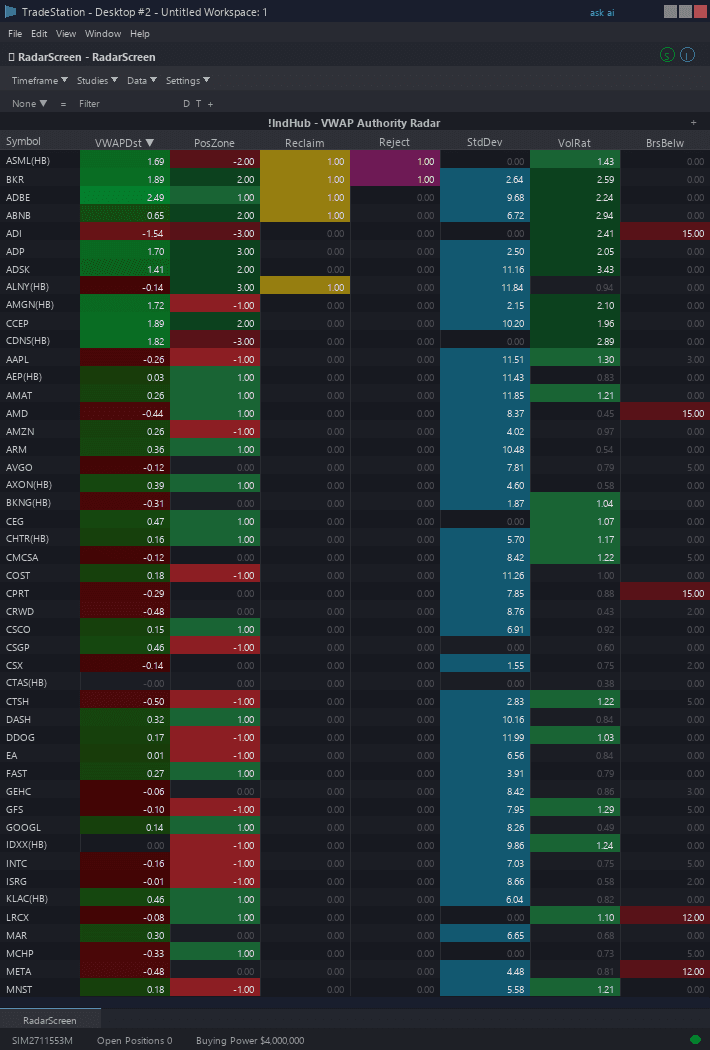
VWAP Authority RadarScreen
VWAP Authority RadarScreen gives you seven columns of VWAP intelligence across every symbol in your watchlist, all updating in real time. You see VWAPDist (percentage distance from price to VWAP), PosZone (which deviation band the price is in, from -3 strong bear to +3 strong bull), Reclaim and Reject signal columns that light up gold or magenta when signals fire, StdDev (current standard deviation), VolRatio (current bar volume divided by session average), and BarsBelw (consecutive bars closing below VWAP).
Every column uses the dark color palette for instant visual scanning. Green backgrounds for bullish readings, red backgrounds for bearish, gold for reclaim signals, magenta for rejections, and teal for volatility data. Sort by VWAPDist ascending to find the most oversold names in your watchlist. Sort by Reclaim descending to catch fresh reclaim signals the moment they fire. Sort by BarsBelw descending to find names approaching your reclaim threshold.
The scanner lets you monitor 40+ symbols for VWAP conditions without opening a single chart. When a symbol lights up with a signal, switch to its chart for entry timing.
30-Day Money-Back Guarantee
Try it risk-free. Not satisfied? Full refund, no questions asked.
Part of the VWAP Authority Bundle
Get all 4 study types for $65 — save $30
Who This Is For
Load your watchlist of actively traded symbols into RadarScreen and apply the VWAP Authority scanner. Sort by VWAPDist ascending during the first hour of trading to find names that have sold off furthest below their session VWAP. These are your potential reclaim candidates. Watch the BarsBelw column climb toward your threshold (default 10). When a symbol's Reclaim column lights up gold, open its chart immediately for entry timing.
Use the VolRatio column to confirm that volume is supporting the move. A reclaim signal on high volume (VolRatio > 1.5, shown in dark green) is more reliable than one on low volume. The PosZone column gives you instant context: a symbol at zone -3 (below Sigma2 Lower) is at a statistical extreme and may be due for a bounce.
For end-of-day swing screening, sort by PosZone to separate strong bullish names (zone +2 to +3) from weak ones (zone -2 to -3). Names consistently above VWAP are under institutional accumulation. Names consistently below are being distributed.
See It in Action
Example chart showing VWAP Authority RadarScreen on a live trading session
Installation Guide
Step 1: Download the indicator file
After purchasing, you will receive a download link via email. Click the link and save the .ELD file to your computer.
Step 2: Open the Import Wizard
Open TradeStation. Click the File menu in the top-left corner, then select Import/Export EasyLanguage to launch the Import/Export Wizard.

Step 3: Select the import type
In the Import/Export Wizard, select "Import EasyLanguage file (ELD, ELS or ELA)" from the list. Click Next to continue.

Step 4: Browse for the file
Click the Browse button to open a file browser where you can locate your downloaded .ELD file.

Step 5: Select and open the file
Navigate to the folder where you saved the .ELD file. Select vwap-authority-radarscreen.eld and click Open.

Step 6: Add to RadarScreen
Open a RadarScreen window. Right-click the column header area, select Studies > Add Study. Find "!IndHub-RS_VWAPAuth_v1" in the list and click OK.

Step 7: Enable cell colors
Right-click the indicator column header > Studies > Edit for All Symbols > Style tab. Ensure "Cell Color" is set to "Indicator defined" for each column to see the color-coded backgrounds.
Step 8: Configure settings (optional)
Right-click the indicator column header > Studies > Edit for All Symbols > Inputs tab. Key settings: AnchorPeriod (1=Daily, 2=Weekly, 3=Monthly), Sigma1Mult (default 1.0), Sigma2Mult (default 2.0), ReclaimBarsBelow (default 10). Most traders start with defaults.
Common Issues
RadarScreen colors not showing
Right-click the indicator column header > Studies > Edit for All Symbols > Style tab. Ensure "Cell Color" is set to "Indicator defined" for each column. Verify the symbol has sufficient data loaded in RadarScreen settings.
All columns showing zero
Ensure enough historical data is loaded. Go to Settings > Symbol > Max Bars and increase the value. The symbol needs at least one full session of volume data for VWAP to calculate.
For additional help, contact support.