VWAP Authority PaintBar
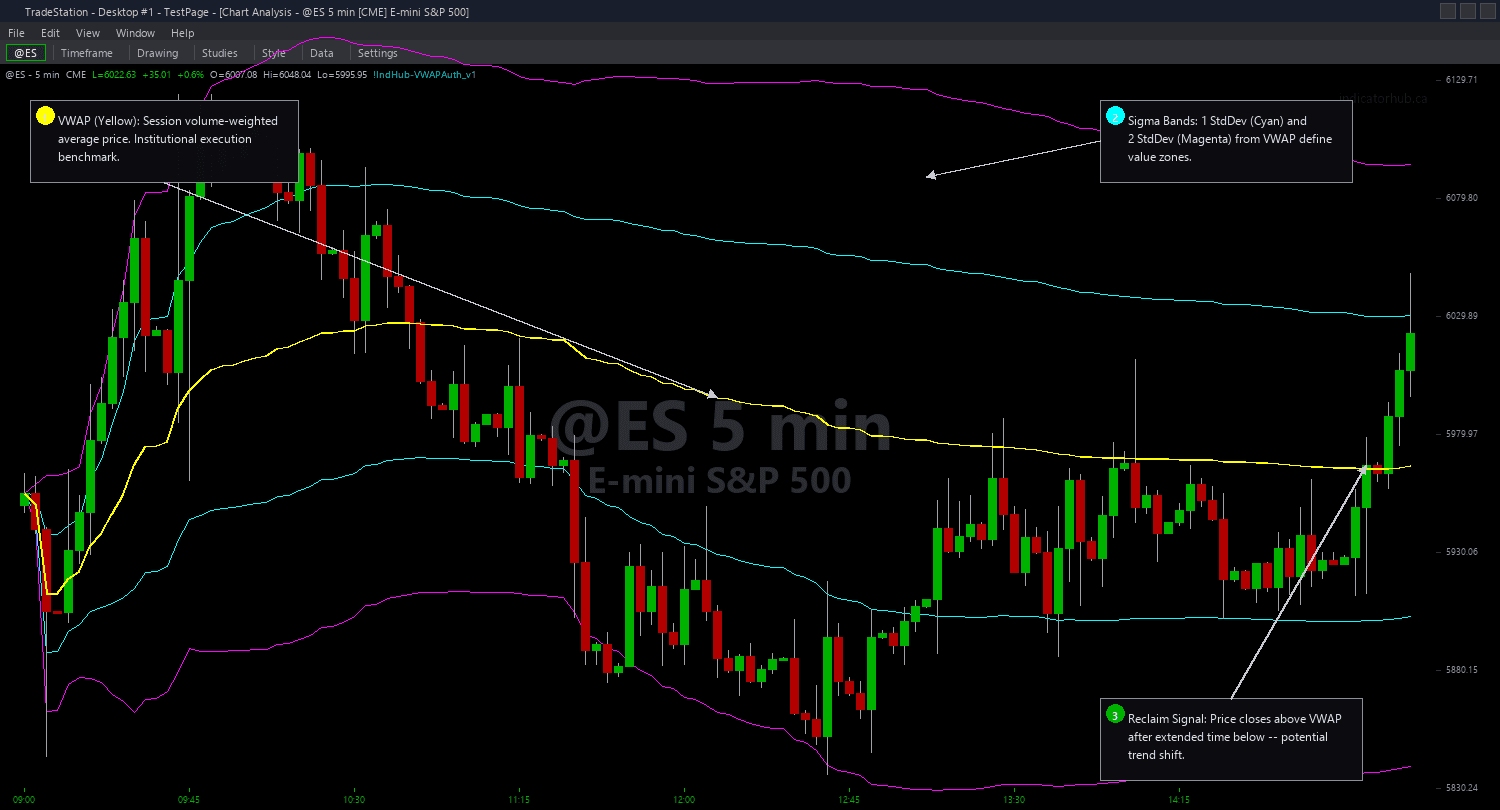
VWAP Authority PaintBar colors your entire price chart based on where each bar's Close sits relative to VWAP and its standard deviation bands. Six distinct color zones give you instant visual recognition of the current VWAP regime: DarkGreen for strong bull (above Sigma2), Green for bull (above Sigma1), Cyan for light bull (above VWAP), Yellow for light bear (below VWAP), Red for bear (below Sigma1), and Magenta for strong bear (below Sigma2).
The color transition sequence tells the story of price relative to institutional fair value. A chart shifting from Magenta to Red to Yellow to Cyan shows you a recovery in progress. A chart shifting from DarkGreen to Green to Cyan to Yellow shows momentum fading. You can read the VWAP regime at a glance without looking at any numbers.
All six zone colors are fully customizable through inputs. You can toggle painting on and off with a single input. Zone-change alerts notify you when price crosses from one VWAP zone to another, catching transitions in real time. When VWAP is not yet valid (start of session, no volume), bars keep their default chart colors.
30-Day Money-Back Guarantee
Try it risk-free. Not satisfied? Full refund, no questions asked.
Part of the VWAP Authority Bundle
Get all 4 study types for $65 — save $30
Who This Is For
Apply the PaintBar to any chart where you use VWAP as part of your analysis. The color-coded bars make it instantly obvious whether you are in bullish or bearish territory relative to the session's volume-weighted mean.
Watch for the color transition from bearish zones (Magenta/Red) through the neutral zone (Yellow) into bullish zones (Cyan/Green). This visual sequence shows you the VWAP reclaim process unfolding bar by bar. When you see bars shift from Red to Yellow to Cyan, sellers are losing control and buyers are stepping in. Combine with the ShowMe study's green reclaim dot for precise entry timing.
The strong zones (DarkGreen and Magenta) highlight statistical extremes. When bars stay DarkGreen for an extended period, price is well above the 2nd deviation band and a pullback toward VWAP is increasingly likely. When bars are Magenta, price is deeply oversold relative to VWAP and a bounce may be near.
For the cleanest visual, use the PaintBar as your only bar coloring study. If you run multiple PaintBar studies, the last one applied takes priority.
See It in Action
Example chart showing VWAP Authority PaintBar on a live trading session
Installation Guide
Step 1: Download the indicator file
After purchasing, you will receive a download link via email. Click the link and save the .ELD file to your computer.
Step 2: Open the Import Wizard
Open TradeStation. Click the File menu in the top-left corner, then select Import/Export EasyLanguage to launch the Import/Export Wizard.

Step 3: Select the import type
In the Import/Export Wizard, select "Import EasyLanguage file (ELD, ELS or ELA)" from the list. Click Next to continue.

Step 4: Browse for the file
Click the Browse button to open a file browser where you can locate your downloaded .ELD file.

Step 5: Select and open the file
Navigate to the folder where you saved the .ELD file. Select vwap-authority-paintbar.eld and click Open.

Step 6: Open the Studies menu
On your chart, click the Studies dropdown in the toolbar and select Add Study.

Step 7: Select the study
In the Add Studies dialog, click the PaintBar tab on the left side. Find "!IndHub-PB_VWAPAuth_v1" in the list, select it, and click OK to apply.

Step 8: Configure settings (optional)
Right-click anywhere on the chart, go to Studies > Edit Studies..., select the study, and click the Inputs tab. Key settings: AnchorPeriod (1=Daily, 2=Weekly, 3=Monthly), Sigma1Mult (default 1.0), Sigma2Mult (default 2.0), PaintBarsEnabled (default true), zone colors (StrongBullColor=DarkGreen, BullColor=Green, LightBullColor=Cyan, LightBearColor=Yellow, BearColor=Red, StrongBearColor=Magenta), AlertEnabled (default false, fires on zone transitions).
Common Issues
PaintBar not coloring bars
Verify the study is applied as a PaintBar study, not an Indicator. Right-click the chart > Studies > Add Study > PaintBar tab > select !IndHub-PB_VWAPAuth_v1. Ensure PaintBarsEnabled is set to true. Check that bar colors are not overridden by chart-level color settings.
Debug output appearing in print log
Set DebugEnabled to false (default). Debug mode prints detailed VWAP calculation data for every bar and should only be used during troubleshooting.
For additional help, contact support.