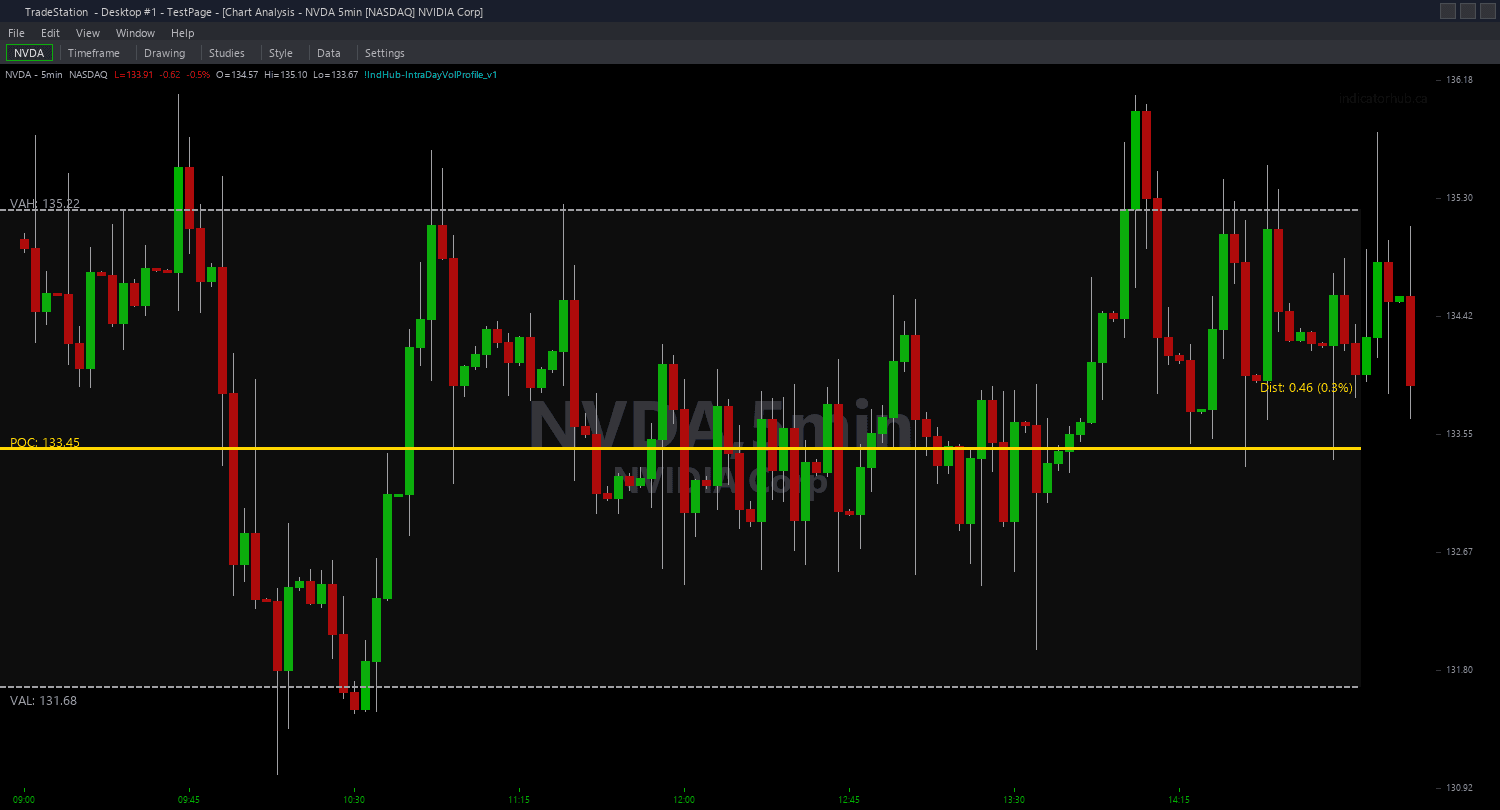
Intraday Volume Profile ShowMe
Intraday Volume Profile ShowMe provides four distinct plot modes that mark different volume profile events on your chart. Each mode targets a specific aspect of volume distribution analysis, giving you a focused visual signal for the setup type you are trading.
- ●Mode 1 (POC Touch): Green dots mark bars where price touches the session POC from below. Red dots mark bars where price touches POC from above. The POC is a volume magnet — these touches are mean-reversion entry signals during balanced markets
- ●Mode 2 (VA Boundary Test): Green dots mark bars testing the Value Area Low from inside the range — potential long entries at the lower boundary of fair value. Red dots mark bars testing VAH from inside — potential short entries at the upper boundary
- ●Mode 3 (VA Breakout): Green dots mark bars that close above VAH after being inside the Value Area — bullish breakout from balance. Red dots mark bars that close below VAL — bearish breakout from balance. These signal directional conviction
- ●Mode 4 (Previous Day Level Test): Green dots mark bars that touch yesterday's POC, VAH, or VAL from a directionally favorable angle. These multi-session references carry significant institutional weight
- ●iPlotMode input (1-4) selects which mode is active — only one mode runs at a time for chart clarity
- ●DotOffset (default 0.3 ATR) positions dots clear of the price bar
- ●Optional text labels show the relevant price level and event type at each signal
Mode 1 is ideal for rotational day trading where you expect price to oscillate around POC. Mode 3 is ideal for trending days where you want to catch the breakout from balanced territory. Modes 2 and 4 provide higher-timeframe context for pullback entries.
All signals are guaranteed non-repainting. Levels are calculated from completed bar data.
30-Day Money-Back Guarantee
Try it risk-free. Not satisfied? Full refund, no questions asked.
Part of the Intraday Volume Profile Bundle
Get all 4 study types for $65 — save $30
Who This Is For
Intraday Volume Profile ShowMe is designed for volume-aware day traders who want clean, actionable signals at key volume distribution levels. Instead of watching POC and Value Area lines and manually noting when price interacts with them, the ShowMe marks the exact bars.
Start each session by choosing the mode that matches your market thesis. If you expect a rotational day (price opened inside yesterday's Value Area), use Mode 1 (POC Touch) or Mode 2 (VA Boundary Test) for mean-reversion trades. If you expect a trending day (price opened outside yesterday's Value Area and is holding), use Mode 3 (VA Breakout) to catch the directional move.
Layer any mode on top of the chart indicator for full context: the chart indicator shows the POC, VAH, and VAL lines, and the ShowMe marks the interaction events. Mode 4 (Previous Day Level Test) is particularly powerful in the first hour of trading when price often tests yesterday's volume distribution levels.
Use it on 1-minute to 5-minute charts on liquid instruments. The indicator needs reliable volume data to calculate meaningful levels. Works best on index futures, NASDAQ-100 stocks, and high-volume ETFs.
See It in Action
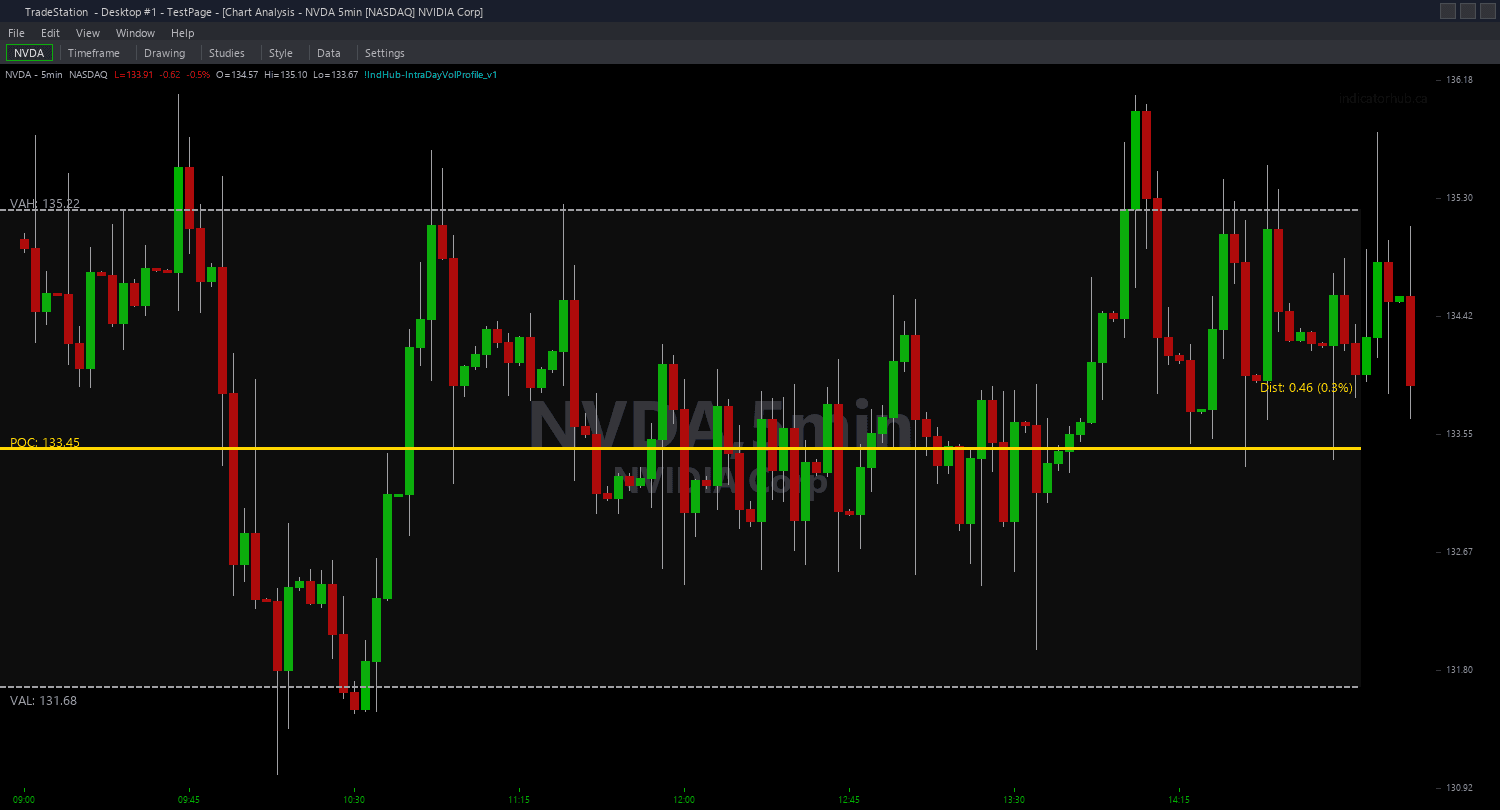
Example chart showing Intraday Volume Profile ShowMe on a live trading session
Installation Guide
Step 1: Download the indicator file
After purchasing, you will receive a download link via email. Click the link and save the volume-profile-showme.eld file to your computer. Save it somewhere easy to find like your Desktop or Downloads folder.
Step 2: Open the Import Wizard
Open TradeStation. Click the File menu in the top-left corner, then select Import/Export EasyLanguage to launch the Import/Export Wizard.

Step 3: Select the import type
In the Import/Export Wizard, select "Import EasyLanguage file (ELD, ELS or ELA)" from the list. Click Next to continue.

Step 4: Browse for the file
Click the Browse button to open a file browser where you can locate your downloaded .ELD file.

Step 5: Select and open the file
Navigate to the folder where you saved the .ELD file. Select volume-profile-showme.eld and click Open. The file name shown may differ from the screenshot — look for your downloaded indicator file.

Step 6: Open the Studies menu
On your chart, click the Studies dropdown in the toolbar and select Add Study.

Step 7: Select the ShowMe study
In the Add Studies dialog, click the ShowMe tab on the left side. Find "!IndHub-SM_IntraDayVolProfile_v1" in the list, select it, and click OK to apply.

Step 8: Configure settings (optional)
Right-click anywhere on the chart, go to Studies > Edit Studies..., select the indicator, and click the Inputs tab. Key inputs: iPlotMode (1=POC Touch, 2=VA Boundary Test, 3=VA Breakout, 4=Previous Day Level Test), iMethod (1=Binning, 2=VWAP Bands), iNumBins (default 30), iValueAreaPct (default 70), DotOffset (default 0.3 ATR), ShowTextLabels (default true). For dot appearance, go to the Plots tab and set the plot style to Point.
Common Issues
I am using Mode 1 (POC Touch) but seeing very few dots. Price crosses the POC line on the chart indicator but no dots appear.
Ensure the ShowMe uses the same iMethod and settings as the chart indicator. If the chart uses Method 1 (Binning) with 30 bins and the ShowMe uses Method 2 (VWAP Bands), the POC levels will differ and touches will not align. Match all volume profile settings across studies. Also note that the POC shifts as new volume arrives — the ShowMe calculates POC at the time of each bar, which may differ from the final end-of-day POC shown on the chart.
Mode 3 (VA Breakout) fires too many signals during trending days.
During strong trends, price repeatedly crosses the developing Value Area boundaries as the VA adjusts inward. Each crossing triggers a new signal. This is technically correct but can produce noise. Increase iValueAreaPct to 80% to widen the Value Area and reduce boundary crossings. You can also limit signals to the first breakout of the session by tracking prior crossings and ignoring subsequent ones.
Can I run multiple modes simultaneously on the same chart?
Each ShowMe instance runs one mode at a time. To see multiple modes, apply the ShowMe study multiple times to the same chart with different iPlotMode settings. Use different dot colors for each instance (configure in the Plots tab) so you can distinguish which mode produced each signal.
For additional help, contact support.