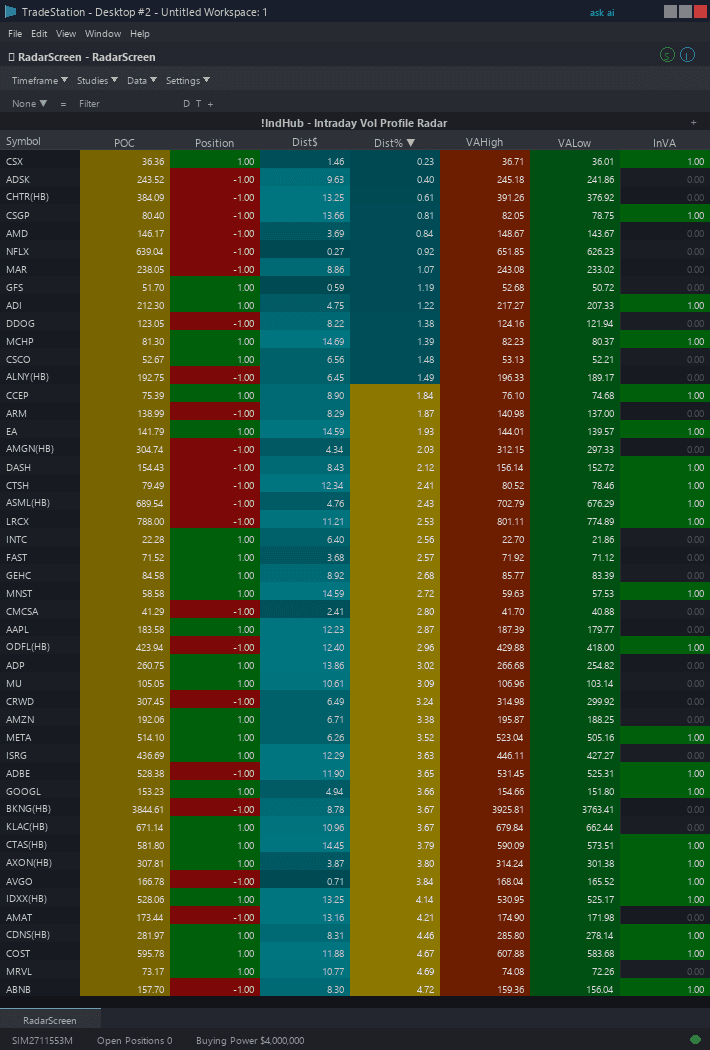
Intraday Volume Profile RadarScreen
Intraday Volume Profile RadarScreen is the most comprehensive scanner in the Indicator Hub lineup, featuring 17 color-coded columns that compare each symbol's current price against the session's volume distribution levels and multiple reference points. This gives you a complete contextual picture of where price sits relative to volume, structure, and prior session data — all in one watchlist view.
- ●POC column shows the current session Point of Control price — gold background when price is near POC (within 0.1%), indicating price is at fair value
- ●VAH and VAL columns show Value Area High and Low prices — green background when price is above VAH (bullish acceptance), red when below VAL (bearish acceptance), gray when inside the Value Area (balanced)
- ●DistPOC column shows percentage distance from current price to POC — sort ascending to find symbols closest to their volume magnet
- ●AboveVA and BelowVA columns indicate whether price is outside the Value Area — amber highlight when price has broken out of the balanced range
- ●VsOpen column compares current price to today's open — green for above, red for below. Direction from open is a key intraday bias indicator
- ●VsPrevCl column compares to previous session close — green for gap up, red for gap down
- ●VsPrevHi and VsPrevLo columns compare to previous session high and low — amber when price has broken yesterday's range
- ●VsVWAP column compares to session VWAP — green above (bullish intraday bias), red below (bearish)
- ●VsPrevPOC, VsPrevVAH, VsPrevVAL columns compare to yesterday's volume distribution levels — these are critical reference points for institutional traders
- ●VsPreMktHi and VsPreMktLo columns compare to pre-market range — amber when the regular session has broken pre-market levels
- ●VsONHi and VsONLo columns compare to overnight range high and low — useful for futures and forex with extended sessions
Sort by DistPOC to find symbols closest to their volume magnet. Sort by AboveVA or BelowVA to find symbols that have broken out of balanced territory. Use the VsPrev columns to identify symbols with strong directional context relative to the prior session.
All calculations use current session data. Levels update on each bar.
30-Day Money-Back Guarantee
Try it risk-free. Not satisfied? Full refund, no questions asked.
Part of the Intraday Volume Profile Bundle
Get all 4 study types for $65 — save $30
Who This Is For
Built for professional day traders who want a complete volume-aware market context dashboard. The 17 columns replace the need for multiple separate indicators and manual level tracking — everything is in one sortable, filterable grid.
Add the scanner to your main RadarScreen window with a wide layout to accommodate all 17 columns. During the first 30 minutes of the session, use the VsOpen and VsPrevCl columns to identify gap direction and opening bias. As the session develops, shift focus to DistPOC and the VA columns to find symbols in or near their value zones.
Key workflow patterns: sort by AboveVA descending to find symbols breaking above their Value Area — these are potential breakout longs. Sort by BelowVA descending for potential breakout shorts. Sort by DistPOC ascending during choppy markets to find mean-reversion trades toward POC.
The VsPrev columns are particularly powerful for identifying multi-day context. A symbol trading above its previous day's VAH and above the previous POC is showing strong bullish acceptance. One trading below previous VAL and below previous POC is showing bearish acceptance. These multi-day shifts represent institutional repositioning.
Works on intraday timeframes only. Use 5-minute intervals for active scanning. Best results on liquid instruments with reliable volume data: index futures, NASDAQ-100 stocks, and high-volume ETFs.
See It in Action
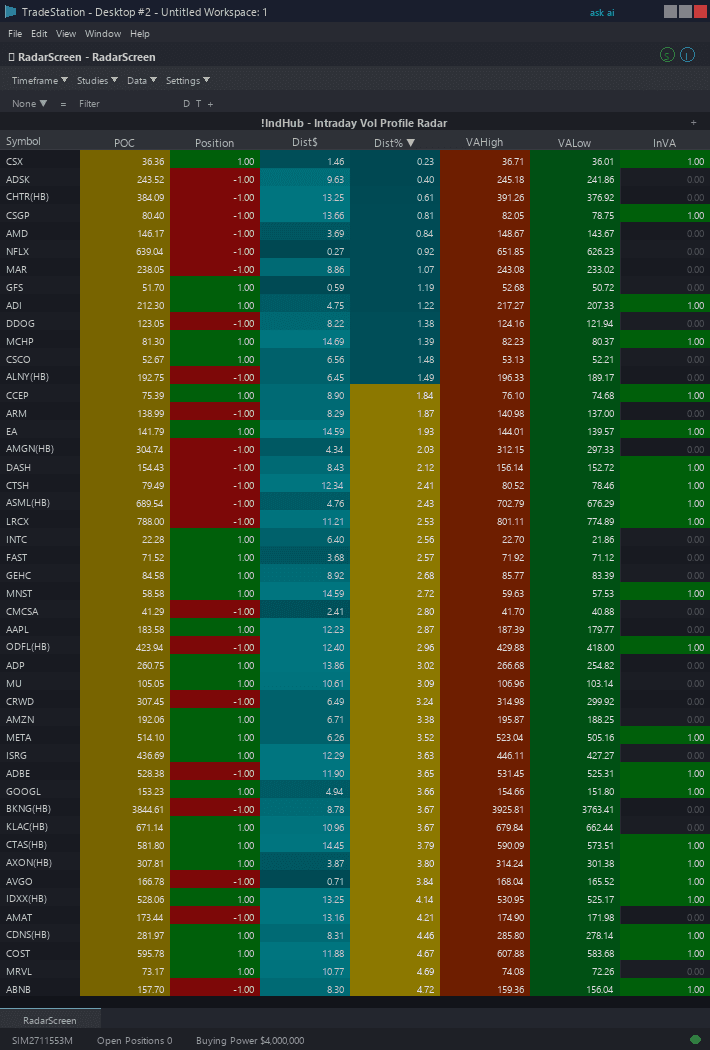
Example chart showing Intraday Volume Profile RadarScreen on a live trading session
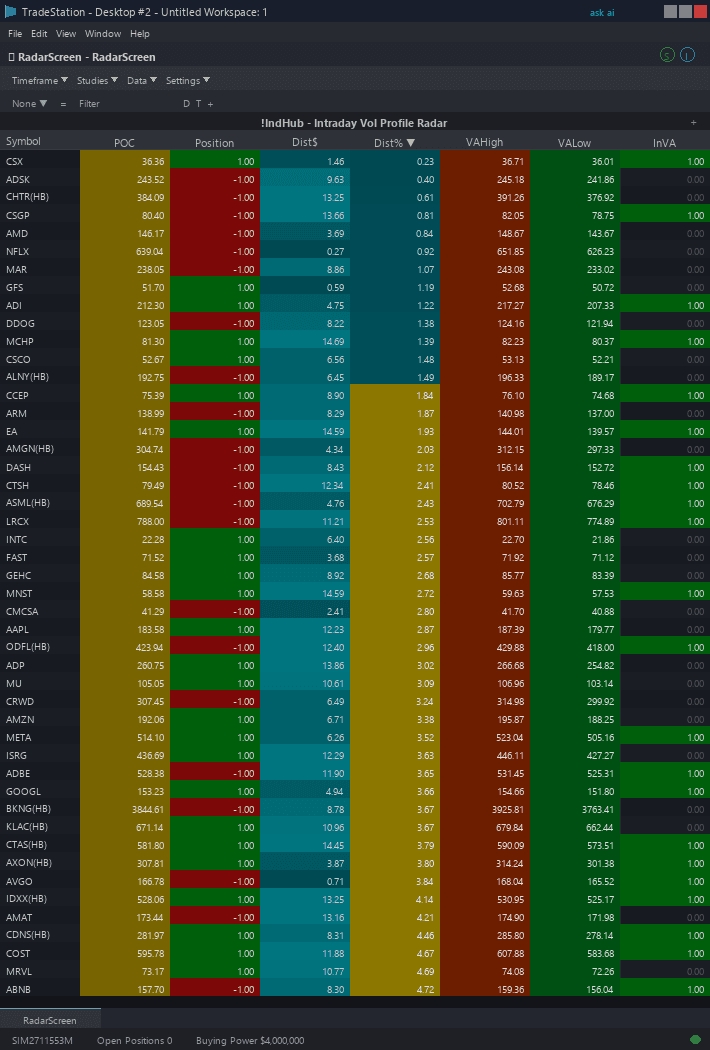
Example chart showing Intraday Volume Profile RadarScreen on a live trading session
Installation Guide
Step 1: Download the indicator file
After purchase, download volume-profile-radarscreen.eld from your confirmation email or account download page. Save it somewhere easy to find like your Desktop or Downloads folder.
Step 2: Open the Import Wizard
Open TradeStation. Click the File menu in the top-left corner, then select Import/Export EasyLanguage to launch the Import/Export Wizard.

Step 3: Select the import type
In the Import/Export Wizard, select "Import EasyLanguage file (ELD, ELS or ELA)" from the list. Click Next to continue.

Step 4: Browse for the file
Click the Browse button to open a file browser where you can locate your downloaded .ELD file.

Step 5: Select and open the file
Navigate to the folder where you saved the .ELD file. Select volume-profile-radarscreen.eld and click Open. The file name shown may differ from the screenshot — look for your downloaded indicator file.

Step 6: Open the Studies menu
Open your RadarScreen window. Click the Studies dropdown in the toolbar and select Add Study.
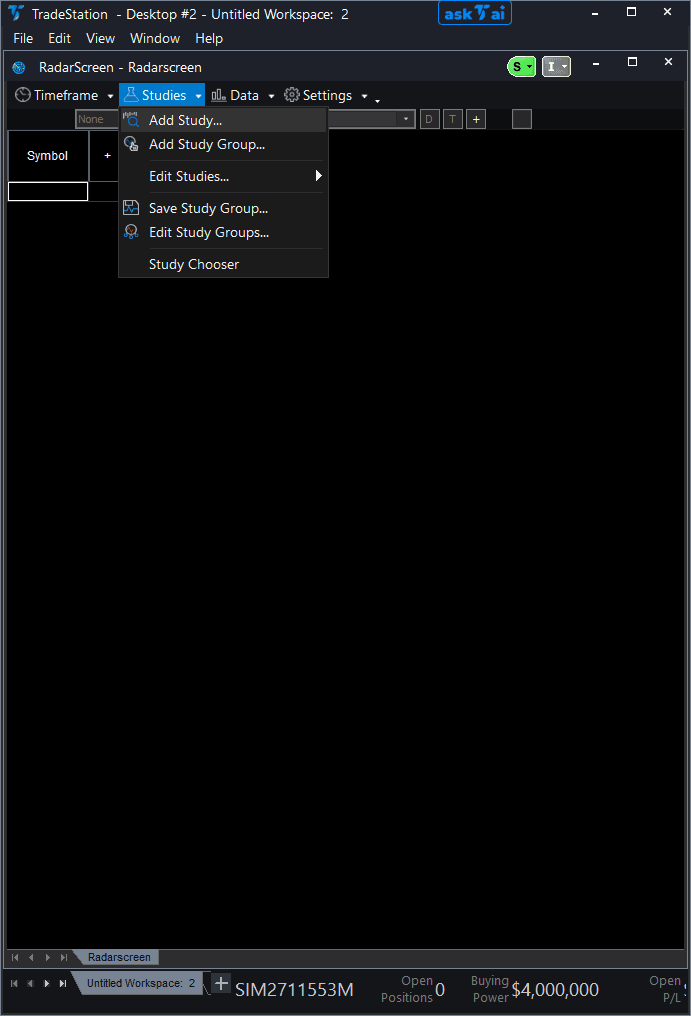
Step 7: Select the indicator
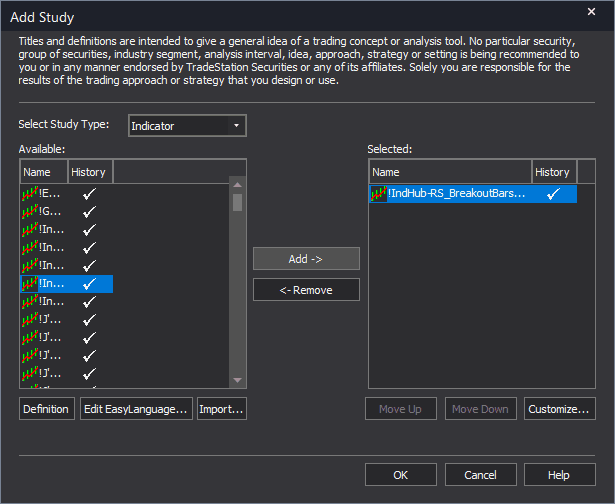
In the Add Study dialog, make sure Indicator is selected in the Study Type dropdown. Find "!IndHub-RS_IntraDayVolProfile_v1" in the Available list, select it, and click Add. Click OK to apply. All 17 columns will appear automatically. You may need to widen your RadarScreen window to see all columns.
Step 8: Configure your watchlist and columns
Add your symbols to the RadarScreen watchlist. Adjust column widths by dragging column borders — narrow the less-used columns and widen the ones you sort by most. Key inputs: iMethod (1=Binning, 2=VWAP Bands), iNumBins (default 30), iValueAreaPct (default 70), iStdDevMult (default 1.0). Sort by DistPOC for mean-reversion setups or by AboveVA/BelowVA for breakout setups.
Common Issues
Many columns show zeros or dashes early in the session.
Volume profile calculations need sufficient intraday data to produce meaningful levels. The POC and Value Area are unreliable during the first 15-30 minutes when only a small amount of volume has accumulated. Previous day columns require historical data from the prior session. Pre-market and overnight columns require extended hours data. Ensure your RadarScreen has sufficient bars loaded and that your data subscription includes the relevant sessions.
The 17 columns do not fit in my RadarScreen window. How do I manage them?
Right-click the indicator column header, go to Studies > Edit for All Symbols... to access column visibility settings. You can hide columns you do not use. Alternatively, narrow column widths by dragging column borders — most columns only need to be wide enough to show a few characters. Consider using a dedicated RadarScreen window for this indicator with a maximized or wide layout.
VsPrevPOC and VsPrevVAH show zeros even though the chart indicator shows previous day levels.
The RadarScreen needs enough historical bars to capture the previous full session. Right-click the indicator column header, go to Studies > Edit for All Symbols..., click the General tab, and increase additional bars loaded to at least 1000 (for 1-minute intervals) to ensure a full prior day of data is available. Without the previous day's data, the VsPrev columns cannot calculate.
For additional help, contact support.