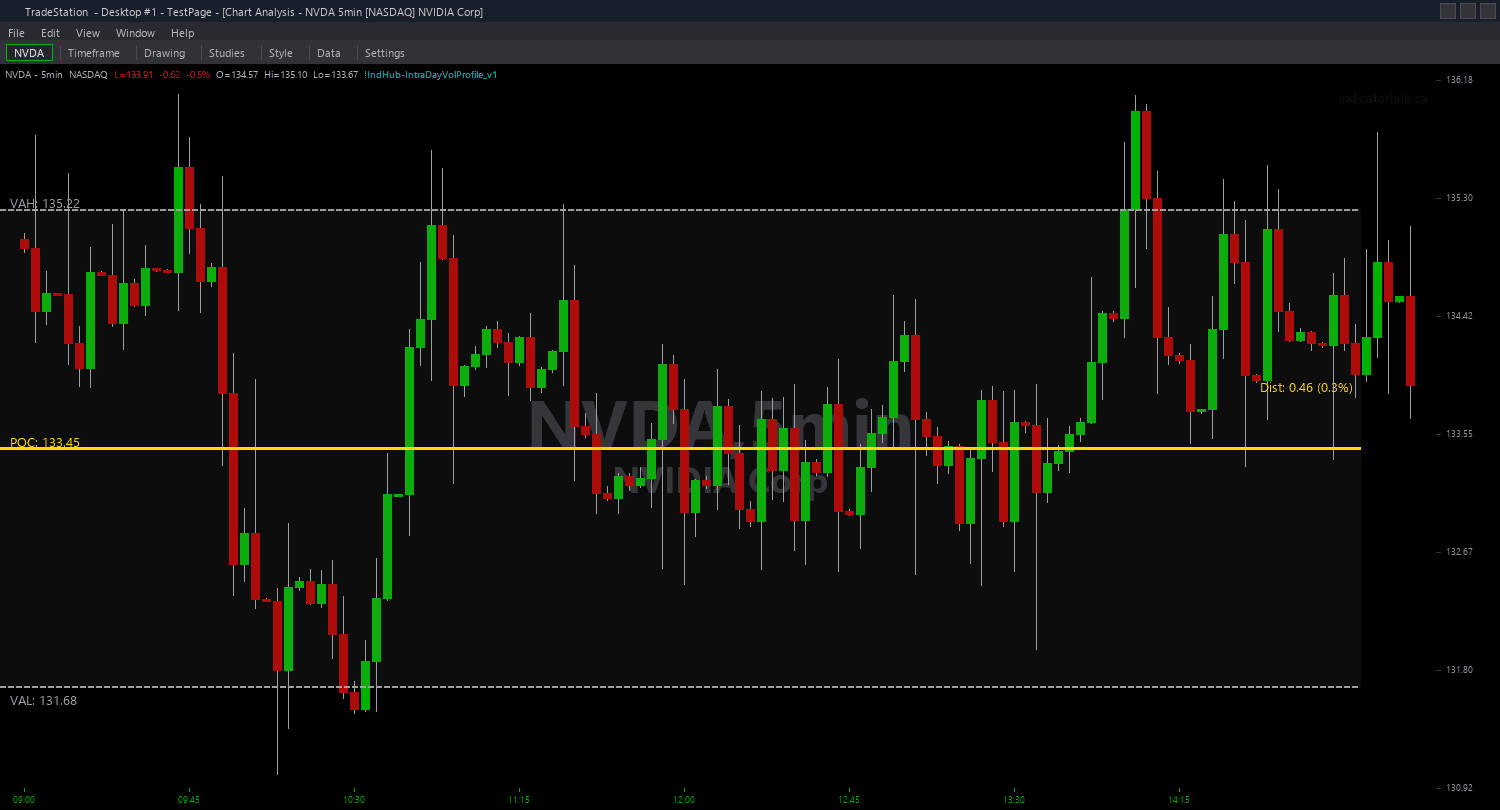
Intraday Volume Profile PaintBar
Intraday Volume Profile PaintBar goes beyond simple zone coloring to identify bars with abnormally high volume using three distinct detection modes. Instead of coloring bars inside a zone, this PaintBar highlights the bars where institutional participation is elevated — the moments when large players are active in the market.
- ●Mode 1 (Top N): Colors the N highest-volume bars of the current session. Set iTopN to 5 to highlight only the 5 bars with the most volume today. This gives you a fixed count of the most significant volume events, regardless of overall volume levels
- ●Mode 2 (Multiplier): Colors bars where volume exceeds a multiple of the session average. Set iVolMultiplier to 2.0 to highlight bars with at least 2x the average volume. This adapts to the session's overall activity level
- ●Mode 3 (Percentile): Colors bars where volume exceeds a percentile threshold of the session's volume distribution. Set iPercentile to 90 to highlight bars in the top 10% of volume. This is the most statistically rigorous approach
- ●iPBMode input (1-3) selects which detection mode is active
- ●Cyan-colored bars mark high-volume events regardless of direction — the focus is on participation, not direction
- ●Optional directional coloring: HighVolBullColor and HighVolBearColor inputs let you color high-volume up bars and down bars differently, so you can see both volume magnitude and direction at once
- ●Non-high-volume bars retain their default candlestick colors
High-volume bars are where institutional traders leave their footprint. A cluster of high-volume bars at a support level signals accumulation. A high-volume bar at a breakout point confirms genuine participation behind the move. A high-volume bar with a long wick signals institutional rejection.
Combine with any other study in the bundle: high-volume bars near the POC confirm institutional interest at fair value. High-volume bars at VAH or VAL boundaries confirm the level is being tested with conviction.
All calculations use the current session's data. Non-repainting within the session (bar colors are set on bar close).
30-Day Money-Back Guarantee
Try it risk-free. Not satisfied? Full refund, no questions asked.
Part of the Intraday Volume Profile Bundle
Get all 4 study types for $65 — save $30
Who This Is For
Intraday Volume Profile PaintBar is designed for traders who want to identify the specific bars where institutional traders are most active. Rather than looking at a volume histogram, the painted bars put volume spikes directly on the price action where you can see them in context.
Mode 1 (Top N) is ideal for end-of-day review: set iTopN to 10 and instantly see the 10 most active moments of the session. Where did institutions commit the most capital? Were the high-volume bars at support, resistance, or breakout points?
Mode 2 (Multiplier) is best for real-time trading: set iVolMultiplier to 1.5 or 2.0 and watch for bars that light up during the session. A sudden cluster of high-volume colored bars signals that institutions have entered the market at the current price level.
Mode 3 (Percentile) is best for statistical consistency: set iPercentile to 90 to always see the top 10% of volume bars. This adapts automatically to different volatility regimes without needing to adjust a multiplier.
Apply alongside the chart indicator for the complete picture: POC and Value Area show where volume is concentrated across the session, and the PaintBar shows which individual bars had the most volume. Works on any intraday timeframe on liquid instruments.
See It in Action
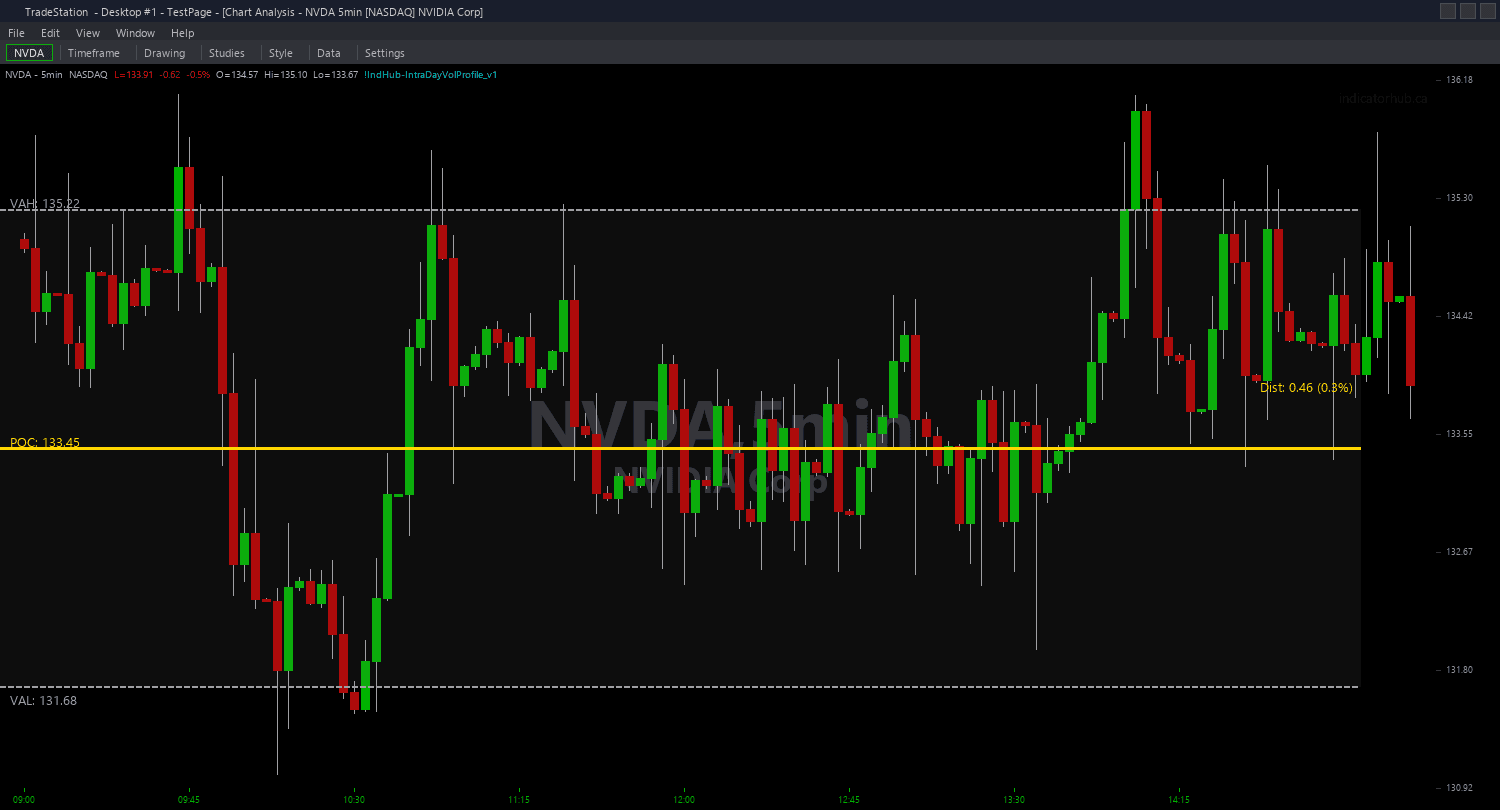
Example chart showing Intraday Volume Profile PaintBar on a live trading session
Installation Guide
Step 1: Download the indicator file
After purchasing, you will receive a download link via email. Click the link and save the volume-profile-paintbar.eld file to your computer. Save it somewhere easy to find like your Desktop or Downloads folder.
Step 2: Open the Import Wizard
Open TradeStation. Click the File menu in the top-left corner, then select Import/Export EasyLanguage to launch the Import/Export Wizard.

Step 3: Select the import type
In the Import/Export Wizard, select "Import EasyLanguage file (ELD, ELS or ELA)" from the list. Click Next to continue.

Step 4: Browse for the file
Click the Browse button to open a file browser where you can locate your downloaded .ELD file.

Step 5: Select and open the file
Navigate to the folder where you saved the .ELD file. Select volume-profile-paintbar.eld and click Open. The file name shown may differ from the screenshot — look for your downloaded indicator file.

Step 6: Open the Studies menu
On your chart, click the Studies dropdown in the toolbar and select Add Study.

Step 7: Select the PaintBar study
In the Add Studies dialog, click the PaintBar tab on the left side. Find "!IndHub-PB_IntraDayVolProfile_v1" in the list, select it, and click OK to apply.

Step 8: Configure settings (optional)
Right-click anywhere on the chart, go to Studies > Edit Studies..., select the indicator, and click the Inputs tab. Key inputs: iPBMode (1=Top N, 2=Multiplier, 3=Percentile), iTopN (default 10, for Mode 1), iVolMultiplier (default 2.0, for Mode 2), iPercentile (default 90, for Mode 3), HighVolBullColor (default Cyan), HighVolBearColor (default Magenta). Set both colors the same for non-directional highlighting, or different colors to see volume direction.
Common Issues
In Mode 1 (Top N), previously colored bars lose their color as the session progresses.
Mode 1 continuously recalculates the top N bars as new volume data arrives. A bar that was in the top 10 at 10:00 AM may drop out by 2:00 PM as higher-volume bars occur later. This is expected behavior — the PaintBar always shows the current top N. For a fixed historical view, review at end of session when the rankings are final.
Mode 2 (Multiplier) shows almost no colored bars with iVolMultiplier at 2.0.
A 2.0x multiplier means the bar must have at least double the session average volume. On days with consistent volume, this is a high bar. Lower iVolMultiplier to 1.3 or 1.5 to see more signals. On low-volume days, even 1.5x may be too strict — adjust based on the instrument's typical volume distribution.
Can I use directional coloring to distinguish high-volume buying from selling?
Yes. Set HighVolBullColor and HighVolBearColor to different colors (e.g., Cyan for up bars, Magenta for down bars). The PaintBar determines direction by whether the bar closed above or below its open. This gives you both volume magnitude (the bar is colored at all) and direction (which color it is) in one visual layer.
For additional help, contact support.