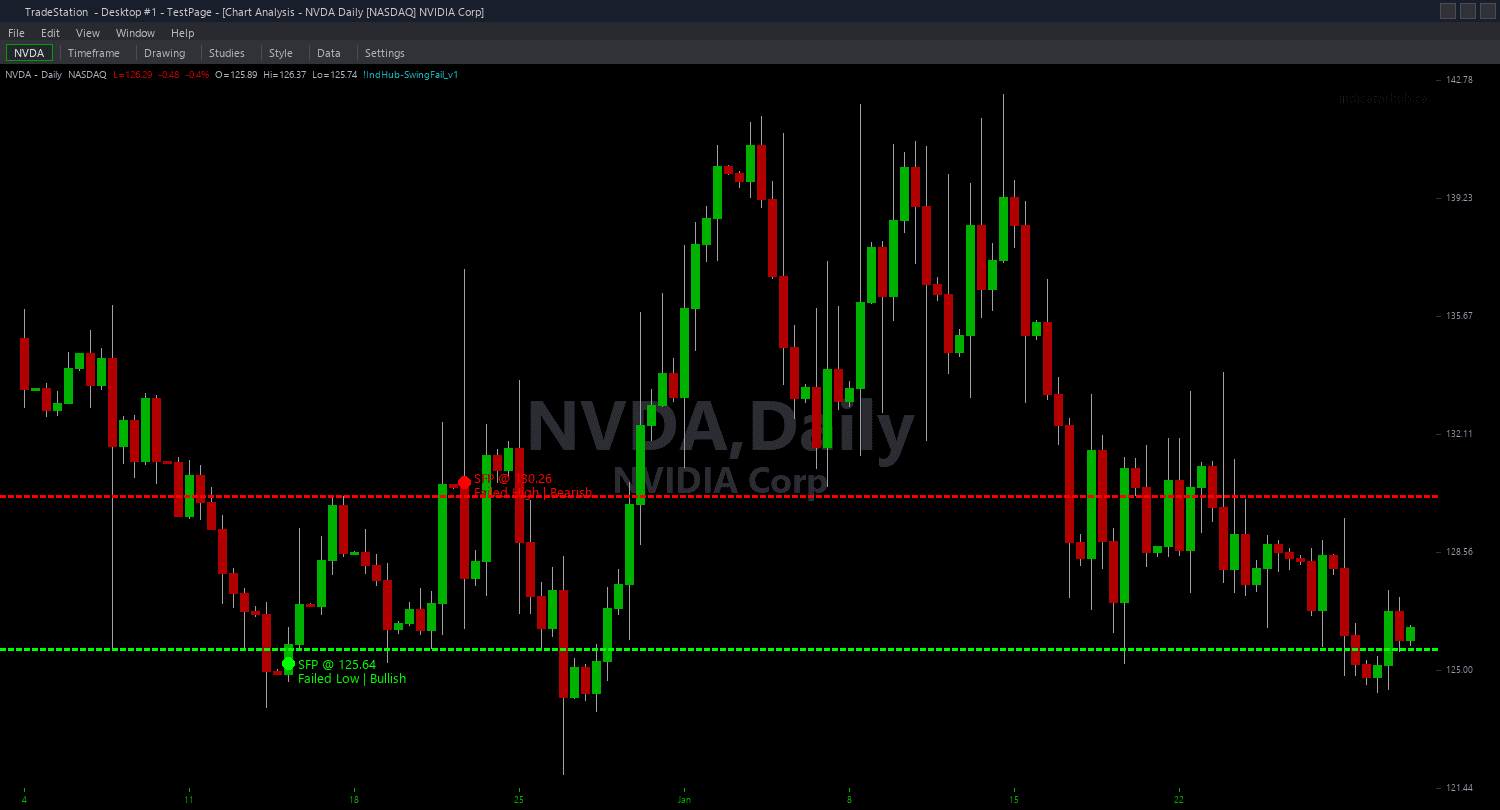
Swing Failure Pattern ShowMe
Swing Failure Pattern ShowMe marks the exact bars where Swing Failure Patterns fire, plotting colored dots with quality metric annotations. Green dots appear below bullish SFP bars (failed breakdown — wick below swing low, close above). Red dots appear above bearish SFP bars (failed breakout — wick above swing high, close below). Each dot includes the Rejection Ratio and Pierce Depth data so you can instantly assess the quality of the failure.
- ●Green dots BELOW the bar mark bullish SFPs — price wicked below a prior swing low but closed back above it, signaling a failed breakdown and potential reversal higher
- ●Red dots ABOVE the bar mark bearish SFPs — price wicked above a prior swing high but closed back below it, signaling a failed breakout and potential reversal lower
- ●Rejection Ratio label (RR) shows the wick-to-range ratio of the failure bar — 0.70 means 70% of the bar's range was the rejecting wick. Higher values indicate stronger, more decisive rejection
- ●Pierce Depth label (PD) shows how far the wick penetrated beyond the swing level as an ATR multiple — 0.15 means the wick went 0.15x ATR beyond the level before reversing. Higher values indicate more aggressive stop hunting
- ●ShowRejRatio and ShowPierceDepth inputs let you toggle each data annotation on or off
- ●DotOffset (default 0.3 ATR) controls dot placement distance from the price bar for readability
The combination of high Rejection Ratio (0.6+) and high Pierce Depth (0.1+) identifies the strongest SFPs — bars where the wick aggressively swept beyond the level and then snapped back with conviction. Low metrics near the minimum thresholds indicate marginal failures that are more prone to retesting.
All signals are guaranteed non-repainting. Once a dot plots on a completed bar, it will never disappear.
30-Day Money-Back Guarantee
Try it risk-free. Not satisfied? Full refund, no questions asked.
Part of the Swing Failure Pattern Bundle
Get all 4 study types for $65 — save $30
Who This Is For
Swing Failure Pattern ShowMe is designed for traders who want objective quality metrics at every SFP signal. Instead of eyeballing whether a wick failure looks strong or weak, you get exact Rejection Ratio and Pierce Depth numbers that quantify the signal quality.
Layer this study on top of the Swing Failure Pattern chart indicator. The chart indicator shows the swing level line and wick extreme marker, and the ShowMe adds quality data at each signal. Together, you see both where the failure occurred and how strong it was.
Use it on 1-minute to 15-minute charts for intraday reversal trading. Focus on signals where RR is above 0.6 and PD is above 0.1 — these represent decisive failures with aggressive sweeps. Ignore signals with marginal metrics — they are borderline and more likely to see the swing level retested.
Works on any liquid market. Best results on index futures, large-cap stocks, and ETFs where swing levels carry genuine stop-loss clusters that create meaningful liquidity sweeps.
See It in Action
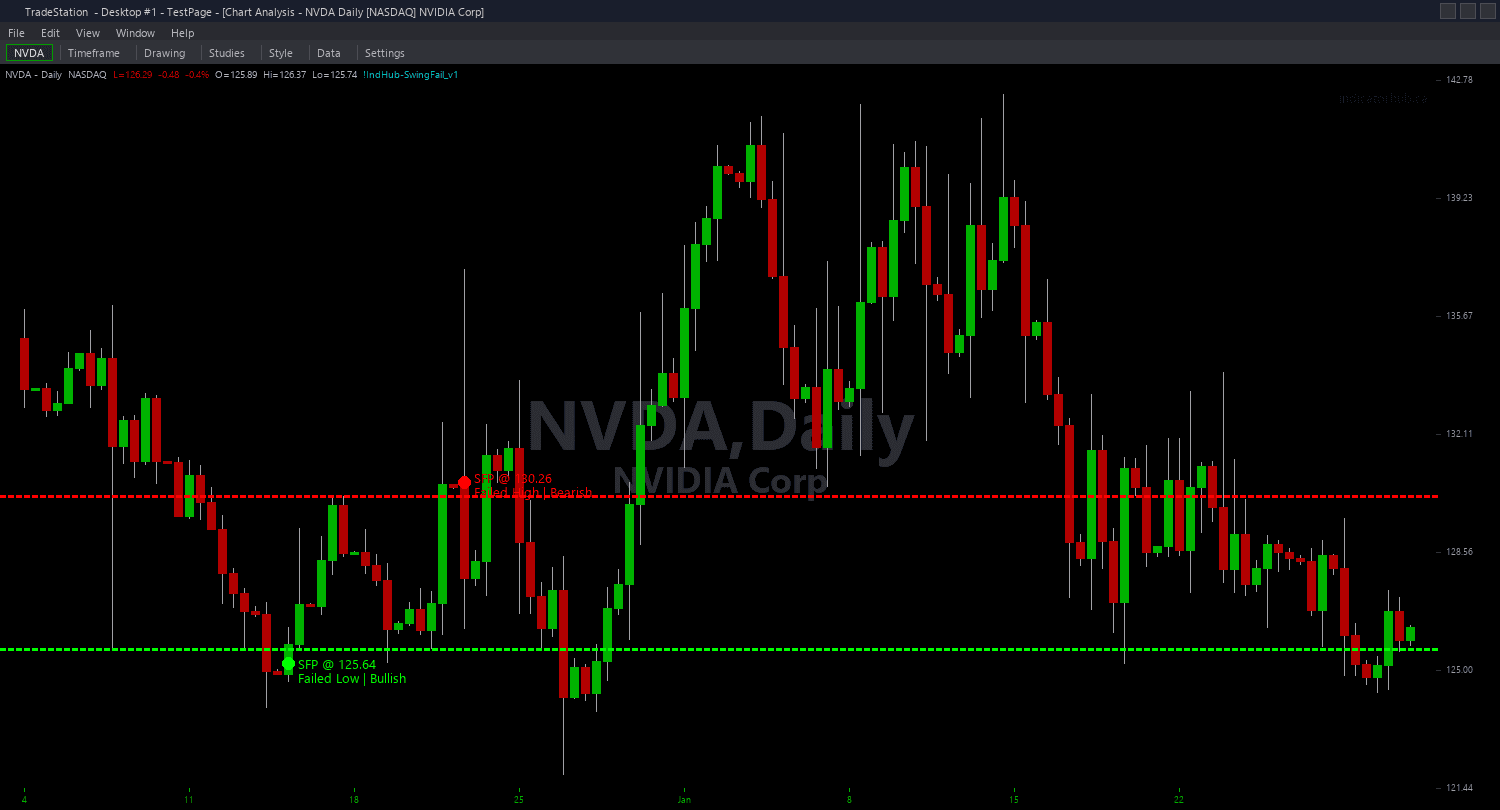
Example chart showing Swing Failure Pattern ShowMe on a live trading session
Installation Guide
Step 1: Download the indicator file
After purchasing, you will receive a download link via email. Click the link and save the swing-failure-showme.eld file to your computer. Save it somewhere easy to find like your Desktop or Downloads folder.
Step 2: Open the Import Wizard
Open TradeStation. Click the File menu in the top-left corner, then select Import/Export EasyLanguage to launch the Import/Export Wizard.

Step 3: Select the import type
In the Import/Export Wizard, select "Import EasyLanguage file (ELD, ELS or ELA)" from the list. Click Next to continue.

Step 4: Browse for the file
Click the Browse button to open a file browser where you can locate your downloaded .ELD file.

Step 5: Select and open the file
Navigate to the folder where you saved the .ELD file. Select swing-failure-showme.eld and click Open. The file name shown may differ from the screenshot — look for your downloaded indicator file.

Step 6: Open the Studies menu
On your chart, click the Studies dropdown in the toolbar and select Add Study.

Step 7: Select the ShowMe study
In the Add Studies dialog, click the ShowMe tab on the left side. Find "!IndHub-SM_SwingFailure_v1" in the list, select it, and click OK to apply.

Step 8: Configure settings (optional)
Right-click anywhere on the chart, go to Studies > Edit Studies..., select the indicator, and click the Inputs tab. Key inputs: SwingStrength (default 5), MinRejectionRatio (default 0.5), MinPierceDepth (default 0.05), ShowRejRatio (default true), ShowPierceDepth (default true), DotOffset (default 0.3 ATR). For dot appearance, go to the Plots tab and set the plot style to Point with your preferred weight.
Common Issues
The Rejection Ratio and Pierce Depth text labels are cluttering my chart.
Text objects accumulate as new SFP signals fire. Remove and re-apply the study to clear old labels. Set ShowRejRatio or ShowPierceDepth to false to reduce label density. You can also increase MinRejectionRatio and MinPierceDepth to reduce the total number of signals. Adjust DotOffset to position labels further from bars if they overlap with candlesticks.
Some signals have high Rejection Ratio but very low Pierce Depth. Are these good trades?
A high Rejection Ratio with low Pierce Depth means the bar rejected strongly but barely penetrated beyond the swing level. These are valid SFPs by definition but may indicate that the stop hunt was shallow — less liquidity was swept. The strongest setups have both metrics elevated. Treat shallow-pierce SFPs as weaker signals that may need additional confirmation from volume or other indicators.
Can I use the ShowMe without the main chart indicator?
Yes. The ShowMe calculates its own swing detection and SFP logic internally and works independently. However, using it alongside the chart indicator gives you the full picture: the chart indicator shows the swing level lines and wick extreme markers, and the ShowMe adds Rejection Ratio and Pierce Depth data so you can assess every SFP's quality at a glance.
For additional help, contact support.