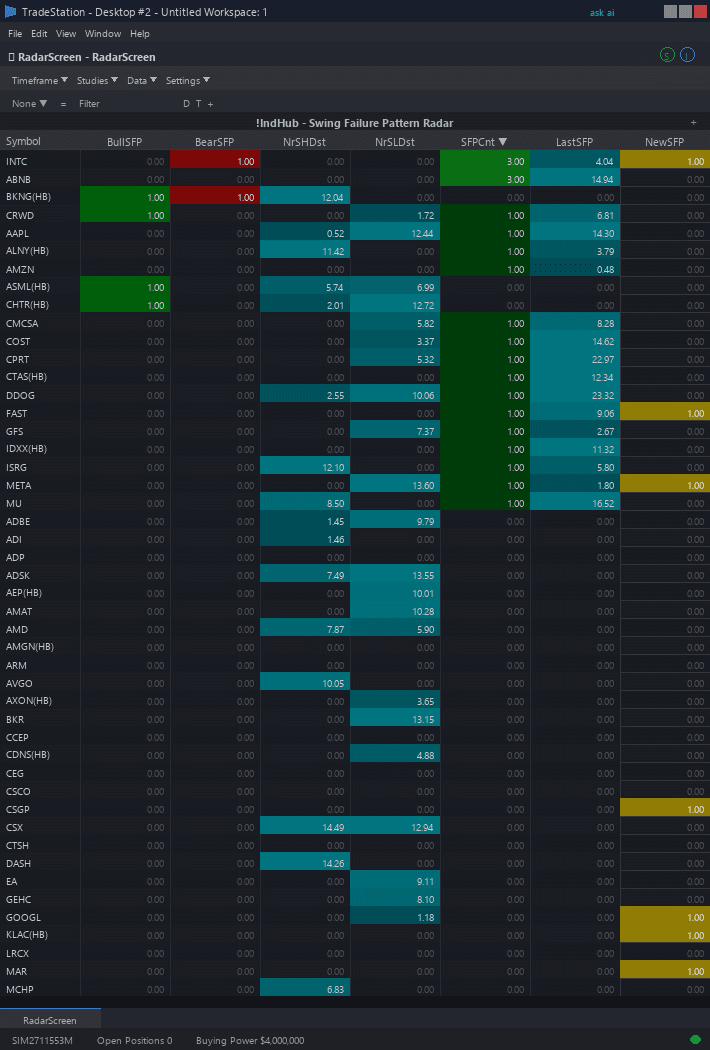
Swing Failure Pattern RadarScreen
Swing Failure Pattern RadarScreen brings SFP detection to your watchlist scanning workflow. Color-coded columns show which symbols have active SFP signals, the direction of the failure, quality metrics for each signal, and how recent the pattern is — all across your entire watchlist without opening a single chart.
- ●SFP_Dir column shows the direction of the most recent SFP — green for bullish (failed breakdown, reversal up expected), red for bearish (failed breakout, reversal down expected), gray for no SFP detected
- ●SFP_Time column records the exact bar time of the last SFP signal, so you know how fresh each detection is
- ●SFP_Price column shows the swing level that was tested — this becomes your key reference price for the pattern
- ●RejRatio column shows the Rejection Ratio of the SFP bar — higher values (green gradient) indicate stronger rejection quality. Values above 0.6 are strong; above 0.7 are exceptional
- ●PrcDepth column shows the Pierce Depth as an ATR multiple — how far the wick penetrated beyond the swing level. Higher values (amber gradient) indicate more aggressive stop hunting
- ●BarsSince column counts bars since the last SFP — 0 (yellow) means firing right now, 1-5 (cyan) means recent, 6+ (gray) means aging
- ●NrSwgHi and NrSwgLo columns show the distance to the nearest swing high and swing low, helping you anticipate where the next SFP might form
Sort by BarsSince ascending to catch SFPs as they happen. Sort by RejRatio descending to find the highest-quality rejection signals. Use the NrSwgHi and NrSwgLo columns to identify symbols approaching key swing levels where an SFP could fire.
All signals use completed bar data only. Non-repainting guaranteed.
30-Day Money-Back Guarantee
Try it risk-free. Not satisfied? Full refund, no questions asked.
Part of the Swing Failure Pattern Bundle
Get all 4 study types for $65 — save $30
Who This Is For
Built for price action and SMC day traders managing 20-100 symbol watchlists who trade reversal setups at swing levels. Use this to catch SFP signals across your entire universe without manually watching each chart for wick failures.
Add the scanner to your main RadarScreen window. During market hours, sort by BarsSince ascending to catch fresh SFP signals. When you see BarsSince = 0 (yellow), an SFP just fired on the current bar. Check RejRatio and PrcDepth to assess quality — signals with RejRatio above 0.6 and PrcDepth above 0.1 are the highest conviction.
When you identify a high-quality SFP in the scanner, switch to the chart indicator to see the full pattern visually: the swing level line, the wick extreme marker, and the price context around the failure. Use the SFP_Price from the scanner as your reference for stop placement (just beyond the wick extreme).
The NrSwgHi and NrSwgLo columns let you anticipate setups before they happen. Sort by these columns ascending to find symbols closest to their nearest swing levels — if price reaches the level and fails to close beyond it, an SFP will fire.
Works on any intraday timeframe. Use 5-minute for active scanning, daily for end-of-day swing trade identification.
See It in Action
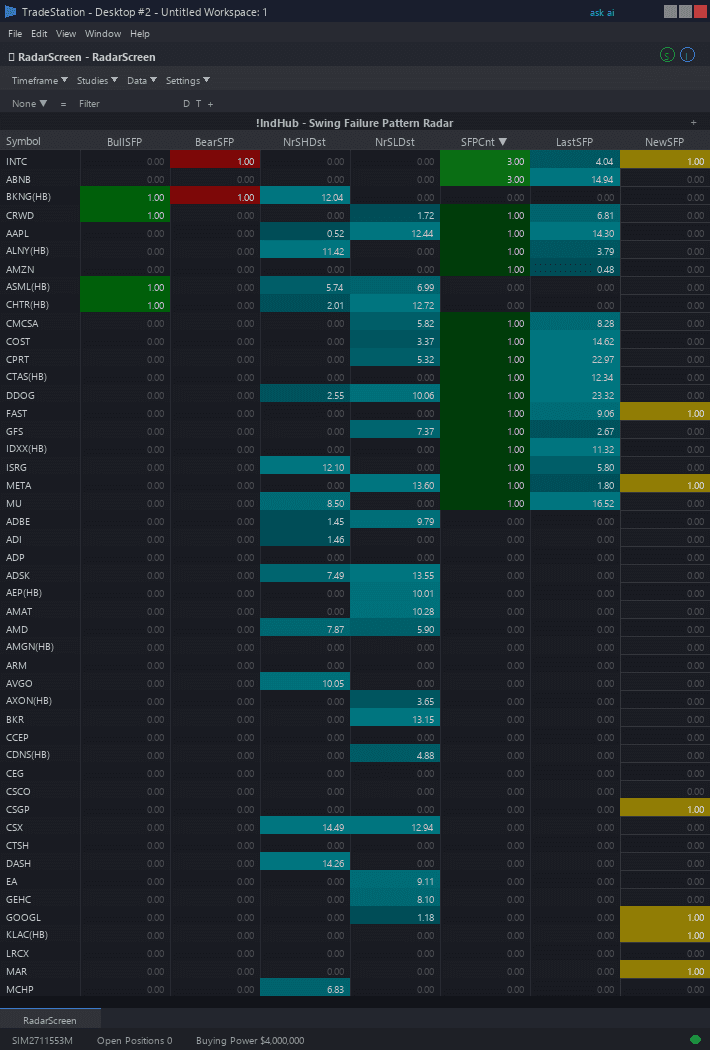
Example chart showing Swing Failure Pattern RadarScreen on a live trading session
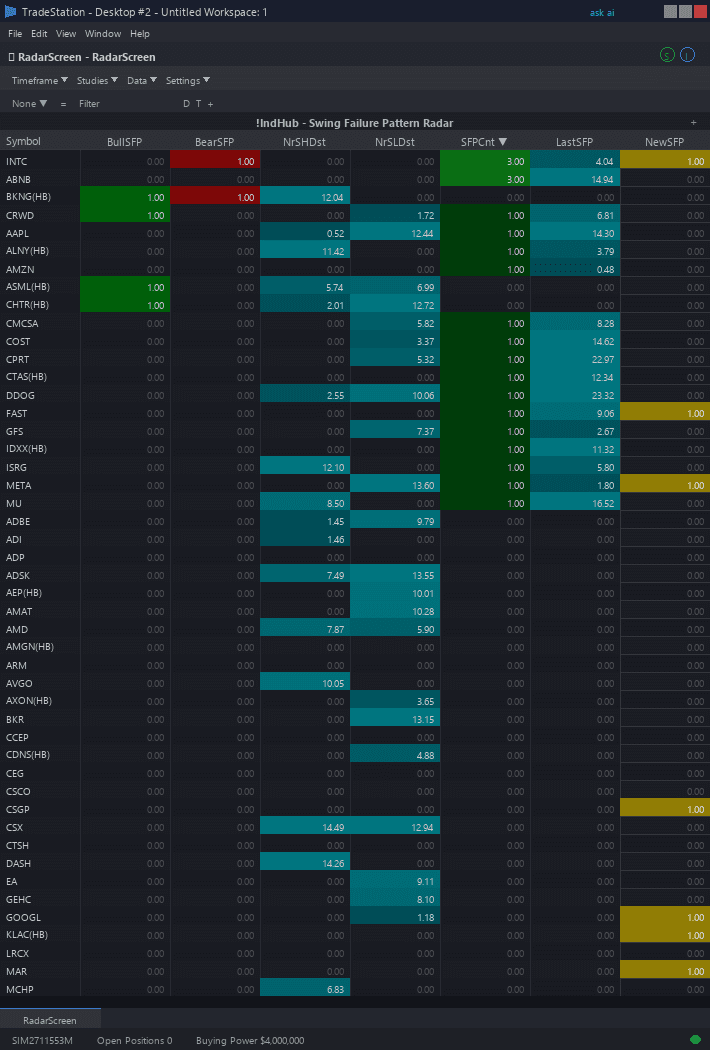
Example chart showing Swing Failure Pattern RadarScreen on a live trading session
Installation Guide
Step 1: Download the indicator file
After purchase, download swing-failure-radarscreen.eld from your confirmation email or account download page. Save it somewhere easy to find like your Desktop or Downloads folder.
Step 2: Open the Import Wizard
Open TradeStation. Click the File menu in the top-left corner, then select Import/Export EasyLanguage to launch the Import/Export Wizard.

Step 3: Select the import type
In the Import/Export Wizard, select "Import EasyLanguage file (ELD, ELS or ELA)" from the list. Click Next to continue.

Step 4: Browse for the file
Click the Browse button to open a file browser where you can locate your downloaded .ELD file.

Step 5: Select and open the file
Navigate to the folder where you saved the .ELD file. Select swing-failure-radarscreen.eld and click Open. The file name shown may differ from the screenshot — look for your downloaded indicator file.

Step 6: Open the Studies menu
Open your RadarScreen window. Click the Studies dropdown in the toolbar and select Add Study.
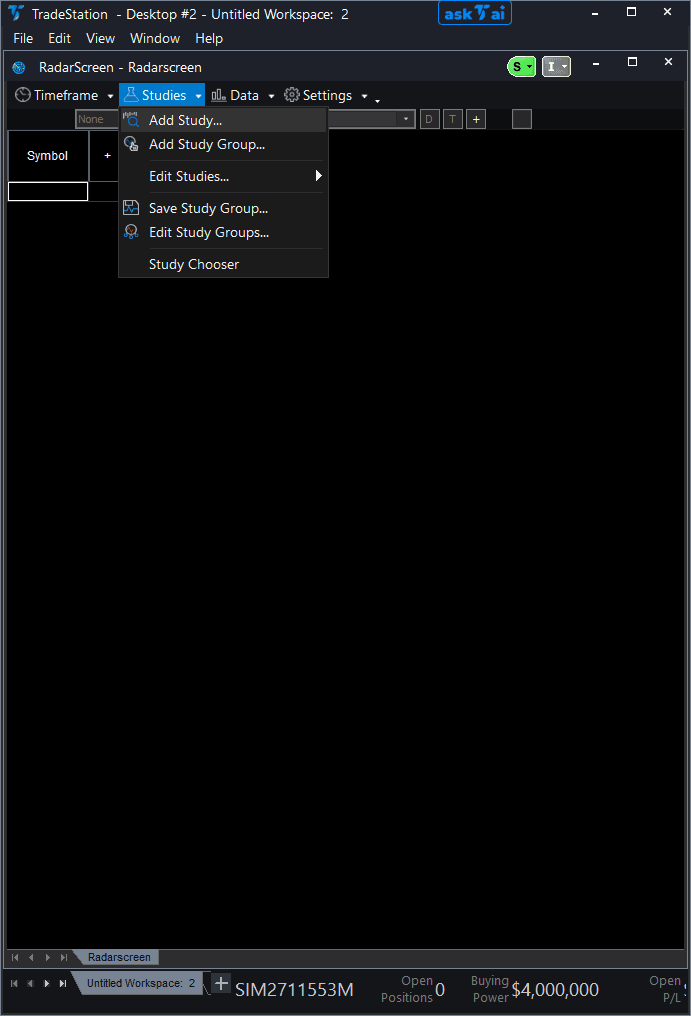
Step 7: Select the indicator
In the Add Study dialog, make sure Indicator is selected in the Study Type dropdown. Find "!IndHub-RS_SwingFailure_v1" in the Available list, select it, and click Add. Click OK to apply.
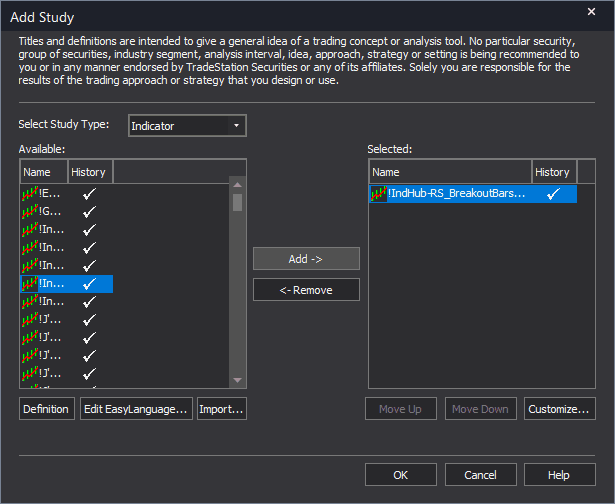
Step 8: Configure your watchlist and columns
Add your symbols to the RadarScreen watchlist. Adjust column widths by dragging column borders. Key inputs: SwingStrength (default 5), MaxPatterns (default 10), MaxAge (default 50), MinRejectionRatio (default 0.5), MinPierceDepth (default 0.05). Sort by BarsSince to catch fresh signals, or by RejRatio descending to find the strongest rejections.
Common Issues
All columns show zeros for every symbol. No SFPs are being detected.
SFP detection requires sufficient historical bars to establish swing highs and swing lows, and then a specific bar pattern (wick beyond, close inside). Ensure your RadarScreen has at least 500 additional bars loaded in the General tab. Also check that MinRejectionRatio and MinPierceDepth are not set too high — the defaults of 0.5 and 0.05 work well for most markets. SFPs are naturally rare patterns; it is normal for many symbols to show zeros.
The scanner shows an SFP but when I open the chart I do not see the pattern clearly.
This is likely a timeframe mismatch. Match the RadarScreen interval to your chart timeframe. Also check that the chart indicator uses the same SwingStrength, MinRejectionRatio, and MinPierceDepth settings as the RadarScreen scanner. Different settings will produce different detections.
Can I use the NrSwgHi and NrSwgLo columns to predict where SFPs will form?
These columns show distance to the nearest established swing levels. When a symbol shows a small NrSwgHi distance, price is approaching a swing high — if it wicks above and closes back below, an SFP will fire. This is a pre-setup alert, not a guaranteed signal. Watch symbols with small distances during active sessions for potential SFP formation.
For additional help, contact support.