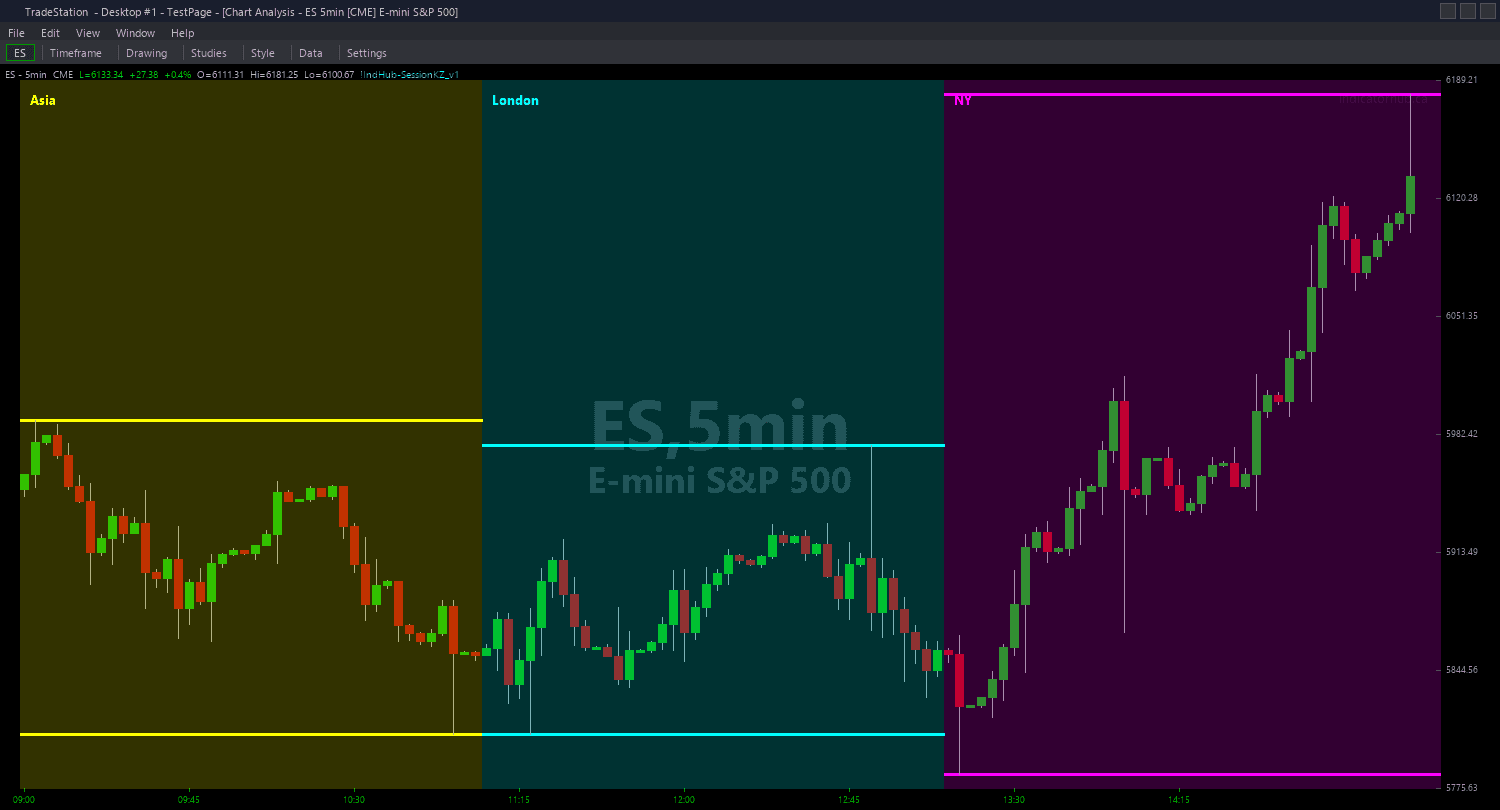
Session Killzones ShowMe
Session Killzones ShowMe marks the exact bars where price sweeps the Asian session range during London or New York killzones — the Judas swing signal that ICT traders use to establish directional bias for the day. Green dots appear when price sweeps below the Asian low and reverses back above (bullish Judas swing). Red dots appear when price sweeps above the Asian high and reverses back below (bearish Judas swing).
- ●Green dots BELOW the bar mark bullish sweep events — price broke below the Asian low, taking out stops, before closing back above the boundary. This signals that smart money used the downside sweep to accumulate long positions
- ●Red dots ABOVE the bar mark bearish sweep events — price broke above the Asian high, taking out stops, before closing back below the boundary. This signals that smart money used the upside sweep to distribute short positions
- ●Sweep distance label shows how far price penetrated beyond the Asian range boundary in points — larger penetrations indicate more aggressive stop hunting
- ●Session label indicates which killzone the sweep occurred in (London or New York) — London sweeps that reverse are the classic Judas swing pattern
- ●DotOffset (default 0.3 ATR) controls dot placement distance from the price bar for readability
- ●ShowSweepDist (default true) toggles the distance label on or off
- ●ShowSessionLabel (default true) toggles the session identifier on or off
The highest-conviction Judas swing occurs when London sweeps one side of the Asian range during the first hour of the London killzone (2:00-3:00 AM ET) and price quickly reverses. New York session sweeps carry different weight — they often represent the true directional move rather than a deceptive sweep.
All signals are guaranteed non-repainting. Once a dot plots on a completed bar, it will never disappear.
30-Day Money-Back Guarantee
Try it risk-free. Not satisfied? Full refund, no questions asked.
Part of the Session Killzones Bundle
Get all 4 study types for $65 — save $30
Who This Is For
Session Killzones ShowMe is designed for ICT traders who want an automatic alert at the exact moment the Asian range is swept during a killzone session. Instead of manually watching the Asian range levels and waiting for a break, the dots tell you instantly.
Layer this study on top of the Session Killzones chart indicator. The chart indicator shows session boundaries and Asian range levels, and the ShowMe marks the exact sweep bars with directional data. When a green dot appears during the London session, the Judas swing is in — bias shifts bullish for the New York session.
Use it on 1-minute to 5-minute charts on index futures, forex majors, or any instrument with continuous overnight trading. Monitor during the London killzone (2:00-5:00 AM ET) for the initial Judas swing, then confirm during the New York killzone (7:00-10:00 AM ET).
The sweep distance label helps you gauge the aggressiveness of the stop hunt. A sweep that penetrates 5-10 points beyond the Asian range is more meaningful than one that barely clips the boundary by a tick. Larger sweeps indicate more committed institutional positioning.
See It in Action
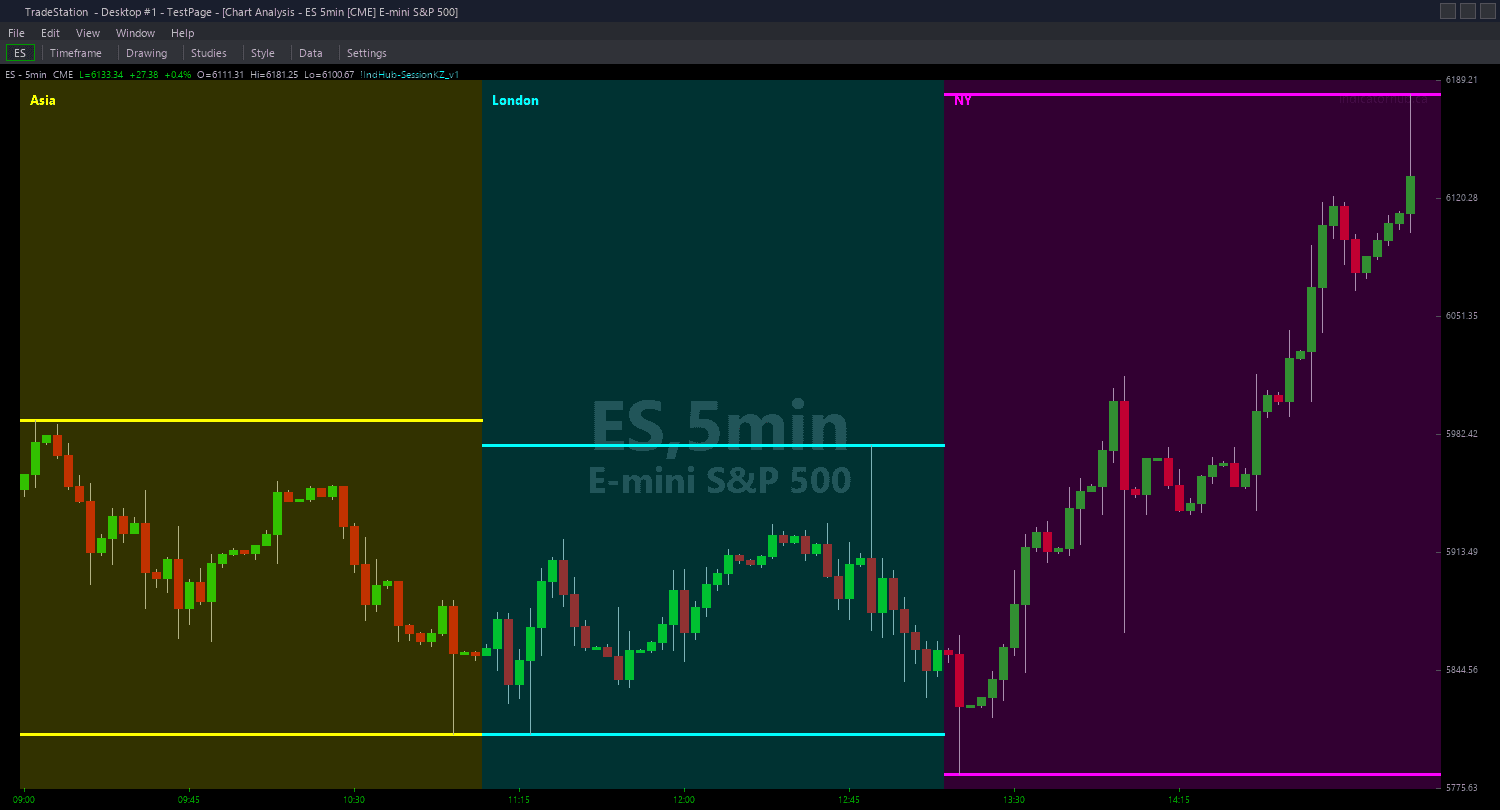
Example chart showing Session Killzones ShowMe on a live trading session
Installation Guide
Step 1: Download the indicator file
After purchasing, you will receive a download link via email. Click the link and save the session-killzones-showme.eld file to your computer. Save it somewhere easy to find like your Desktop or Downloads folder.
Step 2: Open the Import Wizard
Open TradeStation. Click the File menu in the top-left corner, then select Import/Export EasyLanguage to launch the Import/Export Wizard.

Step 3: Select the import type
In the Import/Export Wizard, select "Import EasyLanguage file (ELD, ELS or ELA)" from the list. Click Next to continue.

Step 4: Browse for the file
Click the Browse button to open a file browser where you can locate your downloaded .ELD file.

Step 5: Select and open the file
Navigate to the folder where you saved the .ELD file. Select session-killzones-showme.eld and click Open. The file name shown may differ from the screenshot — look for your downloaded indicator file.

Step 6: Open the Studies menu
On your chart, click the Studies dropdown in the toolbar and select Add Study.

Step 7: Select the ShowMe study
In the Add Studies dialog, click the ShowMe tab on the left side. Find "!IndHub-SM_SessionKZ_v1" in the list, select it, and click OK to apply.

Step 8: Configure settings (optional)
Right-click anywhere on the chart, go to Studies > Edit Studies..., select the indicator, and click the Inputs tab. Key inputs: AsianStart (default 2000), AsianEnd (default 0000), LondonStart (default 0200), LondonEnd (default 0500), NYStart (default 0700), NYEnd (default 1000), DotOffset (default 0.3 ATR), ShowSweepDist (default true), ShowSessionLabel (default true). For dot appearance, go to the Plots tab and set the plot style to Point with your preferred weight.
Common Issues
I do not see any sweep dots even though the chart indicator shows the Asian range was broken.
The ShowMe requires the sweep to occur during a defined killzone session (London or New York). If the Asian range was broken during the off-session gap between Asian close and London open (12:00 AM - 2:00 AM ET), no dot will appear because that window is not a killzone. The Judas swing concept specifically applies to sweeps during killzone sessions. Also verify your session time inputs match your chart's timezone.
I see sweep dots but price did not actually reverse after the sweep.
The dot marks the sweep event itself, not a guaranteed reversal. Not every Asian range sweep results in a Judas swing reversal. The highest-conviction reversals occur during the London killzone when the sweep happens in the first hour (2:00-3:00 AM ET) and price quickly closes back inside the range. New York session sweeps are more likely to be genuine breakouts rather than deceptive sweeps.
Can I adjust the Asian session times for different instruments or time zones?
Yes. All six session time inputs are fully configurable. The defaults are calibrated for Eastern Time forex and futures markets. If your data feed uses a different timezone, adjust all six inputs accordingly. Some traders customize the Asian window to 7:00 PM - 12:00 AM ET for a wider consolidation range, or narrow it to 9:00 PM - 11:00 PM ET to capture only the core Asian liquidity hours.
For additional help, contact support.