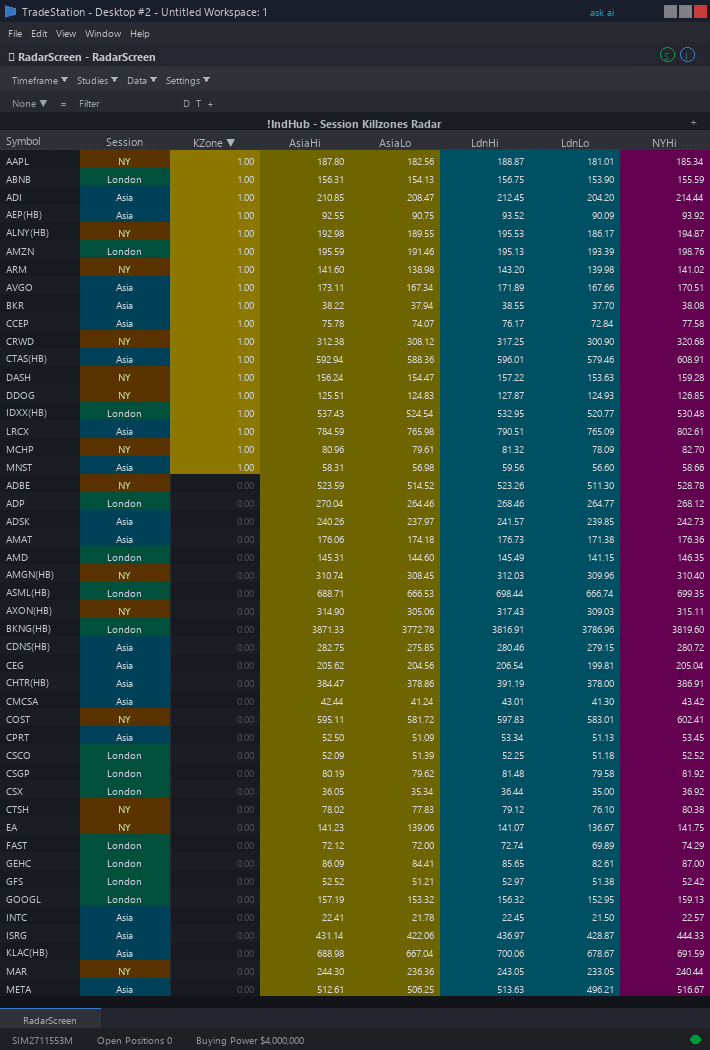
Session Killzones RadarScreen
Session Killzones RadarScreen brings ICT session analysis to your watchlist scanning workflow. Color-coded columns show which killzone session is currently active for each symbol, the Asian range high and low levels, whether a sweep has occurred, and the distance to Asian range boundaries — all across your entire watchlist simultaneously.
- ●ActiveSess column shows the currently active session for each symbol — Yellow background for Asian, Cyan for London, Magenta for New York, gray for off-session. Sort by this column to see which symbols are in their highest-probability trading windows
- ●AsianHi and AsianLo columns display the current Asian session range boundaries — the key levels that London and New York sessions target for sweeps
- ●DistToHi and DistToLo columns show the percentage distance from current price to the Asian range high and low — approaching values near zero indicate an imminent sweep
- ●SweptHi and SweptLo columns light up with amber backgrounds when price has broken above the Asian high or below the Asian low during the current London or NY session — the Judas swing signal
- ●SweepDir column shows the net sweep direction: +1 (green) if only the high was swept (bearish bias expected), -1 (red) if only the low was swept (bullish bias expected), 0 (gray) if neither or both were swept
Sort by SweptHi or SweptLo to find symbols where Asian range sweeps just occurred — these are your primary Judas swing setups. Sort by DistToHi or DistToLo ascending to find symbols approaching a sweep. Check ActiveSess to confirm you are trading during a killzone window.
All signals use completed bar data only. Non-repainting guaranteed.
30-Day Money-Back Guarantee
Try it risk-free. Not satisfied? Full refund, no questions asked.
Part of the Session Killzones Bundle
Get all 4 study types for $65 — save $30
Who This Is For
Built for ICT traders managing watchlists of futures, forex pairs, or liquid stocks who want to monitor Asian range sweep signals across multiple instruments without flipping through charts.
Add the scanner to your main RadarScreen window. During the London session (2:00-5:00 AM ET), sort by SweptHi and SweptLo to catch the first Asian range sweeps — the Judas swing. When SweptLo lights up, that symbol has swept below the Asian range and the bias shifts bullish. When SweptHi lights up, the bias shifts bearish. Switch to the chart indicator to confirm the sweep visually and plan your entry.
During the New York session (7:00-10:00 AM ET), re-scan for symbols where London already established a Judas swing direction. If London swept the Asian low, look for New York to push price higher. The SweepDir column gives you the directional bias at a glance.
The scanner works on intraday timeframes. Use 1-minute or 5-minute intervals for real-time monitoring. Best results on instruments with genuine 24-hour liquidity: index futures (ES, NQ), forex majors, gold (GC), and crude oil (CL).
See It in Action
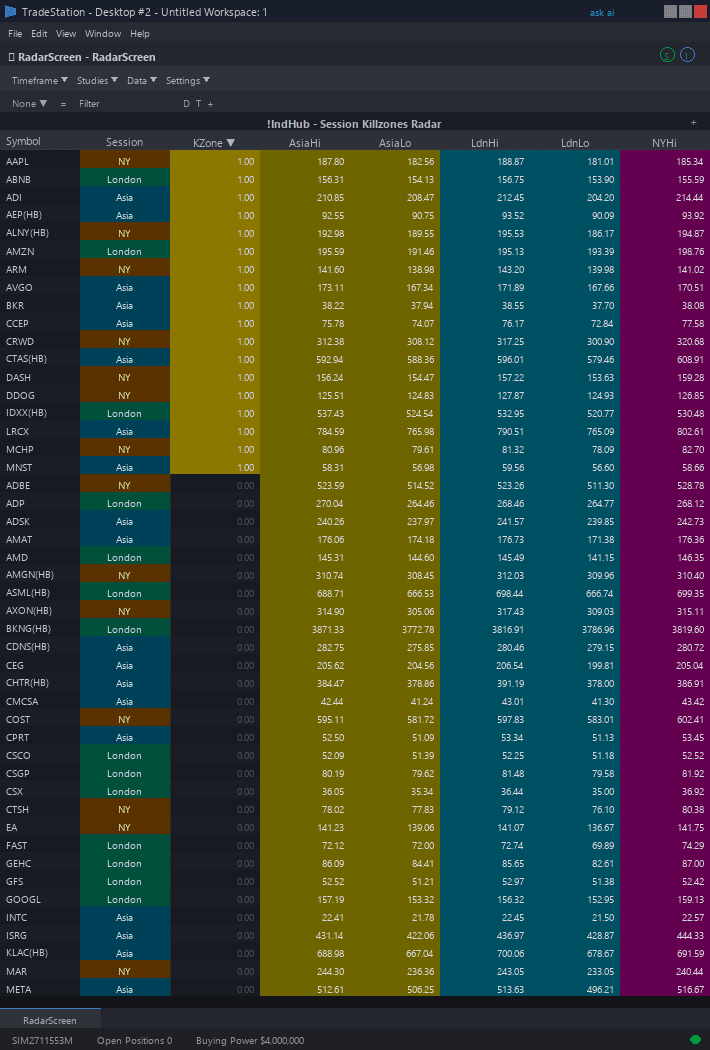
Example chart showing Session Killzones RadarScreen on a live trading session
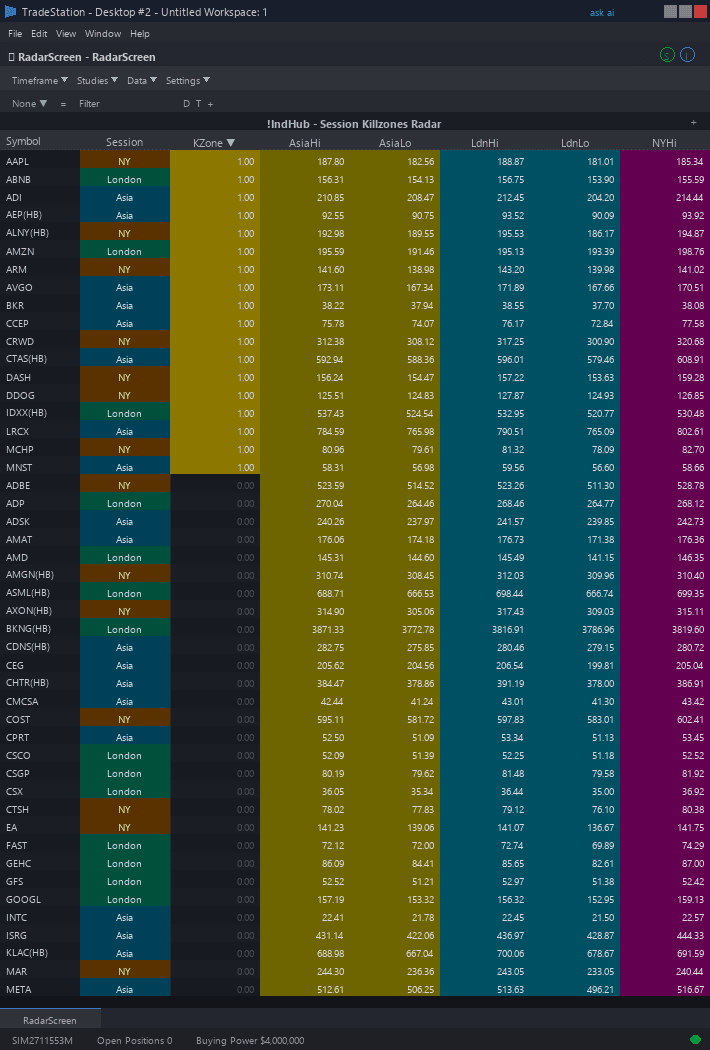
Example chart showing Session Killzones RadarScreen on a live trading session
Installation Guide
Step 1: Download the indicator file
After purchase, download session-killzones-radarscreen.eld from your confirmation email or account download page. Save it somewhere easy to find like your Desktop or Downloads folder.
Step 2: Open the Import Wizard
Open TradeStation. Click the File menu in the top-left corner, then select Import/Export EasyLanguage to launch the Import/Export Wizard.

Step 3: Select the import type
In the Import/Export Wizard, select "Import EasyLanguage file (ELD, ELS or ELA)" from the list. Click Next to continue.

Step 4: Browse for the file
Click the Browse button to open a file browser where you can locate your downloaded .ELD file.

Step 5: Select and open the file
Navigate to the folder where you saved the .ELD file. Select session-killzones-radarscreen.eld and click Open. The file name shown may differ from the screenshot — look for your downloaded indicator file.

Step 6: Open the Studies menu
Open your RadarScreen window. Click the Studies dropdown in the toolbar and select Add Study.
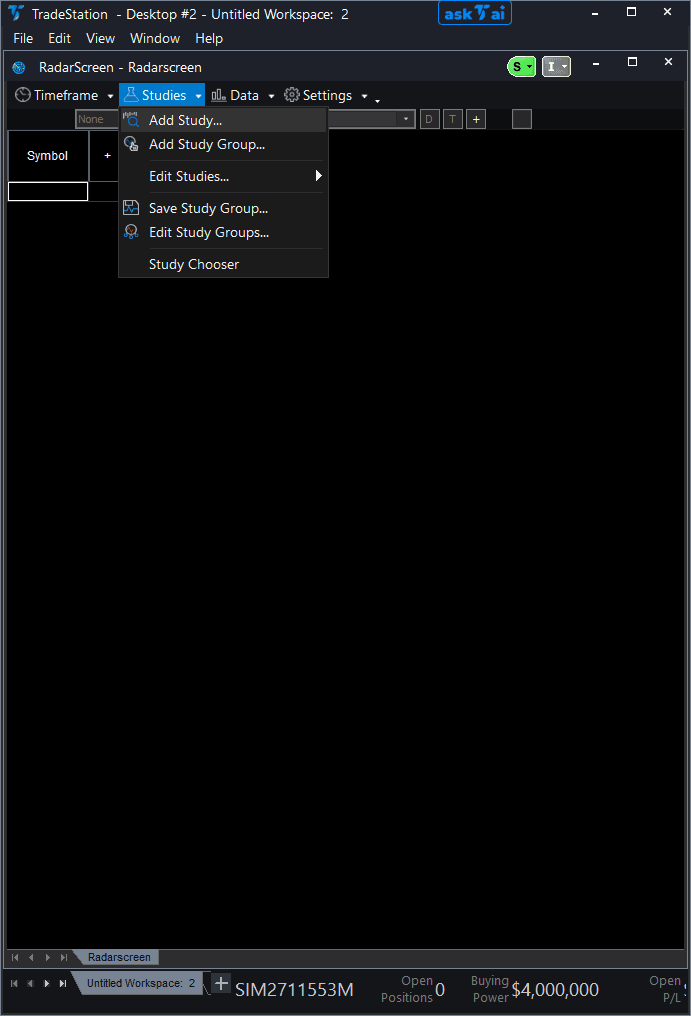
Step 7: Select the indicator
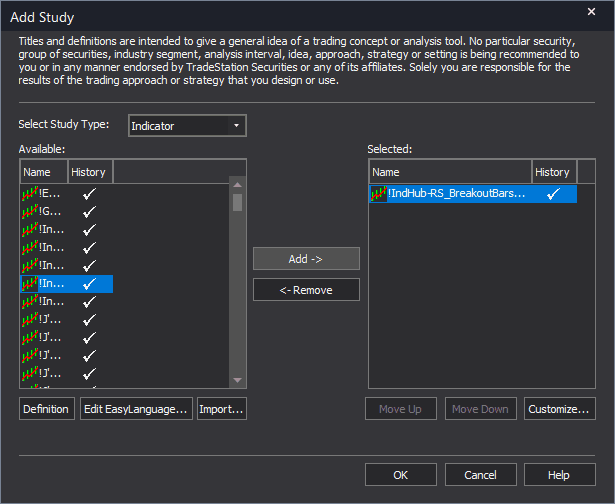
In the Add Study dialog, make sure Indicator is selected in the Study Type dropdown. Find "!IndHub-RS_SessionKZ_v1" in the Available list, select it, and click Add. Click OK to apply.
Step 8: Configure your watchlist and columns
Add your symbols to the RadarScreen watchlist. Adjust column widths by dragging column borders. Key inputs: AsianStart (default 2000), AsianEnd (default 0000), LondonStart (default 0200), LondonEnd (default 0500), NYStart (default 0700), NYEnd (default 1000). All times in 24-hour ET format. Sort by SweptHi or SweptLo to find Asian range sweep signals.
Common Issues
The ActiveSess column shows 0 for all symbols even during market hours.
The session time inputs default to Eastern Time. If your RadarScreen data feed uses a different timezone, the session windows will not align with actual market activity. Adjust the six time inputs (AsianStart, AsianEnd, LondonStart, LondonEnd, NYStart, NYEnd) to match your data feed's timezone. Also ensure you are using intraday intervals — session detection does not work on daily or weekly intervals.
SweptHi and SweptLo are both showing 1 for the same symbol. What does that mean?
Both sides of the Asian range were swept during the current session. This can happen in highly volatile markets or during major news events. When both sides are swept, the Judas swing signal is less clear because there is no single directional bias. The SweepDir column will show 0. Focus on symbols where only one side was swept for the cleanest setups.
AsianHi and AsianLo show the same value or zeros for some symbols.
This occurs when the symbol has no data during the Asian session window (8:00 PM - 12:00 AM ET). US equities that only trade during regular hours will not have Asian session data. The indicator is designed for instruments that trade during the Asian session: futures, forex, and some ETFs with extended hours. For equities, the Asian range columns will be empty or zero.
For additional help, contact support.