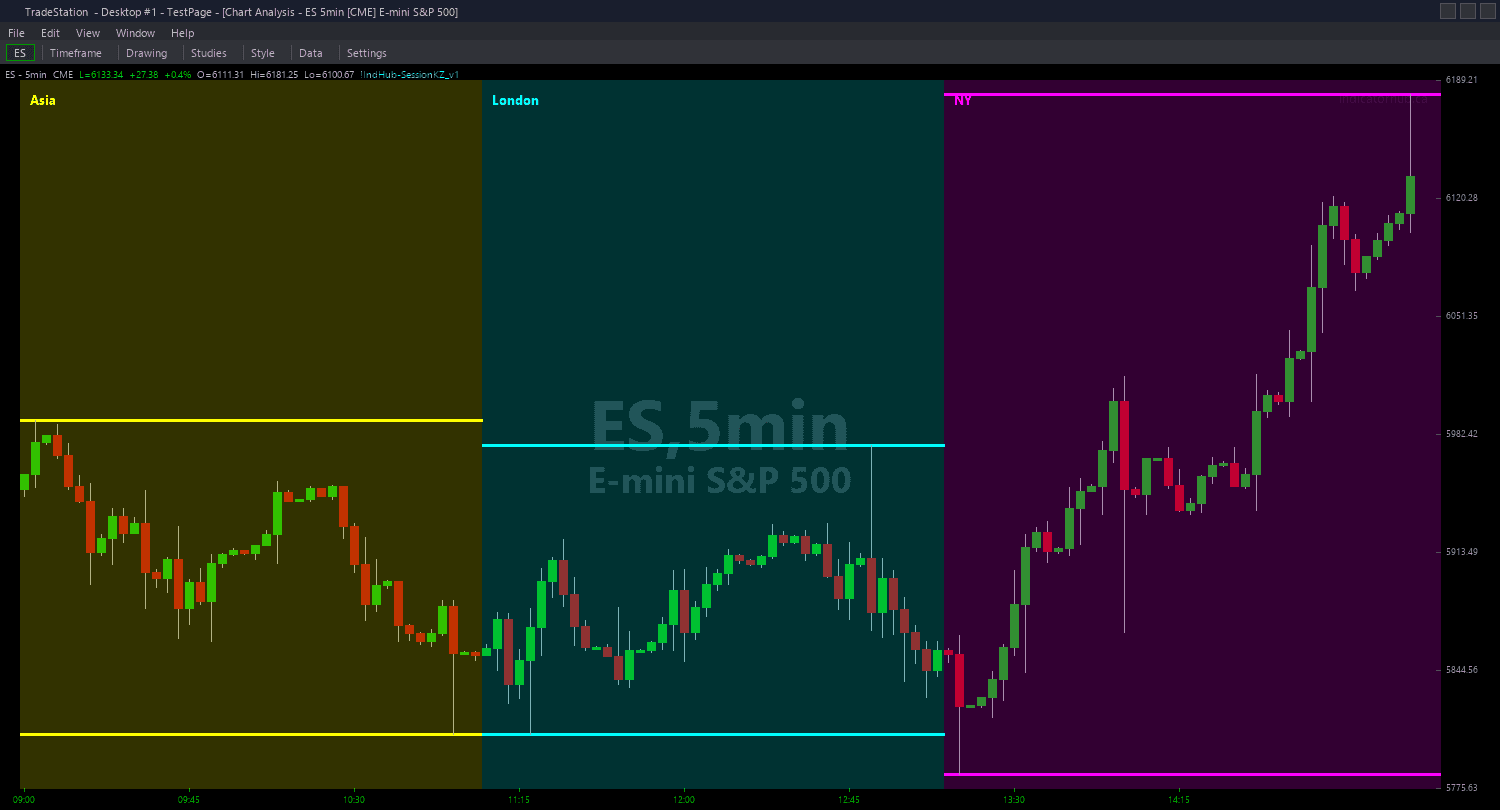
Session Killzones PaintBar
Session Killzones PaintBar colors entire price bars based on the currently active killzone session, giving you an immediate visual map of session timing across your chart. Yellow bars appear during the Asian session. Cyan bars appear during the London killzone. Magenta bars appear during the New York killzone. Bars outside all killzones retain their normal candlestick colors.
- ●Yellow-colored bars mark the Asian session (default 8:00 PM - 12:00 AM ET) — the consolidation window where the range is established
- ●Cyan-colored bars mark the London killzone (default 2:00 AM - 5:00 AM ET) — the first high-probability window for Judas swings and directional moves
- ●Magenta-colored bars mark the New York killzone (default 7:00 AM - 10:00 AM ET) — the highest-volume session where the major directional move typically completes
- ●Bars outside all three killzones retain default candlestick colors — these are lower-probability off-session periods
- ●AsianColor, LondonColor, and NYColor inputs let you customize all three session colors to match your chart theme
- ●Session time inputs match the chart indicator — AsianStart, AsianEnd, LondonStart, LondonEnd, NYStart, NYEnd
The PaintBar creates an instant visual timeline on your chart. At a glance, you can see exactly when each session was active, how price behaved during each killzone, and where the transitions occurred. This is particularly useful when reviewing charts after the session — you can immediately identify which price action occurred during which killzone without checking timestamps.
All signals are based on bar timestamps. Non-repainting guaranteed.
30-Day Money-Back Guarantee
Try it risk-free. Not satisfied? Full refund, no questions asked.
Part of the Session Killzones Bundle
Get all 4 study types for $65 — save $30
Who This Is For
Session Killzones PaintBar is designed as a visual timing layer that works alongside the chart indicator and ShowMe study. Use it when you want instant awareness of which killzone session produced each price bar.
Apply it to the same chart as the Session Killzones chart indicator. The chart indicator shows session boundaries, Asian range levels, and sweep markers, while the PaintBar colors every bar so you can see session context at a glance. Add the ShowMe study to mark specific sweep events within the colored bars.
Particularly valuable for post-session review: scroll through your chart and immediately see the yellow Asian consolidation, the cyan London sweep attempt, and the magenta New York follow-through. This visual timeline helps you internalize how the killzone concept plays out across different days and instruments.
Works on any intraday timeframe from 1-minute to 15-minute. Not meaningful on daily or higher timeframes since each bar spans multiple sessions. Best results on instruments with genuine 24-hour liquidity: index futures, forex pairs, gold, and crude oil.
See It in Action
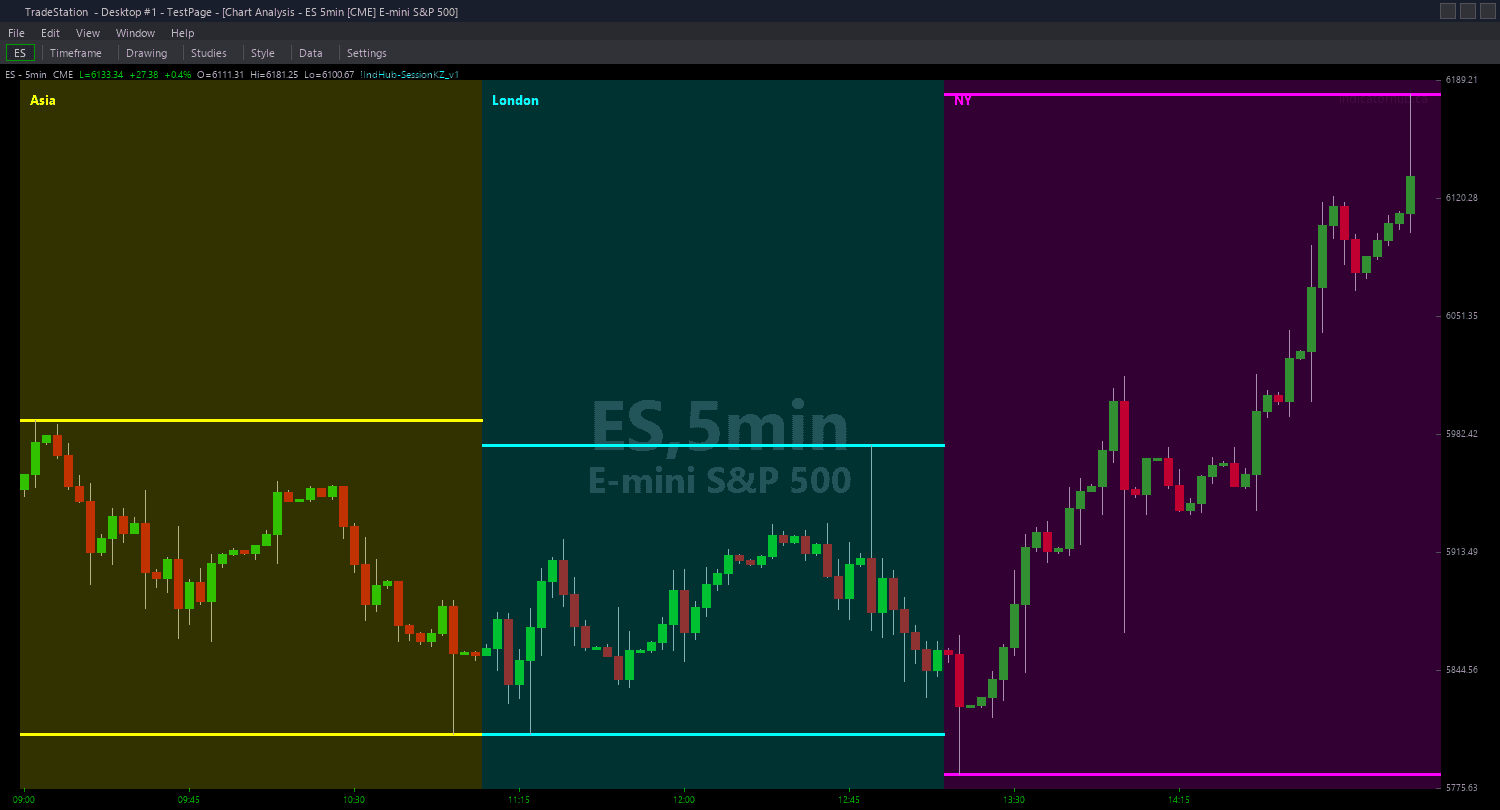
Example chart showing Session Killzones PaintBar on a live trading session
Installation Guide
Step 1: Download the indicator file
After purchasing, you will receive a download link via email. Click the link and save the session-killzones-paintbar.eld file to your computer. Save it somewhere easy to find like your Desktop or Downloads folder.
Step 2: Open the Import Wizard
Open TradeStation. Click the File menu in the top-left corner, then select Import/Export EasyLanguage to launch the Import/Export Wizard.

Step 3: Select the import type
In the Import/Export Wizard, select "Import EasyLanguage file (ELD, ELS or ELA)" from the list. Click Next to continue.

Step 4: Browse for the file
Click the Browse button to open a file browser where you can locate your downloaded .ELD file.

Step 5: Select and open the file
Navigate to the folder where you saved the .ELD file. Select session-killzones-paintbar.eld and click Open. The file name shown may differ from the screenshot — look for your downloaded indicator file.

Step 6: Open the Studies menu
On your chart, click the Studies dropdown in the toolbar and select Add Study.

Step 7: Select the PaintBar study
In the Add Studies dialog, click the PaintBar tab on the left side. Find "!IndHub-PB_SessionKZ_v1" in the list, select it, and click OK to apply.

Step 8: Configure settings (optional)
Right-click anywhere on the chart, go to Studies > Edit Studies..., select the indicator, and click the Inputs tab. Key inputs: AsianColor (default Yellow), LondonColor (default Cyan), NYColor (default Magenta) control the bar colors. Session time inputs: AsianStart (2000), AsianEnd (0000), LondonStart (0200), LondonEnd (0500), NYStart (0700), NYEnd (1000). Adjust times to match your chart's timezone if not Eastern.
Common Issues
I do not see any colored bars even though the indicator is applied.
The PaintBar only colors bars that fall within one of the three killzone windows. If you are viewing a chart during off-session hours (e.g., 10:30 AM - 8:00 PM ET on the default settings), bars will retain their normal colors. Scroll back to overnight hours to see the Asian and London colored bars, or wait for the next killzone window. Also verify your session time inputs match your chart's timezone.
Can I change the session colors?
Yes. To change colors, right-click anywhere on the chart, go to Studies > Edit Studies..., select the indicator, click the Inputs tab, and change AsianColor, LondonColor, and NYColor to any TradeStation color name or RGB values. The defaults (Yellow, Cyan, Magenta) are chosen for maximum contrast against dark chart backgrounds and against each other. Choose colors that are clearly distinguishable from your normal candlestick colors.
Some bars are colored but they appear at odd times. The session boundaries seem wrong.
This is a timezone mismatch. The session time inputs are designed for Eastern Time. If your TradeStation chart displays a different timezone (Central, Pacific, UTC, etc.), the colored bars will appear shifted. Adjust all six time inputs to match your chart's timezone. For example, if your chart shows Central Time, subtract one hour from each default value (AsianStart becomes 1900 instead of 2000, etc.).
For additional help, contact support.