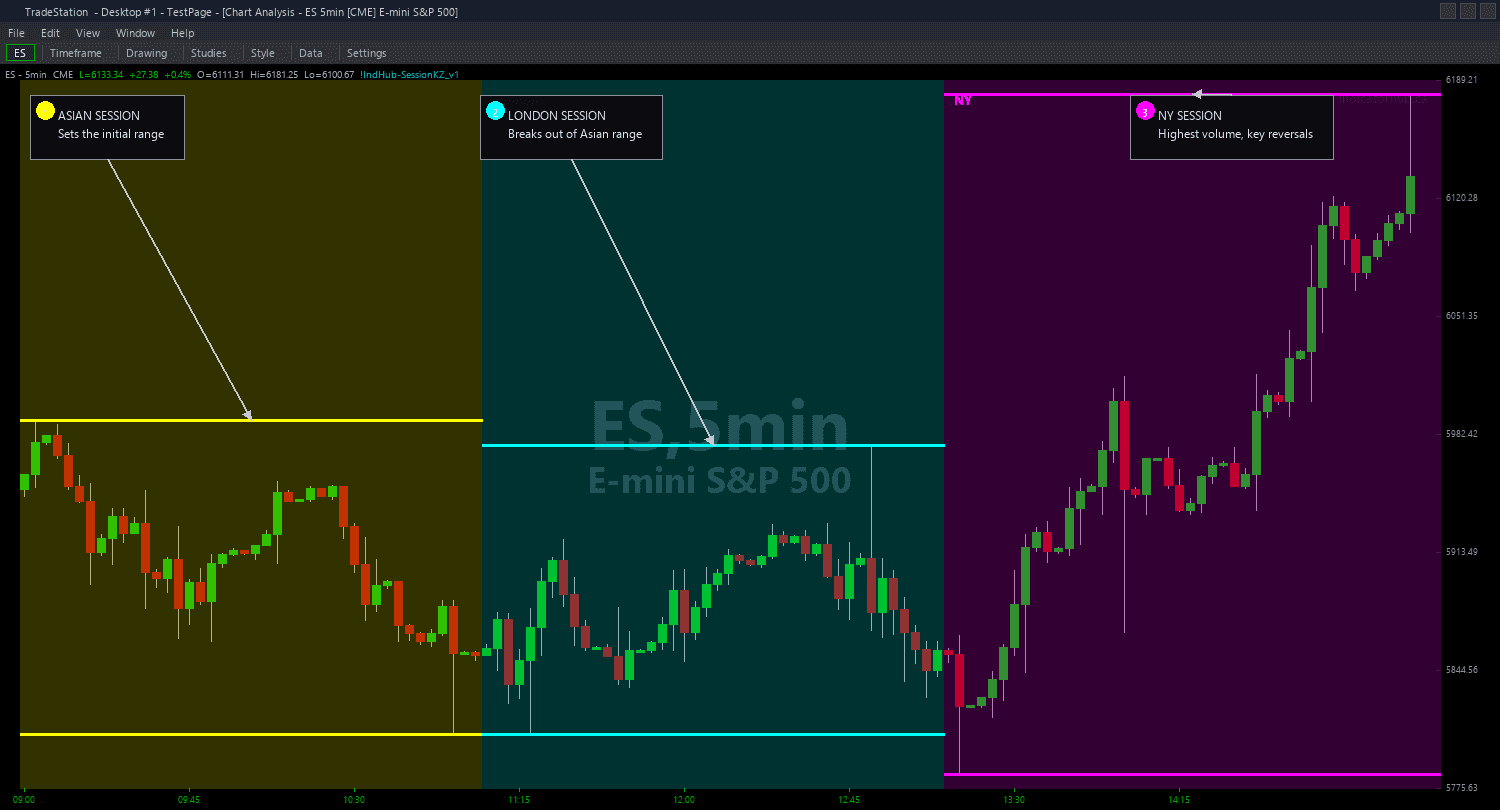
Session Killzones Chart
Session Killzones Chart draws the three major ICT killzone sessions on your chart with color-coded vertical boundaries, horizontal range lines, and Asian range high/low levels that extend until swept or expired. Each session is immediately identifiable by its signature color: Yellow for the Asian session, Cyan for the London session, and Magenta for the New York session.
- ●Yellow vertical lines mark Asian session start (8:00 PM ET) and end (12:00 AM ET), with horizontal lines tracking the Asian high and low as they form — these levels become the key reference for London and New York sweeps
- ●Cyan vertical lines mark the London killzone (2:00 AM - 5:00 AM ET), the first opportunity for smart money to sweep the Asian range and establish directional bias
- ●Magenta vertical lines mark the New York killzone (7:00 AM - 10:00 AM ET), the highest-volume session where the major move of the day typically occurs
- ●Asian range high and low are drawn as horizontal dashed lines that extend rightward until price sweeps through them or a new Asian session resets the levels
- ●Sweep markers appear when price breaks above the Asian high or below the Asian low during London or NY sessions — the Judas swing signal
- ●AsianStart (default 2000), AsianEnd (default 0000), LondonStart (default 0200), LondonEnd (default 0500), NYStart (default 0700), NYEnd (default 1000) inputs are fully customizable in 24-hour ET format
- ●ShowAsianRange (default true) controls whether the Asian high/low horizontal lines are drawn
- ●ShowSweepMarkers (default true) highlights the exact bars where Asian range boundaries get swept
- ●Plot1 outputs the currently active session: 1 for Asian, 2 for London, 3 for New York, 0 for off-session
The most powerful setup occurs when the London session sweeps one side of the Asian range (the Judas swing) and then the New York session drives price in the opposite direction. For example, if London sweeps below the Asian low and reverses, expect the New York session to push price higher — above the Asian high.
All session calculations use bar timestamps in Eastern Time. Non-repainting guaranteed.
30-Day Money-Back Guarantee
Try it risk-free. Not satisfied? Full refund, no questions asked.
Part of the Session Killzones Bundle
Get all 4 study types for $65 — save $30
Who This Is For
Session Killzones Chart is built for ICT and SMC traders who structure their analysis around session timing and the Asian range Judas swing concept. If you manually draw session boundaries and track Asian range levels each morning, this indicator automates the entire workflow.
Apply it to 1-minute to 5-minute charts on index futures (ES, NQ, YM), forex majors (EUR/USD, GBP/USD), or any instrument with significant activity across all three sessions. The session timing is calibrated for instruments that trade nearly 24 hours — it is most meaningful on futures and forex where all three killzones have genuine volume.
The key workflow is: watch the Asian range form during the evening session, then monitor London open (2:00 AM ET) for the first sweep attempt. If London sweeps one side of the Asian range and reverses, that establishes the Judas swing bias. Confirm the direction at New York open (7:00 AM ET) and trade in the direction of the reversal.
For US equities traders who only trade the New York session, the Asian range levels still serve as critical reference points. If the pre-market or the first 30 minutes of NY sweep the Asian range high or low, that often marks the high or low of the day. Use the sweep markers to identify these pivotal moments.
Adjust session times if you trade instruments in different time zones or if your broker's data feed uses a different timestamp format.
See It in Action
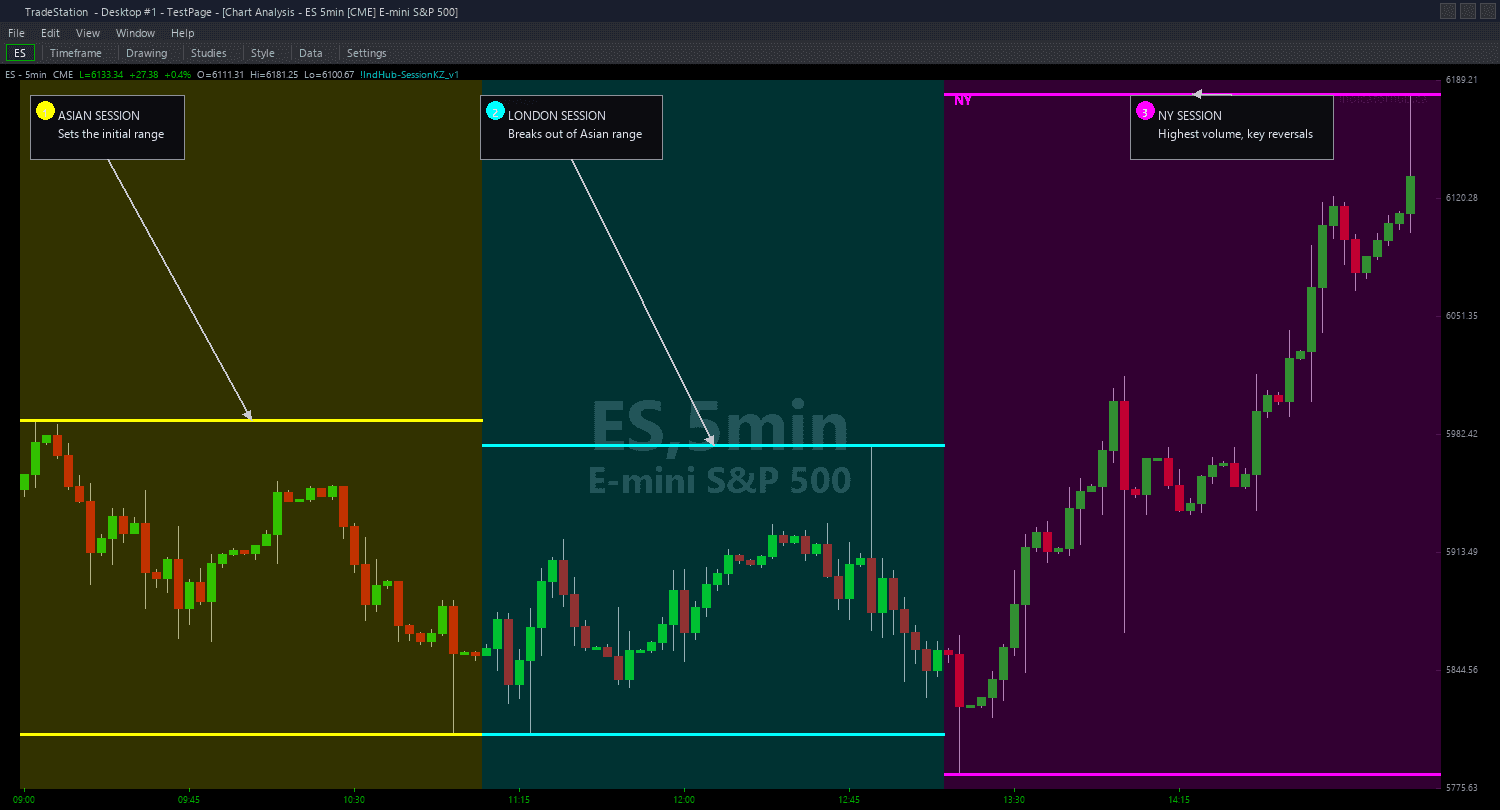
Example chart showing Session Killzones Chart on a live trading session
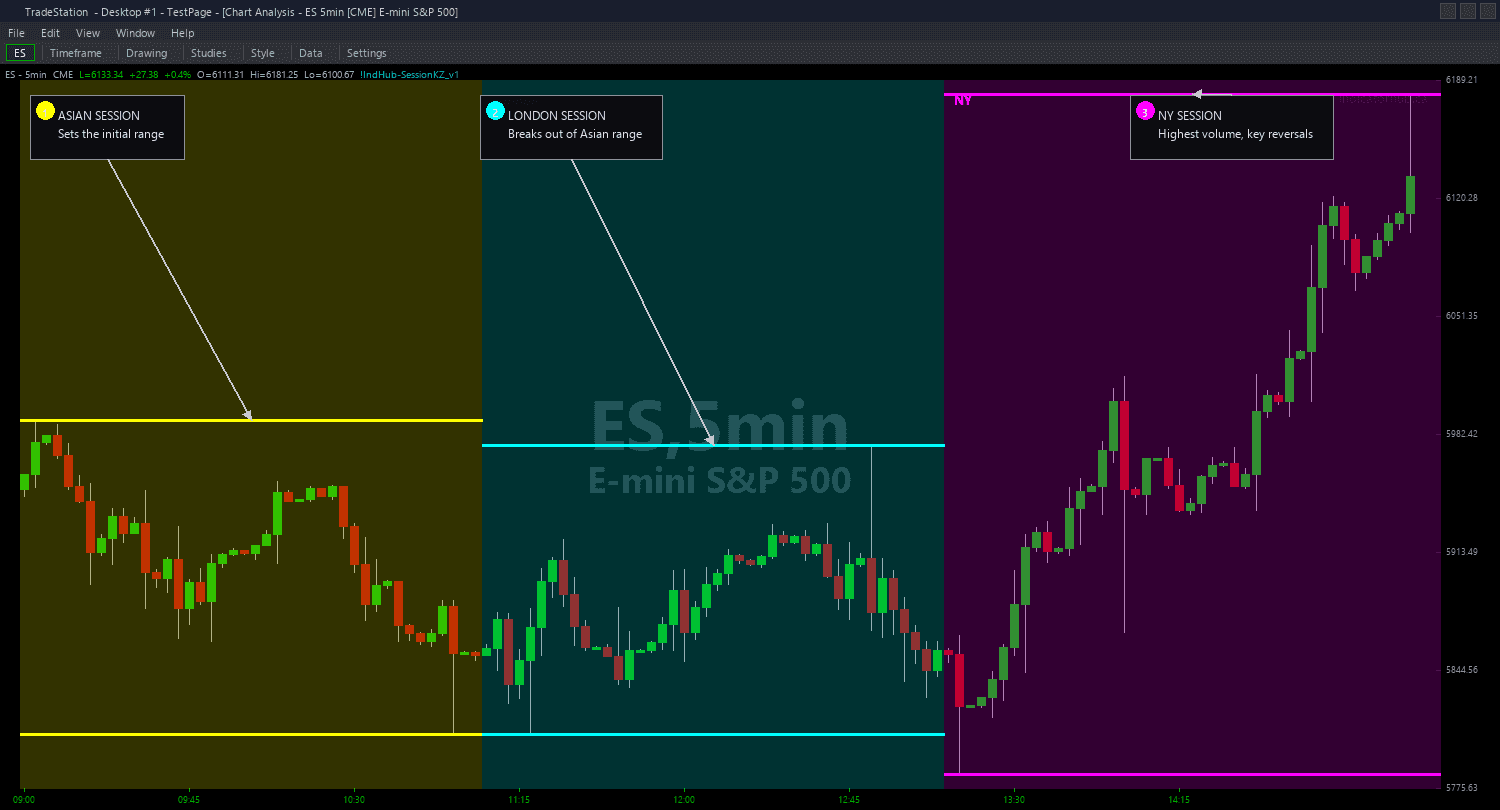
Example chart showing Session Killzones Chart on a live trading session
Installation Guide
Step 1: Download the indicator file
After purchasing, you will receive a download link via email. Click the link and save the session-killzones-chart.eld file to your computer. Save it somewhere easy to find like your Desktop or Downloads folder.
Step 2: Open the Import Wizard
Open TradeStation. Click the File menu in the top-left corner, then select Import/Export EasyLanguage to launch the Import/Export Wizard.

Step 3: Select the import type
In the Import/Export Wizard, select "Import EasyLanguage file (ELD, ELS or ELA)" from the list. Click Next to continue.

Step 4: Browse for the file
Click the Browse button to open a file browser where you can locate your downloaded .ELD file.

Step 5: Select and open the file
Navigate to the folder where you saved the .ELD file. Select session-killzones-chart.eld and click Open. The file name shown may differ from the screenshot — look for your downloaded indicator file.

Step 6: Open the Studies menu
On your chart, click the Studies dropdown in the toolbar and select Add Study.

Step 7: Select the indicator
In the Add Studies dialog, make sure the Indicator tab is selected on the left side. Find "!IndHub-SessionKZ_Chart_v1" in the list, select it, and click OK to apply.

Step 8: Configure settings (optional)
Right-click anywhere on the chart, go to Studies > Edit Studies..., select the indicator, and click the Inputs tab. Key inputs: AsianStart (default 2000), AsianEnd (default 0000), LondonStart (default 0200), LondonEnd (default 0500), NYStart (default 0700), NYEnd (default 1000) — all in 24-hour ET format. ShowAsianRange (default true), ShowSweepMarkers (default true), AsianColor (Yellow), LondonColor (Cyan), NYColor (Magenta). Adjust session times if your broker uses a different timezone.
Common Issues
The session lines appear at the wrong times on my chart. The Asian session does not start at 8 PM.
Session times are defined in Eastern Time (ET). If your TradeStation data feed or chart time zone is set to a different zone (Central, Pacific, UTC), the lines will appear offset. Either adjust the session time inputs to match your chart's timezone, or change your chart's time zone to Eastern. Check your chart's time axis to confirm what timezone it displays.
I do not see any Asian range horizontal lines even though ShowAsianRange is true.
The Asian range lines require enough bars within the Asian session window to establish a high and low. Make sure your chart has data loaded that covers the 8:00 PM to 12:00 AM ET window. On daily charts, intraday session lines are not meaningful — this indicator is designed for intraday charts (1-minute to 15-minute). Also verify that the AsianStart and AsianEnd times are correct for your data feed timezone.
Can I customize the session times for different markets or time zones?
Yes. All six time inputs (AsianStart, AsianEnd, LondonStart, LondonEnd, NYStart, NYEnd) are fully configurable. Enter times in 24-hour format matching your chart's time zone. For example, if your chart displays Central Time, subtract one hour from each default value. For forex traders in different regions, adjust the times to match your local institutional session windows.
The sweep markers appear too frequently. Price keeps touching the Asian range lines.
The sweep marker fires each time price crosses an Asian range boundary during London or NY sessions. In choppy markets that oscillate around the Asian range, multiple sweeps can occur. This is accurate behavior — each crossing is a genuine sweep event. Focus on the first sweep of each boundary as the highest-conviction Judas swing signal. Subsequent sweeps of the same level carry less weight.
For additional help, contact support.