Rejection Block Chart
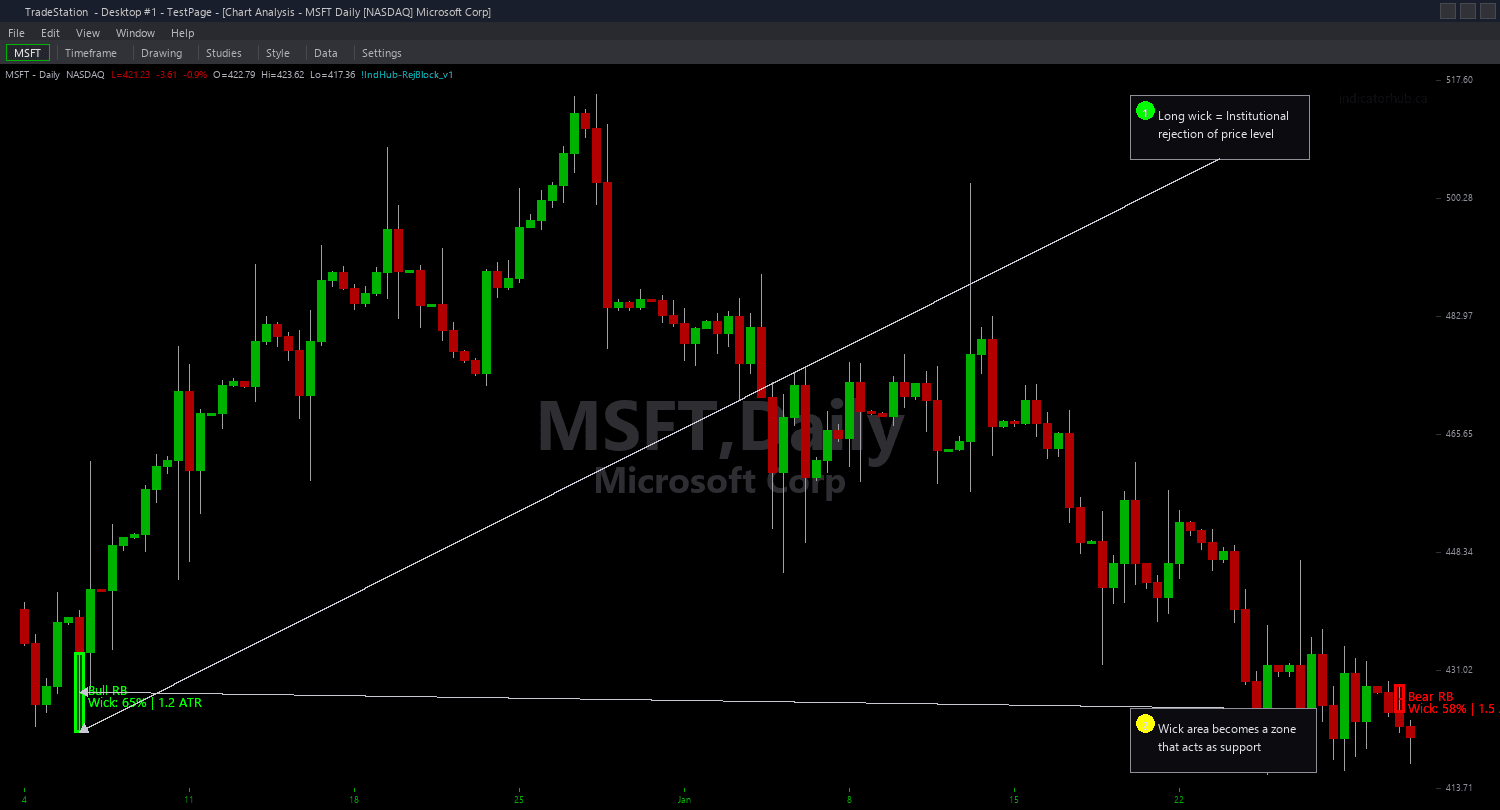
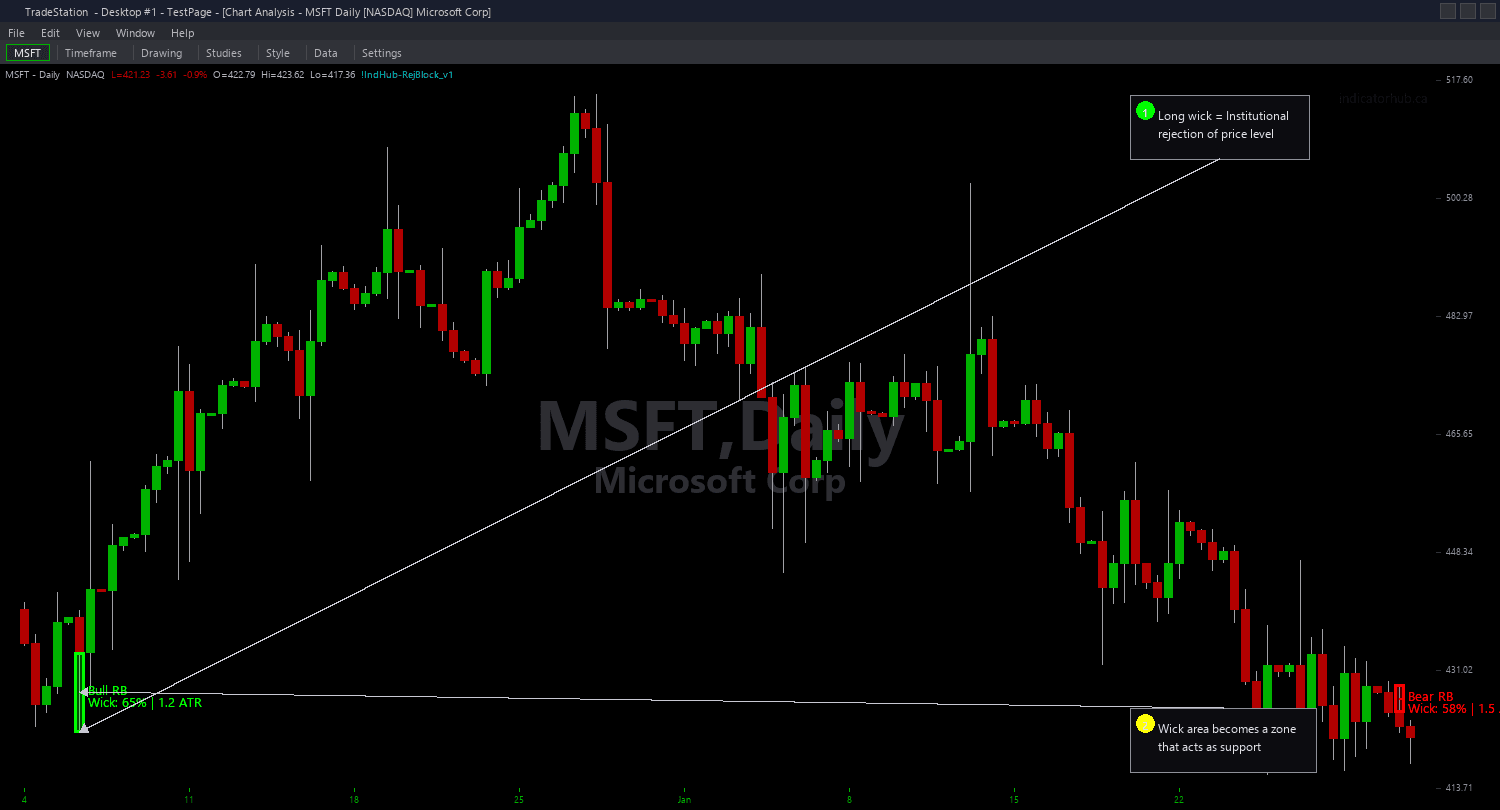
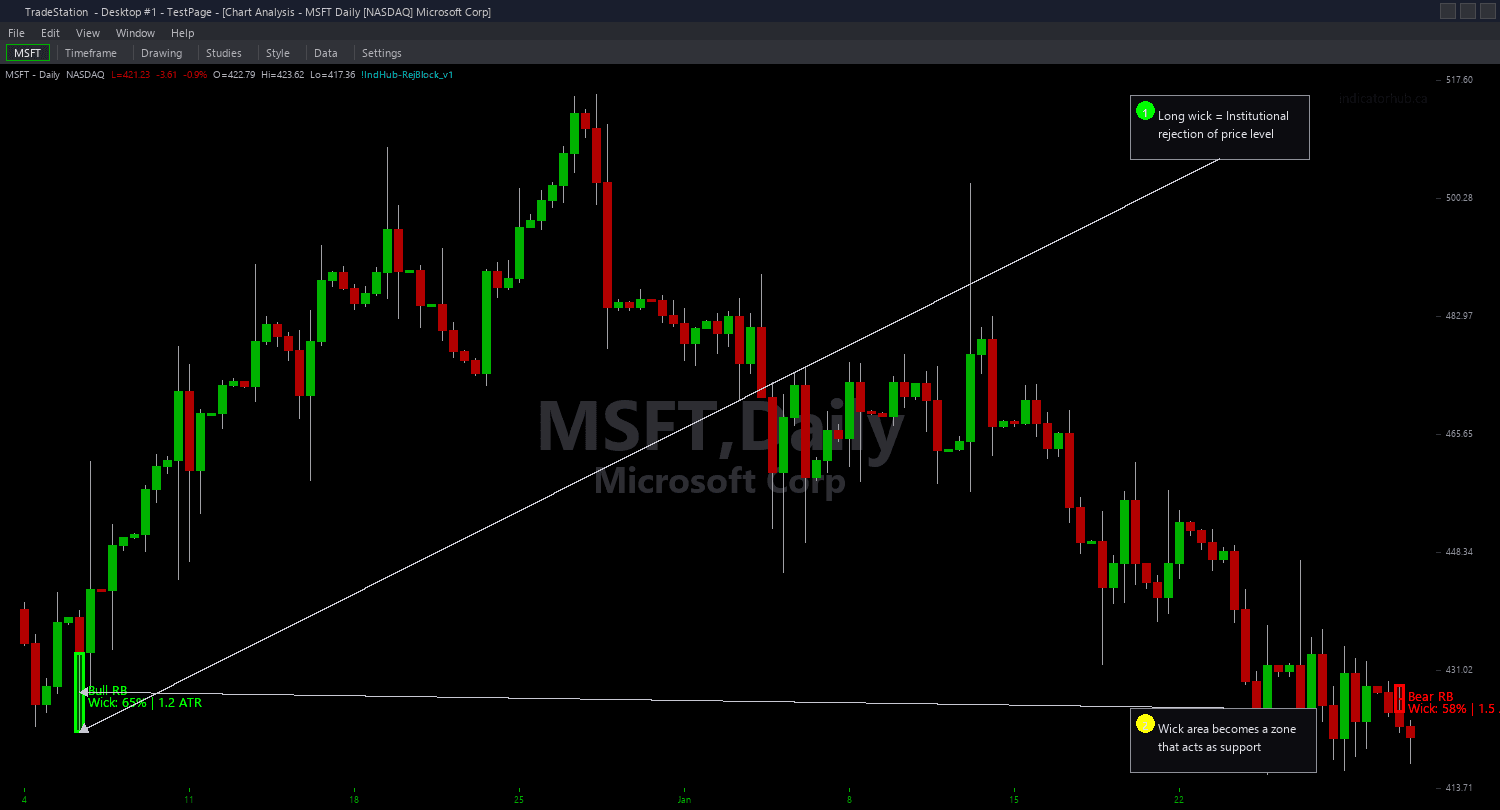
Rejection Block Chart identifies candles with disproportionately large wicks and draws the wick portion as a color-coded zone on your chart. A bullish rejection block forms when a candle produces a long lower wick — price was pushed down but institutions bought aggressively to close it back up, creating a demand zone at the wick level. A bearish rejection block forms when a candle produces a long upper wick — price was pushed up but institutions sold aggressively, creating a supply zone.
- ●Green zones mark bullish rejection blocks (demand) — the lower wick range where institutional buying rejected lower prices, drawn from the candle low up to the lower boundary of the body
- ●Red zones mark bearish rejection blocks (supply) — the upper wick range where institutional selling rejected higher prices, drawn from the candle high down to the upper boundary of the body
- ●MinWickRatio (default 0.5) requires the wick to be at least 50% of the total candle range — increase this for stricter filtering that catches only the most dramatic rejections
- ●MinWickATR (default 0.5) requires the wick to be at least 0.5x the 14-bar ATR — this ensures the rejection has meaningful size relative to recent volatility, not just relative to its own candle
- ●MaxRejAge (default 100 bars) automatically expires zones that price never returned to test
- ●MaxRejCount (default 10) limits simultaneous zones per side to keep charts clean and focused
- ●50% midpoint line drawn inside each zone marks the key level where rejection pressure is most concentrated
- ●Automatic mitigation removes zones when price closes through them — bullish rejection block removed when close breaks below zone low, bearish removed when close breaks above zone high
- ●Plot1 outputs +1 inside a bullish rejection zone, -1 inside a bearish rejection zone, and 0 outside all zones for subgraph reference
The dual-filter approach is critical for quality. MinWickRatio catches candles where the wick dominates the range (pin bars, hammers, shooting stars), while MinWickATR ensures the wick has absolute size significance. A tiny candle with a 60% wick ratio but only 0.1x ATR in size is noise — the ATR filter rejects it.
The best setups appear when price pulls back into a fresh rejection zone for the first time. The wick area represents a price level where institutions already demonstrated willingness to defend — a return to that level often triggers the same response.
All zone detection uses completed bar data only. Non-repainting guaranteed.
30-Day Money-Back Guarantee
Try it risk-free. Not satisfied? Full refund, no questions asked.
Part of the Rejection Block Bundle
Get all 4 study types for $65 — save $30
Who This Is For
Rejection Block Chart is built for price action and SMC traders who use wick rejection patterns as key support and resistance zones. If you manually identify pin bars, hammers, and shooting stars and draw zones at their wick levels, this indicator automates that exact process with objective, configurable filters.
Use it on intraday charts (1-minute to 15-minute) for day trading pullback entries into institutional rejection zones. The default MinWickRatio of 0.5 and MinWickATR of 0.5 provide a balanced starting point that catches meaningful rejections without excessive noise. For stricter filtering on volatile instruments, increase MinWickRatio to 0.6 and MinWickATR to 0.75.
The indicator performs best on liquid markets with clean price action: index futures (ES, NQ, YM), NASDAQ-100 stocks, S&P 500 components, and high-volume ETFs. Thin or illiquid markets may produce wick patterns from random noise rather than genuine institutional rejection.
Look for fresh rejection zones that have not been retested. When price returns to the zone and touches the midpoint, that is your highest-probability entry. The wick itself tells you exactly where institutions drew the line — your stop goes just beyond the wick extreme, giving you a precisely defined risk level.
Rejection blocks complement Order Blocks and Fair Value Gaps in a multi-concept SMC framework. Use rejection blocks to identify the specific price levels where institutions showed their hand, then confirm with OBs and FVGs for additional confluence.
See It in Action
Example chart showing Rejection Block Chart on a live trading session
Example chart showing Rejection Block Chart on a live trading session
Installation Guide
Step 1: Download the indicator file
After purchasing, you will receive a download link via email. Click the link and save the rejection-block-chart.eld file to your computer. Save it somewhere easy to find like your Desktop or Downloads folder.
Step 2: Open the Import Wizard
Open TradeStation. Click the File menu in the top-left corner, then select Import/Export EasyLanguage to launch the Import/Export Wizard.

Step 3: Select the import type
In the Import/Export Wizard, select "Import EasyLanguage file (ELD, ELS or ELA)" from the list. Click Next to continue.

Step 4: Browse for the file
Click the Browse button to open a file browser where you can locate your downloaded .ELD file.

Step 5: Select and open the file
Navigate to the folder where you saved the .ELD file. Select rejection-block-chart.eld and click Open. The file name shown may differ from the screenshot — look for your downloaded indicator file.

Step 6: Open the Studies menu
On your chart, click the Studies dropdown in the toolbar and select Add Study.

Step 7: Select the indicator
In the Add Studies dialog, make sure the Indicator tab is selected on the left side. Find "!IndHub-RejBlock_Chart_v1" in the list, select it, and click OK to apply.

Step 8: Configure settings (optional)
Right-click anywhere on the chart, go to Studies > Edit Studies..., select the indicator, and click the Inputs tab. Key inputs: MinWickRatio (default 0.5, wick must be this fraction of total range), MinWickATR (default 0.5, wick must be this multiple of ATR), MaxRejAge (default 100, zone expiration in bars), MaxRejCount (default 10), ShowBullish/ShowBearish (toggle sides), ShowMidpoint (toggle midpoint line), BullColor/BearColor (zone colors). Most traders start with defaults.
Common Issues
I see too many rejection zones cluttering my chart. How do I reduce them?
Increase both filter thresholds. Raise MinWickRatio to 0.6 or 0.7 to require more dominant wicks. Raise MinWickATR to 0.75 or 1.0 to require larger absolute wick sizes. You can also reduce MaxRejCount to limit simultaneous zones, or lower MaxRejAge to expire zones faster. On higher timeframes (15-minute and above), the defaults may produce too many zones — tightening both filters is recommended.
Zones disappear from my chart suddenly. Is the indicator repainting?
No, the indicator does not repaint. Zones are removed for two reasons: mitigation (price closed through the zone, invalidating it) or expiration (the zone exceeded MaxRejAge bars without being tested). Both are expected behavior. Increase MaxRejAge if you want zones to persist longer before expiring. Mitigated zones are always removed because the rejection level has been consumed.
What is the difference between Rejection Blocks and Order Blocks?
Order Blocks use the candle body — the last opposing candle body before a market structure break becomes the zone. Rejection Blocks use the candle wick — the wick portion of a candle with a disproportionately large wick becomes the zone. The two concepts identify different aspects of institutional behavior: OBs mark where institutions accumulated positions, while Rejection Blocks mark where institutions aggressively defended a price level. Many traders use both together for confluence.
Why does the indicator require both MinWickRatio AND MinWickATR? Can I disable one?
The dual filter ensures quality from two angles. MinWickRatio catches candles where the wick dominates the range (shape-based), while MinWickATR ensures the wick has meaningful absolute size (volatility-based). Set MinWickRatio to 0.0 to effectively disable the shape filter, or set MinWickATR to 0.0 to disable the size filter. However, using both together produces the highest-quality zones.
For additional help, contact support.