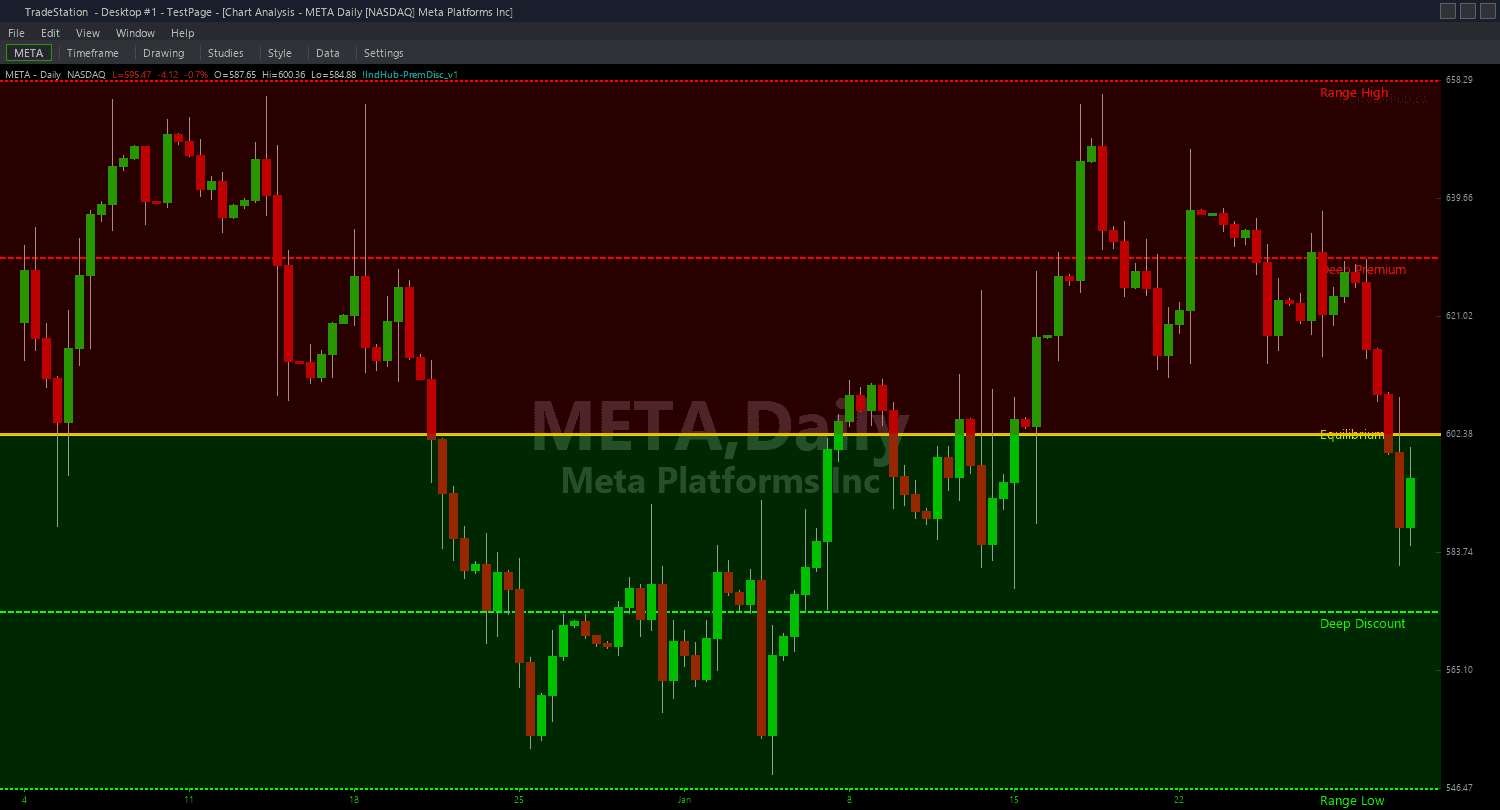
Premium Discount ShowMe
Premium Discount ShowMe marks the exact bars where price transitions between quartile zones, giving you clear visual signals of when institutional bias shifts. Unlike the PaintBar that colors every bar continuously, the ShowMe marks only the transition moments — the bars where price crosses a quartile boundary and enters a new zone.
- ●Green upward dots appear when price transitions into a more favorable zone for longs — moving from Premium to Discount or from Discount to Deep Discount
- ●Red downward dots appear when price transitions into a more favorable zone for shorts — moving from Discount to Premium or from Premium to Deep Premium
- ●Yellow dots appear when price crosses the Equilibrium (50%) — the most important transition in the framework, marking the shift from institutional selling to buying territory or vice versa
- ●Optional text labels at each transition show the old zone, new zone, and the exact price level where the transition occurred
- ●DotOffset (default 0.3 ATR) positions markers clear of price bars for readability
- ●AlertOnEquilibriumCross (default true) fires an audio alert specifically when price crosses the 50% midpoint — the single most significant event in the framework
- ●AlertOnQuartileChange (default true) fires an alert on any quartile boundary crossing
The Equilibrium cross (yellow dot) is the highest-value signal in this study. When price crosses above Equilibrium, institutional bias shifts to selling in Premium territory. When price crosses below, bias shifts to buying in Discount territory. Plan your trades accordingly.
All signals are guaranteed non-repainting. Once a dot plots on a completed bar, it will never disappear.
30-Day Money-Back Guarantee
Try it risk-free. Not satisfied? Full refund, no questions asked.
Part of the Premium Discount Bundle
Get all 4 study types for $65 — save $30
Who This Is For
Premium Discount ShowMe is designed for traders who want to know the exact moment price transitions between institutional value zones. Instead of continuously monitoring quartile levels, you get a signal the moment the transition happens.
Layer this study on top of the Premium Discount chart indicator. The chart indicator draws the horizontal framework levels. The ShowMe marks the exact bars where price crosses those levels. Together they give you both the structural context and the timing information.
Use it on your higher-timeframe context chart (15-minute, 1-hour, or daily). When a yellow dot appears signaling an Equilibrium cross, update your directional bias for all trades on your entry timeframe. A cross below Equilibrium means switch to long bias. A cross above means switch to short bias.
The green and red dots at quartile boundaries provide additional granularity. Moving into Deep Discount (green dot at 25% crossing) signals the strongest long opportunity. Moving into Deep Premium (red dot at 75% crossing) signals the strongest short opportunity. These extreme-quartile transitions represent the highest-probability directional setups in the framework.
See It in Action
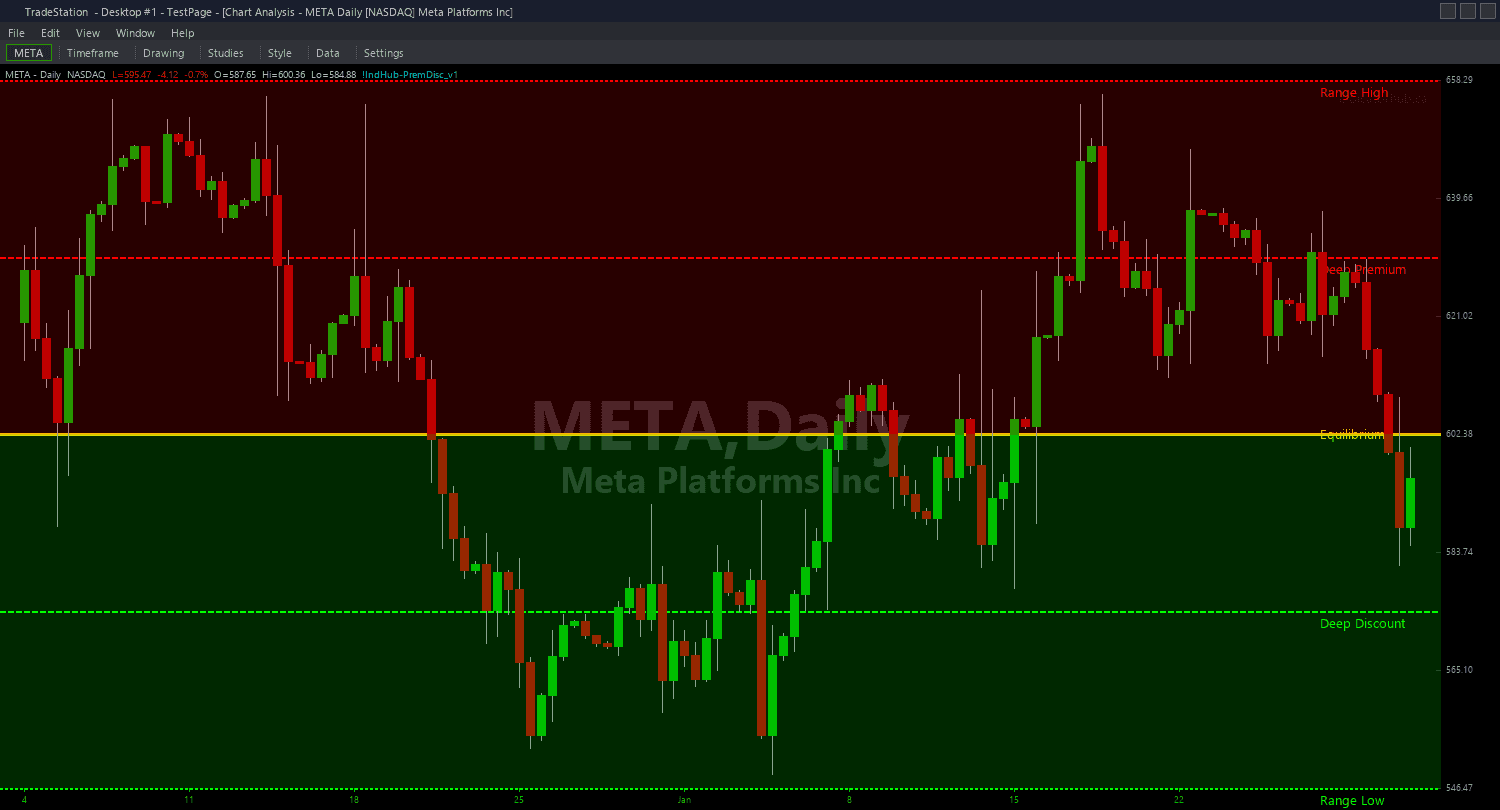
Example chart showing Premium Discount ShowMe on a live trading session
Installation Guide
Step 1: Download the indicator file
After purchasing, you will receive a download link via email. Click the link and save the premium-discount-showme.eld file to your computer. Save it somewhere easy to find like your Desktop or Downloads folder.
Step 2: Open the Import Wizard
Open TradeStation. Click the File menu in the top-left corner, then select Import/Export EasyLanguage to launch the Import/Export Wizard.

Step 3: Select the import type
In the Import/Export Wizard, select "Import EasyLanguage file (ELD, ELS or ELA)" from the list. Click Next to continue.

Step 4: Browse for the file
Click the Browse button to open a file browser where you can locate your downloaded .ELD file.

Step 5: Select and open the file
Navigate to the folder where you saved the .ELD file. Select premium-discount-showme.eld and click Open. The file name shown may differ from the screenshot — look for your downloaded indicator file.

Step 6: Open the Studies menu
On your chart, click the Studies dropdown in the toolbar and select Add Study.

Step 7: Select the ShowMe study
In the Add Studies dialog, click the ShowMe tab on the left side. Find "!IndHub-SM_PremDisc_v1" in the list, select it, and click OK to apply.

Step 8: Configure settings (optional)
Right-click anywhere on the chart, go to Studies > Edit Studies..., select the indicator, and click the Inputs tab. Key inputs: SwingStrength (default 5), ShowEquilibrium (default true), ShowQuartiles (default true), DotOffset (default 0.3 ATR), ShowLabels (default false), AlertOnEquilibriumCross (default true), AlertOnQuartileChange (default true). For dot appearance, go to the Plots tab and set the plot style to Point.
Common Issues
I see many dots clustered together when price oscillates near a quartile boundary. How do I reduce noise?
When price chops around a quartile boundary (like the 50% Equilibrium), each crossing generates a new dot. This clustering indicates indecision at that level. Increase SwingStrength to establish a wider dealing range, which may move quartile boundaries away from the current price. Alternatively, use a higher timeframe where oscillations are smoothed out and boundary crossings are less frequent and more meaningful.
Can I show only Equilibrium cross signals and hide quartile transitions?
Set ShowQuartiles to false. Only Equilibrium (50%) cross signals (yellow dots) will appear. This is the simplest and often most effective configuration — the Equilibrium cross is the single most important event in the Premium/Discount framework, and removing quartile noise keeps your chart focused on the primary bias shift.
The text labels overlap when multiple transitions happen close together.
Text objects accumulate during choppy periods when price crosses quartile boundaries repeatedly. Set ShowLabels to false for a cleaner view with only dots. Remove and re-apply the study to clear accumulated text objects. If you want labels, increase the timeframe to reduce the frequency of transitions.
For additional help, contact support.