Premium Discount RadarScreen
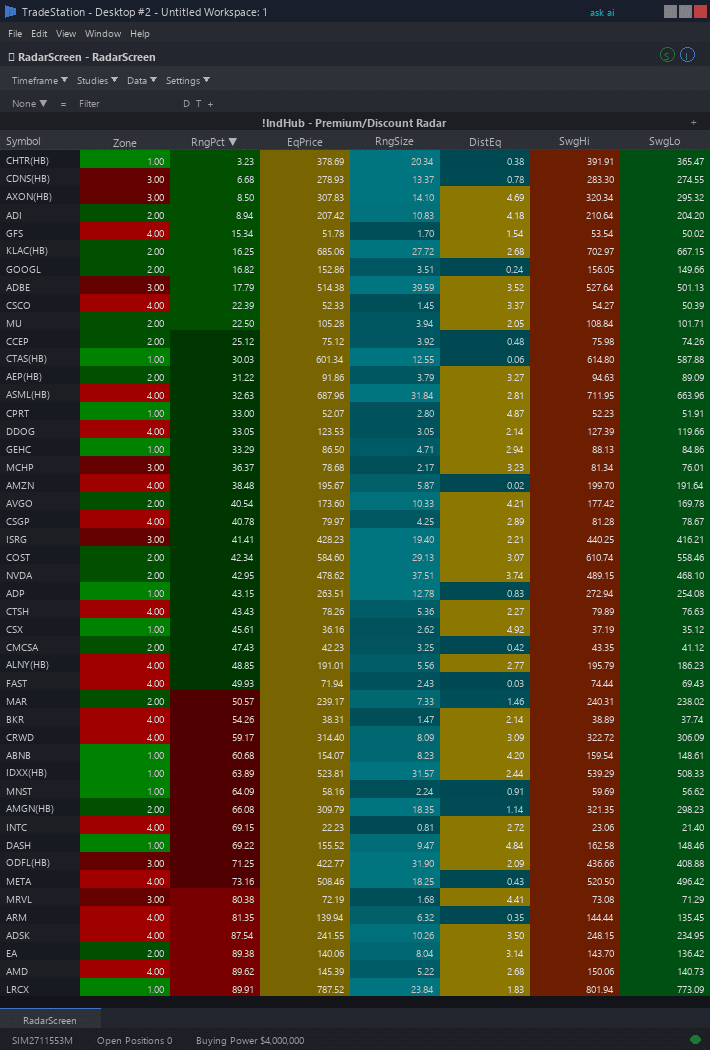
Premium Discount RadarScreen brings the ICT Premium/Discount framework to your watchlist scanning workflow. Color-coded columns show each symbol's current quartile zone, exact percentage position within the range, distance to equilibrium, and range boundaries — enabling instant directional bias assessment across your entire watchlist.
- ●Zone column displays the current quartile with gradient coloring: DeepPrem (dark red), Premium (light red), Discount (light green), DeepDisc (dark green) — sort to instantly group symbols by institutional bias
- ●Position column shows the exact percentage within the range (0-100%) with gradient cell coloring from green at 0% to red at 100% — a visual heat map of price positioning
- ●EqDist column shows percentage distance to the Equilibrium (50%) level — sort ascending to find symbols at the exact bias pivot point
- ●RangeHi and RangeLo columns display the current dealing range boundaries for reference
- ●RangeWidth column shows the total range width as a percentage — wider ranges indicate clearer trending structure with more meaningful quartile separation
- ●QuartileAge column shows bars since the last quartile zone change — recent changes indicate active price movement through the framework
- ●All cells use the Indicator Hub dark theme palette with a green-to-red gradient that makes Premium/Discount positioning visible at a glance
Sort by Zone to group your watchlist into four quartile buckets. Sort by Position ascending to find the deepest discount symbols (strongest long candidates) or descending for the deepest premium (strongest short candidates). Sort by EqDist ascending to find symbols at the exact equilibrium decision point.
All calculations use completed bar data only. Non-repainting guaranteed.
30-Day Money-Back Guarantee
Try it risk-free. Not satisfied? Full refund, no questions asked.
Part of the Premium Discount Bundle
Get all 4 study types for $65 — save $30
Who This Is For
Built for ICT traders managing 20-100 symbol watchlists who use the Premium/Discount framework as their primary directional filter before applying other SMC entry tools. Use this to instantly classify every symbol on your watchlist as a potential long (Discount) or short (Premium) candidate.
Add the scanner to your main RadarScreen window. During your pre-market routine (9:00-9:15 AM ET), sort by Zone to group symbols into directional buckets. Symbols in DeepDisc (dark green) are your strongest long candidates. Symbols in DeepPrem (dark red) are your strongest short candidates. Symbols near Equilibrium (EqDist close to 0) are at the decision point and require caution.
During the trading session, monitor QuartileAge for recent zone changes — a symbol moving from Premium to Discount signals a potential long opportunity developing. Sort by Position to create a heat map of your watchlist positioning.
This RadarScreen indicator pairs with Premium Discount Chart (included in the bundle). Use RadarScreen to classify your watchlist by Premium/Discount positioning, then open chart view for detailed range levels, equilibrium analysis, and entry planning with other ICT tools layered on top.
See It in Action

Example chart showing Premium Discount RadarScreen on a live trading session
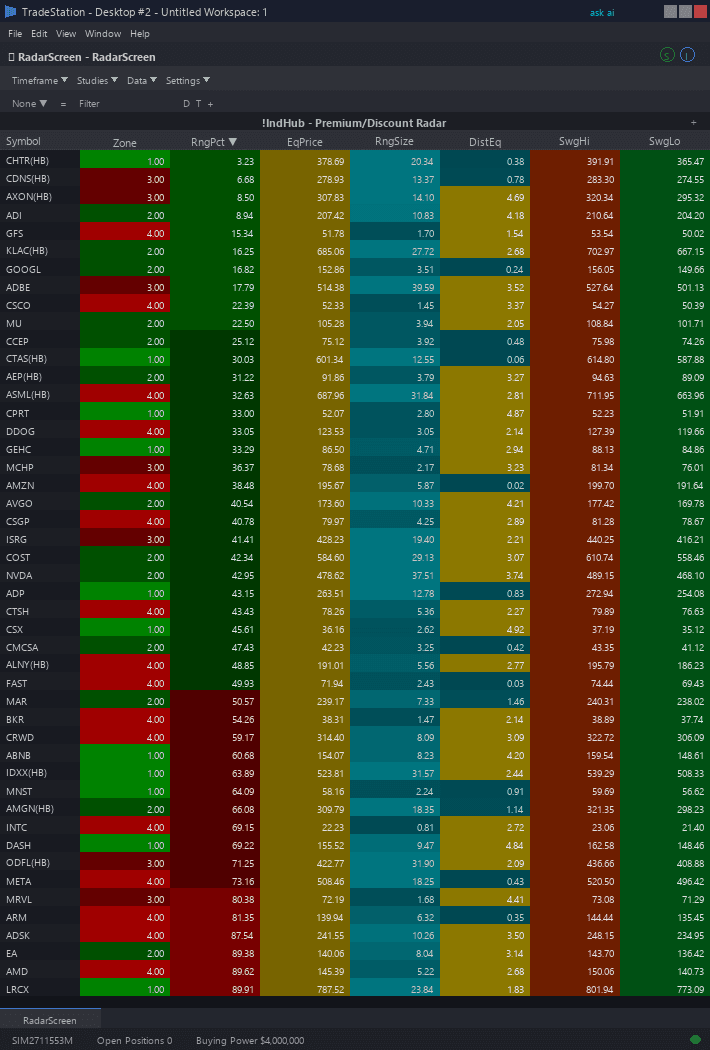
Example chart showing Premium Discount RadarScreen on a live trading session
Installation Guide
Step 1: Download the indicator file
After purchase, download premium-discount-radarscreen.eld from your confirmation email or account download page. Save it somewhere easy to find like your Desktop or Downloads folder.
Step 2: Open the Import Wizard
Open TradeStation. Click the File menu in the top-left corner, then select Import/Export EasyLanguage to launch the Import/Export Wizard.

Step 3: Select the import type
In the Import/Export Wizard, select "Import EasyLanguage file (ELD, ELS or ELA)" from the list. Click Next to continue.

Step 4: Browse for the file
Click the Browse button to open a file browser where you can locate your downloaded .ELD file.

Step 5: Select and open the file
Navigate to the folder where you saved the .ELD file. Select premium-discount-radarscreen.eld and click Open. The file name shown may differ from the screenshot — look for your downloaded indicator file.

Step 6: Open the Studies menu
Open your RadarScreen window. Click the Studies dropdown in the toolbar and select Add Study.
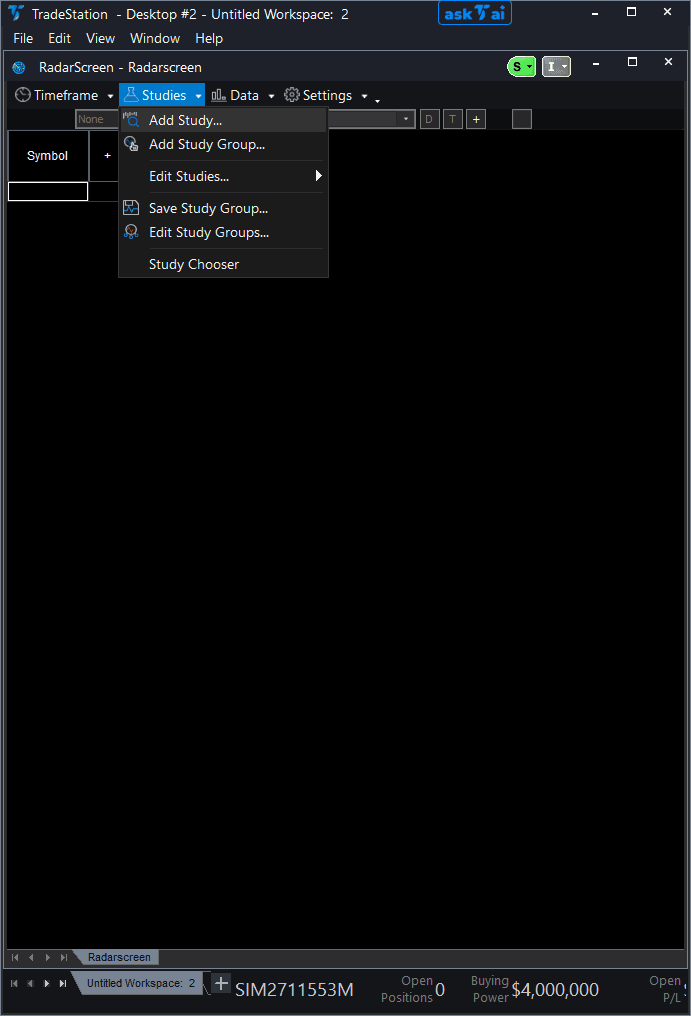
Step 7: Select the indicator
In the Add Study dialog, make sure Indicator is selected in the Study Type dropdown. Find "!IndHub-RS_PremDisc_v1" in the Available list, select it, and click Add. Click OK to apply.
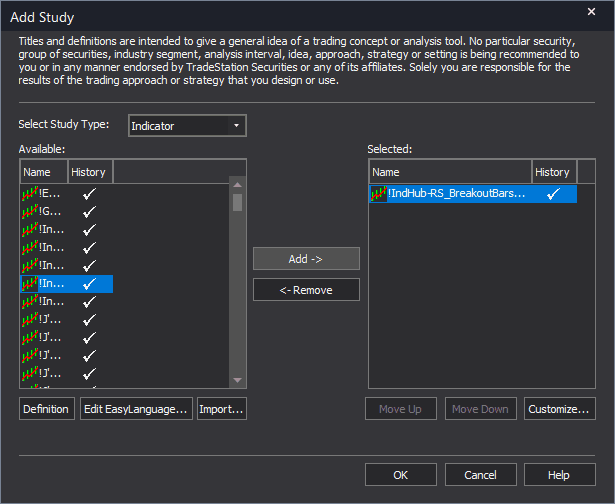
Step 8: Configure your watchlist and columns
Add your symbols to the RadarScreen watchlist. Adjust column widths by dragging column borders. Key inputs: SwingStrength (default 5), ShowEquilibrium (default true), ShowQuartiles (default true). Sort by Zone to group by Premium/Discount positioning, or by Position for a heat map view.
Common Issues
The Zone column shows the same value for many symbols. Is the indicator calculating correctly?
Yes. During trending market conditions, many symbols tend to cluster in the same quartile zone. In a broad bull market, most stocks will show Discount or DeepDisc. In a selloff, most will show Premium or DeepPrem. This clustering reflects genuine market-wide positioning. To differentiate within a zone, sort by Position to see the exact percentage — a symbol at 15% is a much deeper discount than one at 45%, even though both show Discount zone.
Position shows values above 100% or below 0%. What does this mean?
A Position above 100% means price has broken above the Range High (beyond the dealing range top). A Position below 0% means price has broken below the Range Low. In both cases, price is outside the current dealing range and the quartile framework is temporarily less relevant. The indicator will establish a new range once new swing pivots are confirmed. During the transition, focus on the direction of the breakout rather than quartile positioning.
How do I find symbols transitioning from Premium to Discount (potential long setups)?
Sort by QuartileAge ascending to find symbols that recently changed zones. Then check if the zone changed from Premium (or DeepPrem) to Discount — this indicates price crossed below Equilibrium and entered institutional buying territory. Alternatively, sort by EqDist ascending to find symbols very close to the 50% midpoint, which are at the exact transition point between Premium and Discount.
For additional help, contact support.