Premium Discount PaintBar
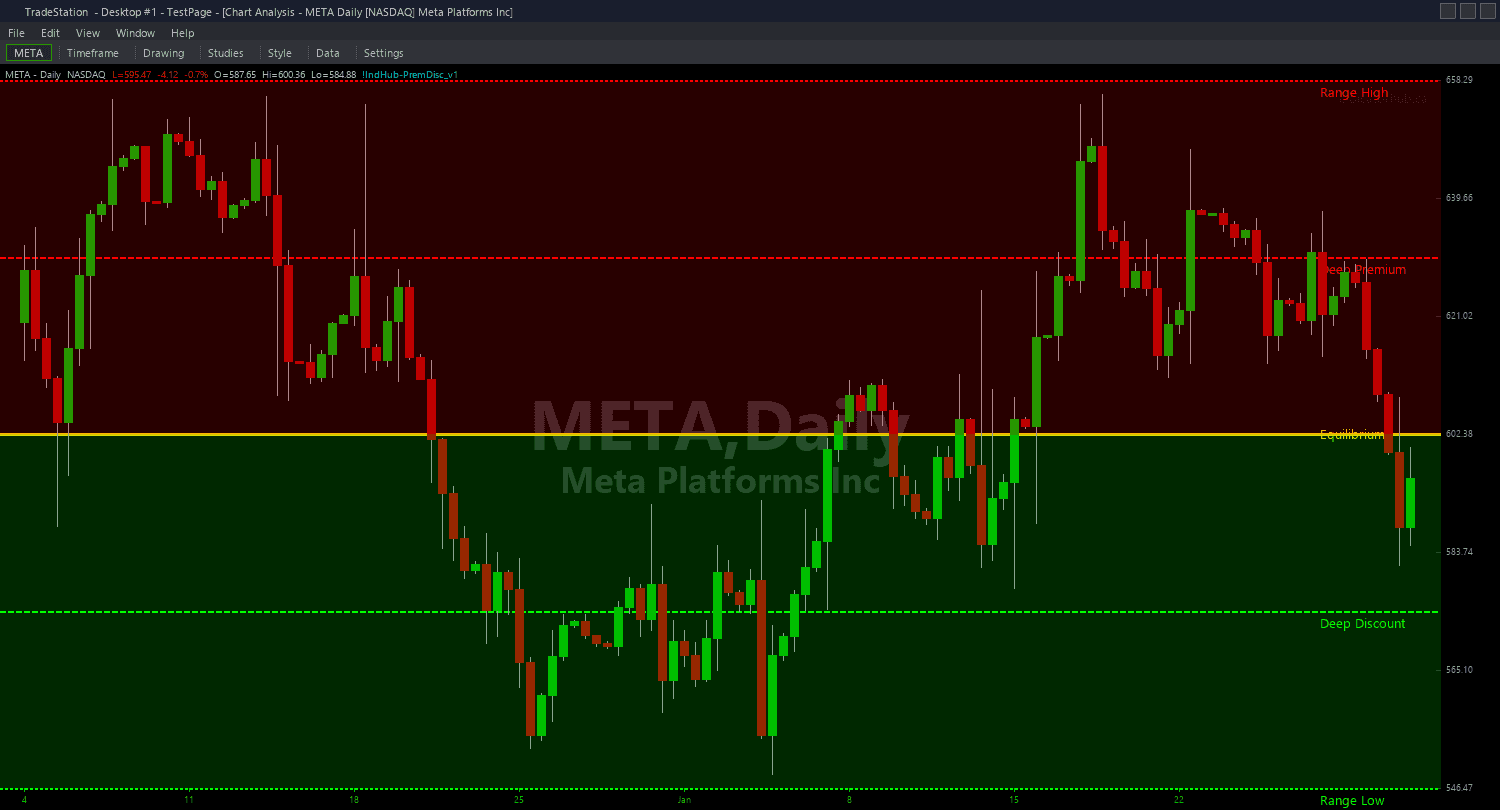
Premium Discount PaintBar adds a continuous gradient visual layer to your chart by coloring every bar according to its quartile position within the dealing range. This is not binary on/off coloring — it uses four distinct colors that create a gradient effect from discount to premium, giving you always-on awareness of where price sits relative to the institutional value framework.
- ●Dark green bars signal Deep Discount (0%-25%) — price is at the lowest quartile of the range, strongest long bias
- ●Light green bars signal Discount (25%-50%) — price is below equilibrium, institutional buying territory
- ●Light red bars signal Premium (50%-75%) — price is above equilibrium, institutional selling territory
- ●Dark red bars signal Deep Premium (75%-100%) — price is at the highest quartile of the range, strongest short bias
- ●The four-color gradient creates an intuitive heat map: green = cheap (buy), red = expensive (sell), with intensity showing how extreme the positioning is
- ●DeepDiscColor (default DarkGreen), DiscColor (default Green), PremColor (default Red), DeepPremColor (default DarkRed) inputs let you customize all four quartile colors
- ●Optional NeutralZoneWidth (default 0) can be set to create a yellow-colored neutral band around Equilibrium where no directional coloring applies — useful for traders who want to avoid trades near the 50% pivot
The continuous gradient gives you the most information-dense view of Premium/Discount positioning. At any moment, you can see where price is in the framework. The transition from green to red as price moves up through the range is immediate and unmistakable. Use the color as a trade filter: only take long entries on green bars, only take short entries on red bars.
All signals are guaranteed non-repainting. Once a bar is colored on close, the color will never change.
30-Day Money-Back Guarantee
Try it risk-free. Not satisfied? Full refund, no questions asked.
Part of the Premium Discount Bundle
Get all 4 study types for $65 — save $30
Who This Is For
Premium Discount PaintBar is the most visual and continuous study in the bundle. Use it when you want always-on directional awareness based on the Premium/Discount framework without checking any numbers, subgraphs, or separate windows.
Apply it to your context timeframe chart (one level above your entry timeframe). The gradient coloring tells you at a glance whether the current environment favors longs (green bars) or shorts (red bars). Layer your entry indicators (order blocks, FVGs, OTE zones) on your entry timeframe chart, and use the PaintBar context chart as your directional filter.
The four-color system creates an intuitive flow: as your context chart transitions from dark green to light green to light red to dark red, you know price is moving from cheap to expensive. When bars turn dark green, look for the deepest discount long opportunities on your entry chart. When bars turn dark red, look for the most aggressive short setups.
Works on any timeframe and liquid market. Most valuable as a higher-timeframe context filter applied to daily or 4-hour charts while trading entries on 5-minute or 15-minute charts. The gradient coloring is most impactful when the dealing range is wide enough for meaningful quartile separation.
See It in Action

Example chart showing Premium Discount PaintBar on a live trading session
Installation Guide
Step 1: Download the indicator file
After purchasing, you will receive a download link via email. Click the link and save the premium-discount-paintbar.eld file to your computer. Save it somewhere easy to find like your Desktop or Downloads folder.
Step 2: Open the Import Wizard
Open TradeStation. Click the File menu in the top-left corner, then select Import/Export EasyLanguage to launch the Import/Export Wizard.

Step 3: Select the import type
In the Import/Export Wizard, select "Import EasyLanguage file (ELD, ELS or ELA)" from the list. Click Next to continue.

Step 4: Browse for the file
Click the Browse button to open a file browser where you can locate your downloaded .ELD file.

Step 5: Select and open the file
Navigate to the folder where you saved the .ELD file. Select premium-discount-paintbar.eld and click Open. The file name shown may differ from the screenshot — look for your downloaded indicator file.

Step 6: Open the Studies menu
On your chart, click the Studies dropdown in the toolbar and select Add Study.

Step 7: Select the PaintBar study
In the Add Studies dialog, click the PaintBar tab on the left side. Find "!IndHub-PB_PremDisc_v1" in the list, select it, and click OK to apply.

Step 8: Configure settings (optional)
Right-click anywhere on the chart, go to Studies > Edit Studies..., select the indicator, and click the Inputs tab. Key inputs: DeepDiscColor (default DarkGreen), DiscColor (default Green), PremColor (default Red), DeepPremColor (default DarkRed), SwingStrength (default 5), NeutralZoneWidth (default 0, set to 5-10 for a neutral band around equilibrium). Most traders use default colors for the standard green-to-red gradient.
Common Issues
All bars are the same shade of green (or red). There is no gradient effect.
If all bars are the same color, price has been in the same quartile zone for the entire visible chart range. This means the market has been trending consistently within one quartile without crossing any boundaries. Zoom out or load more bars to see the full gradient across different market conditions. Alternatively, the dealing range may be very narrow, compressing all quartiles into a small price space — increase SwingStrength to establish a wider structural range.
The bar colors change from green to red very quickly. The chart looks noisy.
Rapid color changes indicate price is oscillating around the Equilibrium (50%) level, frequently crossing between Discount and Premium quartiles. This is the market telling you there is no clear directional bias. Set NeutralZoneWidth to 5 or 10 to create a yellow-colored neutral band around Equilibrium — this prevents rapid green/red switching near the midpoint and gives you clearer signals when price commits to one side.
Can I use only two colors (green for Discount, red for Premium) instead of four?
Yes. Set DeepDiscColor and DiscColor to the same green, and DeepPremColor and PremColor to the same red. This removes the intensity gradient and gives you a simple binary view: green below Equilibrium, red above. While simpler, you lose the information about how extreme the positioning is within each half of the range.
Price is above the Range High and bars are still colored dark red. Should the coloring stop outside the range?
When price exceeds the Range High, it is beyond 100% — deeper into premium territory than the range accounts for. Dark red coloring continues because price is still in an extreme premium state relative to the established range. The indicator will recalculate the range once new swing pivots form. During the transition, treat the dark red coloring as confirmation that price is extremely overextended.
For additional help, contact support.