Premium Discount Chart
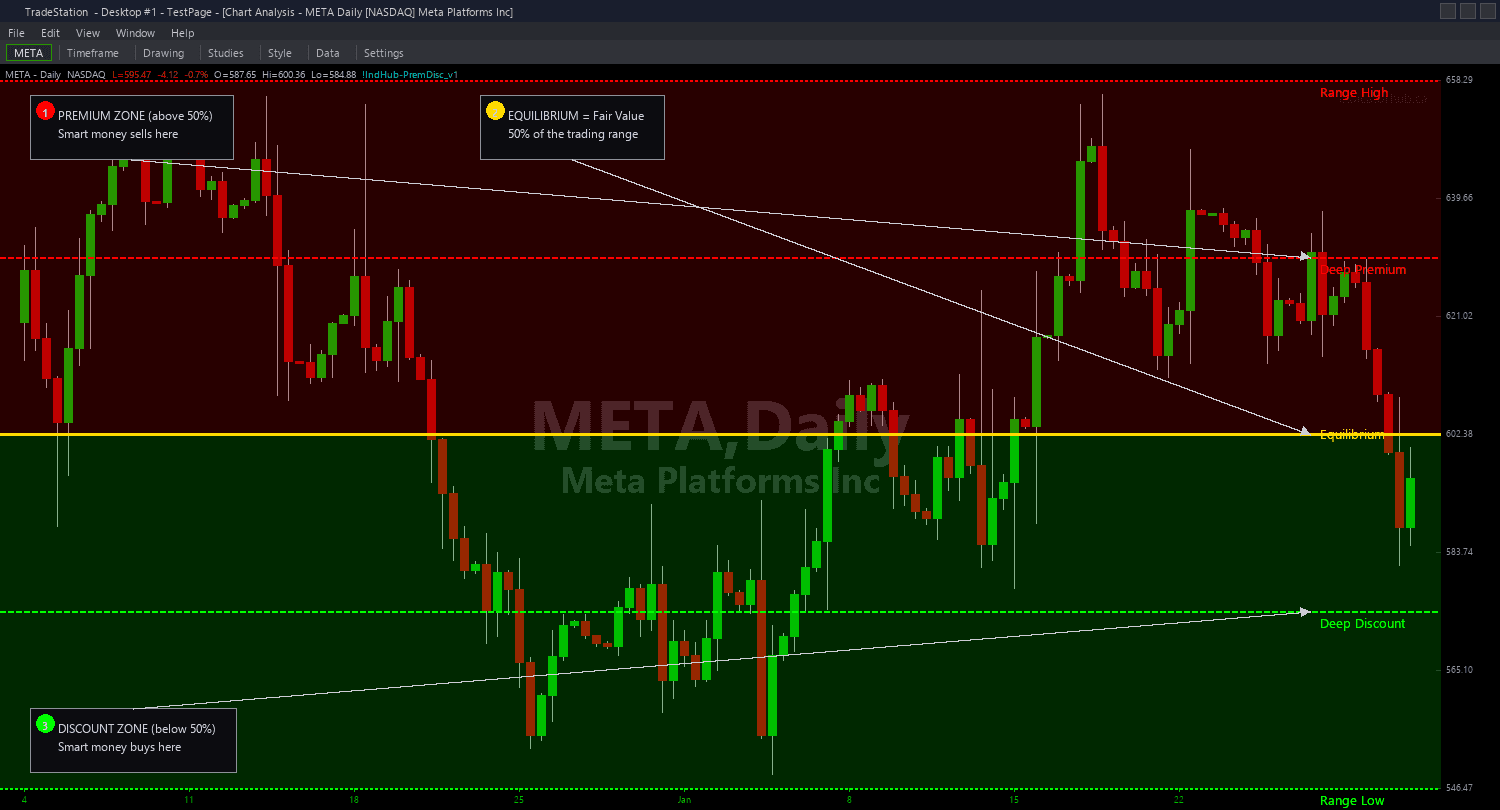
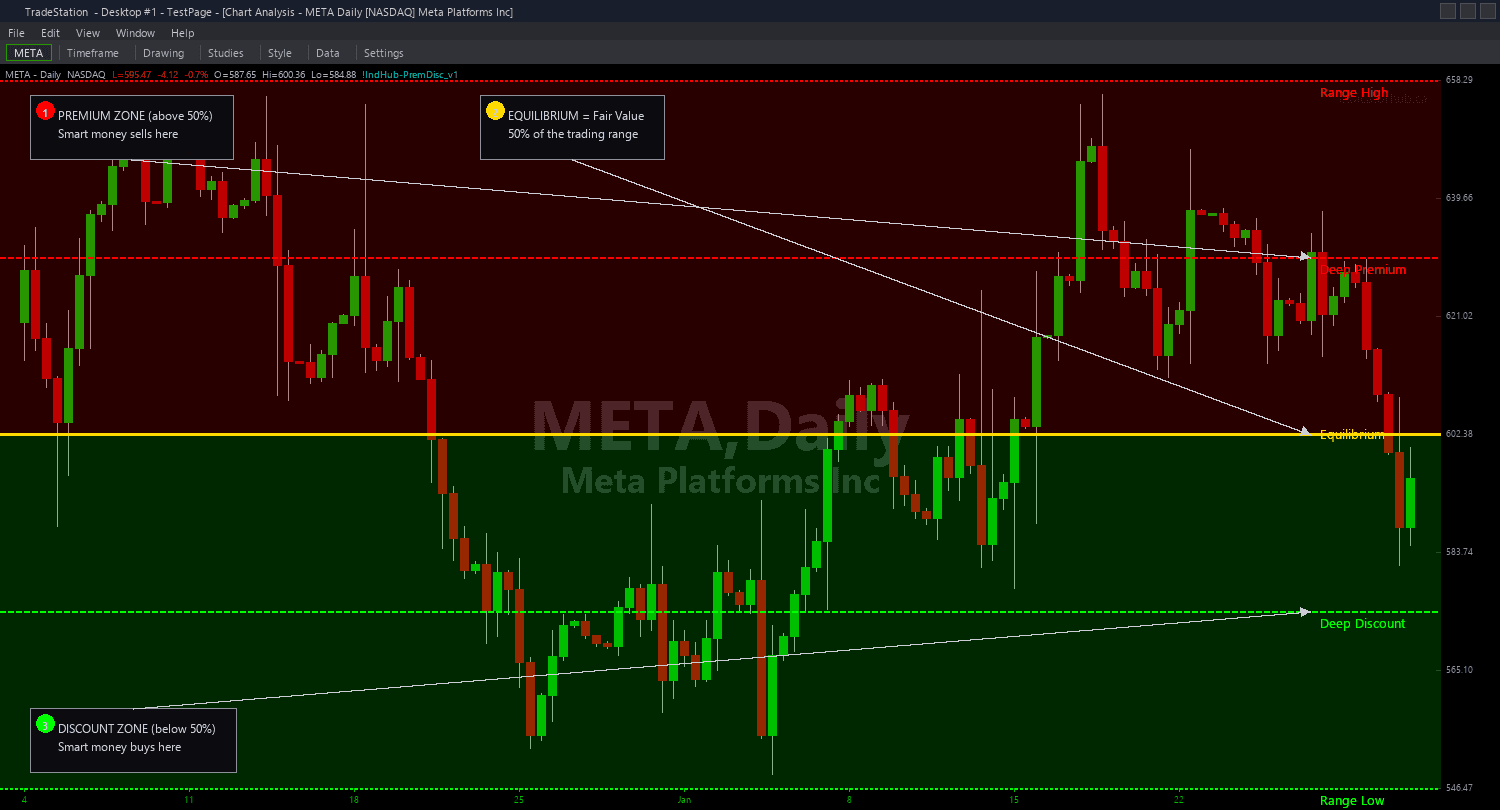
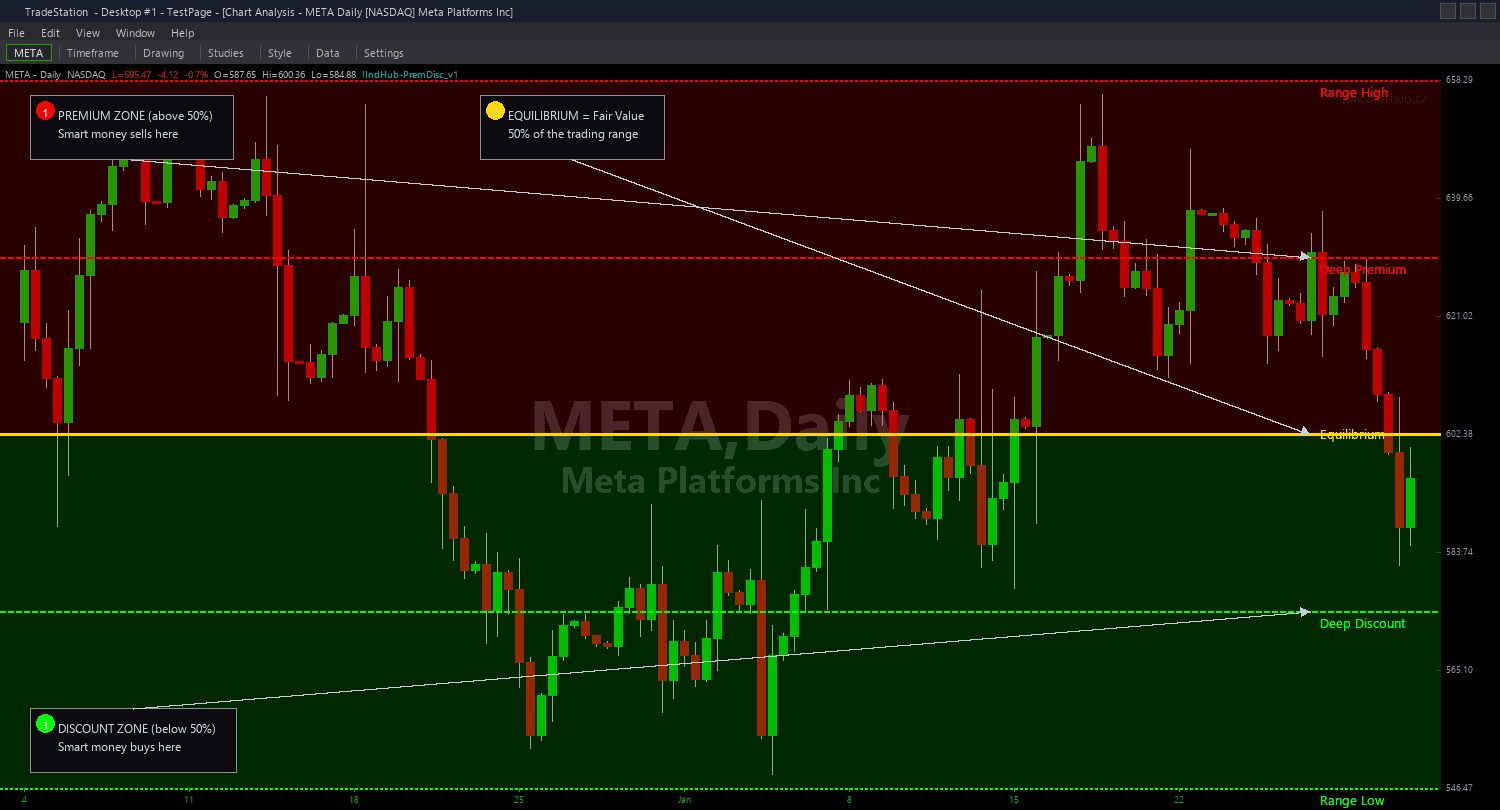
Premium Discount Chart draws five horizontal levels that define the ICT Premium/Discount framework directly on your price chart. The indicator identifies the current dealing range from confirmed swing highs and swing lows, then divides it into quartiles with clear color coding so you always know whether price is in expensive (premium) or cheap (discount) territory.
- ●Red line at the Range High marks the top of the dealing range — the confirmed swing high that defines the ceiling of the current structure
- ●Orange dashed line at the 75% level marks the boundary between Deep Premium and Premium — price above this level is extremely overextended
- ●Yellow line at the Equilibrium (50%) marks fair value — the most important reference level in the entire framework, where institutional bias shifts from buy to sell
- ●Cyan dashed line at the 25% level marks the boundary between Discount and Deep Discount — price below this level is extremely cheap
- ●Green line at the Range Low marks the bottom of the dealing range — the confirmed swing low that defines the floor
- ●SwingStrength (default 5) controls pivot sensitivity for identifying the range high and range low
- ●ShowEquilibrium (default true) toggles the 50% midpoint line — the most critical level in the framework
- ●ShowQuartiles (default true) toggles the 25% and 75% boundary lines
- ●Plot1 outputs the current quartile: +2 (Deep Premium), +1 (Premium), -1 (Discount), -2 (Deep Discount)
- ●Plot2 outputs the exact percentage position within the range (0.0 at Range Low to 100.0 at Range High)
The primary trading rule is simple: buy in Discount, sell in Premium. More specifically, take long entries when price is in Deep Discount (below 25%) and short entries when price is in Deep Premium (above 75%). The Equilibrium line is your bias filter — above it, favor shorts; below it, favor longs.
All calculations use confirmed bar data only. Non-repainting guaranteed.
30-Day Money-Back Guarantee
Try it risk-free. Not satisfied? Full refund, no questions asked.
Part of the Premium Discount Bundle
Get all 4 study types for $65 — save $30
Who This Is For
Premium Discount Chart is built for ICT traders who use the Premium/Discount framework as their foundational directional filter. Before applying any other SMC concept (order blocks, FVGs, OTE zones), you check whether price is in Premium or Discount territory to ensure your trade direction aligns with institutional flow.
Use it on the timeframe one level above your entry timeframe. If you trade entries on 5-minute charts, apply Premium Discount to the 15-minute or 1-hour chart to establish the higher-timeframe context. If you swing trade on daily charts, apply it to the weekly chart for structural context.
The indicator works on any liquid market. Index futures (ES, NQ), major forex pairs, NASDAQ-100 stocks, and trending crypto assets all exhibit clear dealing ranges where the Premium/Discount framework applies. Range-bound markets show the clearest quartile structure; strongly trending markets may require frequent range recalculation as new swing highs or lows form.
During your pre-market routine, check the Premium Discount chart to establish your directional bias for the session. If price is in Discount territory, look for long setups from your entry indicators. If price is in Premium territory, look for short setups. At Equilibrium, be cautious and wait for price to commit to a side before taking directional trades.
See It in Action
Example chart showing Premium Discount Chart on a live trading session
Example chart showing Premium Discount Chart on a live trading session
Installation Guide
Step 1: Download the indicator file
After purchasing, you will receive a download link via email. Click the link and save the premium-discount-chart.eld file to your computer. Save it somewhere easy to find like your Desktop or Downloads folder.
Step 2: Open the Import Wizard
Open TradeStation. Click the File menu in the top-left corner, then select Import/Export EasyLanguage to launch the Import/Export Wizard.

Step 3: Select the import type
In the Import/Export Wizard, select "Import EasyLanguage file (ELD, ELS or ELA)" from the list. Click Next to continue.

Step 4: Browse for the file
Click the Browse button to open a file browser where you can locate your downloaded .ELD file.

Step 5: Select and open the file
Navigate to the folder where you saved the .ELD file. Select premium-discount-chart.eld and click Open. The file name shown may differ from the screenshot — look for your downloaded indicator file.

Step 6: Open the Studies menu
On your chart, click the Studies dropdown in the toolbar and select Add Study.

Step 7: Select the indicator
In the Add Studies dialog, make sure the Indicator tab is selected on the left side. Find "!IndHub-PremDisc_Chart_v1" in the list, select it, and click OK to apply.

Step 8: Configure settings (optional)
Right-click anywhere on the chart, go to Studies > Edit Studies..., select the indicator, and click the Inputs tab. Key inputs: SwingStrength (default 5, pivot sensitivity for range detection), ShowEquilibrium (default true, toggle 50% midpoint), ShowQuartiles (default true, toggle 25%/75% lines), RangeHighColor (default Red), EquilibriumColor (default Yellow), RangeLowColor (default Green). Most traders use all default settings.
Common Issues
The range levels keep shifting as new swing highs or lows form. Is this normal?
Yes. The dealing range is defined by the most recent confirmed swing high and swing low within the lookback window. When a new swing high or low forms, the range adjusts and all quartile levels recalculate. This is expected behavior — the framework reflects the current structural range, which evolves as price makes new pivots. If you want more stable ranges, increase SwingStrength to require more significant pivots that change less frequently.
Price is above the Range High. Does the framework still apply?
When price breaks above the Range High, it has moved beyond Deep Premium into a structural breakout. The current range is no longer containing price, and the indicator will soon identify a new range using the breakout pivot as the new swing reference. During this transition, the existing quartile levels become less relevant. Wait for the new range to establish before relying on the framework again.
Can I hide the quartile lines and show only the Equilibrium?
Yes. Set ShowQuartiles to false. Only the Range High, Equilibrium (50%), and Range Low lines will display. This gives you the simplest possible Premium/Discount view: above Equilibrium is Premium, below is Discount. Add quartile lines back with ShowQuartiles = true when you want more granular zone analysis.
The Equilibrium line seems too close to the Range High or Range Low. Is the range too narrow?
If the dealing range is very narrow (tight consolidation), the Equilibrium will naturally sit close to both boundaries. This happens during low-volatility compression periods. The Premium/Discount framework is most useful when the range is wide enough for meaningful quartile separation. Increase SwingStrength to find wider structural ranges, or use a higher timeframe where dealing ranges are typically larger.
For additional help, contact support.