Market Structure RadarScreen
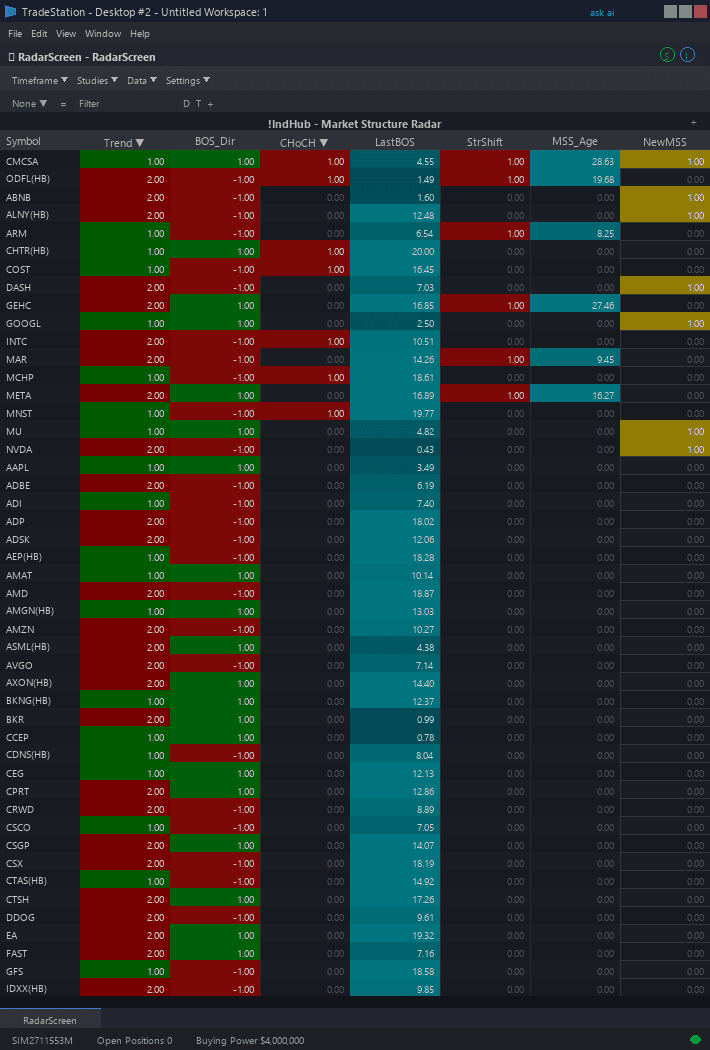
Market Structure RadarScreen brings structural break detection to your watchlist scanning workflow. Color-coded columns show each symbol's current trend state, the most recent break signal type, distances to key levels, and break timestamps — all without opening a single chart.
- ●Trend column shows the current market structure state: BULL (green), BEAR (red), or NEUTRAL (gray) — sort to instantly group symbols by directional bias based on structure
- ●Signal column displays the last break type: MSS+ (strong green, bullish reversal), BOS+ (light green, bullish continuation), BOS- (light red, bearish continuation), MSS- (strong red, bearish reversal)
- ●SignalVal column shows the numeric signal value (+2, +1, -1, -2) for sorting and filtering — sort ascending for bearish reversals, descending for bullish reversals
- ●DistHi and DistLo columns show percentage distance to the nearest unbroken swing high and swing low — sort ascending to find symbols approaching structural break points
- ●BreakLvl column shows the price level of the most recent break for reference
- ●SigAge column shows bars since the last structural break — 0-5 is fresh, 5-20 is recent, 20+ is established
- ●All cells use the Indicator Hub dark theme palette with green/red gradients distinguishing MSS from BOS intensity
Sort by Signal to find fresh MSS reversals — these are the highest-priority setups. Sort by Trend to group your watchlist by current structural bias. Sort by DistHi or DistLo ascending to find symbols approaching potential break levels.
All signals use completed bar data only. Non-repainting guaranteed.
30-Day Money-Back Guarantee
Try it risk-free. Not satisfied? Full refund, no questions asked.
Part of the Market Structure Bundle
Get all 4 study types for $65 — save $30
Who This Is For
Built for ICT and SMC traders managing 20-100 symbol watchlists who trade market structure breaks for reversals and continuations. Use this to monitor your entire universe for MSS and BOS signals without manually analyzing charts.
Add the scanner to your main RadarScreen window. During market hours, sort by SignalVal descending to find bullish MSS reversals (+2) at the top of the list, or ascending to find bearish MSS reversals (-2). Check SigAge to confirm the signal is fresh (0-5 bars). When you spot an MSS signal, switch to the chart indicator to see the break level and plan your entry.
For daily structural scanning, check the Trend column each morning before the open. Symbols with BULL trend that showed a BOS+ continuation signal are strong candidates for long setups. Symbols that just flipped from BEAR to BULL via MSS+ are potential reversal plays.
This RadarScreen indicator pairs with Market Structure Chart (included in the bundle). Use RadarScreen to filter your watchlist to the 5-10 most actionable structural signals, then open chart view for detailed break level analysis and entry planning.
See It in Action
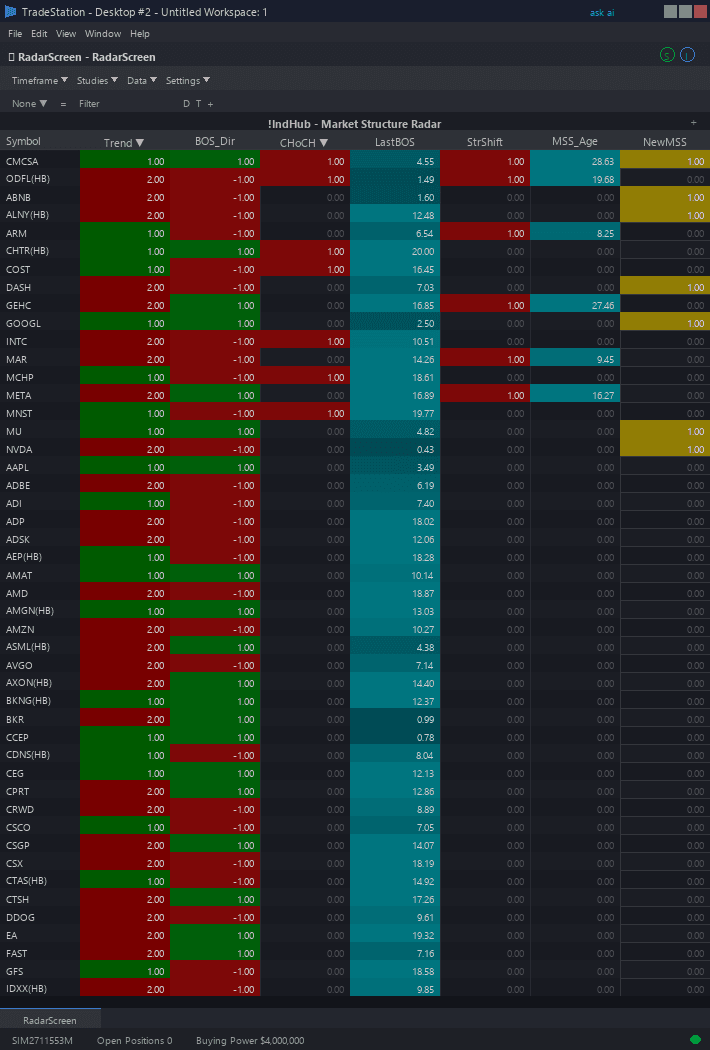
Example chart showing Market Structure RadarScreen on a live trading session
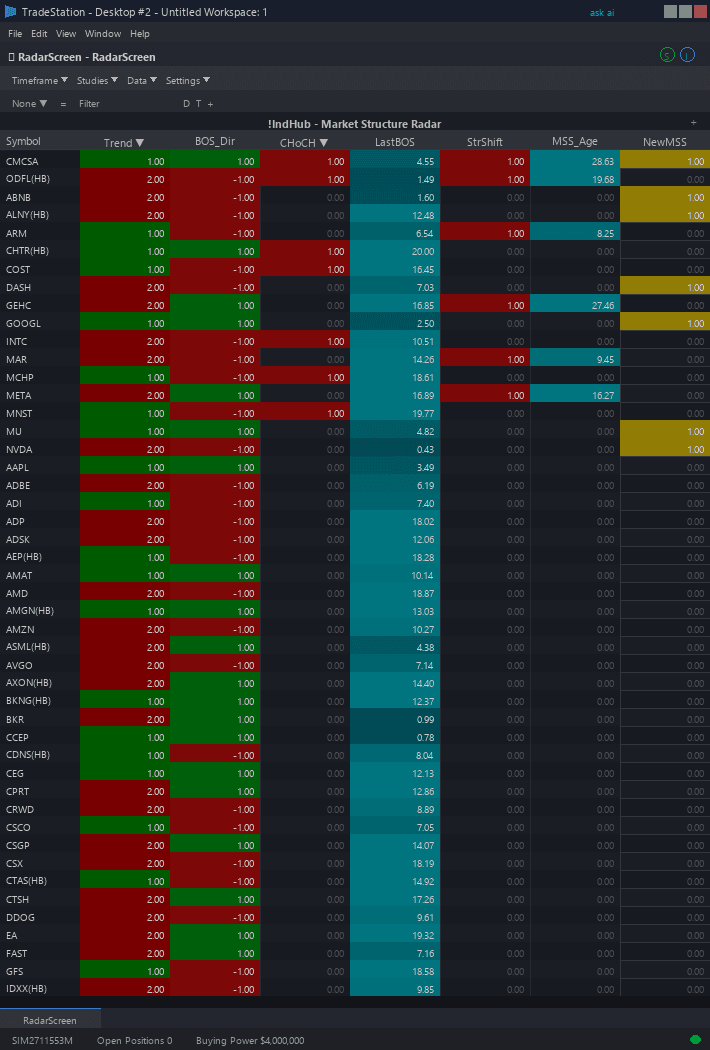
Example chart showing Market Structure RadarScreen on a live trading session
Installation Guide
Step 1: Download the indicator file
After purchase, download market-structure-radarscreen.eld from your confirmation email or account download page. Save it somewhere easy to find like your Desktop or Downloads folder.
Step 2: Open the Import Wizard
Open TradeStation. Click the File menu in the top-left corner, then select Import/Export EasyLanguage to launch the Import/Export Wizard.

Step 3: Select the import type
In the Import/Export Wizard, select "Import EasyLanguage file (ELD, ELS or ELA)" from the list. Click Next to continue.

Step 4: Browse for the file
Click the Browse button to open a file browser where you can locate your downloaded .ELD file.

Step 5: Select and open the file
Navigate to the folder where you saved the .ELD file. Select market-structure-radarscreen.eld and click Open. The file name shown may differ from the screenshot — look for your downloaded indicator file.

Step 6: Open the Studies menu
Open your RadarScreen window. Click the Studies dropdown in the toolbar and select Add Study.
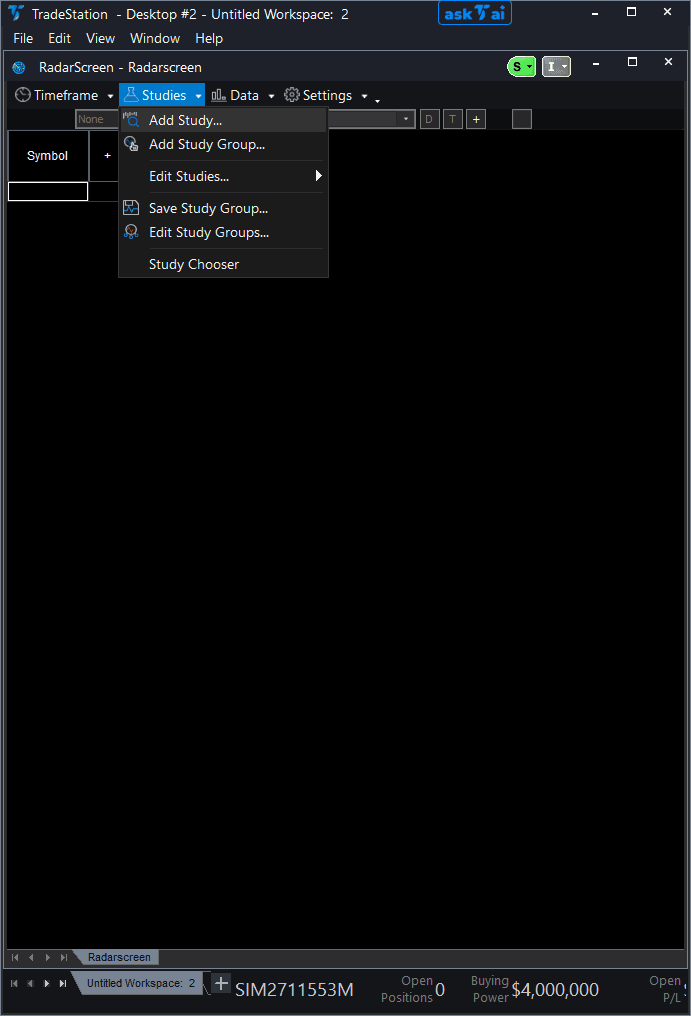
Step 7: Select the indicator
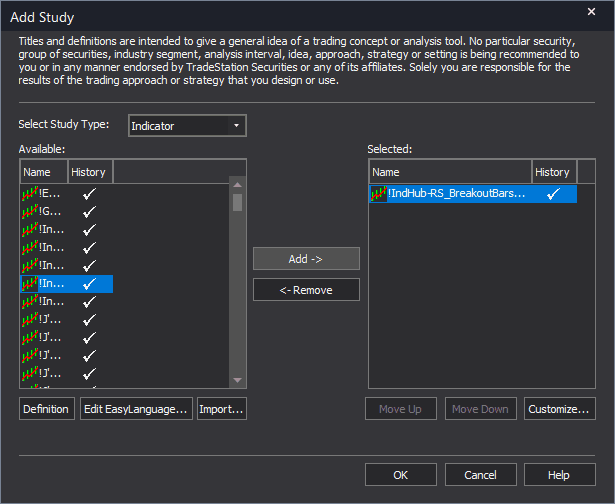
In the Add Study dialog, make sure Indicator is selected in the Study Type dropdown. Find "!IndHub-RS_MktStructure_v1" in the Available list, select it, and click Add. Click OK to apply.
Step 8: Configure your watchlist and columns
Add your symbols to the RadarScreen watchlist. Adjust column widths by dragging column borders. Key inputs: SwingStrength (default 5), MaxLevels (default 10), MaxAge (default 75), ShowBOS (default true), ShowMSS (default true). Sort by Signal to find MSS reversals, or by Trend to group by structural bias.
Common Issues
The Trend column shows NEUTRAL for many symbols. What does this mean?
NEUTRAL means the indicator has not yet detected enough structural breaks to establish a directional bias. This happens when: (1) insufficient historical data is loaded — ensure additional bars are set to at least 500 by right-clicking the indicator column header, going to Studies > Edit for All Symbols..., and on the General tab, or (2) the market has been in a tight range without any swing levels being broken. Try reducing SwingStrength to detect more minor structural breaks, or wait for the market to produce a clear directional move.
How do I filter for only MSS reversal signals and ignore BOS continuations?
Sort by SignalVal. MSS bullish reversals have value +2 and MSS bearish reversals have value -2. BOS signals have values of +1 or -1. Sort descending to see MSS bull (+2) at top, or ascending to see MSS bear (-2) at top. You can also visually distinguish by cell intensity — MSS signals use stronger green/red backgrounds than BOS signals.
The Signal column shows a value but SigAge is very high (50+). Is this signal still relevant?
A high SigAge means the last structural break occurred many bars ago. The Trend column remains valid (BULL/BEAR), but the specific Signal is stale. Focus on symbols where SigAge is under 10 for the most actionable signals. Older signals are useful for confirming the existing trend bias but should not be used as fresh entry triggers.
For additional help, contact support.