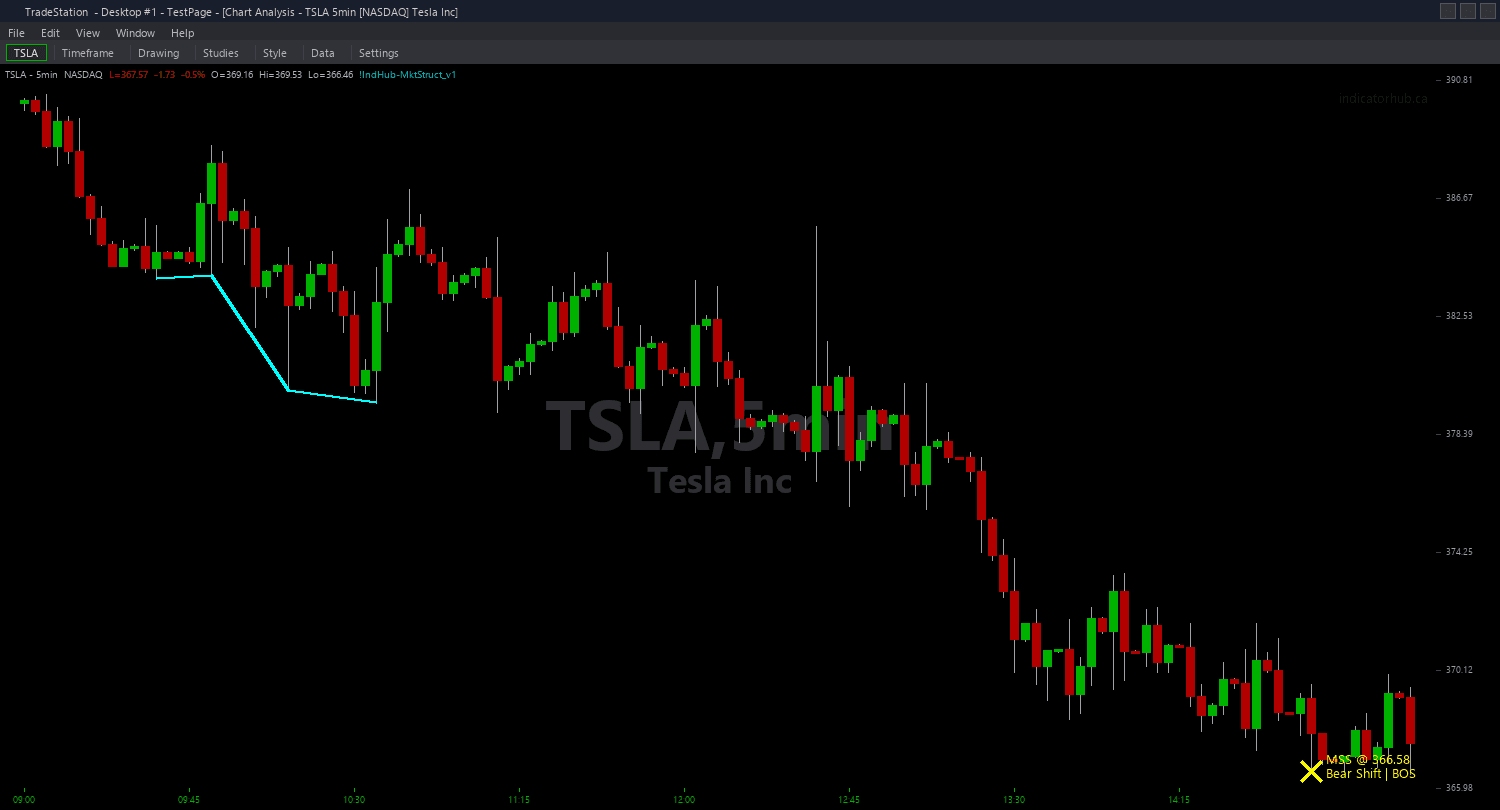
Market Structure PaintBar
Market Structure PaintBar adds a continuous trend-state visual layer to your chart by coloring every bar according to the current market structure bias. Unlike the ShowMe study that only marks break bars, the PaintBar colors ALL bars based on the prevailing structural trend, giving you an always-on awareness of whether you should be looking for longs, shorts, or standing aside.
- ●Green bars indicate bullish market structure — the most recent MSS was bullish (+2), trend is up, look for long setups
- ●Red bars indicate bearish market structure — the most recent MSS was bearish (-2), trend is down, look for short setups
- ●Yellow bars indicate transitional structure — conflicting signals or the initial period before a clear trend establishes
- ●Bar color changes immediately when a new MSS fires, creating a clear visual transition point on your chart
- ●BullTrendColor (default Green), BearTrendColor (default Red), and TransitionColor (default Yellow) inputs let you customize the color scheme
- ●Optional ColorOnlyMSS mode colors bars only during the first N bars after an MSS event, then returns to normal colors — useful for highlighting just the reversal window
The continuous coloring gives you instant directional context at all times. When your chart shows green bars, you know structure is bullish — take only long setups. When bars turn red, switch to short setups. Yellow transition bars signal caution — reduce size or wait for resolution.
All signals are guaranteed non-repainting. Once a bar is colored on close, the color will never change.
30-Day Money-Back Guarantee
Try it risk-free. Not satisfied? Full refund, no questions asked.
Part of the Market Structure Bundle
Get all 4 study types for $65 — save $30
Who This Is For
Market Structure PaintBar is designed as a continuous trend filter that colors your entire chart by structural bias. Use it when you want always-on awareness of the current trend state without checking subgraphs or RadarScreen columns.
Apply it to the same chart as the Market Structure chart indicator and ShowMe study. The chart indicator shows break levels, the ShowMe marks break bars with typed dots, and the PaintBar colors every bar by the prevailing trend. This three-layer system gives you complete structural analysis at a glance.
Particularly effective as a trade filter. When bars are green, only take long setups from your other indicators (order blocks, fair value gaps, etc.). When bars are red, only take short setups. When bars are yellow, stand aside. This simple color filter can significantly improve your win rate by keeping you aligned with structure.
Works on any timeframe and liquid market. The PaintBar is most valuable on the same timeframe you use for entries, providing constant visual confirmation that your trade direction aligns with market structure.
See It in Action
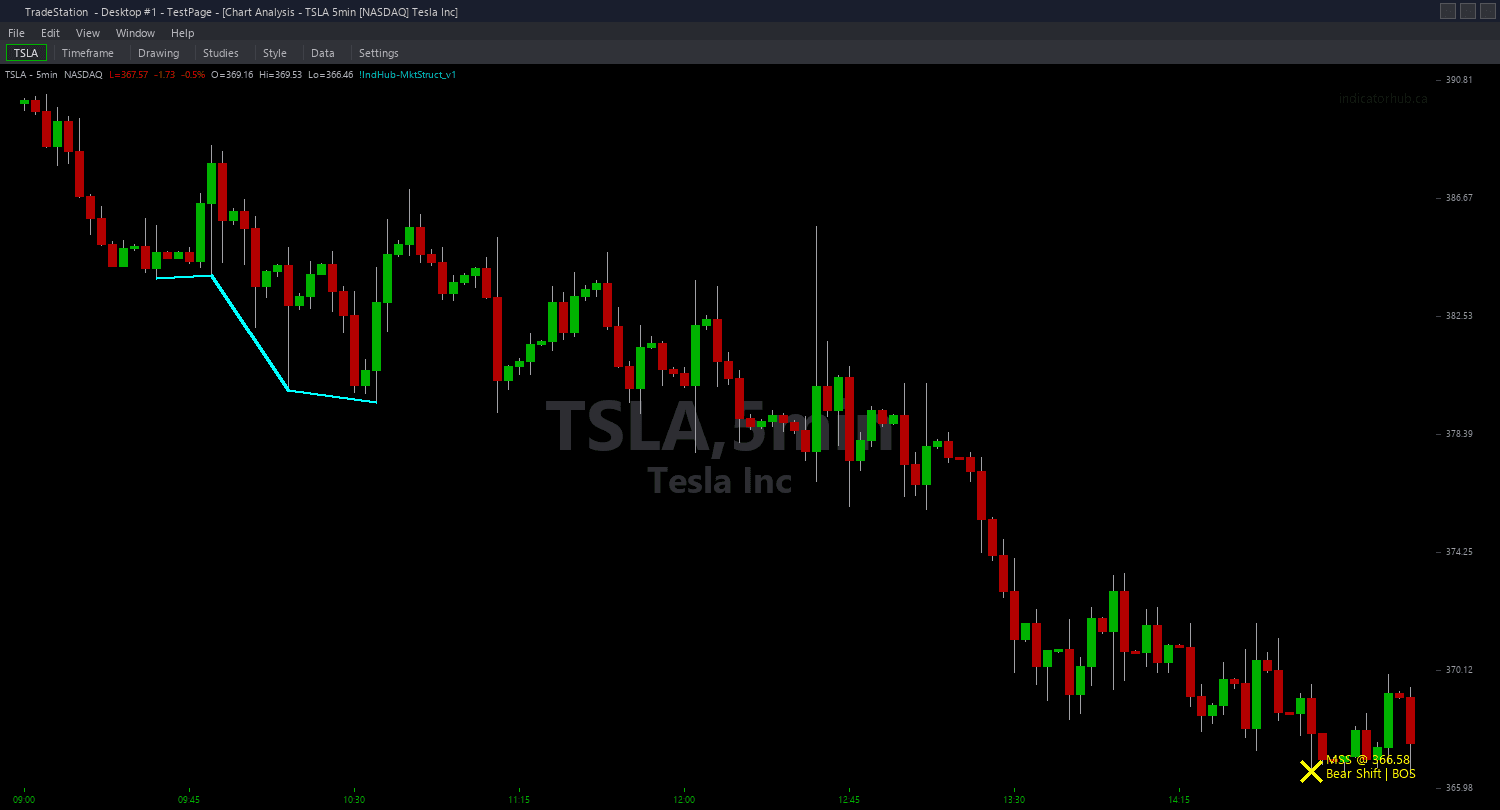
Example chart showing Market Structure PaintBar on a live trading session
Installation Guide
Step 1: Download the indicator file
After purchasing, you will receive a download link via email. Click the link and save the market-structure-paintbar.eld file to your computer. Save it somewhere easy to find like your Desktop or Downloads folder.
Step 2: Open the Import Wizard
Open TradeStation. Click the File menu in the top-left corner, then select Import/Export EasyLanguage to launch the Import/Export Wizard.

Step 3: Select the import type
In the Import/Export Wizard, select "Import EasyLanguage file (ELD, ELS or ELA)" from the list. Click Next to continue.

Step 4: Browse for the file
Click the Browse button to open a file browser where you can locate your downloaded .ELD file.

Step 5: Select and open the file
Navigate to the folder where you saved the .ELD file. Select market-structure-paintbar.eld and click Open. The file name shown may differ from the screenshot — look for your downloaded indicator file.

Step 6: Open the Studies menu
On your chart, click the Studies dropdown in the toolbar and select Add Study.

Step 7: Select the PaintBar study
In the Add Studies dialog, click the PaintBar tab on the left side. Find "!IndHub-PB_MktStructure_v1" in the list, select it, and click OK to apply.

Step 8: Configure settings (optional)
Right-click anywhere on the chart, go to Studies > Edit Studies..., select the indicator, and click the Inputs tab. Key inputs: BullTrendColor (default Green), BearTrendColor (default Red), TransitionColor (default Yellow), SwingStrength (default 5), MaxAge (default 75). For a simpler view, ColorOnlyMSS can be enabled to color only bars near reversal events.
Common Issues
The bars keep switching between green and red rapidly. The chart looks noisy.
Rapid color switching indicates choppy market structure with frequent MSS reversals. This is the market telling you there is no clear trend. Increase SwingStrength to 8 or 10 to require more significant structural breaks before changing the trend state. Alternatively, use a higher timeframe where structure is cleaner and transitions are less frequent.
The bars are all yellow (transition). When will a trend color appear?
Yellow bars appear before the first MSS event is detected. The indicator needs enough historical data to identify swing pivots and at least one structural break to establish a trend state. Ensure sufficient additional bars are loaded (500+ by right-clicking the indicator column header, going to Studies > Edit for All Symbols..., and on the General tab). Once the first MSS fires, bars will switch to green or red.
Can I use different colors for the trend states?
Yes. To change colors, right-click anywhere on the chart, go to Studies > Edit Studies..., select the indicator, click the Inputs tab, and change BullTrendColor, BearTrendColor, and TransitionColor to any TradeStation color name or RGB values. Popular alternatives: Cyan for bullish, Magenta for bearish, DarkGray for transition. Choose colors that work well with your chart background and other indicator overlays.
For additional help, contact support.