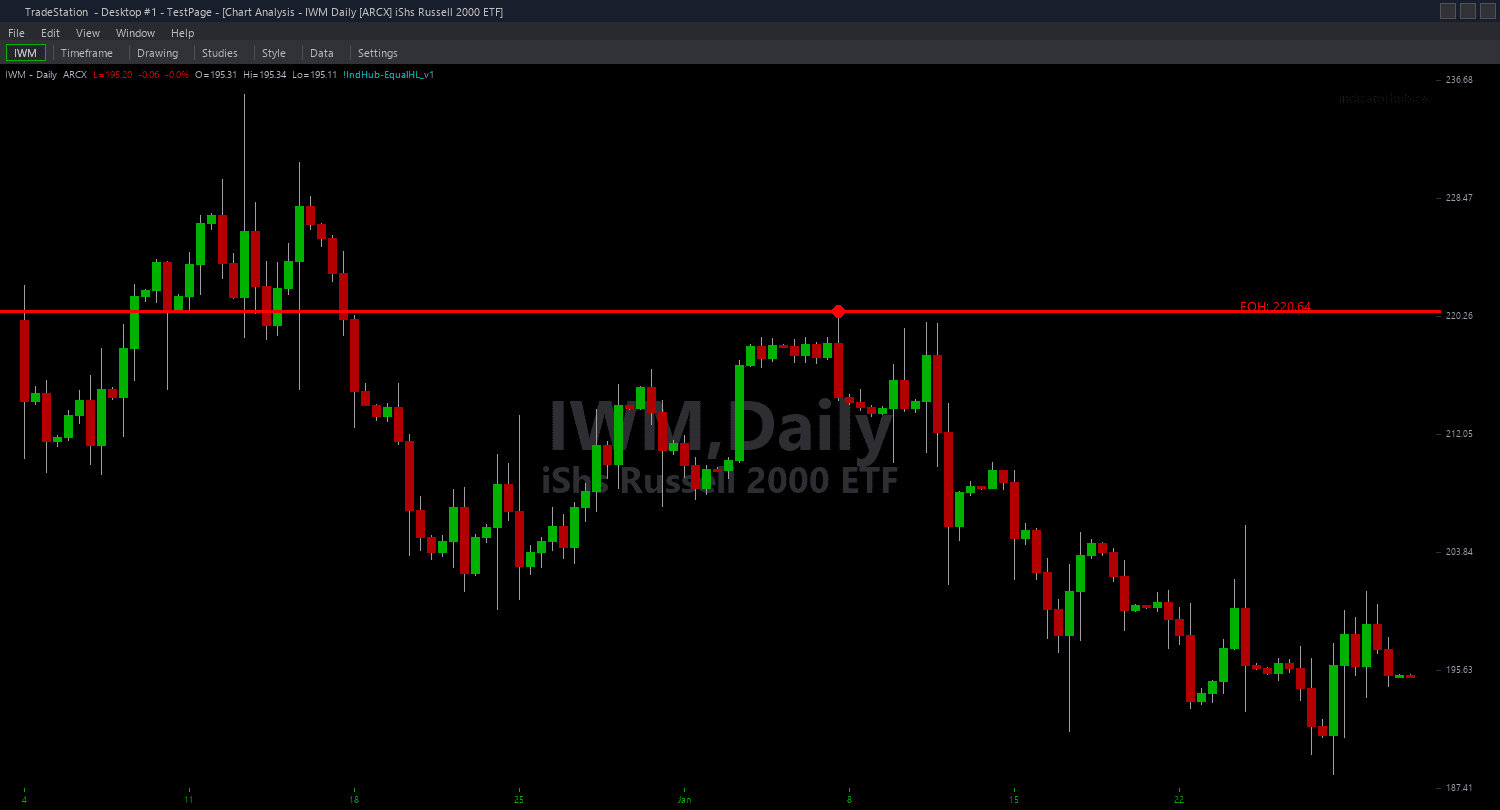
Equal Highs & Lows ShowMe
Equal Highs & Lows ShowMe marks two types of events on your chart: the formation of new equal levels and the sweep events when those levels are taken. Formation dots appear when the indicator confirms a new EQH or EQL. Sweep dots appear when price closes beyond an equal level, taking the liquidity pool. This gives you a complete visual timeline of liquidity formation and consumption.
- ●Blue dots ABOVE the bar mark new Equal Highs (EQH) formations — a second swing high has formed within tolerance of a previous one, creating a liquidity pool
- ●Blue dots BELOW the bar mark new Equal Lows (EQL) formations — a second swing low has formed within tolerance
- ●Amber dots ABOVE the bar mark EQH sweep events — price closed above the equal high level, taking the sell stops
- ●Amber dots BELOW the bar mark EQL sweep events — price closed below the equal low level, taking the buy stops
- ●Formation dots use blue coloring; sweep dots use amber coloring for immediate visual distinction
- ●DotOffset (default 0.3 ATR) positions dots clear of the price bar for readability
- ●ShowFormations (default true) toggles formation dots — set to false to see only sweep events
- ●ShowSweeps (default true) toggles sweep dots — set to false to see only formation events
The sweep dots are the primary trading signals. When an amber dot appears, liquidity has been taken. Watch for immediate price reversal after the sweep — this is the institutional stop-hunt pattern that SMC traders capitalize on.
All signals are guaranteed non-repainting. Formation dots appear after swing pivot confirmation. Sweep dots appear on the bar that closes beyond the level.
30-Day Money-Back Guarantee
Try it risk-free. Not satisfied? Full refund, no questions asked.
Part of the Equal Highs & Lows Bundle
Get all 4 study types for $65 — save $30
Who This Is For
Equal Highs & Lows ShowMe is designed for traders who want clean visual markers at both formation and sweep events. Use it to build a timeline of liquidity creation and consumption on your chart, helping you understand the institutional order flow narrative.
Layer this study on top of the Equal Highs & Lows chart indicator. The chart indicator shows the horizontal levels, and the ShowMe dots mark the key events at those levels. Blue dots tell you when new liquidity pools formed. Amber dots tell you when those pools were taken.
Use it on 5-minute to 15-minute charts for intraday sweep trading. When an amber sweep dot appears, immediately evaluate for reversal — check for rejection wicks, engulfing candles, or divergence at the sweep point. Enter in the reversal direction with your stop beyond the sweep extreme.
Works on any liquid market. Most effective during London and New York session opens when institutional sweep activity is highest.
See It in Action
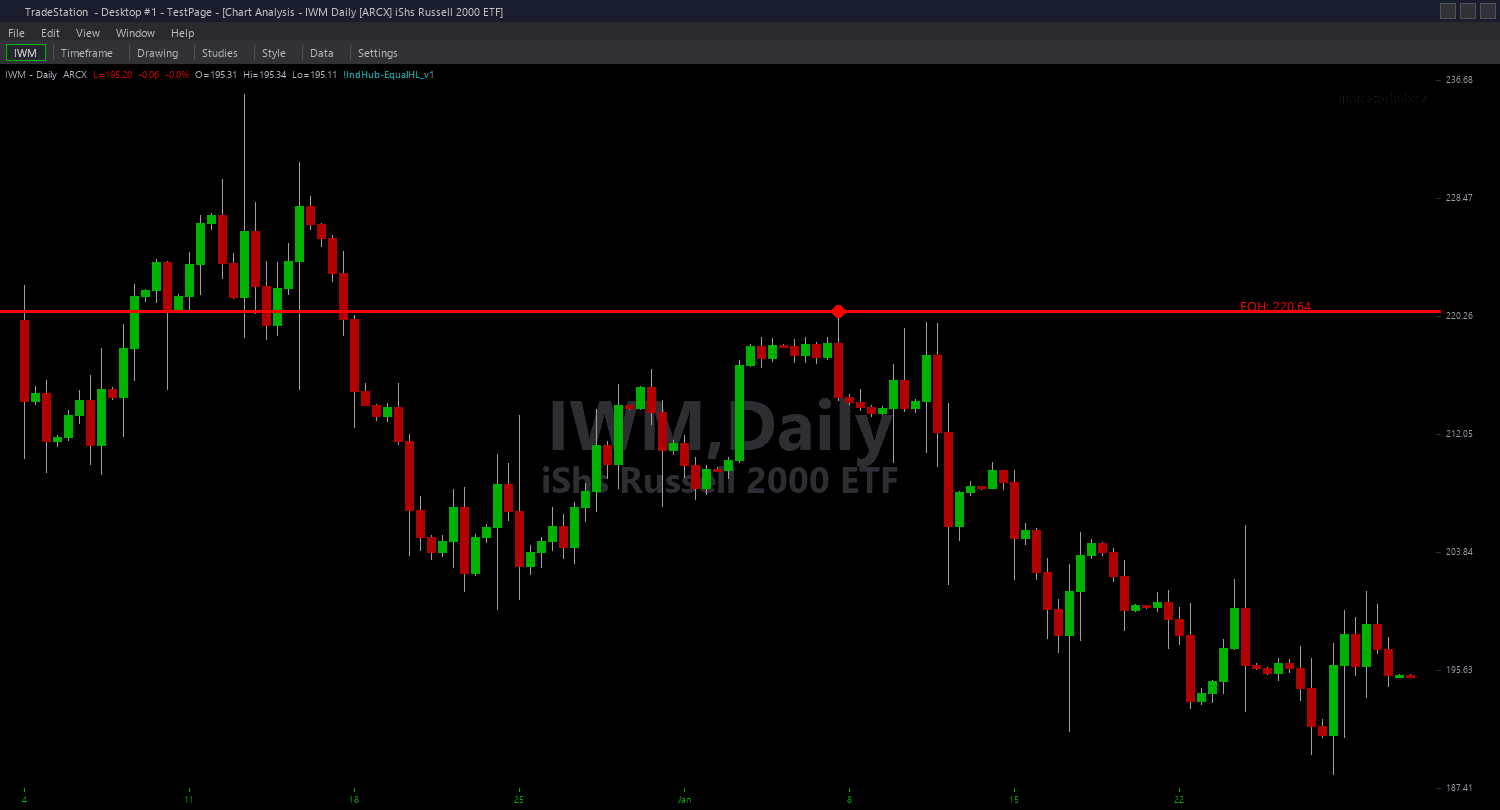
Example chart showing Equal Highs & Lows ShowMe on a live trading session
Installation Guide
Step 1: Download the indicator file
After purchasing, you will receive a download link via email. Click the link and save the equal-highs-lows-showme.eld file to your computer. Save it somewhere easy to find like your Desktop or Downloads folder.
Step 2: Open the Import Wizard
Open TradeStation. Click the File menu in the top-left corner, then select Import/Export EasyLanguage to launch the Import/Export Wizard.

Step 3: Select the import type
In the Import/Export Wizard, select "Import EasyLanguage file (ELD, ELS or ELA)" from the list. Click Next to continue.

Step 4: Browse for the file
Click the Browse button to open a file browser where you can locate your downloaded .ELD file.

Step 5: Select and open the file
Navigate to the folder where you saved the .ELD file. Select equal-highs-lows-showme.eld and click Open. The file name shown may differ from the screenshot — look for your downloaded indicator file.

Step 6: Open the Studies menu
On your chart, click the Studies dropdown in the toolbar and select Add Study.

Step 7: Select the ShowMe study
In the Add Studies dialog, click the ShowMe tab on the left side. Find "!IndHub-SM_EqualHL_v1" in the list, select it, and click OK to apply.

Step 8: Configure settings (optional)
Right-click anywhere on the chart, go to Studies > Edit Studies..., select the indicator, and click the Inputs tab. Key inputs: SwingStrength (default 5), EqualTolerance (default 0.15 ATR multiples), MaxLevelAge (default 200), DotOffset (default 0.3 ATR), ShowFormations (default true), ShowSweeps (default true), AlertOnSweep (default true). For dot appearance, go to the Plots tab and set the plot style to Point with your preferred weight.
Common Issues
I see formation dots but never any sweep dots. Is the sweep detection working?
Sweep events only fire when price closes beyond an equal level. If the market has not reached any equal levels since you applied the indicator, no sweeps will appear. Check the chart indicator to see where equal levels are relative to current price. Sweeps are inherently event-driven — they only occur when price reaches the liquidity pool. Be patient and wait for price to approach the levels.
Formation dots appear several bars after the swing pivot I can see on my chart. Why the delay?
This is intentional and guarantees non-repainting. A swing pivot is only confirmed after SwingStrength bars have elapsed on both sides. With the default of 5, the formation dot appears 5 bars after the actual pivot. Additionally, the equal level requires at least two confirmed pivots at the same price, so the dot appears on the second pivot's confirmation. This delay ensures the signal never disappears retroactively.
Can I hide formation dots and only see sweep events?
Yes. Set ShowFormations to false and keep ShowSweeps set to true. This gives you a clean chart with only the actionable sweep signals visible. You can still use the chart indicator to see where the equal levels are located.
For additional help, contact support.