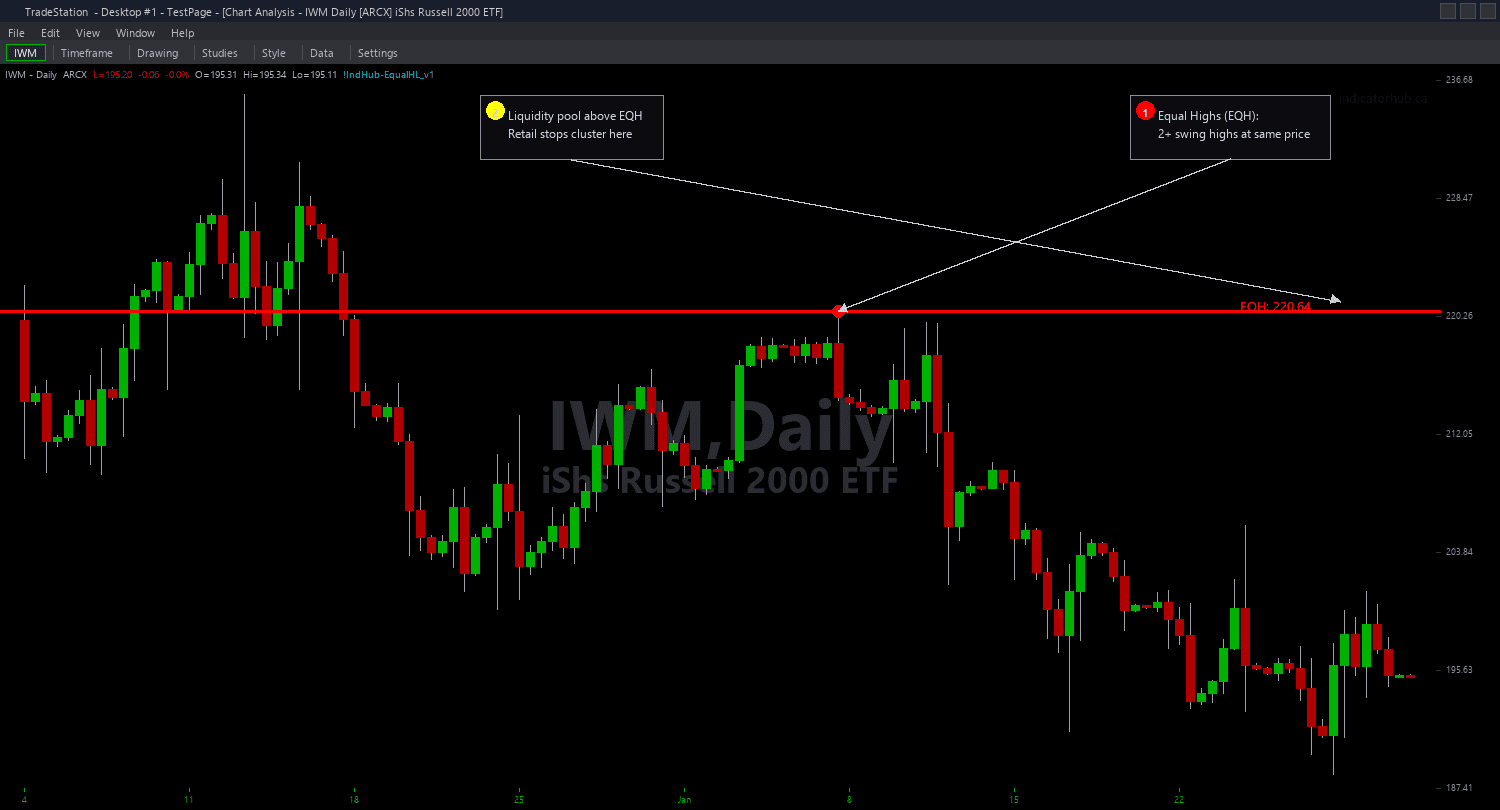
Equal Highs & Lows Chart
Equal Highs & Lows Chart identifies swing pivots that form at nearly the same price and draws horizontal lines at those levels, giving you a visual map of where institutional stop-hunt liquidity pools exist. When two or more swing highs form within the ATR tolerance, an Equal Highs (EQH) line is drawn. When two or more swing lows form within tolerance, an Equal Lows (EQL) line is drawn.
- ●Green horizontal lines mark Equal Lows (EQL) — resting buy stops below swing lows that institutions target for downside sweeps before reversing higher
- ●Red horizontal lines mark Equal Highs (EQH) — resting sell stops above swing highs that institutions target for upside sweeps before reversing lower
- ●Solid lines indicate active (unsweep) levels — the liquidity pool has not yet been taken
- ●Dashed lines indicate swept levels — price has broken through and taken the liquidity, changing the level's significance
- ●SwingStrength (default 5) controls the pivot sensitivity — higher values find only the most significant equal levels from major pivots
- ●EqualTolerance (default 0.15) measured in ATR multiples defines how close two pivots must be to qualify as equal — auto-adapts to any instrument's price scale
- ●MaxLevelAge (default 200 bars) automatically expires levels that have been on the chart too long without being swept
- ●MaxLevelCount (default 10) limits simultaneous levels per side to keep charts clean
- ●Automatic sweep detection changes the line style from solid to dashed when price closes beyond the level, indicating the liquidity was taken
- ●Plot1 outputs the number of active EQH levels and Plot2 outputs active EQL levels for programmatic reference
The highest-probability SMC setups occur when price sweeps an equal level and immediately reverses. An EQH sweep followed by bearish rejection indicates smart money took the buy stops and is now driving price lower. An EQL sweep followed by bullish rejection indicates the sell stops were taken and price is reversing higher.
All level detection uses confirmed swing pivots. Non-repainting guaranteed.
30-Day Money-Back Guarantee
Try it risk-free. Not satisfied? Full refund, no questions asked.
Part of the Equal Highs & Lows Bundle
Get all 4 study types for $65 — save $30
Who This Is For
Equal Highs & Lows Chart is built for SMC and ICT-style traders who understand liquidity concepts and want to identify where stop-loss orders accumulate at repeated price levels. If you manually scan for equal highs and lows on your charts, this indicator automates the detection with ATR-adaptive tolerance that works across any instrument.
Use it on intraday charts (5-minute to 15-minute) for day trading sweep setups. The default SwingStrength of 5 and EqualTolerance of 0.15 work well for 5-minute charts on liquid futures and stocks. For swing trading on hourly or daily charts, increase SwingStrength to 8-10 and consider increasing EqualTolerance to 0.20 for wider tolerance on larger-timeframe pivots.
The indicator performs best on liquid markets where stop-loss clustering is meaningful: index futures (ES, NQ), NASDAQ-100 stocks, large-cap ETFs, and major forex pairs. Markets with thin liquidity may not exhibit clean equal level patterns.
Watch for price approaching an equal level. When price sweeps through (closes beyond the level briefly), look for immediate reversal — this is the stop-hunt pattern. Enter in the direction of the reversal with your stop beyond the sweep high or low. The most reliable sweeps occur during London or New York session opens when institutional activity is highest.
See It in Action
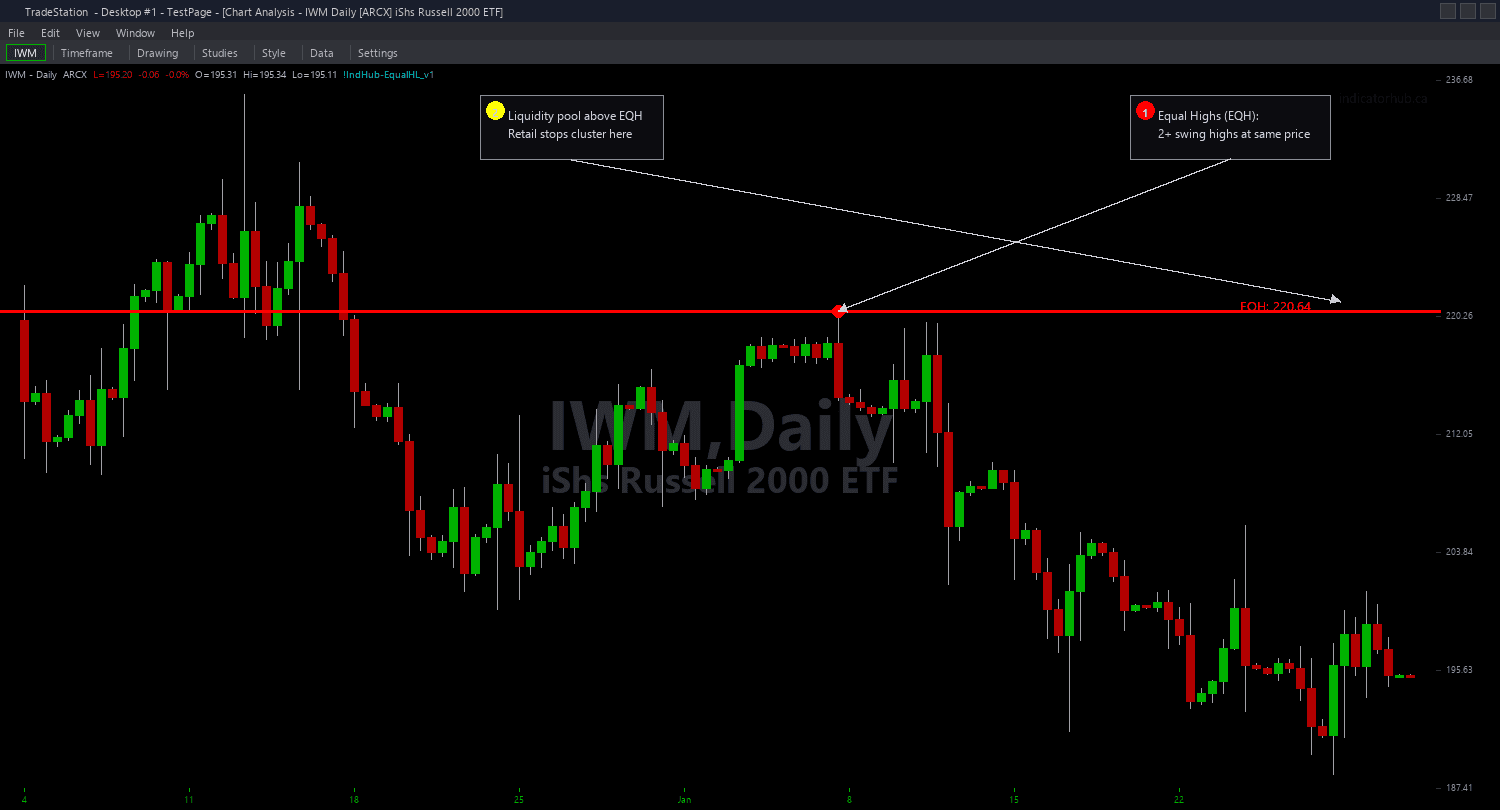
Example chart showing Equal Highs & Lows Chart on a live trading session
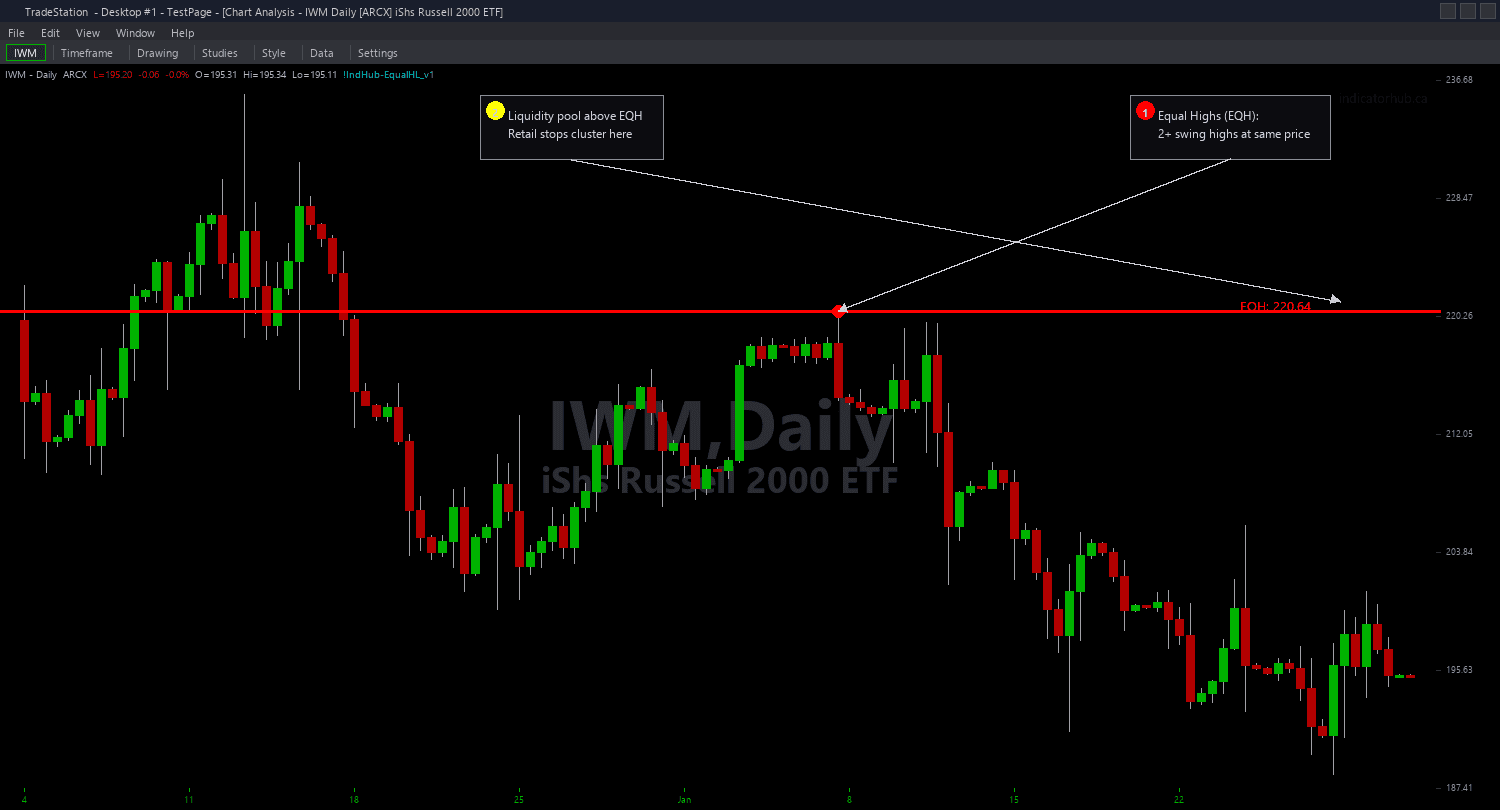
Example chart showing Equal Highs & Lows Chart on a live trading session
Installation Guide
Step 1: Download the indicator file
After purchasing, you will receive a download link via email. Click the link and save the equal-highs-lows-chart.eld file to your computer. Save it somewhere easy to find like your Desktop or Downloads folder.
Step 2: Open the Import Wizard
Open TradeStation. Click the File menu in the top-left corner, then select Import/Export EasyLanguage to launch the Import/Export Wizard.

Step 3: Select the import type
In the Import/Export Wizard, select "Import EasyLanguage file (ELD, ELS or ELA)" from the list. Click Next to continue.

Step 4: Browse for the file
Click the Browse button to open a file browser where you can locate your downloaded .ELD file.

Step 5: Select and open the file
Navigate to the folder where you saved the .ELD file. Select equal-highs-lows-chart.eld and click Open. The file name shown may differ from the screenshot — look for your downloaded indicator file.

Step 6: Open the Studies menu
On your chart, click the Studies dropdown in the toolbar and select Add Study.

Step 7: Select the indicator
In the Add Studies dialog, make sure the Indicator tab is selected on the left side. Find "!IndHub-EqualHL_Chart_v1" in the list, select it, and click OK to apply.

Step 8: Configure settings (optional)
Right-click anywhere on the chart, go to Studies > Edit Studies..., select the indicator, and click the Inputs tab. Key inputs: SwingStrength (default 5, pivot sensitivity), EqualTolerance (default 0.15, ATR multiples), MaxLevelAge (default 200 bars), MaxLevelCount (default 10), ShowEQH/ShowEQL (toggle sides), EQHColor/EQLColor (level colors), AlertOnSweep (default true). Most traders start with defaults.
Common Issues
I see too many equal levels cluttering my chart. How do I filter to the most significant ones?
Increase SwingStrength to 8 or 10 to require more bars on each side for pivot confirmation — this finds only major swing points and reduces minor equal levels. Lower EqualTolerance to 0.10 to require pivots to be closer together for qualification. Reduce MaxLevelCount to show only the 5 most recent levels per side.
The EqualTolerance setting seems too tight for my instrument. Equal levels I can see visually are not being detected.
Increase EqualTolerance to 0.20 or 0.25. The tolerance is measured in ATR multiples, so it auto-adapts to instrument price scale. However, different instruments have different noise characteristics. If your instrument has wide spreads or frequent minor gaps, a wider tolerance is appropriate. The visual check is a good calibration method — adjust until the indicator detects the levels you would mark manually.
A line changed from solid to dashed. What does this mean?
The line style change indicates a sweep event — price closed beyond the equal level, taking the liquidity pool. Solid lines are active (untouched) levels. Dashed lines are swept levels. In SMC theory, a swept level has had its liquidity taken. Watch for reversal immediately after the sweep — this is the high-probability stop-hunt pattern.
Can I hide swept levels and only show active ones?
The indicator does not have a built-in toggle for hiding swept levels, but swept levels automatically expire after MaxLevelAge bars. If you want swept levels to disappear quickly, reduce MaxLevelAge. Alternatively, you can visually distinguish them by the dashed line style — focus your attention on solid lines only.
For additional help, contact support.