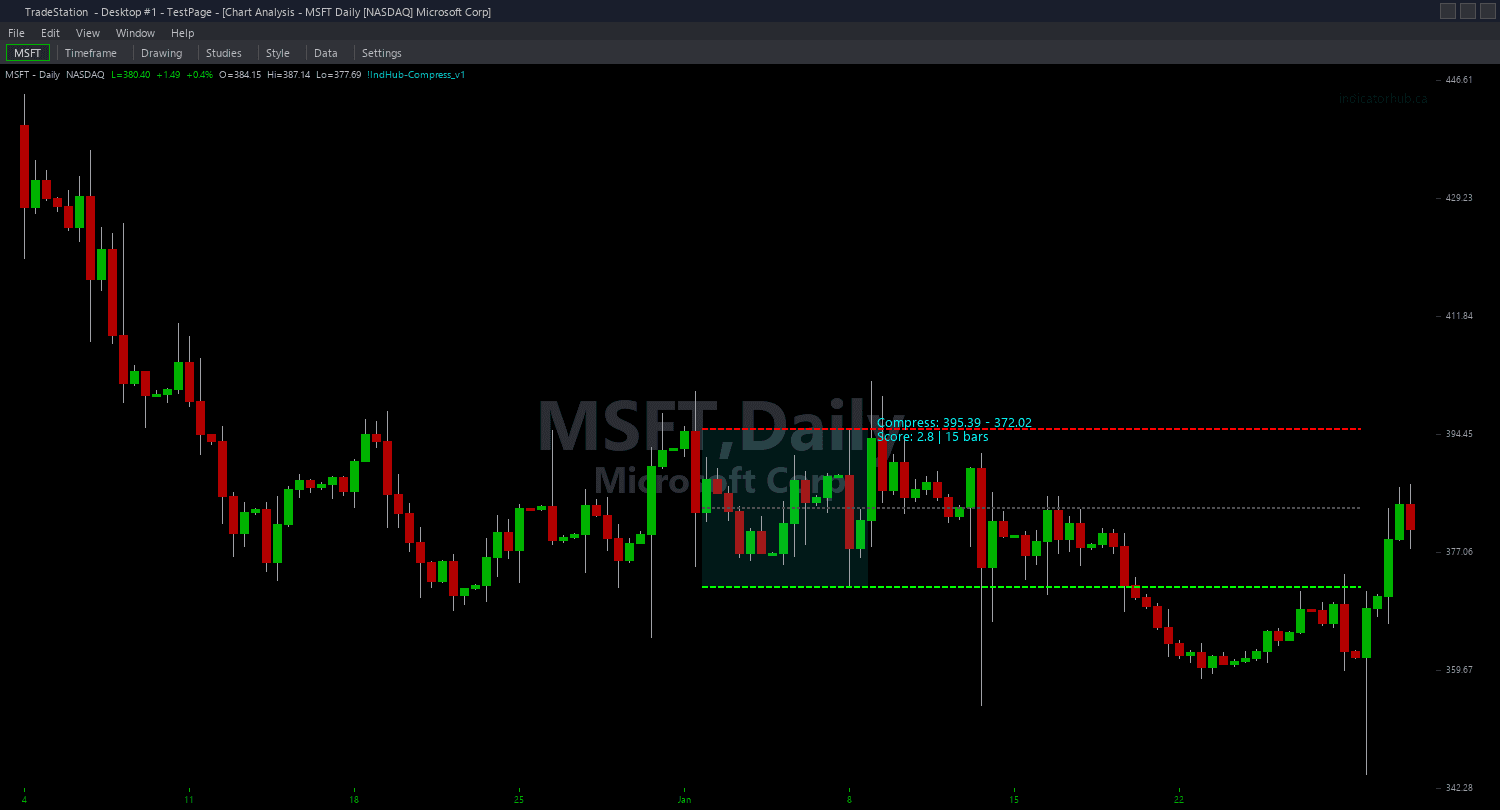
Compression Zones ShowMe
Compression Zones ShowMe marks every bar that qualifies as a compression bar with a color-coded dot positioned above (bullish bias) or below (bearish bias) the price bar. Each dot's color intensity corresponds to the compression score from 1.0 (light, mild compression) to 5.0 (bright, maximum compression). This gives you a quick visual map of where compression is building and how intense it is across your chart history.
- ●Green-tinted dots above bars mark compression with bullish channel bias — price is coiling near the lower portion of the channel, suggesting upside breakout potential
- ●Red-tinted dots below bars mark compression with bearish channel bias — price is coiling near the upper portion of the channel, suggesting downside breakout potential
- ●Dot brightness scales with compression score — faint dots for Score 1.0-2.0, medium for 2.0-3.0, bright for 3.0-4.0, vivid for 4.0-5.0
- ●Optional text labels display the numeric score (e.g., "3.8") next to each dot for precise scoring without checking the data window
- ●DotOffset (default 0.3 ATR) positions dots clear of the price bar for readability
- ●Uses the same three detection methods and configurable inputs as the chart indicator — ATR Ratio, BB Bandwidth, or Range Ratio
- ●ShowScoreText (default true) toggles the numeric score labels on or off for cleaner charts
The ShowMe is particularly useful for backtesting and pattern recognition. Scroll through your chart history and look for clusters of bright dots followed by strong directional moves — this trains your eye to recognize compression-then-breakout patterns on your specific instrument.
All signals are guaranteed non-repainting. Once a dot plots on a completed bar, it will never disappear.
30-Day Money-Back Guarantee
Try it risk-free. Not satisfied? Full refund, no questions asked.
Part of the Compression Zones Bundle
Get all 4 study types for $65 — save $30
Who This Is For
Compression Zones ShowMe is designed for traders who want a lightweight visual layer showing compression intensity without the full channel zone overlay. Use it when you want to quickly scan chart history for compression patterns or when you prefer dots over zone rectangles.
Layer this study alongside the chart indicator for a comprehensive view: the channel zones show the breakout boundaries, and the ShowMe dots show the intensity progression bar by bar. Watch for dots progressing from faint to bright — this indicates compression is intensifying and a breakout is approaching.
Use it on 1-minute to 15-minute charts for intraday analysis. Focus on clusters of bright dots (Score 3.0+) as your primary attention zones. When a cluster of high-score dots ends and the first non-compression bar prints, that is often the beginning of the breakout move.
Works on any liquid market. Particularly effective for pattern recognition and visual backtesting of compression-then-breakout cycles on your preferred instruments.
See It in Action
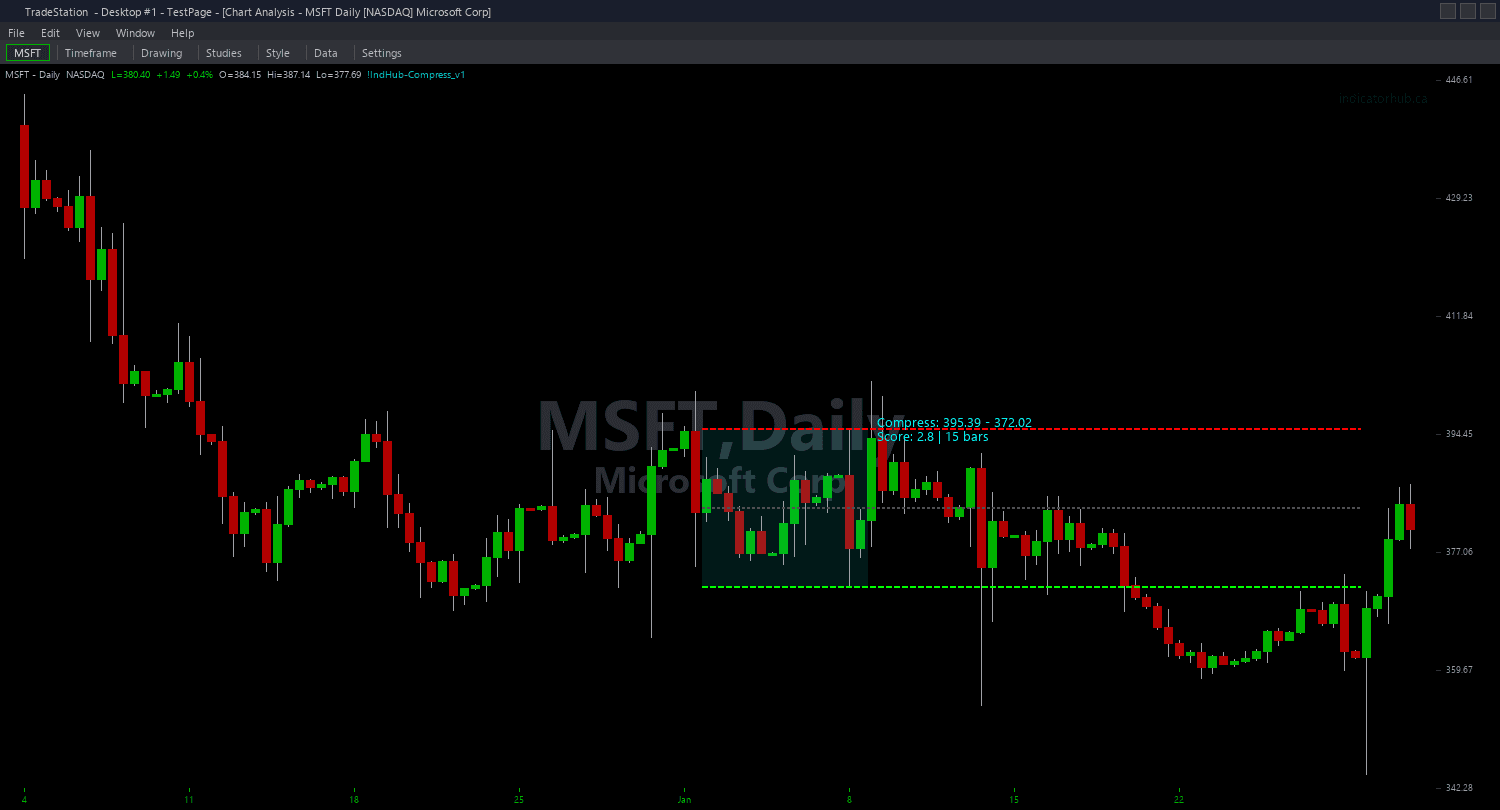
Example chart showing Compression Zones ShowMe on a live trading session
Installation Guide
Step 1: Download the indicator file
After purchasing, you will receive a download link via email. Click the link and save the compression-zones-showme.eld file to your computer. Save it somewhere easy to find like your Desktop or Downloads folder.
Step 2: Open the Import Wizard
Open TradeStation. Click the File menu in the top-left corner, then select Import/Export EasyLanguage to launch the Import/Export Wizard.

Step 3: Select the import type
In the Import/Export Wizard, select "Import EasyLanguage file (ELD, ELS or ELA)" from the list. Click Next to continue.

Step 4: Browse for the file
Click the Browse button to open a file browser where you can locate your downloaded .ELD file.

Step 5: Select and open the file
Navigate to the folder where you saved the .ELD file. Select compression-zones-showme.eld and click Open. The file name shown may differ from the screenshot — look for your downloaded indicator file.

Step 6: Open the Studies menu
On your chart, click the Studies dropdown in the toolbar and select Add Study.

Step 7: Select the ShowMe study
In the Add Studies dialog, click the ShowMe tab on the left side. Find "!IndHub-SM_Compress_v1" in the list, select it, and click OK to apply.

Step 8: Configure settings (optional)
Right-click anywhere on the chart, go to Studies > Edit Studies..., select the study, and click the Inputs tab. Key inputs: iMethod (1=ATR Ratio, 2=BB Bandwidth, 3=Range Ratio), iATR_Len (default 14), iBaseline_Len (default 50), iThreshold (default 0.60), iMinBars (default 5), DotOffset (default 0.3 ATR), ShowScoreText (default true). For dot appearance, go to the Plots tab and set the plot style to Point with your preferred weight.
Common Issues
The score text labels are cluttering my chart and overlapping each other.
Text labels accumulate as new compression bars are detected. Remove and re-apply the study to clear old labels. Set ShowScoreText to false for a cleaner view with dots only. You can also increase iThreshold to reduce the number of qualifying bars, or increase iMinBars so only sustained compression periods produce dots.
I see dots but they are hard to distinguish from each other. How do I tell high scores from low scores?
The dot color intensity scales with the score — brighter dots indicate higher compression scores. If the color difference is subtle on your monitor, enable ShowScoreText to see numeric values next to each dot. You can also increase the plot weight in the Plots tab to make dots larger and easier to differentiate.
Can I use the ShowMe without the main chart indicator?
Yes. The ShowMe calculates compression independently and works as a standalone study. However, using it alongside the chart indicator gives you the full picture: the chart indicator shows the channel zone boundaries for breakout reference, and the ShowMe shows the intensity progression bar by bar.
For additional help, contact support.