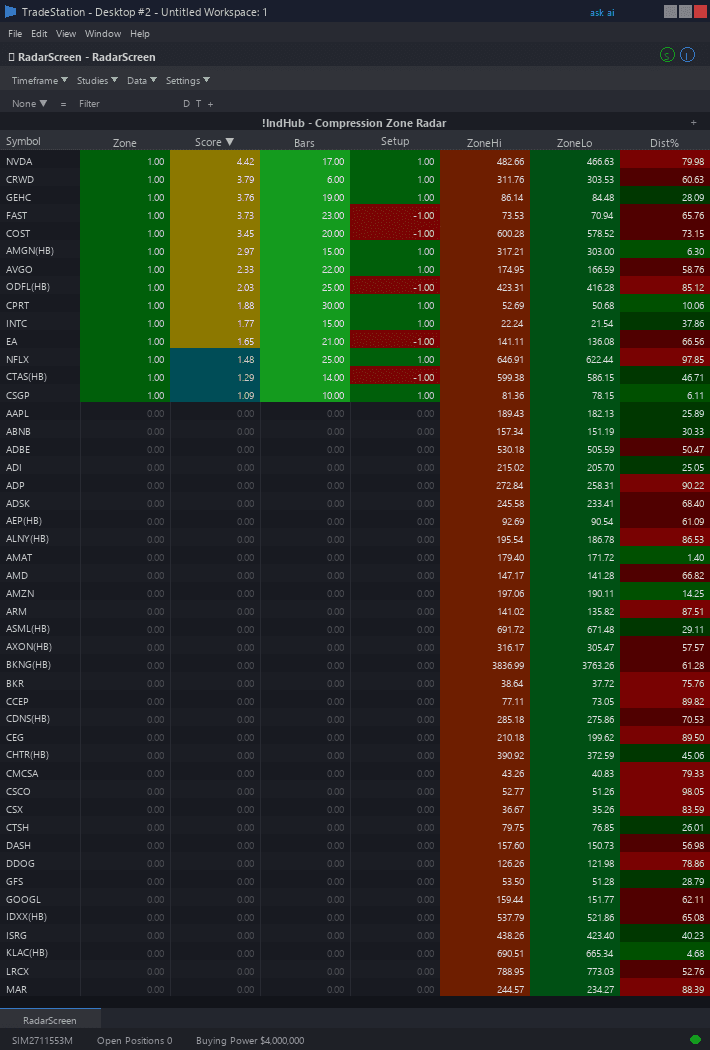
Compression Zones RadarScreen
Compression Zones RadarScreen brings volatility compression detection to your watchlist scanning workflow. Ten color-coded columns show you exactly which symbols are in compression, how intense the compression is, how long it has persisted, and when breakouts occur — all across your entire watchlist simultaneously.
- ●Score column shows the compression intensity from 1.0 to 5.0 — dark green for high scores (4.0-5.0), lighter green for moderate (2.0-3.0), and gray for no compression (0)
- ●InCompress column lights up with a green background when a symbol is currently in an active compression phase — sort by this to see all compressed symbols at once
- ●Duration column shows how many consecutive bars the compression has persisted — longer durations indicate more stored energy and higher-probability breakouts
- ●Method column displays which detection method identified the compression (ATR Ratio, BB Bandwidth, or Range Ratio)
- ●ChHi and ChLo columns show the current channel high and low boundaries for each compressed symbol — these are your breakout trigger levels
- ●DistHi and DistLo show percentage distance from current price to each channel boundary — cyan highlight when price is within 0.5% of a boundary
- ●BrkDir column flashes amber when a breakout occurs, showing +1 for bullish breaks and -1 for bearish breaks
- ●BrkTime records the exact bar timestamp of the last breakout signal
Sort by Score descending to find the most intensely compressed symbols. Sort by Duration descending to find symbols with the longest coiling periods. Sort by DistHi or DistLo ascending to find symbols closest to a breakout boundary.
All signals use completed bar data only. Non-repainting guaranteed.
30-Day Money-Back Guarantee
Try it risk-free. Not satisfied? Full refund, no questions asked.
Part of the Compression Zones Bundle
Get all 4 study types for $65 — save $30
Who This Is For
Built for breakout traders and swing traders managing watchlists of 30-100 symbols who want to catch volatility expansion moves from compressed states. Use this to monitor your entire universe for compression setups and quickly identify the highest-tension coils before they resolve.
Add the scanner to your main RadarScreen window. During your morning routine, sort by Score descending to find symbols with the highest compression intensity. Check Duration to prioritize symbols that have been coiling for many bars — these have the most stored energy. Monitor DistHi and DistLo to see which compressed symbols are closest to their breakout boundaries.
During market hours, sort by BrkDir to catch breakouts in real time. When a symbol flashes amber with BrkDir = 1 or -1, a breakout just occurred — open the chart to confirm and execute. Check the Score at the time of breakout: higher scores that resolve into breakouts tend to produce stronger follow-through moves.
Works on any timeframe. Use 5-minute or 15-minute intervals for intraday breakout scanning. Use daily intervals for swing trade setup identification. Performs best on liquid markets with clear volatility cycles.
See It in Action
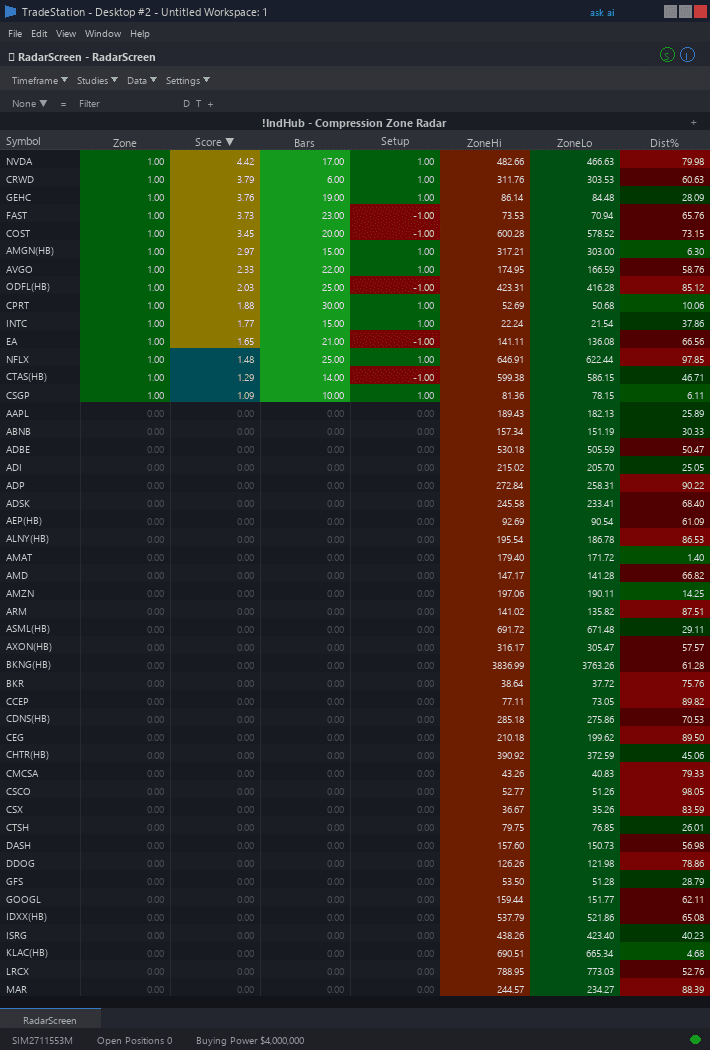
Example chart showing Compression Zones RadarScreen on a live trading session
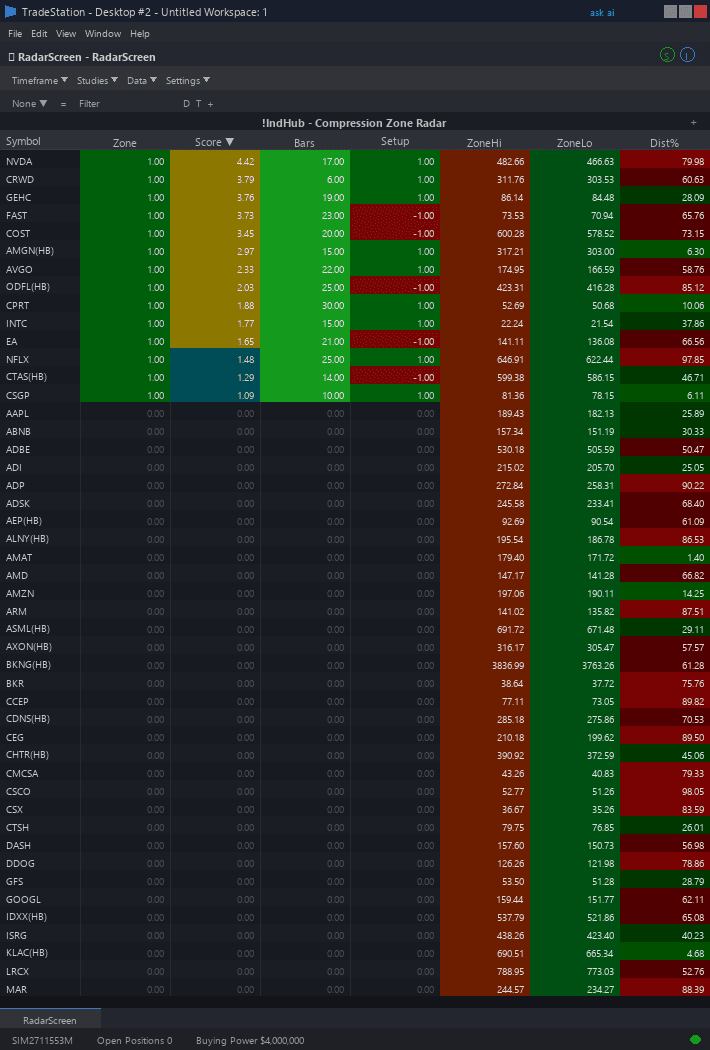
Example chart showing Compression Zones RadarScreen on a live trading session
Installation Guide
Step 1: Download the indicator file
After purchase, download compression-zones-radarscreen.eld from your confirmation email or account download page. Save it somewhere easy to find like your Desktop or Downloads folder.
Step 2: Open the Import Wizard
Open TradeStation. Click the File menu in the top-left corner, then select Import/Export EasyLanguage to launch the Import/Export Wizard.

Step 3: Select the import type
In the Import/Export Wizard, select "Import EasyLanguage file (ELD, ELS or ELA)" from the list. Click Next to continue.

Step 4: Browse for the file
Click the Browse button to open a file browser where you can locate your downloaded .ELD file.

Step 5: Select and open the file
Navigate to the folder where you saved the .ELD file. Select compression-zones-radarscreen.eld and click Open. The file name shown may differ from the screenshot — look for your downloaded indicator file.

Step 6: Open the Studies menu
Open your RadarScreen window. Click the Studies dropdown in the toolbar and select Add Study.
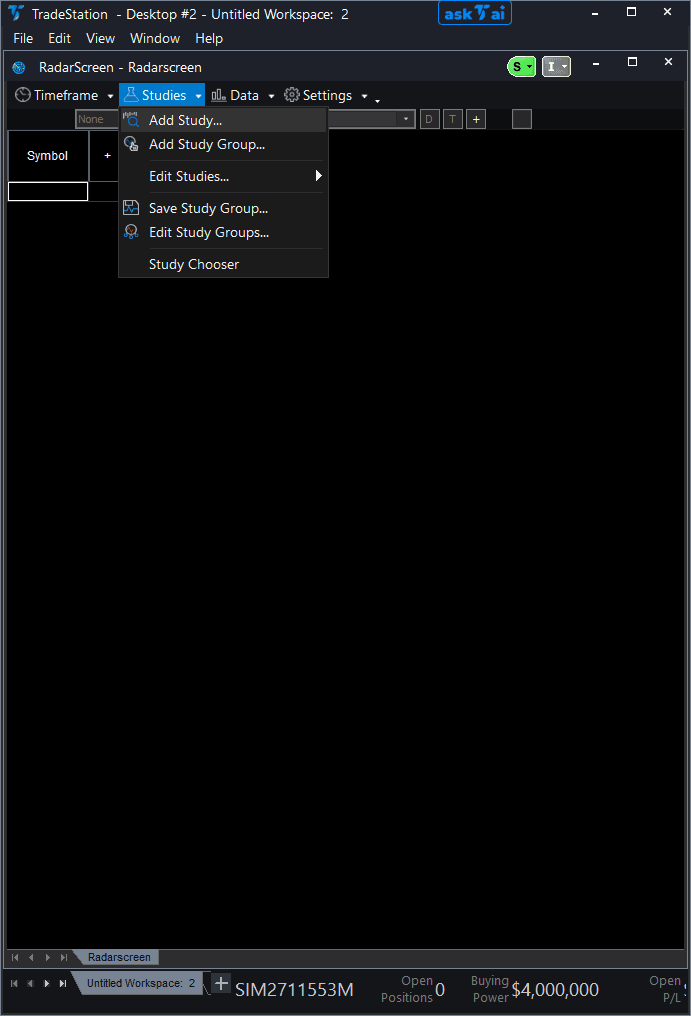
Step 7: Select the indicator
In the Add Study dialog, make sure Indicator is selected in the Study Type dropdown. Find "!IndHub-RS_Compress_v1" in the Available list, select it, and click Add. Click OK to apply.
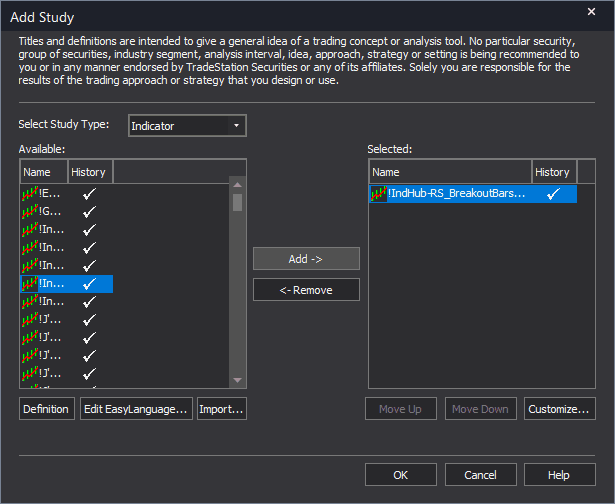
Step 8: Configure your watchlist and columns
Add your symbols to the RadarScreen watchlist. Adjust column widths by dragging column borders. Key inputs: iMethod (1=ATR Ratio, 2=BB Bandwidth, 3=Range Ratio), iATR_Len (default 14), iBaseline_Len (default 50), iThreshold (default 0.60), iMinBars (default 5). Sort by Score descending to find the most compressed symbols.
Common Issues
Score shows 0 for every symbol. I do not see any compression signals.
A score of 0 means no compression is currently detected for that symbol. This is normal during trending or volatile market conditions. Try scanning a larger watchlist (100+ symbols) to find the few that are compressing. You can also lower iThreshold to 0.70 to detect milder compression phases, or switch to a different timeframe where consolidation is more evident.
Can I scan using different detection methods for different symbols?
No. RadarScreen applies the same inputs to all symbols in the watchlist. If you want to compare methods, create a second RadarScreen window with a different iMethod setting. Alternatively, use Method 1 (ATR Ratio) as your default — it is the most versatile across different instrument types.
The BrkDir column flashes but I missed the signal. How do I track recent breakouts?
BrkDir shows the direction of the last breakout (+1 bullish, -1 bearish) and persists until a new compression-then-breakout cycle occurs. Check the BrkTime column for the exact timestamp of the breakout. If BrkTime is recent (within the last few bars), the signal is still actionable. Sort by BrkDir to group all recent breakouts together.
For additional help, contact support.