Compression Zones Chart
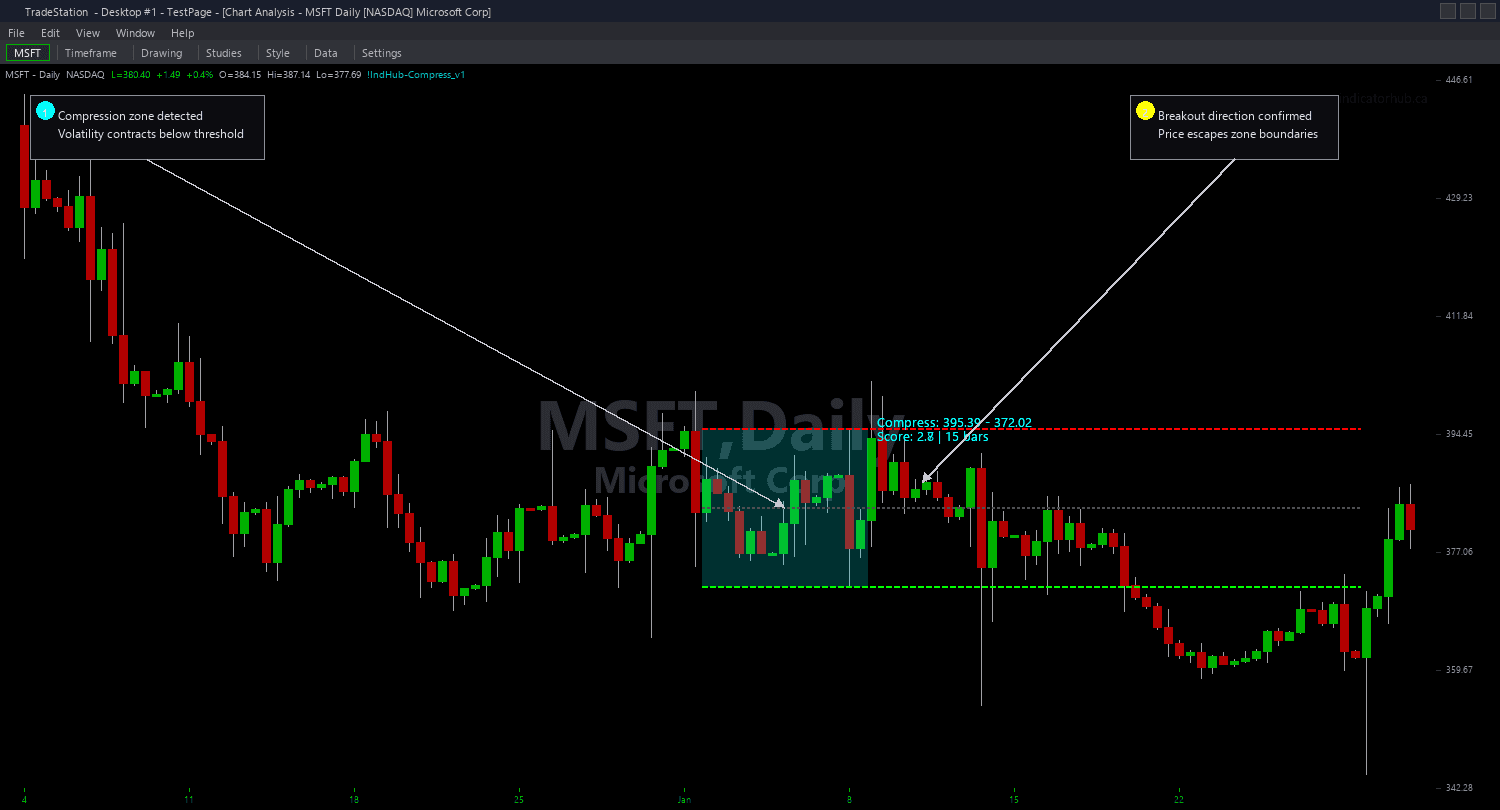
Compression Zones Chart identifies periods of volatility contraction and draws color-coded channel zones directly on your price chart. When volatility drops below the threshold, the indicator draws a compression zone rectangle spanning from the channel high to the channel low, with a midpoint reference line through the center. The zone persists as long as compression conditions remain active, giving you a visual framework for where price is coiling and where the breakout boundaries sit.
- ●Green-tinted zones mark active compression phases — price is coiling within a narrow range and a breakout is building
- ●Channel High line marks the upper breakout boundary — a close above this level signals bullish expansion
- ●Channel Low line marks the lower breakout boundary — a close below this level signals bearish expansion
- ●Midpoint dotted line at the 50% level of the channel — useful as an intra-zone reference for pullback entries during compression
- ●Three detection methods via iMethod input: 1 = ATR Ratio (current ATR divided by baseline ATR), 2 = BB Bandwidth (Bollinger Band width as percentage of price), 3 = Range Ratio (average bar range divided by baseline range)
- ●iATR_Len (default 14) controls the short-term ATR lookback for volatility measurement
- ●iBaseline_Len (default 50) sets the longer-term baseline period for comparison — compression is detected when the short-term measure drops below the threshold relative to this baseline
- ●iThreshold (default 0.60) determines how contracted volatility must be to qualify as compression — lower values require tighter compression, higher values detect earlier stages
- ●iMinBars (default 5) requires compression conditions to persist for a minimum number of consecutive bars before drawing a zone — filters out single-bar noise
- ●Plot1 outputs the current compression score from 1.0 to 5.0 when in compression and 0 when not, available as a subgraph reference
The best breakout setups come from zones that persist for many bars with scores reaching 4.0 or 5.0 — these represent maximum tension where a directional explosion is most likely. When price finally closes outside the channel boundary, enter in the direction of the break with your stop at the opposite channel boundary.
All channel calculations use completed bar data only. Non-repainting guaranteed.
30-Day Money-Back Guarantee
Try it risk-free. Not satisfied? Full refund, no questions asked.
Part of the Compression Zones Bundle
Get all 4 study types for $65 — save $30
Who This Is For
Compression Zones Chart is built for breakout traders and momentum traders who want to identify low-volatility coiling phases before they resolve into directional moves. If you have been frustrated by entering breakouts too late after the move already ran, or getting chopped up trading during consolidation, this indicator tells you exactly when to be patient and when to prepare for action.
Use it on intraday charts (1-minute to 15-minute) for day trading breakout setups. The default settings work well for 5-minute charts on liquid stocks and futures. For swing trading on hourly or daily charts, increase iBaseline_Len to 100 and iMinBars to 8-10 to focus on more significant compression phases. Lower the iThreshold to 0.50 for tighter compression requirements on higher timeframes.
The indicator performs best on liquid markets with clear volatility cycles: index futures (ES, NQ, YM), NASDAQ-100 stocks, high-volume ETFs, and major forex pairs. Markets that exhibit classic consolidation-then-breakout behavior will produce the most reliable zones. Thin or illiquid markets may not compress cleanly.
Look for compression zones that persist for 10+ bars with scores reaching 3.0 or higher. When the zone has been active for a while, set alerts at the channel high and low boundaries. Enter on the first close outside the channel in the direction of the break. Use the opposite channel boundary as your initial stop-loss reference.
See It in Action
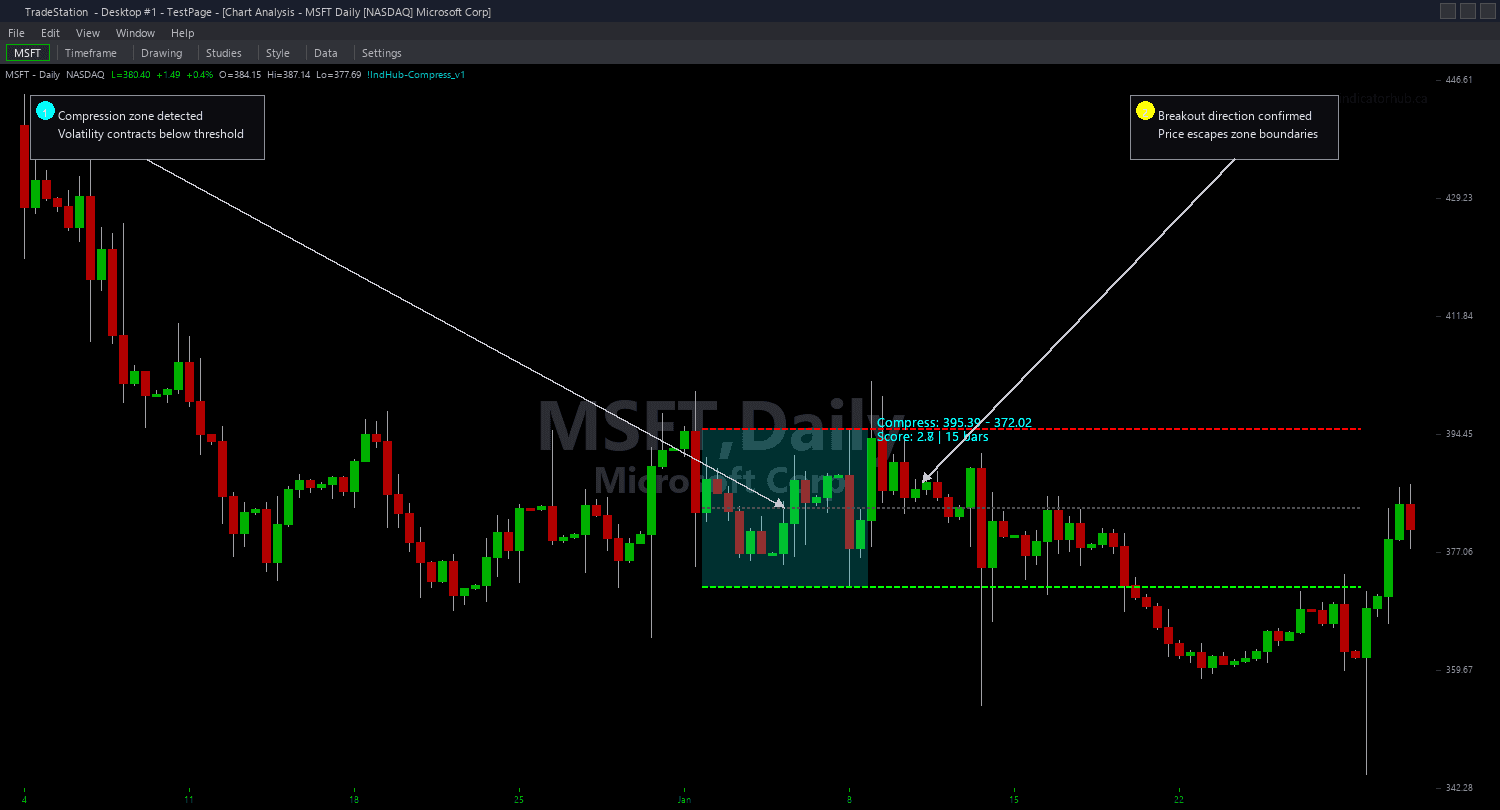
Example chart showing Compression Zones Chart on a live trading session
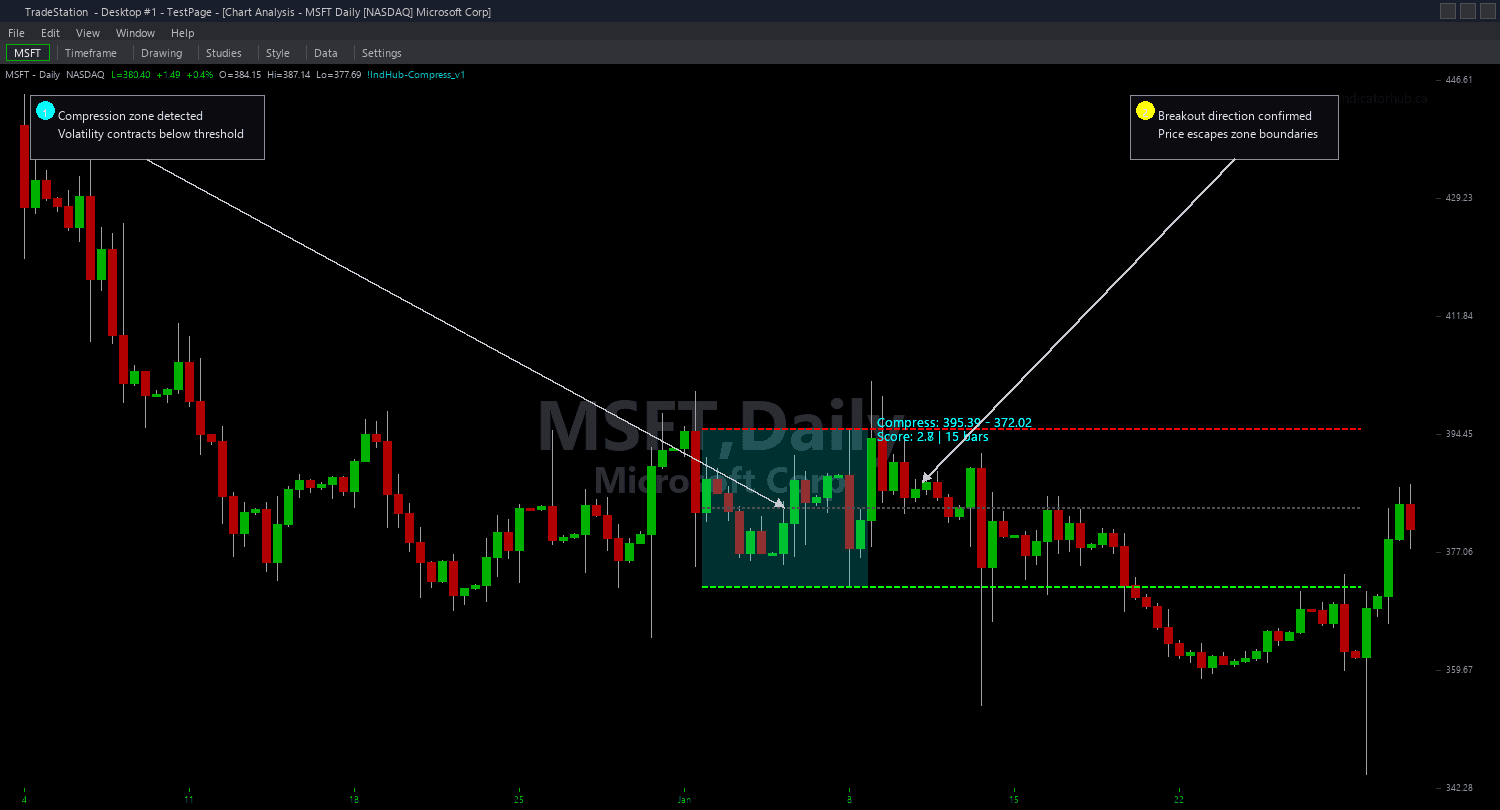
Example chart showing Compression Zones Chart on a live trading session
Installation Guide
Step 1: Download the indicator file
After purchasing, you will receive a download link via email. Click the link and save the compression-zones-chart.eld file to your computer. Save it somewhere easy to find like your Desktop or Downloads folder.
Step 2: Open the Import Wizard
Open TradeStation. Click the File menu in the top-left corner, then select Import/Export EasyLanguage to launch the Import/Export Wizard.

Step 3: Select the import type
In the Import/Export Wizard, select "Import EasyLanguage file (ELD, ELS or ELA)" from the list. Click Next to continue.

Step 4: Browse for the file
Click the Browse button to open a file browser where you can locate your downloaded .ELD file.

Step 5: Select and open the file
Navigate to the folder where you saved the .ELD file. Select compression-zones-chart.eld and click Open. The file name shown may differ from the screenshot — look for your downloaded indicator file.

Step 6: Open the Studies menu
On your chart, click the Studies dropdown in the toolbar and select Add Study.

Step 7: Select the indicator
In the Add Studies dialog, make sure the Indicator tab is selected on the left side. Find "!IndHub-Compress_Chart_v1" in the list, select it, and click OK to apply.

Step 8: Configure settings (optional)
Right-click anywhere on the chart, go to Studies > Edit Studies..., select the indicator, and click the Inputs tab. Key inputs: iMethod (1=ATR Ratio, 2=BB Bandwidth, 3=Range Ratio), iATR_Len (default 14), iBaseline_Len (default 50), iThreshold (default 0.60), iMinBars (default 5, minimum consecutive bars). Most traders start with Method 1 (ATR Ratio) and default settings.
Common Issues
I do not see any compression zones on my chart. Is the indicator working?
Compression zones only appear when volatility contracts below the threshold for at least iMinBars consecutive bars. If the market is trending strongly or experiencing high volatility, no compression will be detected. This is correct behavior — the indicator is telling you the market is not in a compression phase. Try lowering iThreshold to 0.70 to detect milder compression, or reduce iMinBars to 3 for faster zone activation.
Which detection method should I use?
Method 1 (ATR Ratio) is the most versatile and works well on all instruments. It compares the short-term ATR to a longer baseline ATR. Method 2 (BB Bandwidth) is popular with traders who already use Bollinger Bands — it measures band width contraction. Method 3 (Range Ratio) focuses on individual bar ranges and catches narrow-range bar clusters. Start with Method 1 and experiment with the others on your preferred instrument.
The compression zones look too wide. Can I make them tighter?
The channel boundaries are based on the actual high/low prices during the compression period. To see tighter channels, lower the iThreshold so only the most contracted periods qualify — this typically produces narrower ranges. You can also increase iMinBars to require longer compression duration, which filters out short choppy periods that may have wider ranges.
Can I get an alert when a compression zone starts or when price breaks out?
The indicator includes AlertOnCompress (fires when a new compression zone begins) and AlertOnBreak (fires when price closes outside the channel boundary). Enable both in the inputs to receive audio alerts. For RadarScreen-based scanning across multiple symbols, use the Compression Zones RadarScreen study included in this bundle.
For additional help, contact support.