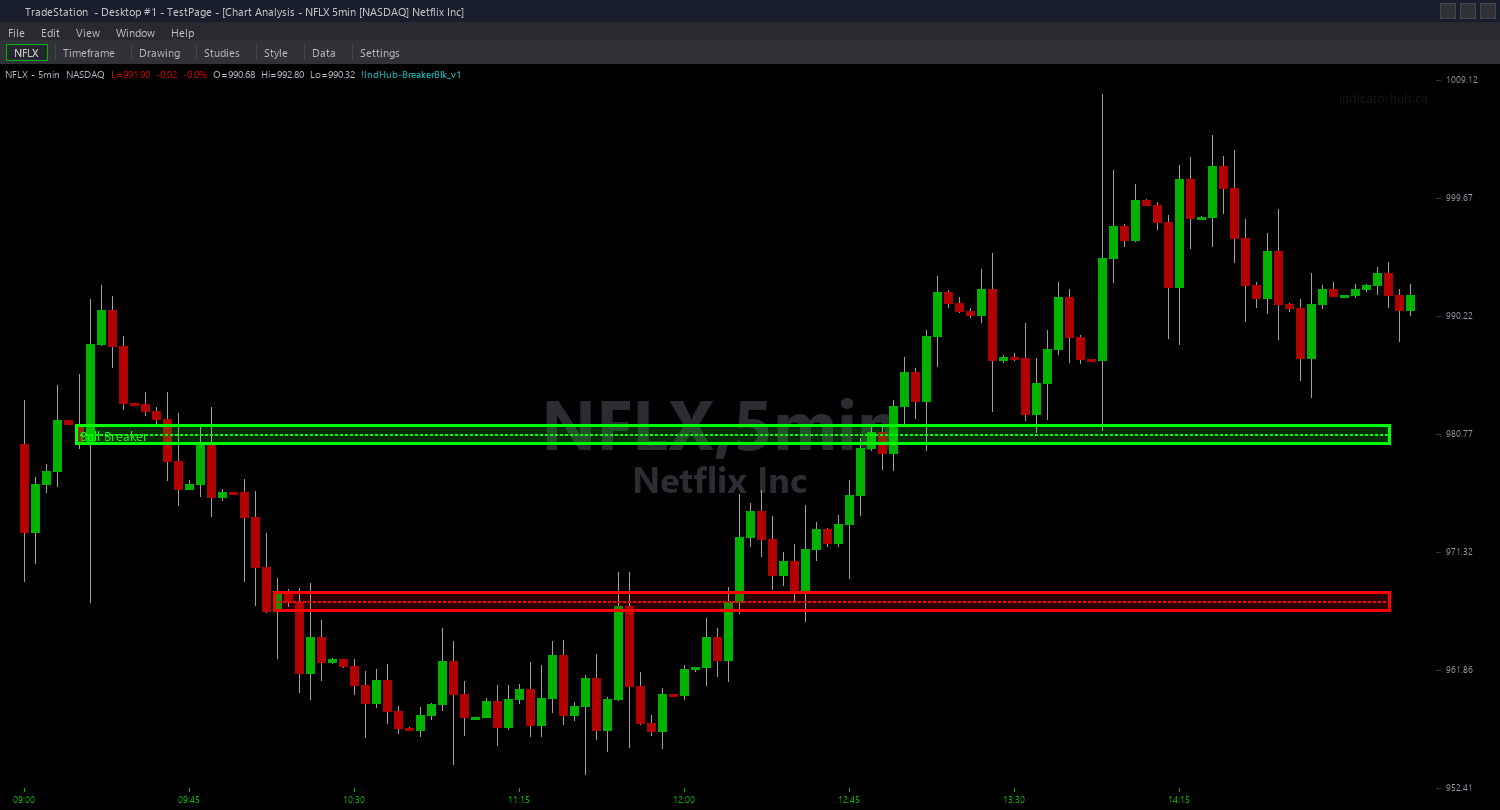
Breaker Block ShowMe
Breaker Block ShowMe marks the precise moment price enters a breaker block zone for a retest — the high-probability entry signal that advanced SMC traders build their polarity flip setups around. Green dots appear above bars entering bullish breaker zones (former bearish OBs that flipped to demand). Red dots appear below bars entering bearish breaker zones (former bullish OBs that flipped to supply).
- ●Green dots ABOVE the bar mark the first bar entering a bullish breaker zone — potential long entry as price retests the polarity flip level
- ●Red dots BELOW the bar mark the first bar entering a bearish breaker zone — potential short entry at the flipped resistance level
- ●Dots only plot on the FIRST bar of each zone visit — subsequent bars inside the same zone do not trigger additional dots, keeping your chart clean
- ●If price exits the breaker zone and re-enters later, a new dot appears on the re-entry bar
- ●DotOffset (default 0.3 ATR) controls dot placement distance from the price bar for readability
- ●Uses the same confirmed structure break and OB failure detection as the chart indicator — all SwingStrength, MaxBrkAge, and MaxBrkCount inputs are shared
The retest signal is the actionable output: a dot appears, you have a polarity flip retest setup. Combine with the chart indicator to see the full zone boundaries and CE midpoint for stop and target placement.
All signals are guaranteed non-repainting. Once a dot plots on a completed bar, it will never disappear.
30-Day Money-Back Guarantee
Try it risk-free. Not satisfied? Full refund, no questions asked.
Part of the Breaker Block Bundle
Get all 4 study types for $65 — save $30
Who This Is For
Breaker Block ShowMe is designed for traders who want a clean, unambiguous signal when price returns to a polarity flip level. Instead of watching zone boundaries and guessing when a retest begins, the dot tells you the exact bar.
Layer this study on top of the Breaker Block chart indicator. The chart indicator shows where breaker zones are and their CE midpoints; the ShowMe dots tell you when price has arrived at those zones for a retest. First retests are the highest probability — check the chart indicator to confirm the zone has not been previously tested.
Use it on 1-minute to 15-minute charts for intraday retest entries. When a green dot appears, price has entered a bullish breaker — evaluate for a long entry with a stop below the zone low. When a red dot appears, evaluate for a short with a stop above the zone high.
Works on any liquid market. Best results on index futures, large-cap stocks, and high-volume ETFs where breaker block theory has the strongest institutional basis.
See It in Action
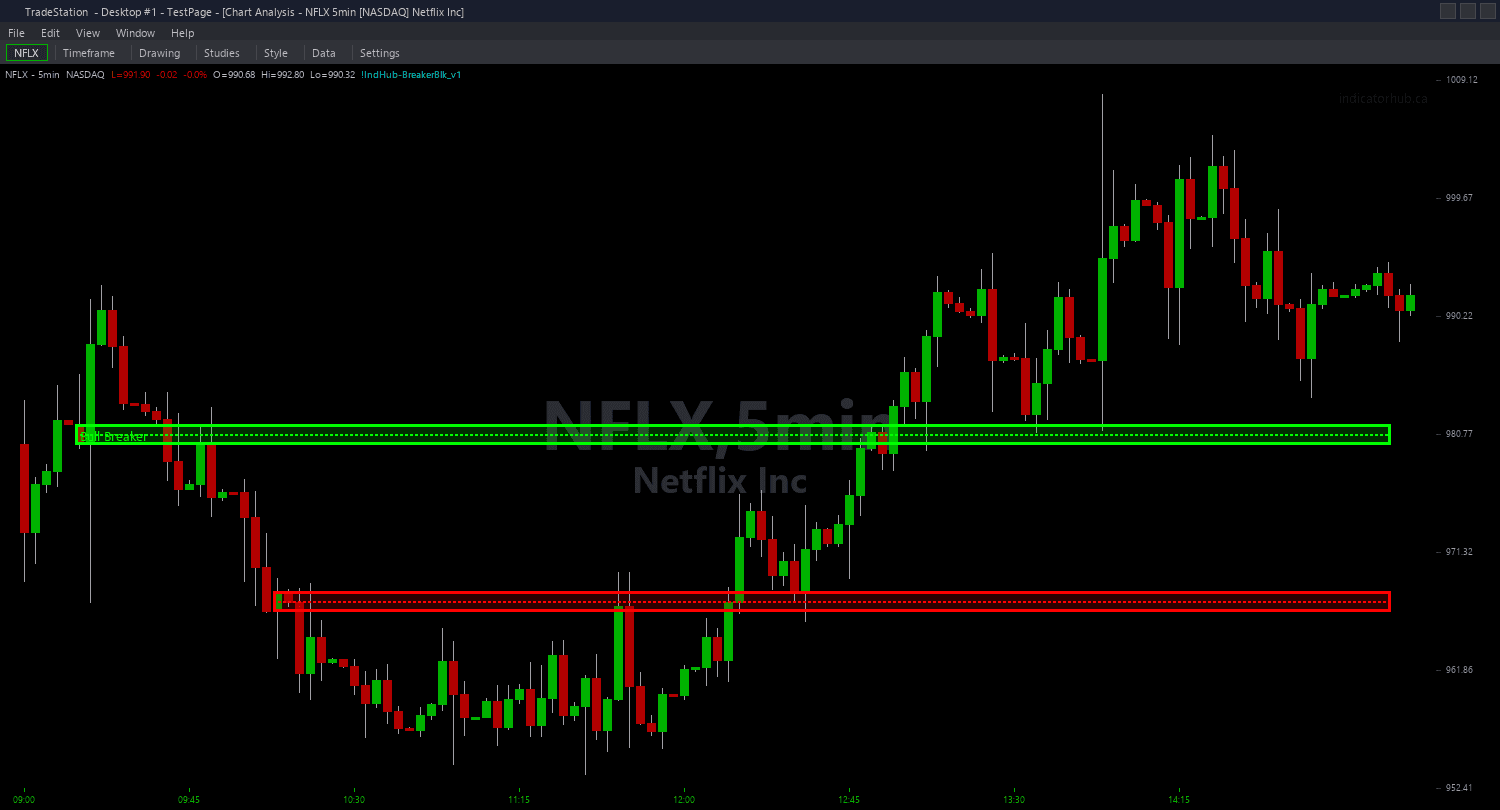
Example chart showing Breaker Block ShowMe on a live trading session
Installation Guide
Step 1: Download the indicator file
After purchasing, you will receive a download link via email. Click the link and save the breaker-block-showme.eld file to your computer. Save it somewhere easy to find like your Desktop or Downloads folder.
Step 2: Open the Import Wizard
Open TradeStation. Click the File menu in the top-left corner, then select Import/Export EasyLanguage to launch the Import/Export Wizard.

Step 3: Select the import type
In the Import/Export Wizard, select "Import EasyLanguage file (ELD, ELS or ELA)" from the list. Click Next to continue.

Step 4: Browse for the file
Click the Browse button to open a file browser where you can locate your downloaded .ELD file.

Step 5: Select and open the file
Navigate to the folder where you saved the .ELD file. Select breaker-block-showme.eld and click Open. The file name shown may differ from the screenshot — look for your downloaded indicator file.

Step 6: Open the Studies menu
On your chart, click the Studies dropdown in the toolbar and select Add Study.

Step 7: Select the ShowMe study
In the Add Studies dialog, click the ShowMe tab on the left side. Find "!IndHub-SM_BreakerBlock_v1" in the list, select it, and click OK to apply.

Step 8: Configure settings (optional)
Right-click anywhere on the chart, go to Studies > Edit Studies..., select the study, and click the Inputs tab. Key inputs: SwingStrength (default 5), MaxBrkAge (default 100), MaxBrkCount (default 10), DotOffset (default 0.3 ATR), AlertOnRetest (default true). For dot appearance, go to the Plots tab and set the plot style to Point with your preferred weight.
Common Issues
I see very few dots on my chart. Is the indicator working?
The ShowMe only plots dots on the first bar entering a breaker zone — and breaker zones themselves are rare because they require a full OB failure cycle. If the market is trending without pulling back to breaker levels, few retest signals will fire. This is expected. Reduce SwingStrength to detect more zones from smaller pivots, or increase MaxBrkAge to keep zones visible longer for potential retests.
A dot appeared but price immediately reversed out of the zone. Is this a failed signal?
The dot marks zone entry, not a guaranteed trade outcome. Not every breaker retest results in a successful reaction. Use the dot as an alert to evaluate the setup — check the CE midpoint, volume, candle patterns, and higher-timeframe trend alignment before committing. First retests of fresh breakers have the highest success rate.
Can I use the ShowMe without the main chart indicator?
Yes. The ShowMe calculates breaker blocks internally and works independently. However, using it alongside the chart indicator gives you the full picture: the chart indicator shows zone boundaries and the CE midpoint for stop and target placement, and the ShowMe marks the exact retest entry bar.
For additional help, contact support.