TTM Squeeze Pro
TTM Squeeze Pro shows you exactly when volatility compression reaches maximum tension and precisely when it releases, solving the problem of spotting breakouts too late. This chart indicator gives you a crystal-clear visual system with squeeze dots on the zero line and a four-color momentum histogram that shows not just direction but acceleration.
- ●Red squeeze dots mean the market is compressing like a coiled spring, signaling a breakout is building
- ●Green fire dots signal the squeeze just released and the move is starting now
- ●Dark green histogram bars show bullish acceleration above zero, while light green shows bullish momentum weakening
- ●Dark red histogram bars show bearish acceleration below zero, while light red shows bearish deceleration
- ●The squeeze detection uses Bollinger Band and Keltner Channel relationships to identify compression zones with zero subjectivity
Reading the signals is straightforward: watch the dots for market state and the histogram for momentum. The best trades happen when the green fire dot appears AND the histogram is trending strongly in one direction, giving you high-probability entries with clear momentum confirmation. When dark bars are growing, momentum is accelerating in that direction. When colors lighten and bars shrink, momentum is fading and you should consider taking profits.
Every signal is guaranteed non-repainting. When you see a squeeze fire signal on a completed bar, it will never disappear or move. You can trust your backtests and build trading plans with confidence.
Secure checkout powered by Stripe. No account required.
Who This Is For
TTM Squeeze Pro is built for traders who want to catch breakout moves early without getting chopped up in low-volatility sideways markets. If you have been burned by late entries after breakouts already ran, or frustrated by range-bound chop eating up your capital, this indicator is for you.
Use it during market hours when you are actively watching charts. The squeeze fire signal gives you a heads-up that NOW is the time to pay attention. During red squeeze dots, stay patient. During yellow dots, watch for setups but wait for confirmation. When the green fire dot appears, execute your plan.
Works on any timeframe from 1-minute scalping to daily swing trades. Performs best on liquid markets with clear volatility cycles: index futures, major forex pairs, high-volume stocks, and established cryptocurrencies. The 5-minute and 15-minute charts are popular for day trading. The 1-hour and daily charts work well for swing and position trading.
Look for red squeeze dots that persist for multiple bars. When the green fire dot appears, check the histogram direction. Enter trades in the direction of the momentum bars and ride the trend until the histogram color starts weakening.
See It in Action
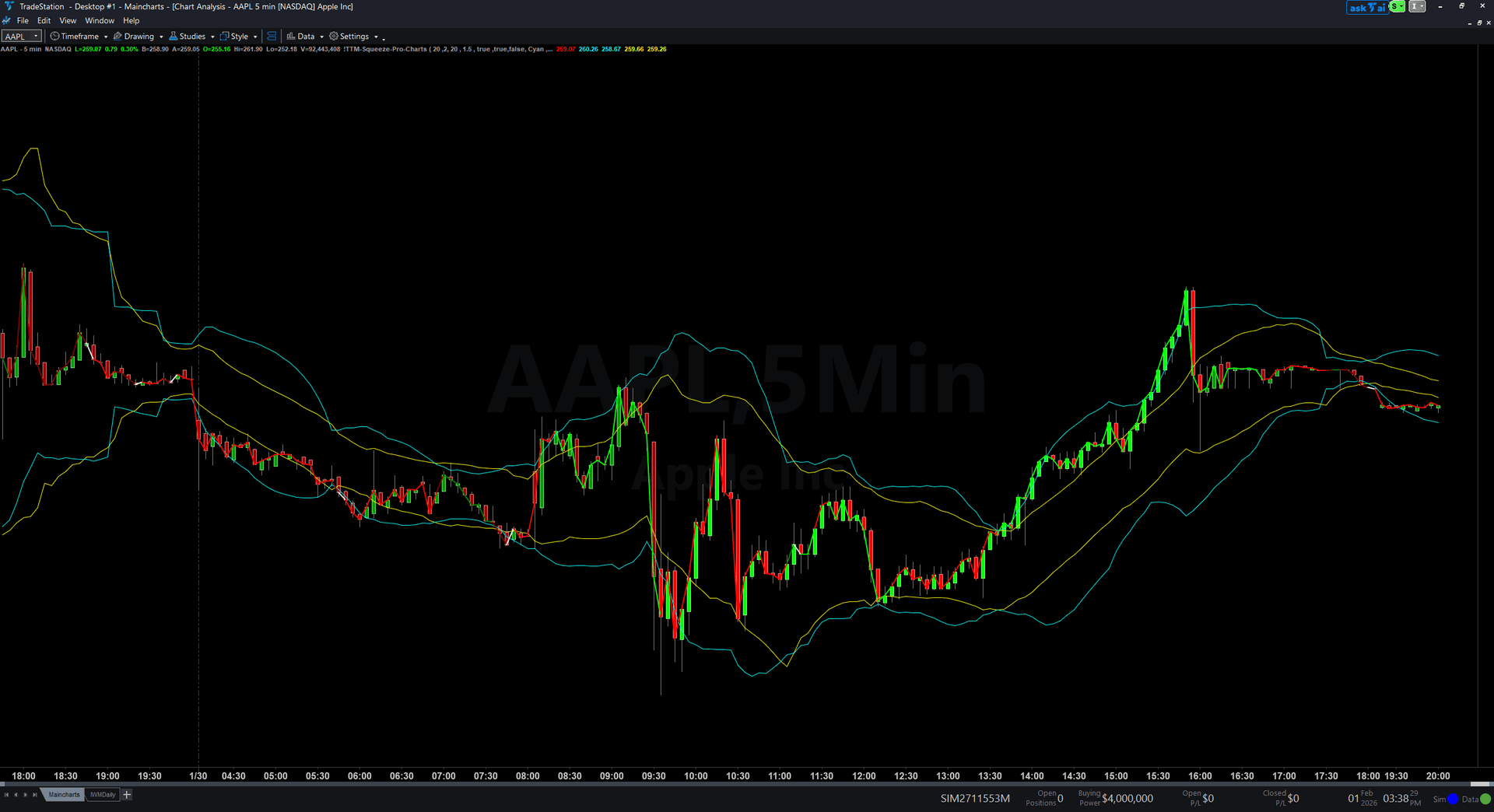
Example chart showing TTM Squeeze Pro on a live trading session

Example chart showing TTM Squeeze Pro on a live trading session
Installation Guide
Step 1: Download the indicator file
After purchasing, you will receive a download link via email. Click the link and save the TTM_Squeeze_Pro.ELD file to your computer. This file contains the complete indicator ready to import into TradeStation.
Step 2: Import into TradeStation
Open TradeStation and go to File > Import > EasyLanguage. In the import dialog, click Browse and navigate to the location where you saved the TTM_Squeeze_Pro.ELD file. Select the file and click Open. TradeStation will confirm the import was successful. Click OK.
Step 3: Apply to your chart
Open any chart in TradeStation. Right-click on the chart and select Insert Analysis Technique. In the list of indicators, search for "TTM Squeeze Pro" and select it. Click OK to apply. The indicator will appear in a subgraph below your price bars showing the momentum histogram and squeeze dots.
Step 4: Configure settings (optional)
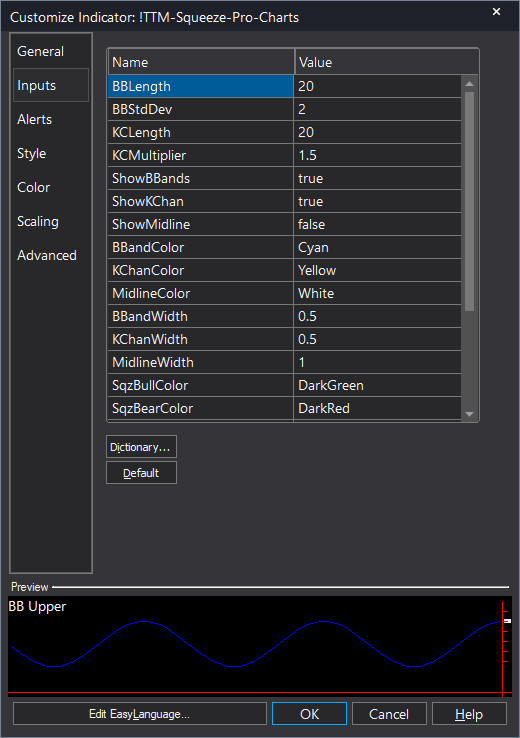
Right-click the indicator name in the subgraph area and select Format [IndicatorName]. On the Inputs tab, you can customize: BBLength (default 20): Bollinger Band lookback period, BBStdDev (default 2.0): Number of standard deviations for Bollinger Bands, KCLength (default 20): Keltner Channel lookback period, KCMultiplier (default 1.5): ATR multiplier for Keltner Channel width, AlertOnFire (default true): Enable audio alert when squeeze fires. Most traders use the default values. Click OK to save your changes. The indicator will refresh with your chosen settings.
Full Color Customization
Every indicator ships with a professional dark color palette designed for extended trading sessions. But your workspace is yours — so we include a complete RGB Color Guide with every purchase that goes far beyond TradeStation's built-in color picker.
5 Ready-Made Palettes
Swap the entire look in minutes. Choose from Midnight Blue, Earth Tones, Neon Subdued, Grayscale, or Monochrome Green — each palette is tested for readability and eye comfort during long sessions.
70+ Individual Colors
Mix and match from a curated library of dark-optimized colors across greens, reds, blues, ambers, magentas, and neutrals. Every value is pre-tested to keep text readable on dark backgrounds.
Color Mixing Guide
Learn the RGB system with simple rules for making colors darker, warmer, cooler, or more muted. Build your own signature palette that matches your charts and workspace.
Copy-Paste Ready
Every color comes with the exact RGB code you need. Copy the value, paste it into the indicator source, done. No guessing, no trial and error.
Included free with every indicator purchase
Common Issues
The indicator appears but all values show zero. What is wrong?
The indicator needs at least 20-25 bars of price history to calculate valid Bollinger Bands and Keltner Channels. If you just opened a new chart or switched symbols, wait for enough bars to load. You will see the histogram and dots populate once sufficient data is available. On intraday charts, this usually takes 1-2 minutes.
Can I use this on tick charts or volume charts?
Yes. TTM Squeeze Pro works on any chart type: time-based, tick-based, volume-based, or range bars. The calculations adapt automatically to whatever bar structure you choose. Just ensure your chart has enough bars loaded for the lookback periods.
The squeeze dots stay red for many bars. Is the indicator broken?
No, this is normal behavior. Some markets compress volatility for extended periods before releasing. Red squeeze dots can persist for 10, 20, or even 50+ bars during tight consolidation phases. The longer the squeeze, the more powerful the eventual breakout tends to be. Stay patient and wait for the green fire dot.
Why do I sometimes see a green dot but the histogram barely moves?
The green fire dot signals the exact bar when the squeeze releases, but momentum takes time to build. A weak initial momentum reading after a squeeze fire does not invalidate the signal. Watch the next few bars. If the histogram starts trending strongly in one direction, the breakout is confirming. If momentum stays flat, the breakout may be failing and you should wait for better confirmation.
Can I change the histogram colors?
Yes. Right-click the indicator name and select Format [IndicatorName]. Go to the Plots tab. Select "Momentum" from the plot list. You can customize the four condition colors: DarkGreen for rising bullish, Green for falling bullish, DarkRed for falling bearish, and Red for rising bearish. Click OK to apply your color choices.
For additional help, contact support.