RSI Premium for RadarScreen
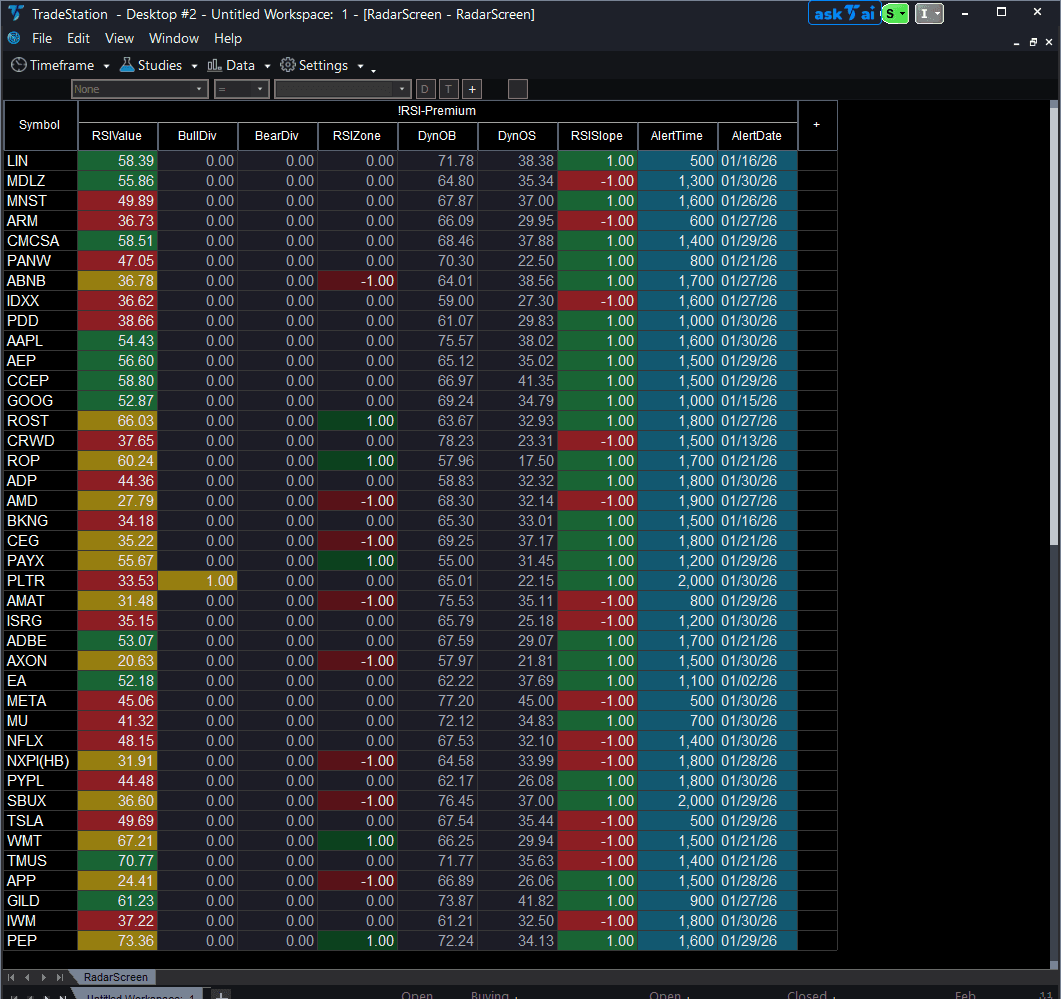
RSI Premium for RadarScreen brings advanced momentum analysis with divergence detection to your watchlist, eliminating the need to manually check RSI chart after chart. This RadarScreen version calculates 14-period RSI with adaptive overbought/oversold zones and displays divergence signals, dynamic zones, and momentum slope in sortable columns.
- ●Nine scannable columns: RSI value, bullish/bearish divergence flags, zone status, dynamic OB/OS levels, RSI slope direction, plus Alert Date and Alert Time so you know exactly when each divergence signal fired
- ●Sort by BullDiv to find symbols with confirmed bullish divergence (price lower low, RSI higher low)
- ●Filter by RSIZone to catch symbols entering overbought or oversold extremes
- ●Check RSISlope to confirm directional momentum before taking trades
- ●Color-coded cells: yellow for divergences, green/red for RSI above/below midline, dark green/red for OB/OS extremes
Use RadarScreen to find the 3-5 symbols showing divergences or extreme zones, then switch to the RSI Premium chart indicator (sold separately) for detailed visual confirmation and entry timing. Both indicators use identical RSI and divergence logic for seamless workflow.
Divergences are identified only after swing pivots are confirmed with historical bars on both sides, ensuring signals never disappear retroactively. Non-repainting guaranteed.
Secure checkout powered by Stripe. No account required.
Who This Is For
Built for swing traders and position traders managing 40-100 symbol watchlists who trade momentum reversals using RSI divergences and overbought/oversold extremes. Use daily or 4-hour chart scanning to identify symbols with confirmed divergences or RSI extremes, filtering large watchlists down to 3-5 high-probability reversal candidates.
Add RSI Premium RadarScreen to your main watchlist window. During your weekend planning session, sort by BullDiv descending to find all symbols showing bullish divergences. Sort by BearDiv for short candidates. During the week, monitor RSIZone column daily: symbols with value -1 (oversold) are potential long setups; symbols with value 1 (overbought) are short candidates.
Use Sunday evening or Monday pre-market for initial weekly scan. Check divergence columns each morning (9:15 AM ET) to catch new setups that formed overnight. Review RSIZone column mid-week to identify exhaustion extremes setting up for Friday reversals.
This RadarScreen indicator pairs with RSI Premium Chart (sold separately). Use RadarScreen to filter your watchlist to 5 candidates showing divergences, then open chart view to visually confirm the divergence pattern and plan entry triggers. Both use the same RSI calculation and divergence detection logic for seamless workflow.
See It in Action
Example chart showing RSI Premium for RadarScreen on a live trading session

Example chart showing RSI Premium for RadarScreen on a live trading session
Installation Guide
Step 1: Download the indicator file
After purchase, download rsi-premium-radarscreen.eld from your confirmation email or account download page. Save it to a location you will remember (Desktop or Downloads folder works well).
Step 2: Import into TradeStation
Open TradeStation. Go to File > Import > EasyLanguage Document. Browse to your downloaded .eld file and click Open. TradeStation will confirm successful import with a message listing RSI Premium RS as imported. Click OK.
Step 3: Apply to RadarScreen
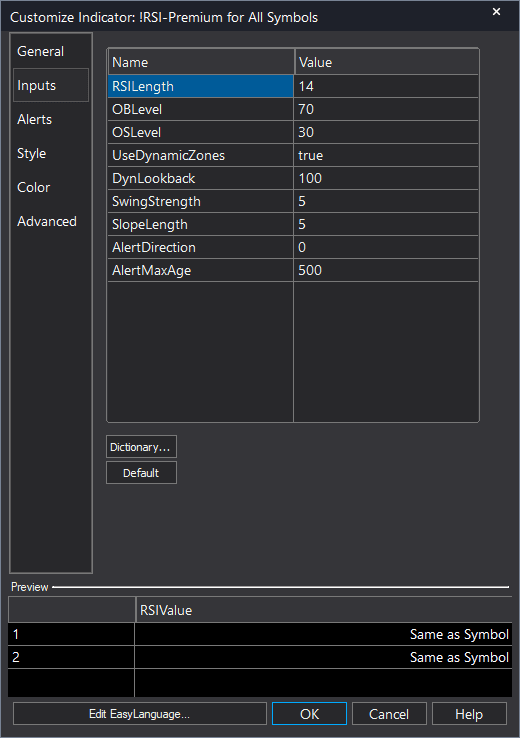
Open your RadarScreen window (or create new: View > RadarScreen). Right-click any column header and select Insert Indicator. In the indicator list, search for "RSI Premium RS". Select it and click OK. TradeStation will add all seven plot columns (RSIValue, BullDiv, BearDiv, RSIZone, DynOB, DynOS, RSISlope) to your RadarScreen.
Step 4: Configure your watchlist and columns
Add your symbols to the RadarScreen watchlist (type ticker and press Enter, or import from existing list). Adjust column widths by dragging column borders. To customize RSI settings, right-click the indicator name in the column header area and select Format Indicator. Modify inputs: RSILength (default 14), OBLevel and OSLevel (static thresholds, default 70/30), UseDynamicZones (true/false), SwingStrength (pivot confirmation bars, default 5), SlopeLength (bars for slope calculation, default 5). Default settings work well for most traders.
Full Color Customization
Every indicator ships with a professional dark color palette designed for extended trading sessions. But your workspace is yours — so we include a complete RGB Color Guide with every purchase that goes far beyond TradeStation's built-in color picker.
5 Ready-Made Palettes
Swap the entire look in minutes. Choose from Midnight Blue, Earth Tones, Neon Subdued, Grayscale, or Monochrome Green — each palette is tested for readability and eye comfort during long sessions.
70+ Individual Colors
Mix and match from a curated library of dark-optimized colors across greens, reds, blues, ambers, magentas, and neutrals. Every value is pre-tested to keep text readable on dark backgrounds.
Color Mixing Guide
Learn the RGB system with simple rules for making colors darker, warmer, cooler, or more muted. Build your own signature palette that matches your charts and workspace.
Copy-Paste Ready
Every color comes with the exact RGB code you need. Copy the value, paste it into the indicator source, done. No guessing, no trial and error.
Included free with every indicator purchase
Common Issues
BullDiv and BearDiv columns always show 0. I never see any divergence signals. Why?
Divergence detection requires confirmed swing pivots (swing lows for bullish divergence, swing highs for bearish). A swing is confirmed only when it's the lowest (or highest) point in a window of SwingStrength bars on each side (default 5). This means divergences appear 5+ bars after the actual pivot. On low-volatility symbols or very short timeframes, pivots may be rare. Try reducing SwingStrength to 3 for faster (but less reliable) signals, or use longer timeframes (4-hour or daily charts) where clear swings form more often.
RSIZone shows 1 (overbought) but RSIValue is only 65, not above 70. Is this wrong?
No, this is correct if UseDynamicZones is enabled (default). Dynamic zones adapt to recent RSI range. During low-volatility periods, the dynamic overbought level can drop to 60-65 instead of static 70. Check the DynOB column to see the current adaptive threshold. If you prefer fixed 70/30 levels, right-click the indicator, select Format Indicator, and set UseDynamicZones to false.
How do I scan for symbols with both bullish divergence AND oversold conditions?
Sort BullDiv descending (click header once) to bring all divergences to the top. Then visually scan the RSIZone column for those rows—look for value -1 (dark red cell, oversold). Alternatively, export your RadarScreen data to a spreadsheet and filter for BullDiv=1 AND RSIZone=-1. TradeStation doesn't support multi-column filtering natively in RadarScreen.
BearDiv showed 1 yesterday but today it's 0. Did the divergence disappear?
No, the divergence is still valid. Divergence flags (BullDiv, BearDiv) only show 1 on the exact bar when the divergence is confirmed (when the new swing pivot completes). On subsequent bars, the flag resets to 0. The divergence pattern remains on the chart—you just won't see the flag anymore in RadarScreen. For ongoing divergence monitoring, switch to the RSI Premium Chart indicator to see visual divergence lines that persist across bars.
For additional help, contact support.