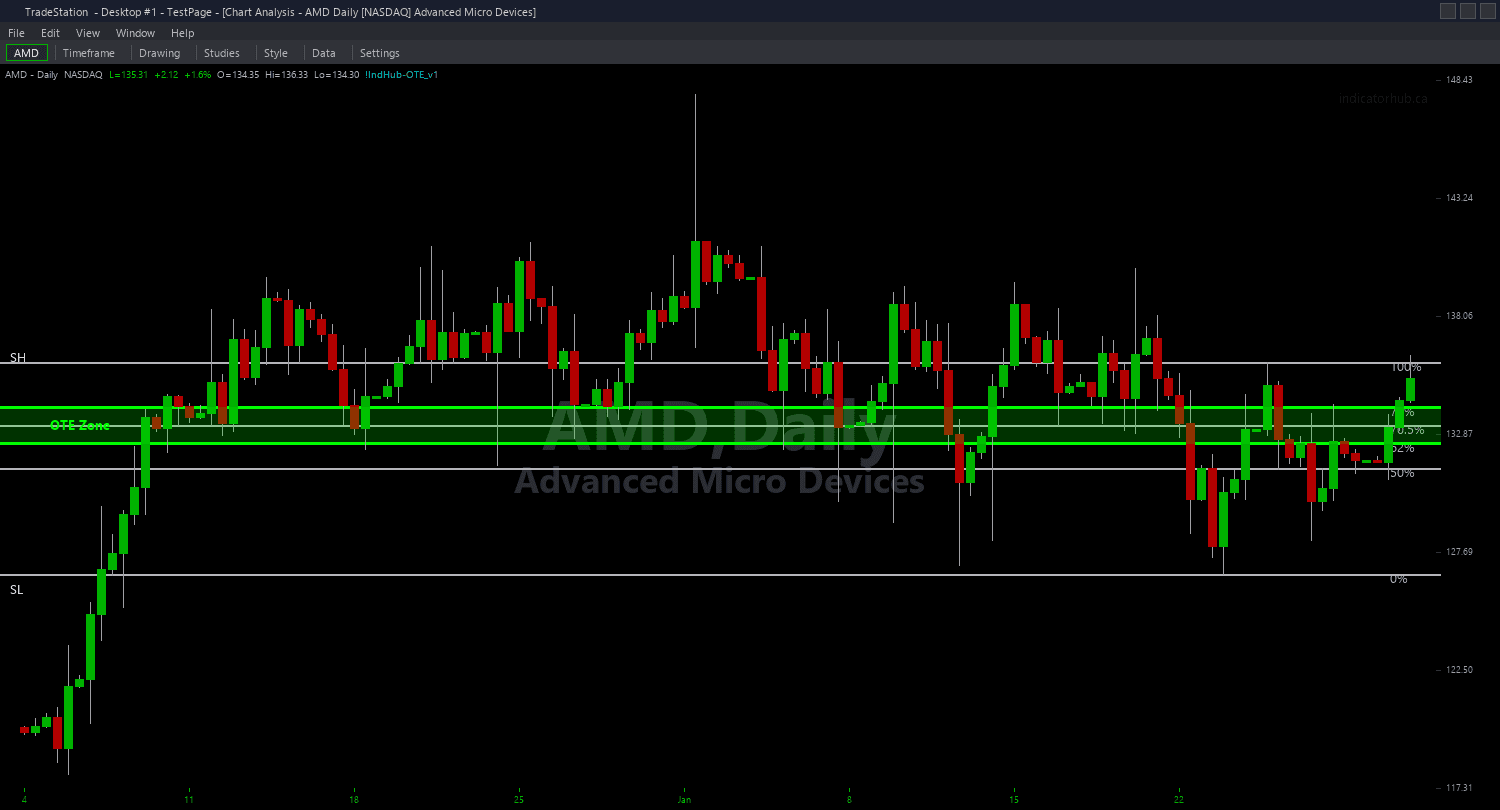
OTE Zone ShowMe
OTE Zone ShowMe marks the precise moment price enters an Optimal Trade Entry zone — the pullback entry signal that ICT traders build their setups around. Green dots appear when price enters a bullish OTE zone (retracing into the 62%-79% zone after a bullish structure break). Red dots appear when price enters a bearish OTE zone.
- ●Green dots ABOVE the bar mark entry into a bullish OTE zone — price has retraced to where institutions reload longs after a bullish impulse
- ●Red dots BELOW the bar mark entry into a bearish OTE zone — price has retraced to where institutions reload shorts after a bearish impulse
- ●Optional text labels show three data points: the CE midpoint price (your precision entry target), the zone boundaries (62% and 79% levels for stop placement), and the impulse swing size as an ATR multiple
- ●CE Touch marker — a separate, more selective signal that fires only when the bar's range actually crosses the 70.5% CE level, not just the zone edge
- ●DotOffset (default 0.3 ATR) positions markers clear of price bars for readability
- ●Dots fire ONCE per zone visit — if price exits and re-enters, a new dot appears
The zone entry dot is your setup alert. The CE touch marker (if enabled) is your precision entry trigger. Use the zone entry dot to start watching, and the CE touch to execute. The text labels give immediate context for stop and target placement.
All signals are guaranteed non-repainting. Once a dot plots on a completed bar, it will never disappear.
30-Day Money-Back Guarantee
Try it risk-free. Not satisfied? Full refund, no questions asked.
Part of the OTE Zone Bundle
Get all 4 study types for $65 — save $30
Who This Is For
OTE Zone ShowMe is designed for ICT traders who want clean, unambiguous signals when price returns to the Optimal Trade Entry zone. Instead of watching zone lines and guessing when price has entered, the dots tell you the exact bar.
Layer this study on top of the OTE Zone chart indicator. The chart indicator draws the 62%, 79%, and CE lines so you see where the zone is. The ShowMe marks the exact bar when price enters the zone and optionally when it touches the CE midpoint.
Use it on 5-minute to 15-minute charts for intraday OTE pullback entries. When a green dot appears, price has entered a bullish OTE zone — evaluate the setup with the chart indicator's zone lines and enter at the CE midpoint with a stop below the 79% level. Red dots signal the inverse for bearish entries.
Works best on liquid markets with clean trending structure where the OTE framework is most applicable: index futures, NASDAQ-100 stocks, major forex pairs, and trending crypto assets.
See It in Action
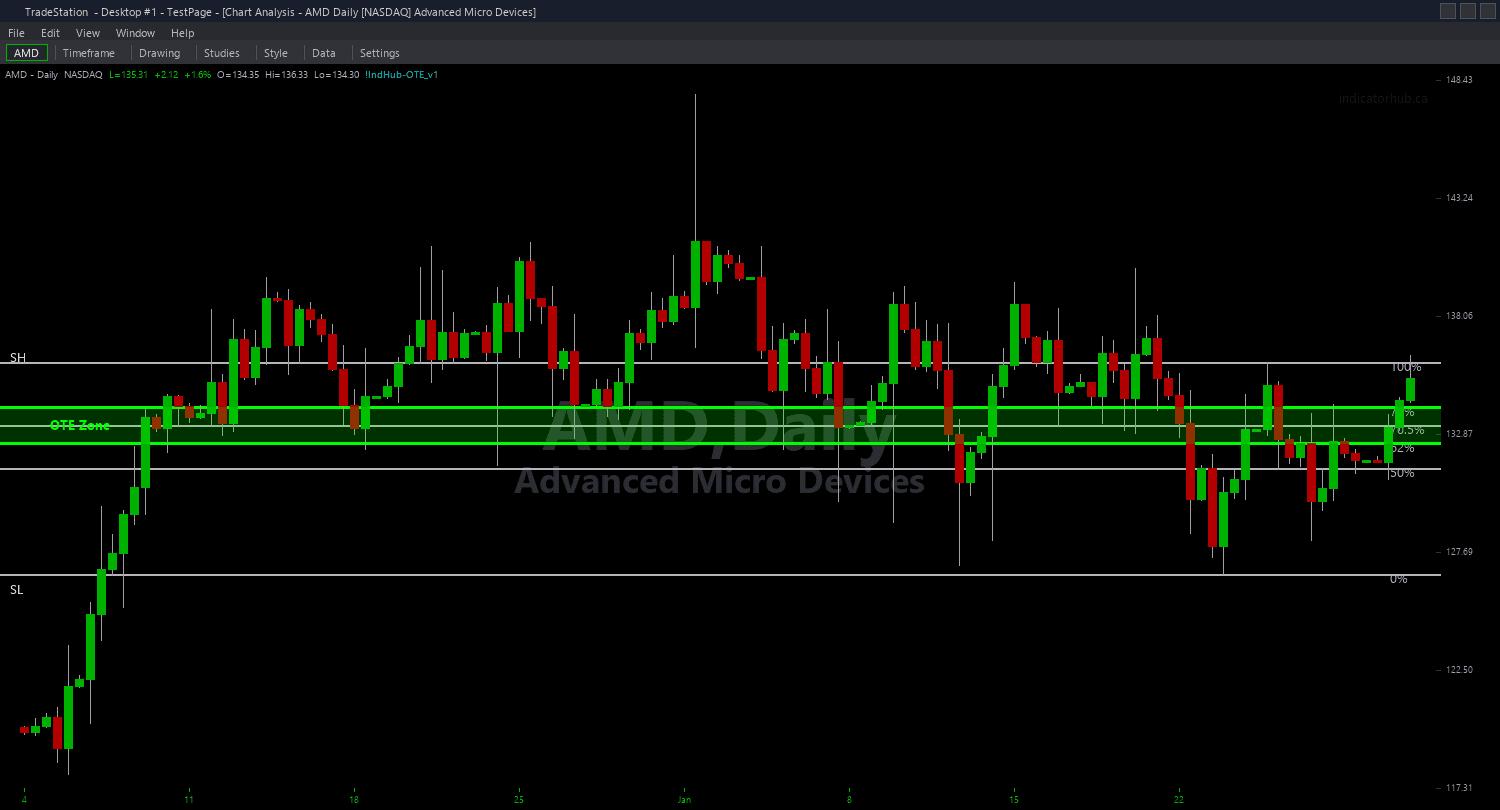
Example chart showing OTE Zone ShowMe on a live trading session
Installation Guide
Step 1: Download the indicator file
After purchasing, you will receive a download link via email. Click the link and save the ote-zone-showme.eld file to your computer. Save it somewhere easy to find like your Desktop or Downloads folder.
Step 2: Open the Import Wizard
Open TradeStation. Click the File menu in the top-left corner, then select Import/Export EasyLanguage to launch the Import/Export Wizard.

Step 3: Select the import type
In the Import/Export Wizard, select "Import EasyLanguage file (ELD, ELS or ELA)" from the list. Click Next to continue.

Step 4: Browse for the file
Click the Browse button to open a file browser where you can locate your downloaded .ELD file.

Step 5: Select and open the file
Navigate to the folder where you saved the .ELD file. Select ote-zone-showme.eld and click Open. The file name shown may differ from the screenshot — look for your downloaded indicator file.

Step 6: Open the Studies menu
On your chart, click the Studies dropdown in the toolbar and select Add Study.

Step 7: Select the ShowMe study
In the Add Studies dialog, click the ShowMe tab on the left side. Find "!IndHub-SM_OTE_v1" in the list, select it, and click OK to apply.

Step 8: Configure settings (optional)
Right-click anywhere on the chart, go to Studies > Edit Studies..., select the indicator, and click the Inputs tab. Key inputs: SwingStrength (default 5), FibUpper (default 0.62), FibLower (default 0.79), MinSwingATR (default 0.5), MaxOTEAge (default 100), DotOffset (default 0.3 ATR), ShowLabels (default true), ShowCETouch (default true), AlertOnEntry (default true). For dot appearance, go to the Plots tab and set the plot style to Point.
Common Issues
I see a zone entry dot but no CE touch marker. Does that mean I should not enter?
The zone entry dot fires when price enters the OTE zone at the 62% level. The CE touch marker fires only when the bar's range actually crosses the 70.5% midpoint. If price bounced before reaching the CE, no CE touch fires. This is a valid setup — some OTE entries bounce from the 62% level. The CE marker is for traders who want the more selective precision entry. Choose your entry style based on your risk tolerance.
I see very few ShowMe signals. Is the indicator working correctly?
OTE zones require: (1) a confirmed market structure break, (2) an impulse swing of at least MinSwingATR size, and (3) a subsequent retracement into the 62%-79% zone. All three conditions must align, which is naturally selective. Reduce SwingStrength to 3 for more structural breaks, lower MinSwingATR to 0.25 for smaller impulse swings, and ensure sufficient data is loaded. On ranging markets, OTE signals will be rare by design.
Can I use the ShowMe without the main chart indicator?
Yes. The ShowMe calculates its own OTE zones internally and works independently. However, using it alongside the chart indicator gives you the full picture: the chart indicator shows the zone boundary lines (62%, 79%, CE), and the ShowMe marks the exact entry bars. Without the chart indicator, you will know when price enters the zone but will not see the visual zone boundaries for stop placement.
For additional help, contact support.