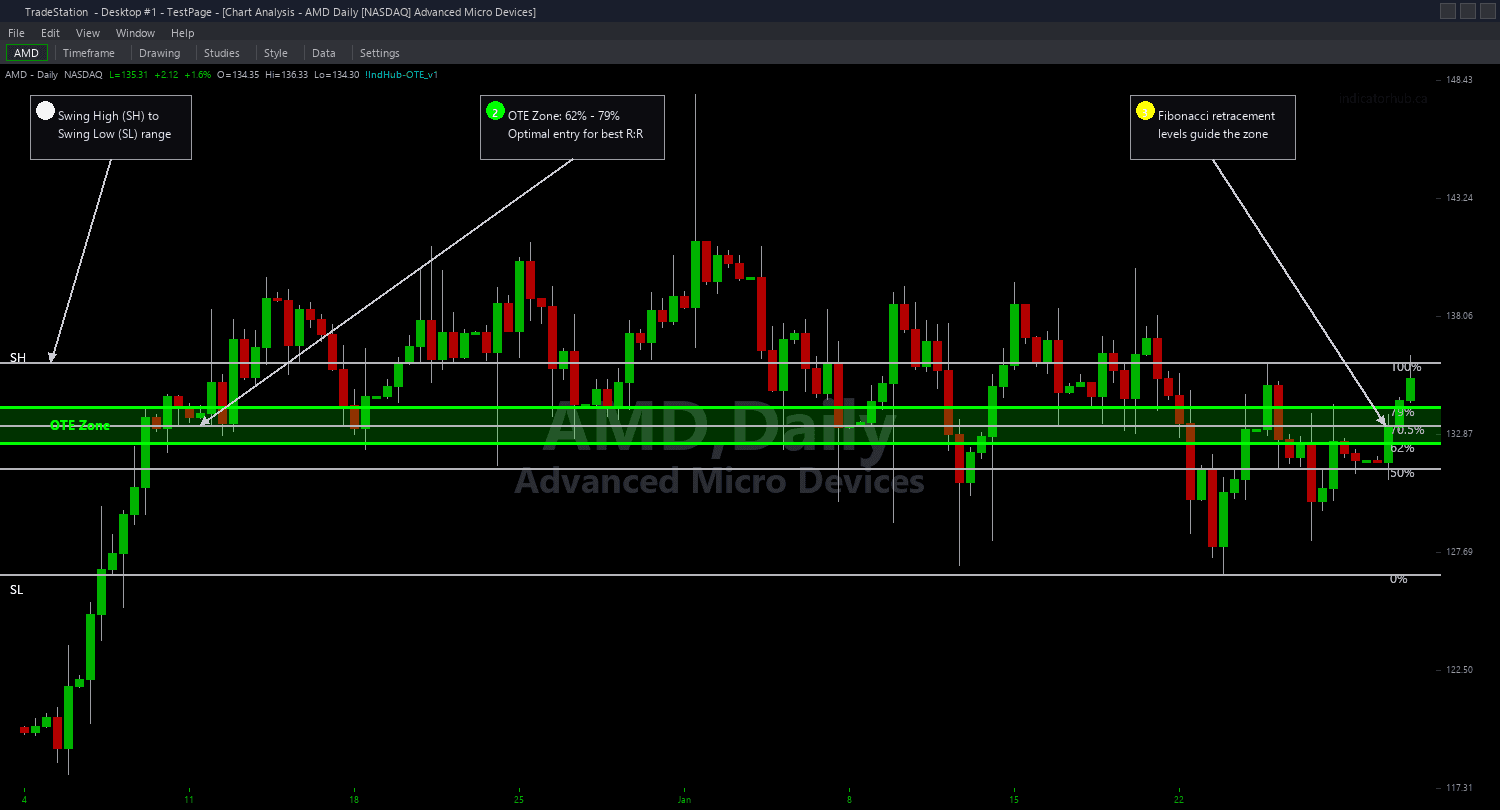
OTE Zone Chart
OTE Zone Chart automatically identifies impulse swings from confirmed market structure breaks and draws the Optimal Trade Entry retracement zone directly on your chart. Three horizontal lines define the zone: the 62% retracement level (zone top), the 79% retracement level (zone bottom), and the 70.5% Consequent Encroachment midpoint — the precision entry level that ICT traders target.
- ●Solid line at the 62% Fibonacci retracement level (FibUpper) marks the top of the OTE zone — the first level where institutional reloading begins
- ●Dashed line at the 79% Fibonacci retracement level (FibLower) marks the bottom of the OTE zone — the deepest level before the setup is at risk of failure
- ●Dotted line at the 70.5% CE midpoint marks the Consequent Encroachment level — the sweet spot where the highest concentration of institutional orders sits
- ●Bullish OTE zones use green lines — drawn below price after a bullish structure break, representing the retracement zone for long entries
- ●Bearish OTE zones use red lines — drawn above price after a bearish structure break, representing the retracement zone for short entries
- ●SwingStrength (default 5) controls the pivot sensitivity for detecting the impulse swing that creates the OTE zone
- ●FibUpper (default 0.62) and FibLower (default 0.79) define the zone boundaries — adjustable for traders who prefer slightly different retracement levels
- ●MinSwingATR (default 0.5) requires the impulse swing to be at least half the ATR in size, filtering out small swings that produce insignificant OTE zones
- ●MaxOTEAge (default 100 bars) expires stale zones that price never returned to fill
- ●Plot1 outputs +1 when price is inside a bullish OTE zone, -1 inside a bearish OTE zone, 0 outside all zones
The highest-probability OTE setups occur when the impulse swing was strong (large ATR multiple), the zone is fresh (low age), and price reaches the CE midpoint on the first test. Place longs at the CE with stops below the 79% level for bullish OTE zones.
All zone detection uses confirmed bar data only. Non-repainting guaranteed.
30-Day Money-Back Guarantee
Try it risk-free. Not satisfied? Full refund, no questions asked.
Part of the OTE Zone Bundle
Get all 4 study types for $65 — save $30
Who This Is For
OTE Zone Chart is built for ICT traders who use the Optimal Trade Entry framework as their primary entry method. If you manually draw Fibonacci retracements from impulse swings after structure breaks and look for the 62%-79% zone, this indicator automates that entire process.
Use it on intraday charts (5-minute to 15-minute) for day trading pullback entries into OTE zones. The default SwingStrength of 5 works well for 5-minute charts on liquid instruments. For swing trading on hourly or daily charts, increase SwingStrength to 8-10 for higher-significance impulse swings.
The indicator requires a confirmed market structure break (swing high or swing low violation) to identify the impulse swing. It then calculates the OTE zone between the 62% and 79% retracement of that swing. This ensures OTE zones only appear after genuine structural events, not arbitrary retracements.
Look for fresh OTE zones where price has not yet tested the zone. When price enters the zone for the first time and reaches the CE midpoint (dotted line), that is your primary entry. Stop below the 79% level for longs, above for shorts. Target the previous impulse swing extreme or the next structural level.
See It in Action
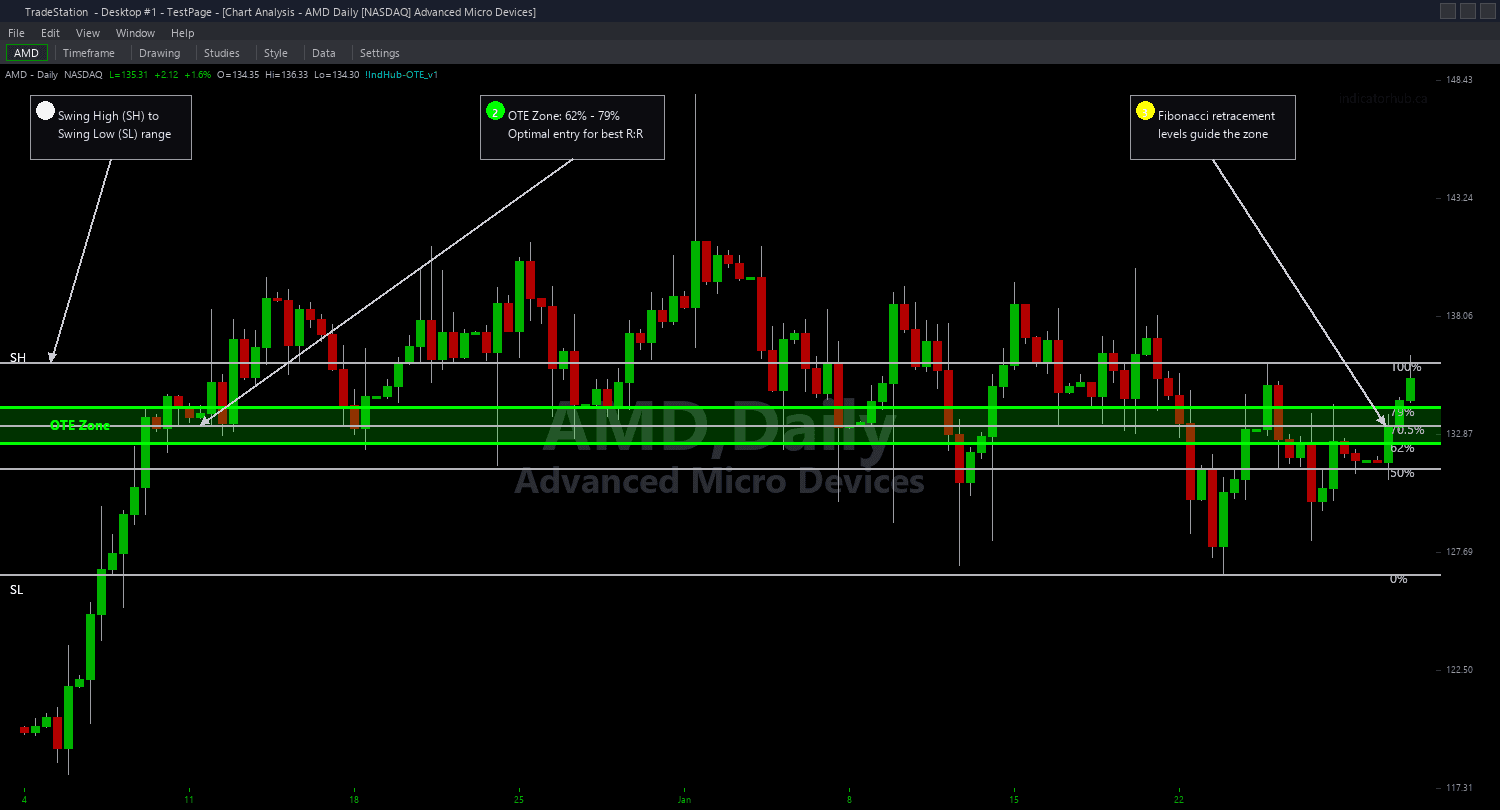
Example chart showing OTE Zone Chart on a live trading session
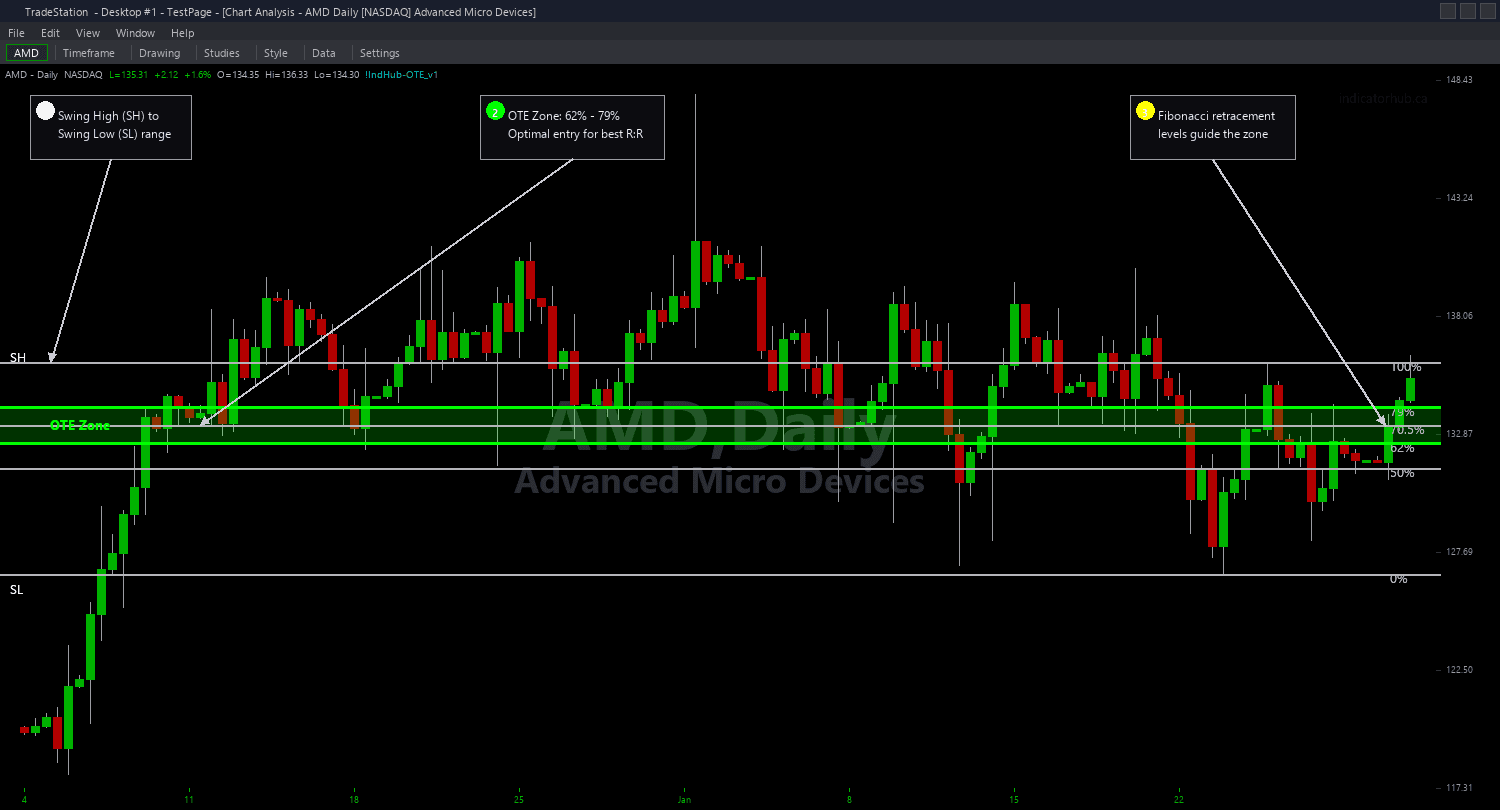
Example chart showing OTE Zone Chart on a live trading session
Installation Guide
Step 1: Download the indicator file
After purchasing, you will receive a download link via email. Click the link and save the ote-zone-chart.eld file to your computer. Save it somewhere easy to find like your Desktop or Downloads folder.
Step 2: Open the Import Wizard
Open TradeStation. Click the File menu in the top-left corner, then select Import/Export EasyLanguage to launch the Import/Export Wizard.

Step 3: Select the import type
In the Import/Export Wizard, select "Import EasyLanguage file (ELD, ELS or ELA)" from the list. Click Next to continue.

Step 4: Browse for the file
Click the Browse button to open a file browser where you can locate your downloaded .ELD file.

Step 5: Select and open the file
Navigate to the folder where you saved the .ELD file. Select ote-zone-chart.eld and click Open. The file name shown may differ from the screenshot — look for your downloaded indicator file.

Step 6: Open the Studies menu
On your chart, click the Studies dropdown in the toolbar and select Add Study.

Step 7: Select the indicator
In the Add Studies dialog, make sure the Indicator tab is selected on the left side. Find "!IndHub-OTE_Chart_v1" in the list, select it, and click OK to apply.

Step 8: Configure settings (optional)
Right-click anywhere on the chart, go to Studies > Edit Studies..., select the indicator, and click the Inputs tab. Key inputs: SwingStrength (default 5, pivot sensitivity), FibUpper (default 0.62, top of OTE zone), FibLower (default 0.79, bottom of OTE zone), MinSwingATR (default 0.5, minimum impulse size), MaxOTEAge (default 100, zone expiration), ShowBullish/ShowBearish (toggle sides), ShowCE (toggle CE midpoint line). Most traders use default Fibonacci levels.
Common Issues
I do not see any OTE zones on my chart. Is the indicator detecting structure breaks?
OTE zones require a confirmed market structure break followed by a retracement. If the market has been trending without any structure breaks, no OTE zones will appear. Reduce SwingStrength to 3 to detect more minor structure breaks and smaller impulse swings. Also lower MinSwingATR to 0.25 to accept smaller impulse swings. If no zones appear even with relaxed settings, the market may not have produced any structural events during the visible bar range.
The OTE zone seems too narrow. Price passes through it in one bar.
The zone width depends on the size of the impulse swing — a small swing produces a narrow OTE zone. Increase MinSwingATR from 0.5 to 1.0 or higher to require larger impulse swings, which naturally produce wider OTE zones with more actionable price space. Alternatively, widen the zone by adjusting FibUpper to 0.50 and FibLower to 0.85, though this deviates from the standard ICT framework.
Price entered the OTE zone but did not reach the CE midpoint before bouncing. Should I have entered at the 62% level?
This is a valid setup decision. The CE midpoint (70.5%) is the precision entry level, but some OTE bounces occur at the 62% level without reaching the midpoint. Conservative traders wait for the CE touch; aggressive traders enter at the 62% zone boundary. Entering at 62% gives you more fills but wider stops (to below 79%). Entering at CE gives fewer fills but tighter risk. Choose based on your risk tolerance.
Can I change the Fibonacci levels to 61.8% and 78.6% for more precise numbers?
Yes. Set FibUpper to 0.618 and FibLower to 0.786 for the mathematically exact Fibonacci ratios. The defaults of 0.62 and 0.79 are rounded for simplicity and are commonly used in ICT methodology. The difference is minimal (0.2-0.4% of the swing range) and unlikely to materially affect your trading results.
For additional help, contact support.