Order Blocks Chart
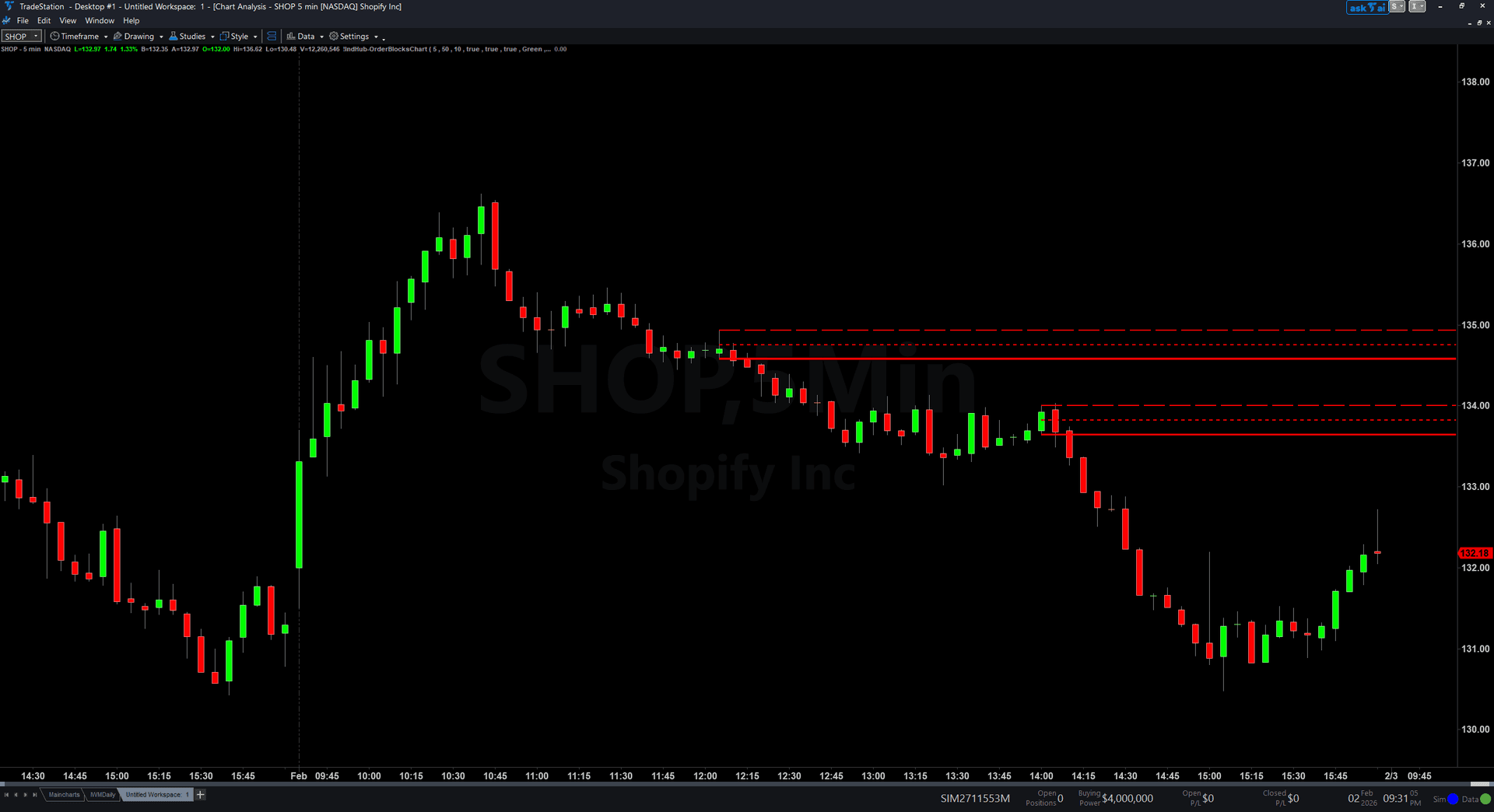
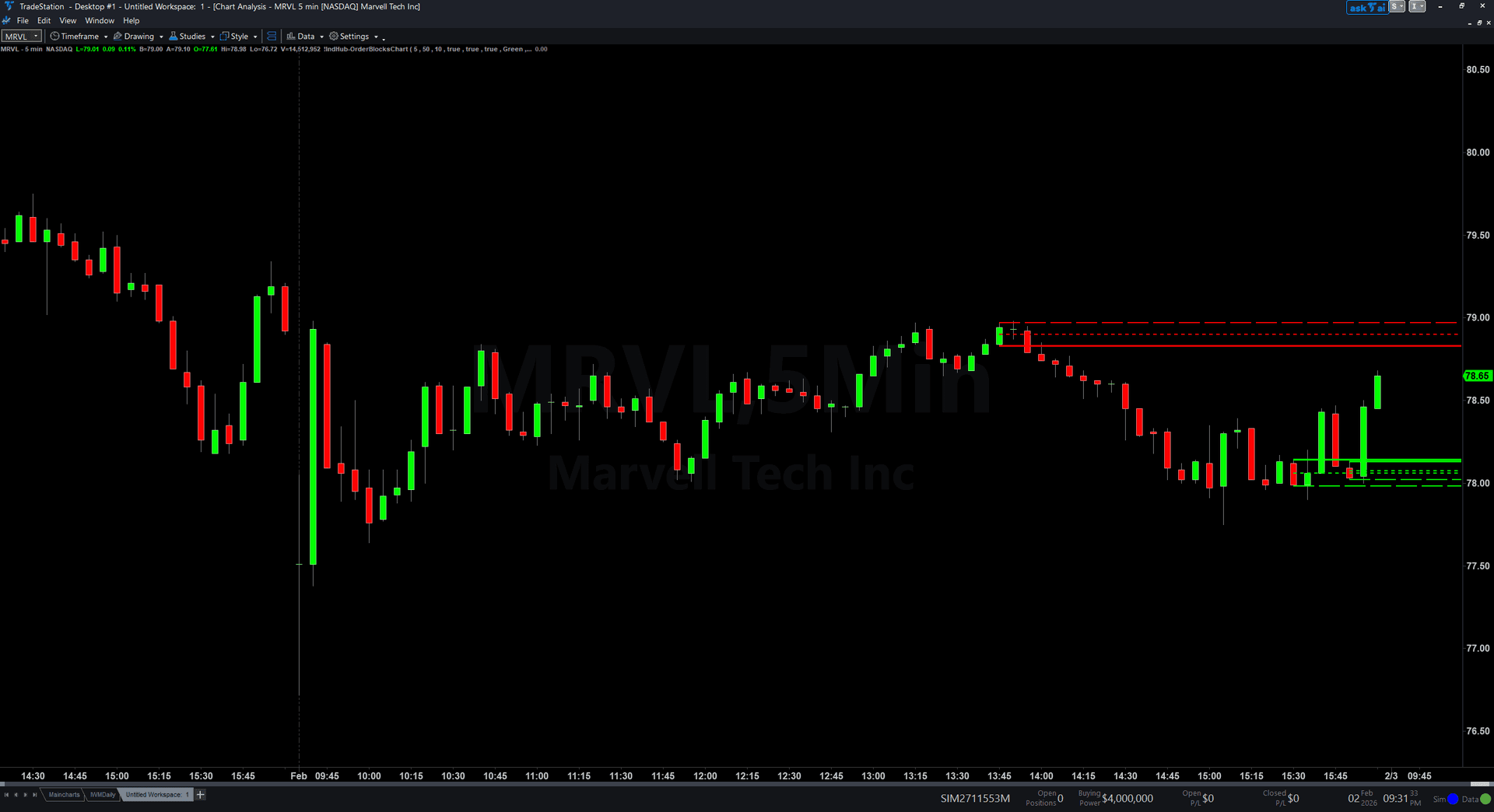
Order Blocks Chart removes the subjectivity of manual order block identification by automatically detecting swing pivots, confirming market structure breaks, and drawing color-coded zones on your chart. Green rectangles mark bullish order blocks (demand zones) — the last bearish candle before a bullish structure break. Red rectangles mark bearish order blocks (supply zones) — the last bullish candle before a bearish structure break.
- ●Green zones with solid top border and dashed bottom mark institutional demand — where buyers accumulated before an impulse move up
- ●Red zones with solid bottom border and dashed top mark institutional supply — where sellers accumulated before an impulse move down
- ●50% Consequent Encroachment (CE) midpoint line drawn inside each zone as a dotted line — the key level SMC traders watch for precision entries
- ●SwingStrength input (default 5) controls pivot sensitivity — higher values find only the most significant structure points
- ●MaxOBAge (default 50 bars) automatically expires stale zones that price never returned to test
- ●MaxOBCount (default 10) limits simultaneous zones per side to keep charts clean
- ●Automatic mitigation removes zones when price closes through them — bullish OB removed when close breaks below zone low, bearish OB removed when close breaks above zone high
- ●Plot1 outputs +1 inside a bullish zone, -1 inside a bearish zone, and 0 outside all zones for subgraph reference
The best setups appear when price pulls back into a fresh order block zone and touches the CE midpoint. This represents a return to the institutional accumulation level with a clear risk/reward structure — stop below the zone bottom for longs, above the zone top for shorts.
All zone detection uses confirmed bar data only. Non-repainting guaranteed.
30-Day Money-Back Guarantee
Try it risk-free. Not satisfied? Full refund, no questions asked.
Part of the Order Blocks Bundle
Get all 4 study types for $65 — save $45
Who This Is For
Order Blocks Chart is built for SMC and ICT-style traders who identify institutional demand and supply zones as the foundation of their analysis. If you manually mark order blocks by finding the last opposing candle before a structure break, this indicator automates that exact process.
Use it on intraday charts (1-minute to 15-minute) for day trading pullback entries into institutional zones. The default SwingStrength of 5 works well for 1-minute and 5-minute charts on liquid stocks and futures. For swing trading on hourly or daily charts, increase SwingStrength to 8-10 to focus on higher-timeframe structure breaks only.
The indicator performs best on liquid markets with clean price action and genuine institutional participation: index futures (ES, NQ, YM), NASDAQ-100 stocks, S&P 500 components, and high-volume ETFs. Thin or illiquid markets may produce less reliable structure breaks.
Look for fresh order blocks that have not yet been tested — when price returns to the zone for the first time and touches the CE midpoint, that is your highest-probability entry. Stale zones that have been tested multiple times lose their edge. Use MaxOBAge to automatically filter them out.
See It in Action
Example chart showing Order Blocks Chart on a live trading session
Installation Guide
Step 1: Download the indicator file
After purchasing, you will receive a download link via email. Click the link and save the order-blocks-bundle-chart.eld file to your computer. Save it somewhere easy to find like your Desktop or Downloads folder.
Step 2: Open the Import Wizard
Open TradeStation. Click the File menu in the top-left corner, then select Import/Export EasyLanguage to launch the Import/Export Wizard.

Step 3: Select the import type
In the Import/Export Wizard, select "Import EasyLanguage file (ELD, ELS or ELA)" from the list. Click Next to continue.

Step 4: Browse for the file
Click the Browse button to open a file browser where you can locate your downloaded .ELD file.

Step 5: Select and open the file
Navigate to the folder where you saved the .ELD file. Select order-blocks-bundle-chart.eld and click Open.

Step 6: Open the Studies menu
On your chart, click the Studies dropdown in the toolbar and select Add Study.

Step 7: Select the indicator
In the Add Studies dialog, make sure the Indicator tab is selected on the left side. Find "!IndHub-OrderBlocks_v1" in the list, select it, and click OK to apply.

Step 8: Configure settings (optional)
Right-click anywhere on the chart, go to Studies > Edit Studies..., select the indicator, and click the Inputs tab. Key inputs: SwingStrength (default 5, pivot sensitivity), MaxOBAge (default 50, zone expiration in bars), MaxOBCount (default 10), ShowBullishOB/ShowBearishOB (toggle sides), ShowMidpoint (toggle CE line), BullColor/BearColor (zone colors). Most traders start with defaults.
Common Issues
I see too many order block zones cluttering my chart. How do I reduce them?
Increase SwingStrength to find only the most significant pivot points. The default of 5 works well for 1-minute charts but may produce too many zones on higher timeframes. Try 8-10 for 5-minute charts or 12-15 for 15-minute and above. You can also reduce MaxOBCount to limit the number of simultaneous zones displayed, or lower MaxOBAge to expire zones faster.
Zones disappear from my chart suddenly. Is the indicator repainting?
No, the indicator does not repaint. Zones are removed for two reasons: mitigation (price closed through the zone, invalidating it) or expiration (the zone exceeded MaxOBAge bars without being tested). Both are expected behavior. If you want zones to persist longer before expiring, increase MaxOBAge. Mitigated zones are always removed because the institutional level has been consumed.
What is the CE midpoint line and why does it matter?
CE stands for Consequent Encroachment — the 50% midpoint of the order block zone. In SMC theory, the CE is where institutional orders are most concentrated. Many traders use the CE touch as their precision entry point rather than entering at the zone edge. The dotted line inside each zone marks this level. You can disable it by setting ShowMidpoint to false.
For additional help, contact support.