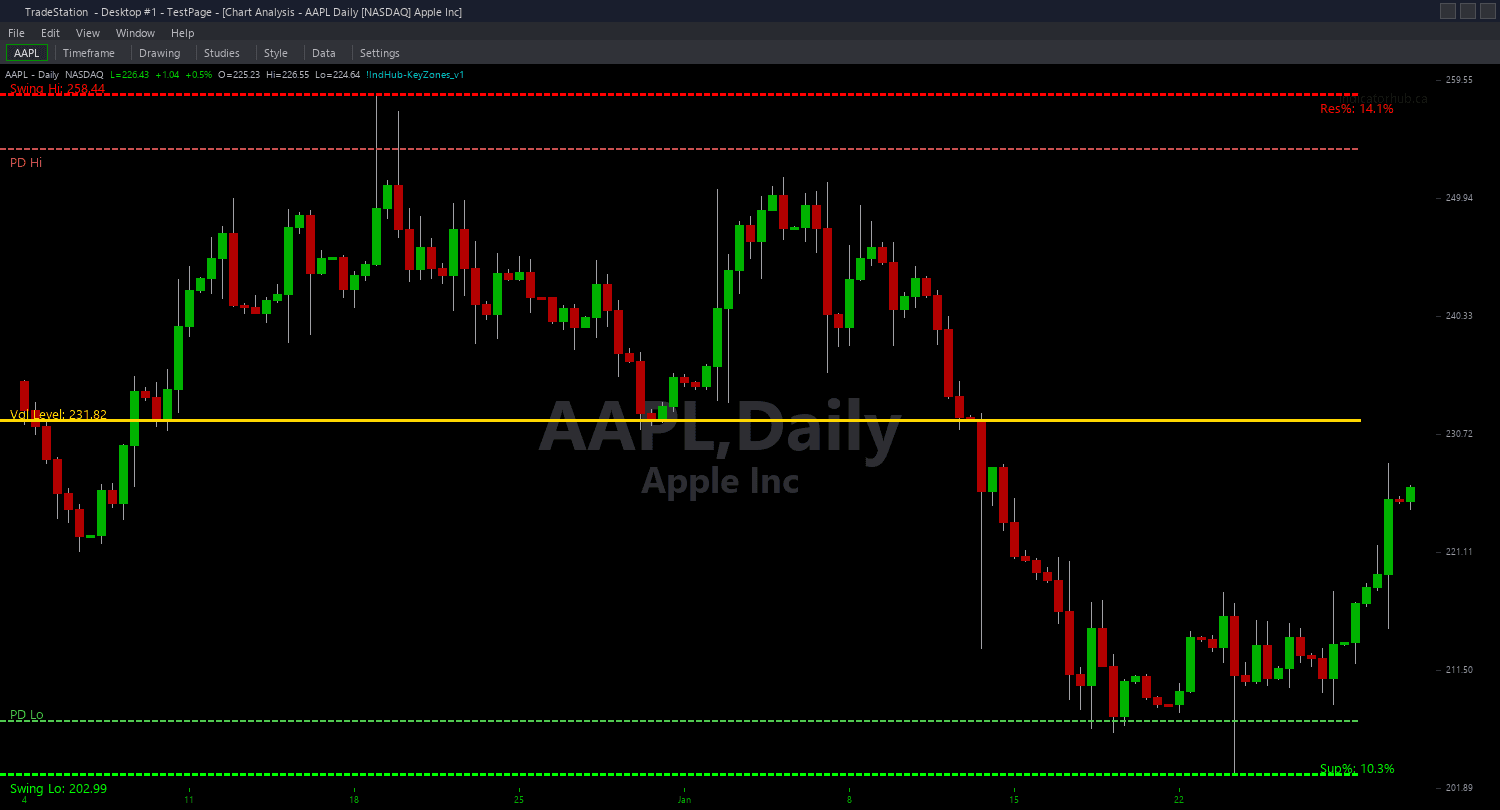
Key Zones ShowMe
Key Zones ShowMe marks the exact bars where price interacts with key daily levels, offering four distinct display modes that range from minimal dots to detailed multi-zone confluence analysis. Each mode serves a different workflow, from quick visual scanning to in-depth level analysis.
- ●Mode 1 (Dots): Clean colored dots at zone interaction points — green dots when price touches support zones (Swing Low, Prior Day Low), red dots at resistance zones (Swing High, Prior Day High), yellow dots at the High-Volume Level
- ●Mode 2 (Zone Labels): Text annotations at each interaction identifying which zone was touched and the exact price level — useful for reviewing historical zone reactions in backtesting
- ●Mode 3 (Proximity Alerts): Dots appear when price enters the iProxPct proximity threshold of any zone, giving you advance warning before the actual touch — an early heads-up to start watching
- ●Mode 4 (Confluence): Special markers appear only when price is within proximity of two or more zones simultaneously — these multi-zone confluence points represent the highest-probability reaction areas
- ●DotOffset (default 0.3 ATR) positions markers clear of price bars for readability
- ●AlertOnTouch (default true) fires an audio alert whenever a zone interaction occurs in the active display mode
Mode 4 (Confluence) is the highest-value output in this study. When the Swing Low and Prior Day Low converge at similar prices, the double-layer support creates a significantly stronger reaction zone than either level alone. Confluence signals are rare but highly actionable.
All signals are guaranteed non-repainting. Once a marker plots on a completed bar, it will never disappear.
30-Day Money-Back Guarantee
Try it risk-free. Not satisfied? Full refund, no questions asked.
Part of the Key Zones Bundle
Get all 4 study types for $65 — save $30
Who This Is For
Key Zones ShowMe is designed for traders who want objective zone interaction signals layered on their price chart. Instead of watching horizontal lines and guessing when price has reached a significant level, the dots and labels tell you the exact bar.
Start with Mode 1 (Dots) for a clean chart with minimal visual noise. Upgrade to Mode 3 (Proximity Alerts) when you want advance warning as price approaches zones. Use Mode 4 (Confluence) for the most selective, highest-probability signals where multiple levels reinforce each other.
Layer this study on top of the Key Zones chart indicator. The chart indicator draws the horizontal lines so you see where zones are, and the ShowMe marks the exact bars where interactions occur. For complete coverage, add the PaintBar study as well.
Works best on daily charts for swing trading setups. On intraday charts (15-minute and below), increase iLookback to capture meaningful structure. Most effective on liquid markets where swing highs, swing lows, and volume profiles carry genuine structural significance.
See It in Action
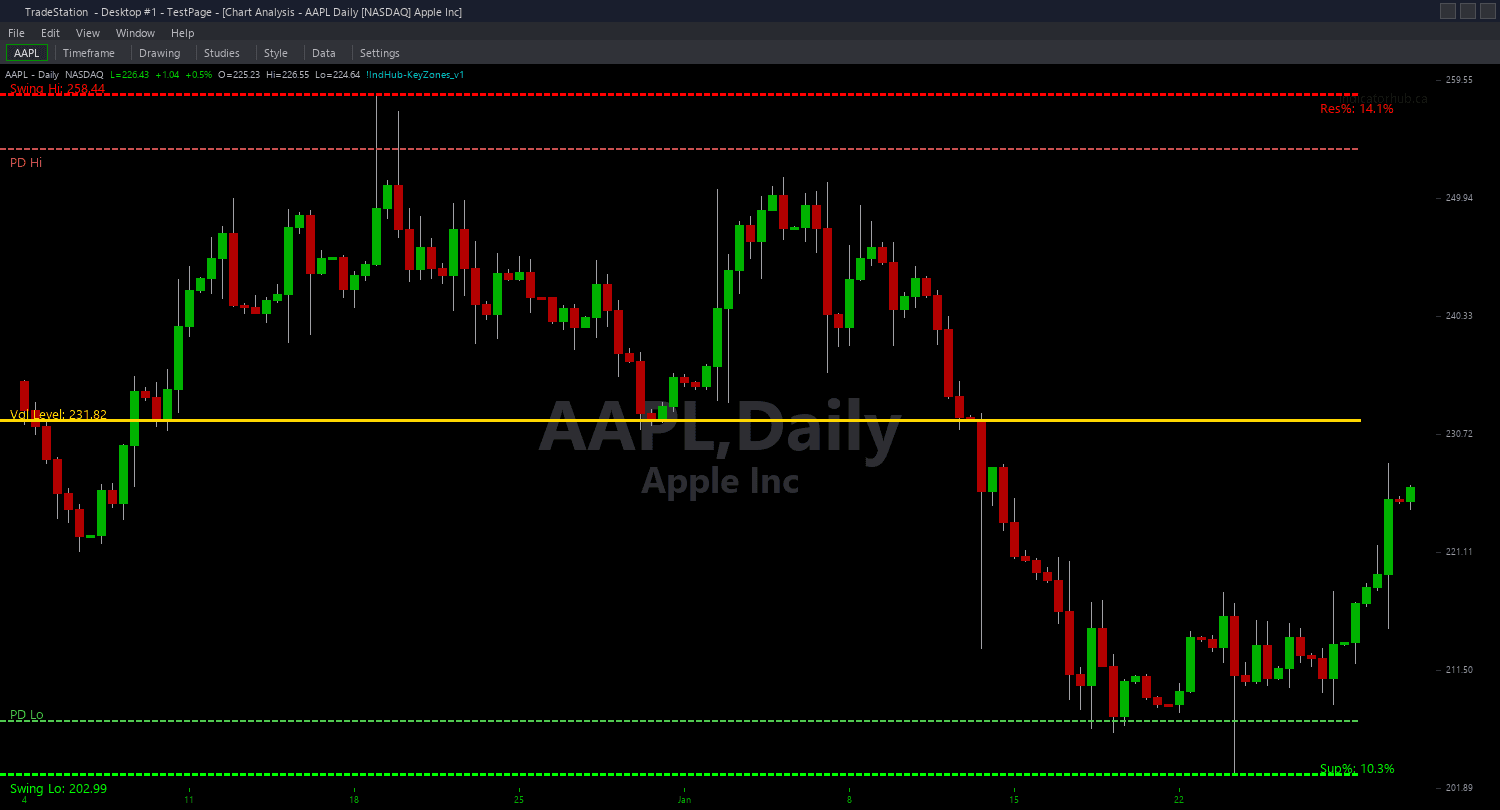
Example chart showing Key Zones ShowMe on a live trading session
Installation Guide
Step 1: Download the indicator file
After purchasing, you will receive a download link via email. Click the link and save the key-zones-showme.eld file to your computer. Save it somewhere easy to find like your Desktop or Downloads folder.
Step 2: Open the Import Wizard
Open TradeStation. Click the File menu in the top-left corner, then select Import/Export EasyLanguage to launch the Import/Export Wizard.

Step 3: Select the import type
In the Import/Export Wizard, select "Import EasyLanguage file (ELD, ELS or ELA)" from the list. Click Next to continue.

Step 4: Browse for the file
Click the Browse button to open a file browser where you can locate your downloaded .ELD file.

Step 5: Select and open the file
Navigate to the folder where you saved the .ELD file. Select key-zones-showme.eld and click Open. The file name shown may differ from the screenshot — look for your downloaded indicator file.

Step 6: Open the Studies menu
On your chart, click the Studies dropdown in the toolbar and select Add Study.

Step 7: Select the ShowMe study
In the Add Studies dialog, click the ShowMe tab on the left side. Find "!IndHub-SM_KeyZones_v1" in the list, select it, and click OK to apply.

Step 8: Configure settings (optional)
Right-click anywhere on the chart, go to Studies > Edit Studies..., select the indicator, and click the Inputs tab. Key inputs: iDisplayMode (1=Dots, 2=Zone Labels, 3=Proximity Alerts, 4=Confluence), iLookback (default 50), iVolMult (default 1.5), iProxPct (default 2.0, proximity threshold), DotOffset (default 0.3 ATR), AlertOnTouch (default true). Start with Mode 1 for the cleanest view.
Common Issues
Mode 4 (Confluence) shows very few signals. Is the indicator detecting zones correctly?
Confluence signals require price to be within iProxPct of two or more zones simultaneously, which is a strict condition by design. Multi-zone convergence is rare — that is what makes these signals high-probability. If you want more signals, increase iProxPct from 2.0 to 3.0 or 4.0 to widen the proximity window. Alternatively, switch to Mode 1 or Mode 3 for individual zone interactions.
Mode 2 (Zone Labels) text objects are cluttering my chart after running for a long time.
Text objects from Mode 2 accumulate over time as new zone interactions occur. Remove and re-apply the study to clear old labels. For long-running charts, Mode 1 (Dots) produces less visual clutter because dots are smaller than text labels. You can also increase iLookback to identify fewer but more significant zones, which reduces the number of interaction signals.
Can I use the ShowMe without the main chart indicator?
Yes. The ShowMe calculates its own key zones internally and works independently. However, using it alongside the Key Zones chart indicator gives you the full picture: the chart indicator shows the horizontal level lines, and the ShowMe marks the exact bars where interactions occur at those levels.
For additional help, contact support.