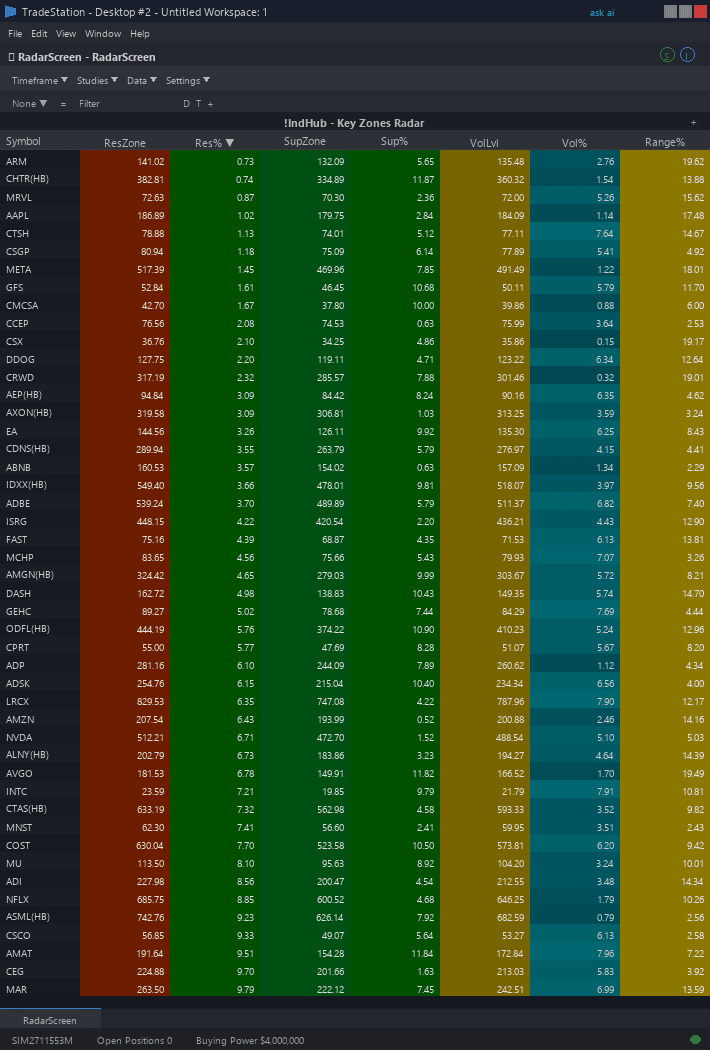
Key Zones RadarScreen
Key Zones RadarScreen brings daily level analysis to your watchlist scanning workflow. Eight color-coded columns show you exactly where each symbol sits relative to its Swing High, Swing Low, High-Volume Level, and Prior Day H/L — plus a directional Bias column that instantly tells you whether price is positioned for longs or shorts.
- ●Bias column shows LONG (green), SHORT (red), or NEUTRAL (gray) based on price position relative to all key zones — sort by this column to instantly group symbols by directional lean
- ●SwingHi and SwingLo columns display the current Swing High resistance and Swing Low support levels for each symbol
- ●HVL column shows the High-Volume Level where institutional interest is concentrated
- ●PriorHi and PriorLo columns show the previous session's high and low boundaries
- ●DistPct column shows the percentage distance from the current price to the nearest key zone — sort ascending to find symbols at decision points right now
- ●NearZone column identifies which zone is closest (SwH, SwL, HVL, PDH, PDL) so you know which level to watch
- ●All cells use the Indicator Hub dark theme palette with green for bullish context, red for bearish, teal for proximity alerts, and gray for neutral
Sort by Bias to group your watchlist into LONG, SHORT, and NEUTRAL buckets for directional planning. Sort by DistPct ascending to find symbols within 1-2% of a key level — these are the most actionable setups. Check NearZone to know which specific level the symbol is approaching.
All calculations use completed bar data only. Non-repainting guaranteed.
30-Day Money-Back Guarantee
Try it risk-free. Not satisfied? Full refund, no questions asked.
Part of the Key Zones Bundle
Get all 4 study types for $65 — save $30
Who This Is For
Built for swing traders and position traders managing 30-100 symbol watchlists who plan trades around daily structural levels. Use this to filter your entire universe by directional bias and proximity to key zones without opening a single chart.
Add Key Zones RadarScreen to your main watchlist window on the daily timeframe. During your weekend planning session, sort by Bias to separate LONG candidates from SHORT candidates. Then sort each group by DistPct ascending to find the symbols closest to key reaction levels — these are your highest-priority watchlist items for the coming week.
During the trading week, check DistPct each morning before the open (9:15 AM ET) to see which symbols moved closer to key levels overnight. When DistPct drops below 1.0 for any symbol, it is at a decision point — switch to the chart indicator to evaluate the setup visually.
This RadarScreen indicator pairs with Key Zones Chart (included in the bundle). Use RadarScreen to filter your watchlist to the 5-10 symbols at or near key levels, then open chart view to see the exact zone lines and plan entries. Both use the same zone detection logic for seamless workflow.
See It in Action
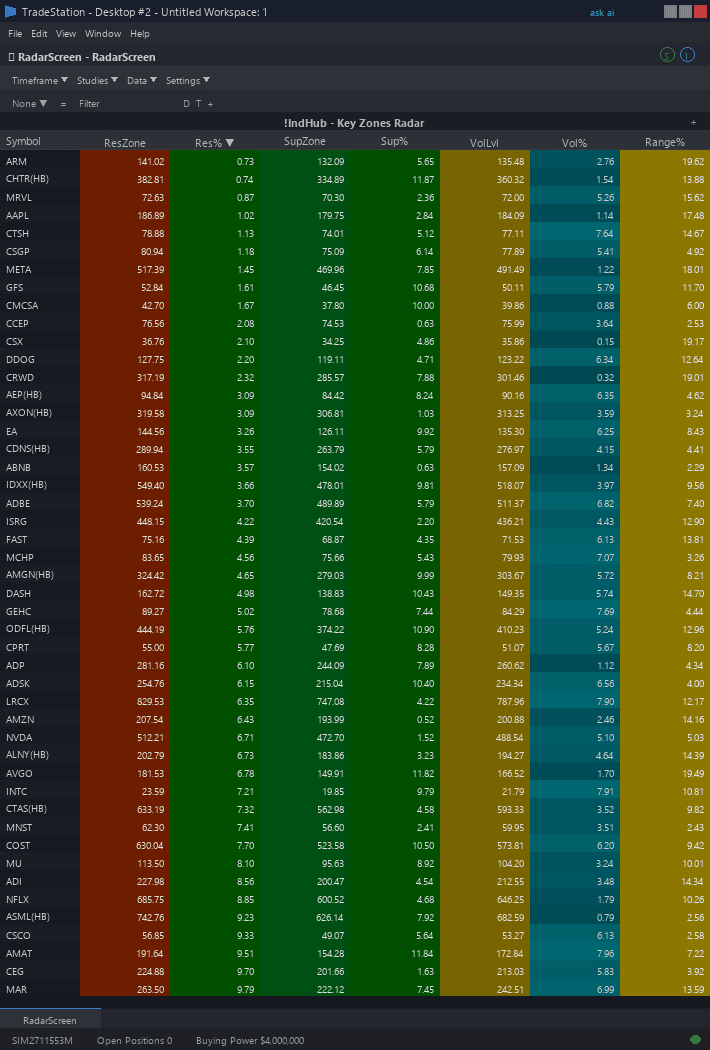
Example chart showing Key Zones RadarScreen on a live trading session
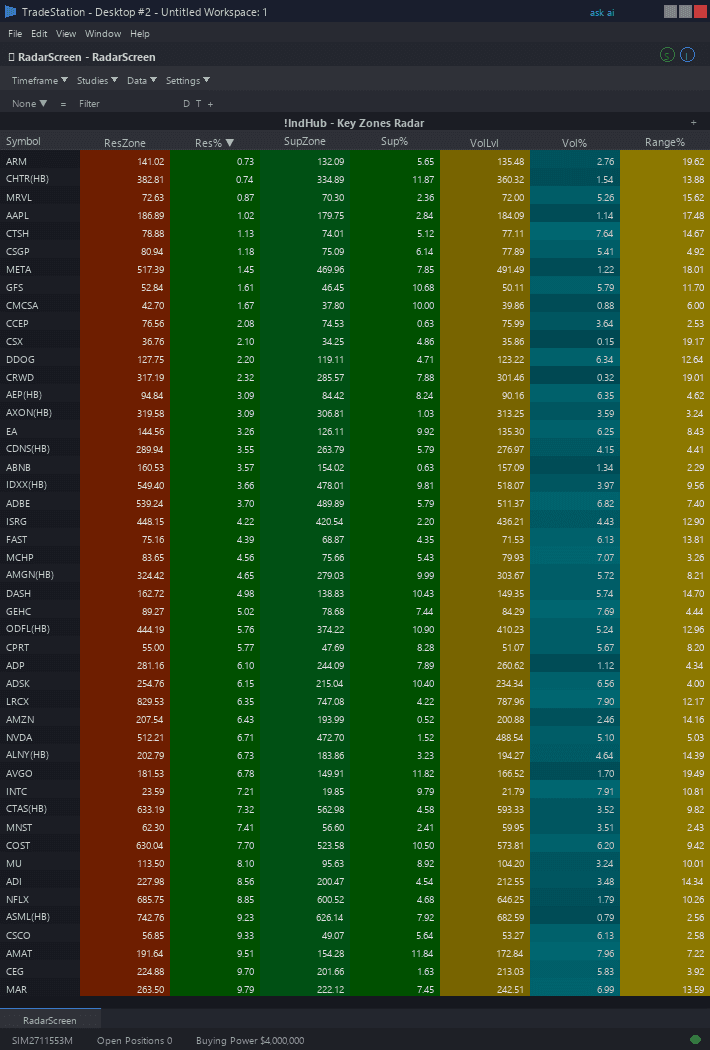
Example chart showing Key Zones RadarScreen on a live trading session
Installation Guide
Step 1: Download the indicator file
After purchase, download key-zones-radarscreen.eld from your confirmation email or account download page. Save it somewhere easy to find like your Desktop or Downloads folder.
Step 2: Open the Import Wizard
Open TradeStation. Click the File menu in the top-left corner, then select Import/Export EasyLanguage to launch the Import/Export Wizard.

Step 3: Select the import type
In the Import/Export Wizard, select "Import EasyLanguage file (ELD, ELS or ELA)" from the list. Click Next to continue.

Step 4: Browse for the file
Click the Browse button to open a file browser where you can locate your downloaded .ELD file.

Step 5: Select and open the file
Navigate to the folder where you saved the .ELD file. Select key-zones-radarscreen.eld and click Open. The file name shown may differ from the screenshot — look for your downloaded indicator file.

Step 6: Open the Studies menu
Open your RadarScreen window. Click the Studies dropdown in the toolbar and select Add Study.
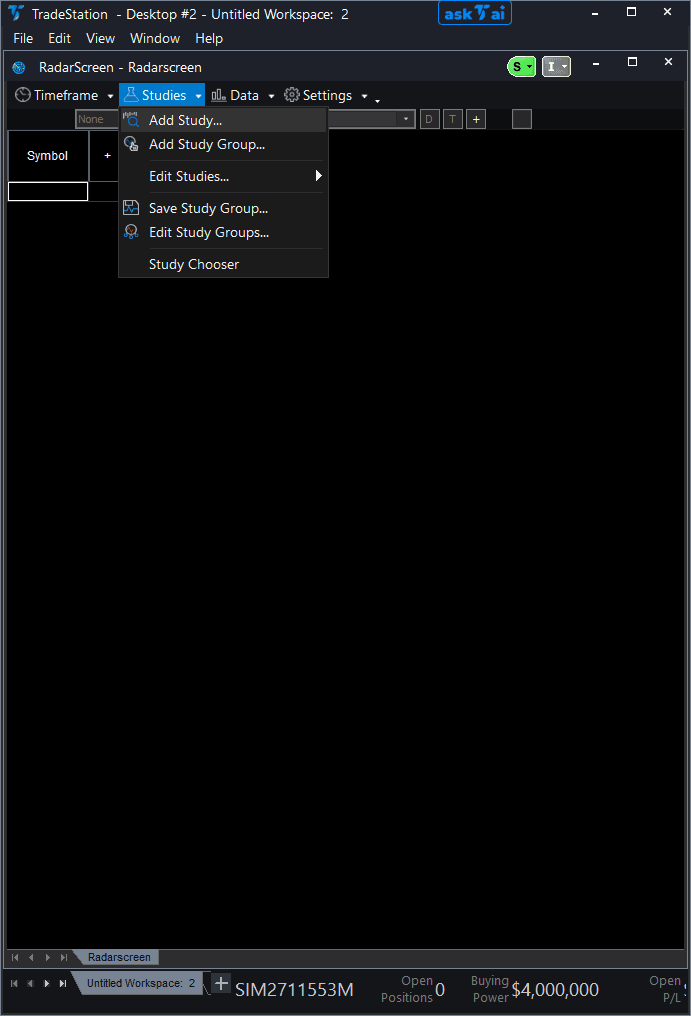
Step 7: Select the indicator
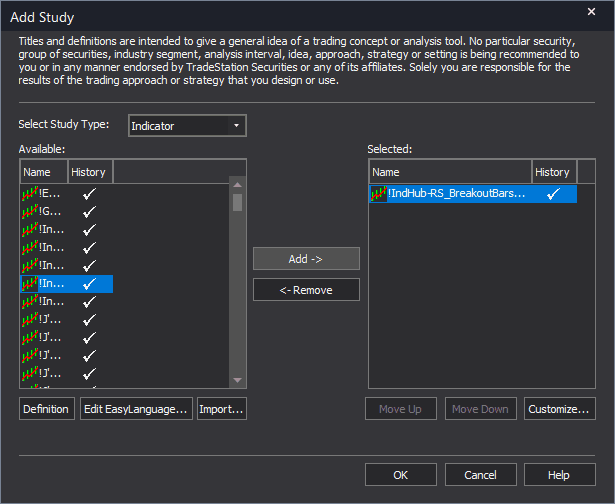
In the Add Study dialog, make sure Indicator is selected in the Study Type dropdown. Find "!IndHub-RS_KeyZones_v1" in the Available list, select it, and click Add. Click OK to apply.
Step 8: Configure your watchlist and columns
Add your symbols to the RadarScreen watchlist. Adjust column widths by dragging column borders. Key inputs: iLookback (default 50), iVolMult (default 1.5), iProxPct (default 2.0). Sort by Bias to group directional lean, or by DistPct ascending to find symbols at decision points.
Common Issues
The Bias column shows NEUTRAL for almost every symbol. I expected more directional readings.
NEUTRAL means price is positioned between the bullish and bearish zones without a clear directional lean. This is common during range-bound or consolidating market conditions. Try a larger iLookback to capture broader swing structure, which may produce more separation between zones and clearer bias readings. Alternatively, check during trending market regimes when more symbols tend to show directional positioning.
The HVL column shows 0 or blank for some symbols. Why?
The High-Volume Level requires at least one bar within the lookback period to exceed iVolMult times the average volume. Symbols with consistently low or flat volume (small-cap stocks, certain ETFs) may not meet this threshold. Lower iVolMult to 1.2 to capture more moderate volume concentrations. For forex pairs where volume data is unreliable, consider ignoring the HVL column entirely.
Can I use this on intraday timeframes instead of daily?
Yes. Change the RadarScreen interval to your preferred intraday timeframe (5-minute, 15-minute, etc.). Increase iLookback to at least 200 bars to capture enough intraday structure for meaningful swing highs and lows. Note that the Prior Day H/L levels remain session-based regardless of the interval, so they will be the same on any intraday timeframe.
DistPct shows the same value for two different symbols but one is a $20 stock and the other is a $500 stock. Is that correct?
Yes. DistPct is a percentage measure, not an absolute dollar distance. A 1.5% distance means the same proportional proximity to the zone regardless of stock price. This is intentional so you can sort and compare proximity across symbols with different price levels. If you want absolute distance, multiply DistPct by the symbol price to estimate the dollar gap.
For additional help, contact support.