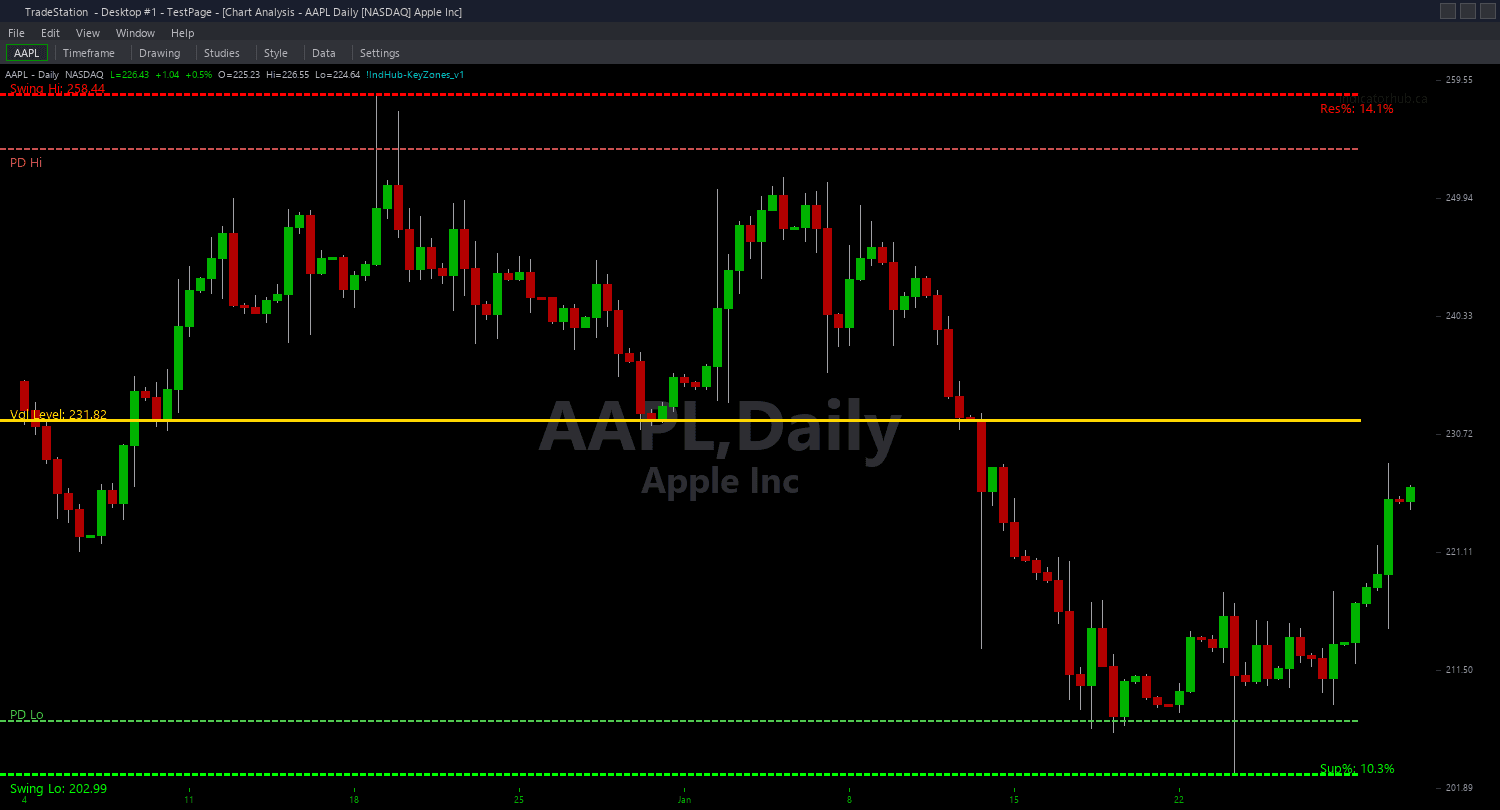
Key Zones PaintBar
Key Zones PaintBar adds a gradient visual layer to your chart by coloring price bars based on how close the current price is to the nearest key zone. Unlike binary on/off coloring, this PaintBar uses a proximity-based approach: bars get more intensely colored as price approaches a zone, giving you a heat-map effect that shows the urgency of the setup.
- ●Green-tinted bars appear when price is approaching a support zone (Swing Low or Prior Day Low) — the closer price gets, the more vivid the green coloring
- ●Red-tinted bars appear when price is approaching a resistance zone (Swing High or Prior Day High) — intensity increases with proximity
- ●Yellow-tinted bars appear when price is near the High-Volume Level — institutional interest zone
- ●Bars beyond the iProxPct threshold retain their normal candlestick colors, ensuring only relevant bars are highlighted
- ●BullProxColor, BearProxColor, and HVLProxColor inputs let you customize the three color categories
- ●Proximity is measured as a percentage of price, so the visual effect is consistent across different-priced instruments
The gradient effect creates a visual urgency system: as bars approach a key zone, the coloring intensifies. When you see deeply saturated green bars, price is right at support. When you see fading green bars, price is drifting away from the zone. This makes it easy to identify the exact moment of interaction.
All signals are guaranteed non-repainting. Once a bar is colored on close, the color will never change.
30-Day Money-Back Guarantee
Try it risk-free. Not satisfied? Full refund, no questions asked.
Part of the Key Zones Bundle
Get all 4 study types for $65 — save $30
Who This Is For
Key Zones PaintBar is designed as a visual awareness layer that works alongside the chart indicator and ShowMe study. Use it when you want continuous, at-a-glance feedback on price proximity to key levels without checking numbers or distances.
Apply it to the same chart as the Key Zones chart indicator. The horizontal lines show you where zones are, and the painted bars tell you when price is getting close. Add the ShowMe study for specific interaction markers at exact touch points.
Particularly effective on daily charts during swing trade management. The gradient coloring lets you see at a glance whether price is approaching a key level — useful when scanning through multiple charts quickly during your evening review. The proximity-based approach means you get visual feedback before the actual touch, giving you time to prepare.
Works on any timeframe and liquid market. Adjust iProxPct to control how far from a zone bars start getting colored — lower values (1.0) color only bars very close to zones, higher values (3.0-5.0) provide earlier visual warnings.
See It in Action
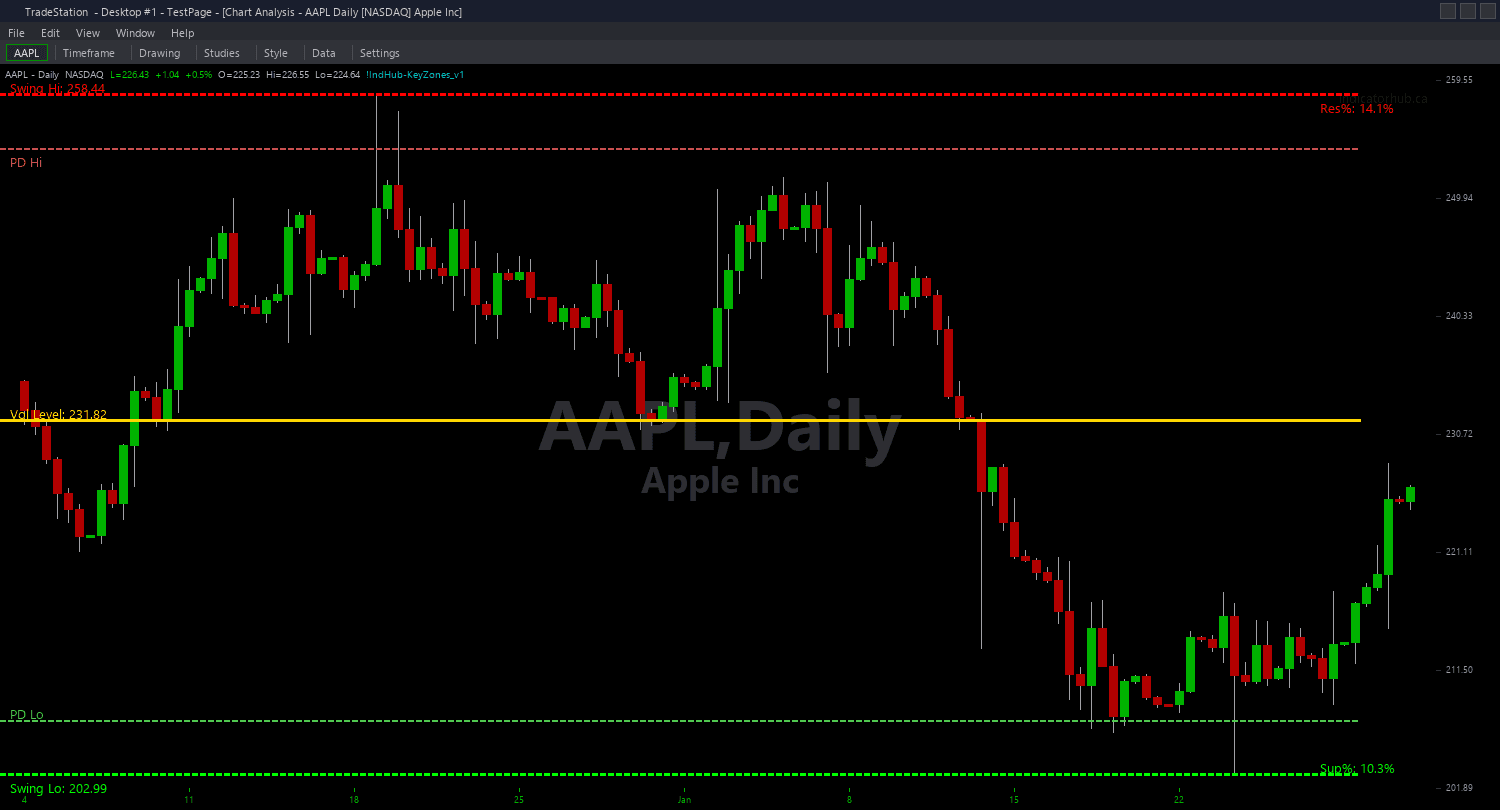
Example chart showing Key Zones PaintBar on a live trading session
Installation Guide
Step 1: Download the indicator file
After purchasing, you will receive a download link via email. Click the link and save the key-zones-paintbar.eld file to your computer. Save it somewhere easy to find like your Desktop or Downloads folder.
Step 2: Open the Import Wizard
Open TradeStation. Click the File menu in the top-left corner, then select Import/Export EasyLanguage to launch the Import/Export Wizard.

Step 3: Select the import type
In the Import/Export Wizard, select "Import EasyLanguage file (ELD, ELS or ELA)" from the list. Click Next to continue.

Step 4: Browse for the file
Click the Browse button to open a file browser where you can locate your downloaded .ELD file.

Step 5: Select and open the file
Navigate to the folder where you saved the .ELD file. Select key-zones-paintbar.eld and click Open. The file name shown may differ from the screenshot — look for your downloaded indicator file.

Step 6: Open the Studies menu
On your chart, click the Studies dropdown in the toolbar and select Add Study.

Step 7: Select the PaintBar study
In the Add Studies dialog, click the PaintBar tab on the left side. Find "!IndHub-PB_KeyZones_v1" in the list, select it, and click OK to apply.

Step 8: Configure settings (optional)
Right-click anywhere on the chart, go to Studies > Edit Studies..., select the indicator, and click the Inputs tab. Key inputs: iProxPct (default 2.0, proximity threshold for coloring), BullProxColor (default Green), BearProxColor (default Red), HVLProxColor (default Yellow), iLookback (default 50), iVolMult (default 1.5). Increase iProxPct for earlier visual warnings or decrease for tighter proximity coloring.
Common Issues
I see very few colored bars. Most bars retain their normal colors.
The PaintBar only colors bars within iProxPct of a key zone. With the default 2.0%, only bars within 2% of a zone are colored. If zones are far from the current price, no coloring will appear. Increase iProxPct to 3.0 or 5.0 to widen the colored zone. Alternatively, check the chart indicator to see where zones are relative to current price — you may need to wait for price to approach a level.
Can I change the proximity colors to match my chart theme?
Yes. To change colors, right-click anywhere on the chart, go to Studies > Edit Studies..., select the indicator, click the Inputs tab, and change BullProxColor, BearProxColor, and HVLProxColor inputs to any TradeStation color name or RGB values. Choose colors that contrast with your normal candlestick colors for clear visual distinction.
Multiple zones are close together and the bar is colored one color but I expected another. Which zone takes priority?
When price is within proximity of multiple zones, the nearest zone determines the bar color. If the Swing Low (green) is 0.5% away and the High-Volume Level (yellow) is 1.2% away, the bar will be colored green. If you want to see all nearby zones, use the ShowMe study in Mode 4 (Confluence) to identify multi-zone convergence areas.
For additional help, contact support.