Key Zones Chart
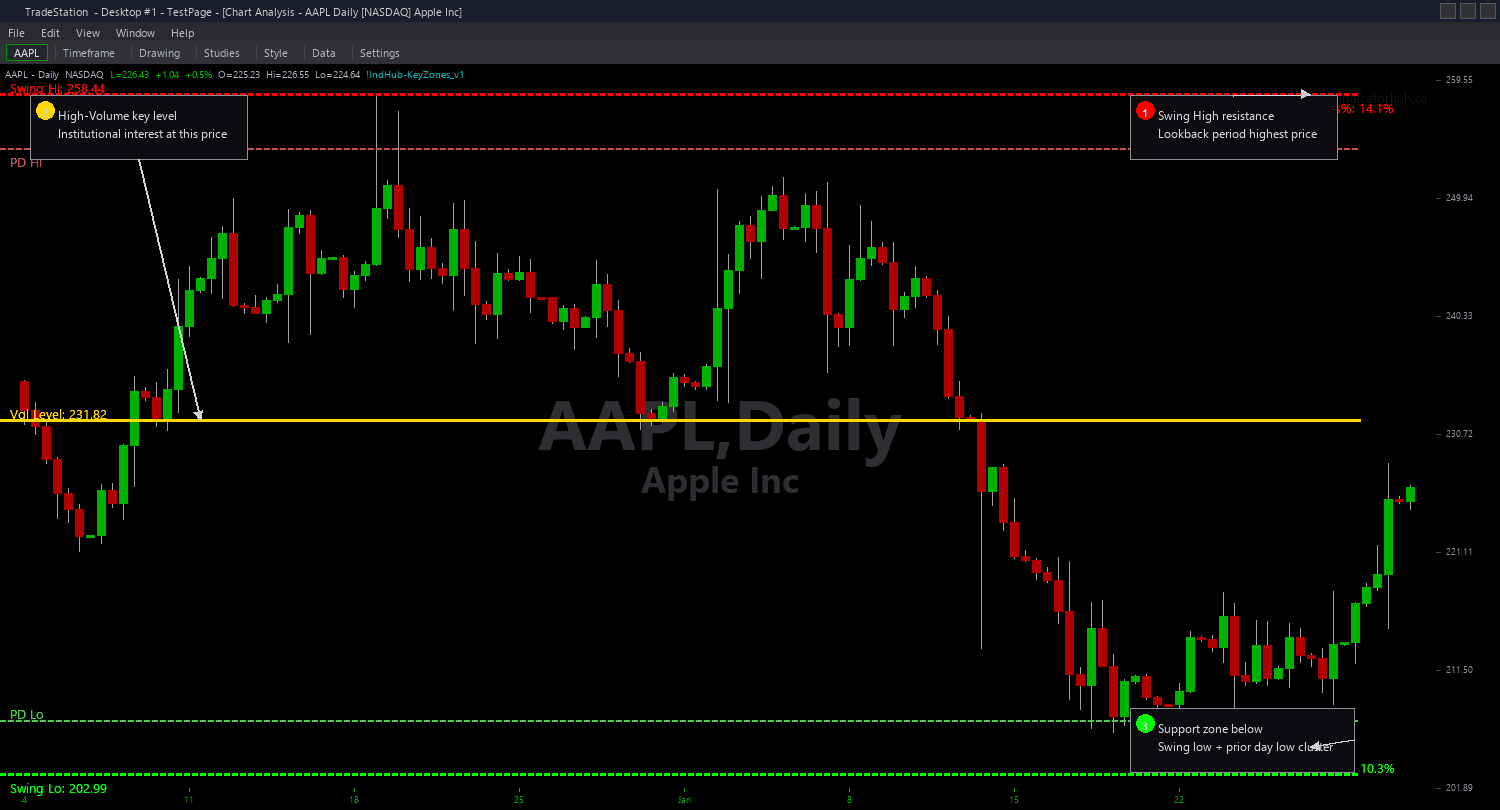
Key Zones Chart automatically identifies and draws the four most important daily price levels on your chart as color-coded horizontal lines. Instead of manually marking levels each morning, the indicator calculates them objectively from price structure and volume data, giving you a clean visual framework for the trading day.
- ●Red horizontal line marks the Swing High (resistance) — the highest confirmed pivot high within the lookback period, where sellers have historically overwhelmed buyers
- ●Green horizontal line marks the Swing Low (support) — the lowest confirmed pivot low within the lookback period, where buyers have historically stepped in
- ●Yellow horizontal line marks the High-Volume Level — the price level with the highest volume concentration over the lookback, indicating where institutional interest is clustered
- ●Dashed gray lines mark the Prior Day High and Prior Day Low — session boundaries that day traders and algorithms watch for breakout and reversal setups
- ●iLookback (default 50) controls how many bars the indicator scans to find swing extremes and volume peaks — higher values find more significant structural levels
- ●iVolMult (default 1.5) sets the minimum volume multiplier above average to qualify the High-Volume Level — higher values require stronger institutional footprints
- ●iProxPct (default 2.0) defines the proximity threshold percentage used by the alignment plot — when price is within this distance of any zone, the plot signals proximity
- ●Plot1 outputs a Bias value: +1 when price is above the midpoint of all zones (bullish bias), -1 when below (bearish bias), 0 when neutral between zones
The best setups happen when multiple zones converge at similar price levels — a Swing Low near the Prior Day Low creates a double-layer support zone with significantly higher probability of holding. When price approaches a single isolated zone, watch for rejection patterns before entering.
All calculations use completed bar data only. Non-repainting guaranteed.
30-Day Money-Back Guarantee
Try it risk-free. Not satisfied? Full refund, no questions asked.
Part of the Key Zones Bundle
Get all 4 study types for $65 — save $30
Who This Is For
Key Zones Chart is built for swing traders and position traders who analyze daily charts to identify where the most significant structural levels sit before planning entries. If you spend time each weekend drawing horizontal levels on your charts, this indicator automates that work with objective, repeatable calculations.
Use it primarily on daily charts where swing highs, swing lows, and volume profiles carry the most structural significance. The default iLookback of 50 bars covers roughly 10 weeks of daily data, capturing the most recent swing structure. Increase to 100 or 200 for broader structural context on weekly and monthly timeframes.
The indicator performs best on liquid markets with reliable volume data: large-cap stocks, index futures (ES, NQ, YM), major ETFs (SPY, QQQ, IWM), and high-volume sector ETFs. The High-Volume Level is most meaningful on markets where exchange-reported volume reflects genuine institutional participation.
During your weekend preparation, apply Key Zones to each symbol on your watchlist. Note where zones cluster together for high-probability reaction areas. During the trading week, watch how price interacts with these levels and use the Bias output to confirm directional lean — trade long when Bias is +1, short when -1, and reduce size when 0.
See It in Action
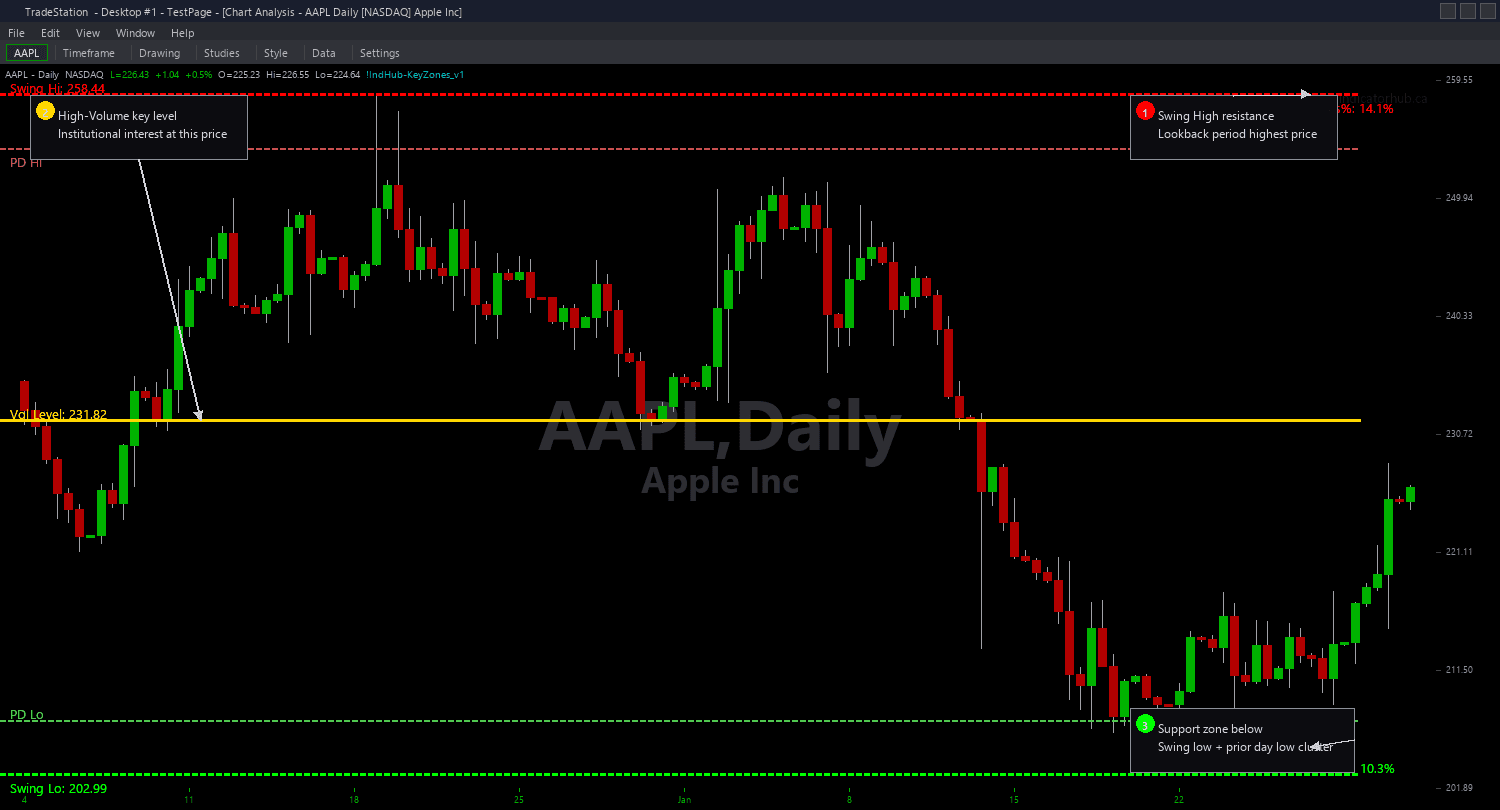
Example chart showing Key Zones Chart on a live trading session
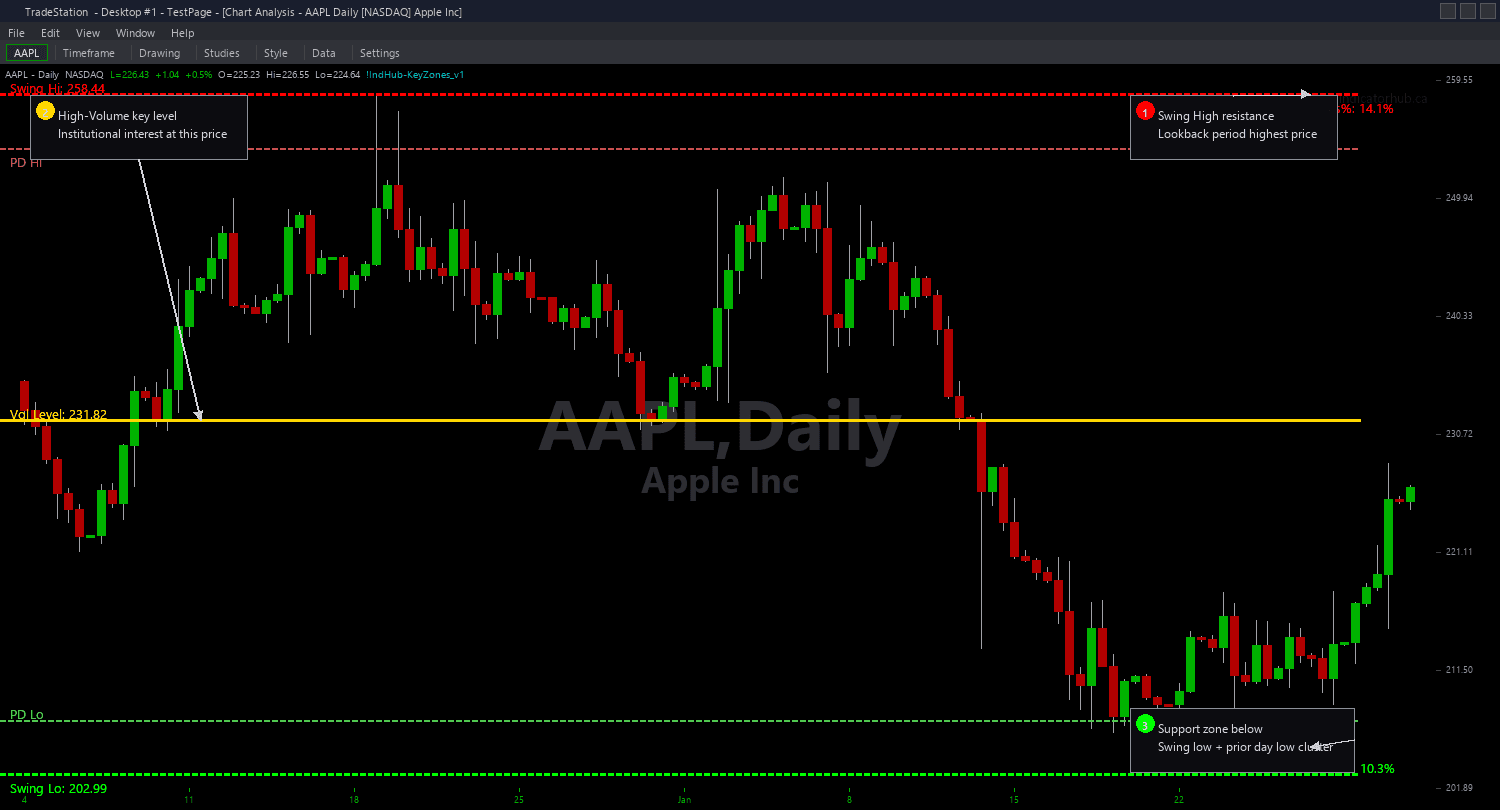
Example chart showing Key Zones Chart on a live trading session
Installation Guide
Step 1: Download the indicator file
After purchasing, you will receive a download link via email. Click the link and save the key-zones-chart.eld file to your computer. Save it somewhere easy to find like your Desktop or Downloads folder.
Step 2: Open the Import Wizard
Open TradeStation. Click the File menu in the top-left corner, then select Import/Export EasyLanguage to launch the Import/Export Wizard.

Step 3: Select the import type
In the Import/Export Wizard, select "Import EasyLanguage file (ELD, ELS or ELA)" from the list. Click Next to continue.

Step 4: Browse for the file
Click the Browse button to open a file browser where you can locate your downloaded .ELD file.

Step 5: Select and open the file
Navigate to the folder where you saved the .ELD file. Select key-zones-chart.eld and click Open. The file name shown may differ from the screenshot — look for your downloaded indicator file.

Step 6: Open the Studies menu
On your chart, click the Studies dropdown in the toolbar and select Add Study.

Step 7: Select the indicator
In the Add Studies dialog, make sure the Indicator tab is selected on the left side. Find "!IndHub-KeyZones_Chart_v1" in the list, select it, and click OK to apply.

Step 8: Configure settings (optional)
Right-click anywhere on the chart, go to Studies > Edit Studies..., select the indicator, and click the Inputs tab. Key inputs: iLookback (default 50, bars scanned for swing extremes and volume peaks), iVolMult (default 1.5, minimum volume multiple for High-Volume Level), iProxPct (default 2.0, proximity threshold percentage), ShowSwingHigh/ShowSwingLow (toggle resistance/support lines), ShowHVL (toggle High-Volume Level), ShowPriorDayHL (toggle Prior Day H/L lines). Most traders start with defaults on daily charts.
Common Issues
The High-Volume Level line does not appear on my chart even though the other zones show correctly.
The High-Volume Level requires a bar with volume exceeding iVolMult times the average within the lookback period. If no bar meets this threshold, the HVL line will not draw. Try lowering iVolMult from 1.5 to 1.2 to catch more moderate volume concentrations. On forex pairs or other markets with unreliable volume data, the HVL may not produce meaningful results — consider disabling it with ShowHVL set to false.
The Swing High and Swing Low levels seem too close together. Is the lookback too short?
Yes. The default iLookback of 50 bars covers roughly 10 weeks on daily charts. If the market has been range-bound during that window, swing extremes will be compressed. Increase iLookback to 100 or 200 to capture a wider structural range. On lower timeframes like 15-minute charts, 50 bars covers only about 12 hours — increase to 200+ for meaningful intraday structure.
The Prior Day High/Low lines jump at the start of each session. Is this a problem?
No, this is correct behavior. Prior Day H/L lines reset at the beginning of each new trading session to reflect the previous completed session's range. This is standard behavior for session-based reference levels. The lines should remain stable throughout the current session until the next session opens.
For additional help, contact support.