Fair Value Gap ShowMe
Fair Value Gap ShowMe marks the precision entry signal that SMC traders look for: the moment price touches the Consequent Encroachment (CE) midpoint of an active Fair Value Gap. Unlike a simple zone entry signal, this study waits for price to reach the exact 50% level of the gap — the point where institutional rebalancing is most likely to occur.
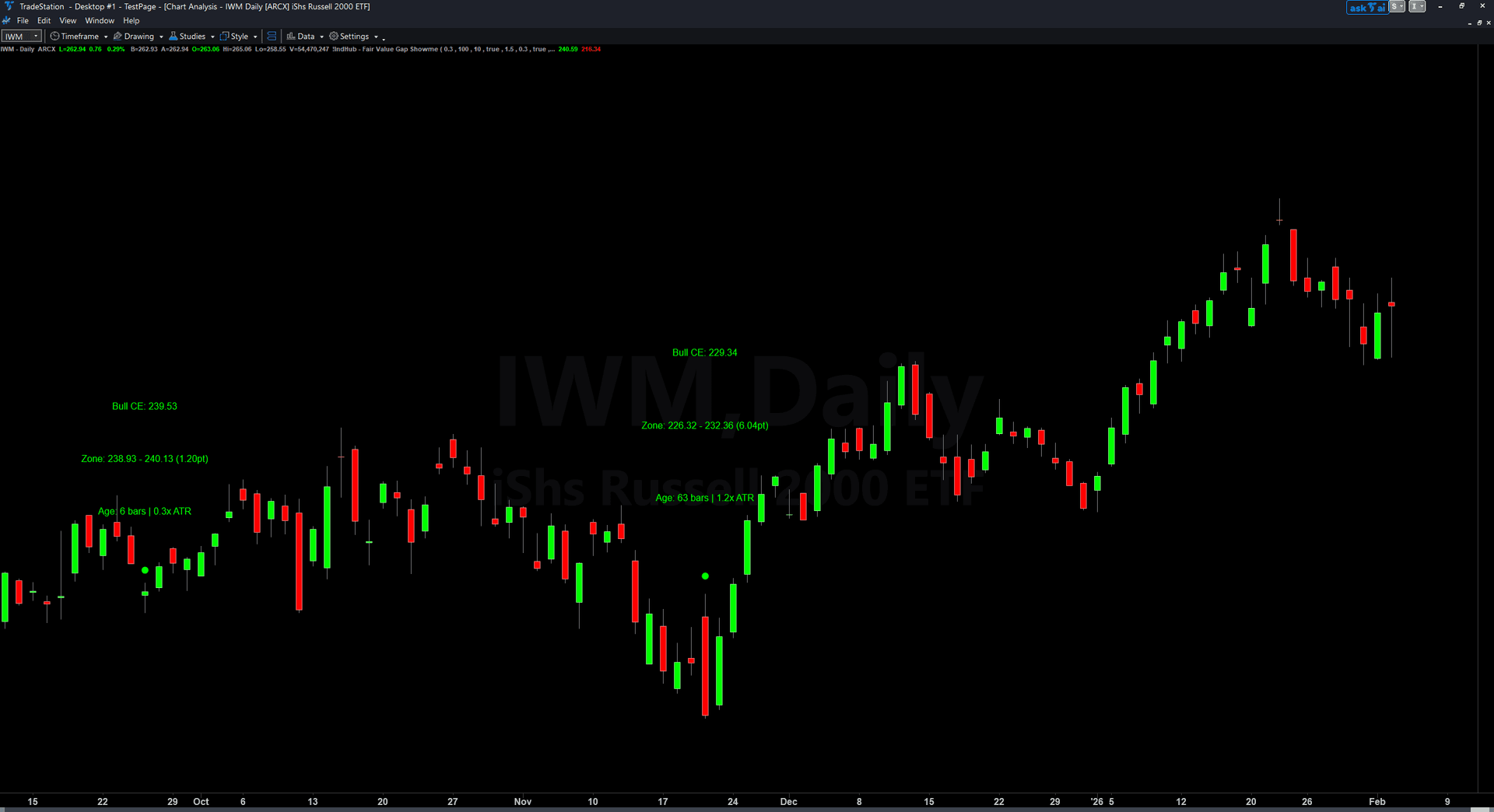
- ●Green dots ABOVE the bar mark bullish FVG CE touches — the bar's range crossed the bullish gap's midpoint, signaling potential institutional demand
- ●Red dots BELOW the bar mark bearish FVG CE touches — the bar's range crossed the bearish gap's midpoint, signaling potential institutional supply
- ●Optional text labels at each signal show three lines of data: CE price level, zone boundaries with gap size in points, and gap age in bars with size as ATR multiple
- ●CE touch fires ONCE per zone visit — if price exits the zone and returns later, a new signal appears on the next CE touch
- ●TextLineSpacing and PriceDecimals inputs control label formatting for different instruments and chart zoom levels
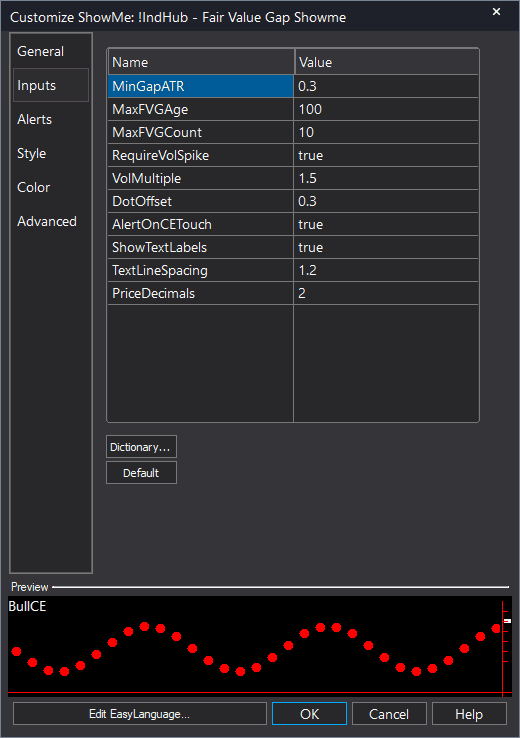
- ●DotOffset (default 0.3 ATR) positions dots clear of the price bar for readability
The text labels provide immediate context for every signal: how big the gap is, where the zone boundaries sit for stop placement, and how fresh the gap is (age in bars). Younger gaps with larger ATR multiples represent stronger institutional imbalance.
All signals are guaranteed non-repainting. Once a dot and label plot on a completed bar, they stay.
30-Day Money-Back Guarantee
Try it risk-free. Not satisfied? Full refund, no questions asked.
Part of the Fair Value Gap Bundle
Get all 4 study types for $65 — save $50
Who This Is For
Fair Value Gap ShowMe is designed for SMC traders who use the CE midpoint as their precision entry level rather than trading at the zone edge. The CE represents the exact center of the institutional imbalance — the level where the market is most likely to react.
Layer this study on top of the Fair Value Gap chart indicator. The chart indicator shows the full zone boundaries, and the ShowMe marks the exact bar when price touches the CE — your entry signal. The text labels give you immediate context: check the gap size, zone boundaries for stop placement, and age to assess freshness.
Use it on 1-minute to 15-minute charts for intraday trading. When a green dot appears with text labels, price has touched the CE of a bullish FVG — evaluate for a long entry with a stop below the zone bottom. When a red dot appears, the inverse applies.
Enable ShowTextLabels for detailed signal data or disable it for a cleaner chart with dots only. Adjust PriceDecimals to match your instrument (2 for stocks, 4 for forex, 0 for index futures). Works on any liquid market.
See It in Action
Example chart showing Fair Value Gap ShowMe on a live trading session
Installation Guide
Step 1: Download the indicator file
After purchasing, you will receive a download link via email. Click the link and save the fair-value-gap-bundle-showme.eld file to your computer. Save it somewhere easy to find like your Desktop or Downloads folder.
Step 2: Open the Import Wizard
Open TradeStation. Click the File menu in the top-left corner, then select Import/Export EasyLanguage to launch the Import/Export Wizard.

Step 3: Select the import type
In the Import/Export Wizard, select "Import EasyLanguage file (ELD, ELS or ELA)" from the list. Click Next to continue.

Step 4: Browse for the file
Click the Browse button to open a file browser where you can locate your downloaded .ELD file.

Step 5: Select and open the file
Navigate to the folder where you saved the .ELD file. Select fair-value-gap-bundle-showme.eld and click Open.

Step 6: Open the Studies menu
On your chart, click the Studies dropdown in the toolbar and select Add Study.

Step 7: Select the ShowMe study
In the Add Studies dialog, click the ShowMe tab on the left side. Find "!IndHub-SM_FairValueGap_v1" in the list, select it, and click OK to apply.

Step 8: Configure settings (optional)
Right-click anywhere on the chart, go to Studies > Edit Studies..., select the study, and click the Inputs tab. Key inputs: MinGapATR (default 0.1), MaxFVGAge (default 100), DotOffset (default 0.3 ATR), ShowTextLabels (default true), TextLineSpacing (default 1.2 ATR), PriceDecimals (default 2, adjust for your instrument). For dot appearance, go to the Plots tab and set the plot style to Point.
Common Issues
The text labels are cluttering my chart and overlapping each other.
Text objects accumulate as new CE touch signals fire. Remove and re-apply the study to clear old labels. Increase TextLineSpacing if lines overlap each other. Set ShowTextLabels to false for a cleaner view with only dots. You can also increase MinGapATR to reduce the number of signals.
I see fewer signals from this ShowMe than I expected. Price enters FVG zones but no dots appear.
This ShowMe triggers on CE midpoint touch, not zone entry. Price must reach the exact 50% level of the gap — simply entering the zone edge is not enough. If the bar's range (Low to High) does not include the CE price, no signal fires. This is by design for precision entries. If you want signals on zone entry instead, use the PaintBar study.
How do I adjust the text labels for futures vs stocks vs forex?
Change PriceDecimals to match your instrument: 0 for index points (ES, NQ), 2 for stocks, 4 for forex pairs, 1 for crude oil or similar. This controls how many decimal places appear in the CE price, zone boundaries, and gap size displayed in the text labels.
For additional help, contact support.