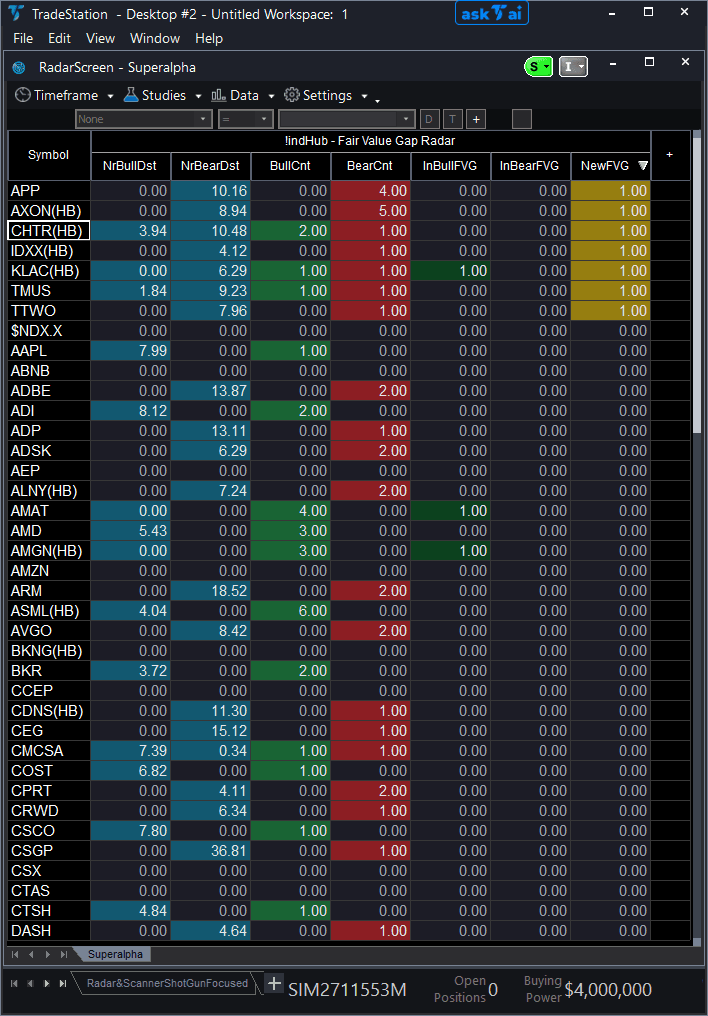
Fair Value Gap RadarScreen
Fair Value Gap RadarScreen brings FVG detection to your watchlist scanning workflow. Seven color-coded columns show which symbols have active FVG zones, how close price is to those zones, whether price is currently inside a zone, and when new FVGs form — all across your entire watchlist simultaneously.
- ●NrBullDst and NrBearDst columns show percentage distance to the nearest bullish or bearish FVG — teal background when an FVG exists for that side
- ●BullCnt and BearCnt show how many active bullish and bearish FVGs exist for each symbol — green for bullish, crimson for bearish
- ●InBullFVG and InBearFVG columns light up with strong green or red backgrounds when price is currently inside an FVG zone — these are your active gap-fill setups
- ●NewFVG column flashes amber when a fresh FVG was detected on the current bar — sort by this to catch new gaps as they form
- ●All cells use the Indicator Hub dark theme palette with consistent teal, green, crimson, and amber color coding
Sort by InBullFVG or InBearFVG to find symbols currently inside FVG zones. Sort by NrBullDst or NrBearDst ascending to find symbols closest to an institutional gap. Sort by NewFVG to catch fresh gaps the moment they appear.
Includes the same quality filters as the chart indicator: MinGapATR for size filtering and optional RequireVolSpike for volume confirmation. All signals use completed bar data only. Non-repainting guaranteed.
30-Day Money-Back Guarantee
Try it risk-free. Not satisfied? Full refund, no questions asked.
Part of the Fair Value Gap Bundle
Get all 4 study types for $65 — save $50
Who This Is For
Built for SMC day traders and swing traders managing 20-100 symbol watchlists who trade Fair Value Gap fill setups. Use this to monitor your entire universe for gap proximity and active fill signals without manually checking charts.
Add the scanner to your main RadarScreen window. During market hours, sort by InBullFVG descending to find symbols where price is sitting inside a bullish demand gap right now. Sort by NrBullDst ascending to find symbols approaching FVGs that have not been filled yet — these are pre-setup alerts.
When you spot a symbol with InBullFVG = 1 or InBearFVG = 1, switch to the chart indicator to see the exact zone boundaries and CE midpoint for precision entry timing. Check BullCnt or BearCnt to gauge how much institutional interest exists at different levels.
Works on any timeframe. Use 5-minute for intraday scanning, daily for swing trade setups. Best results on liquid markets with genuine institutional flow.
See It in Action
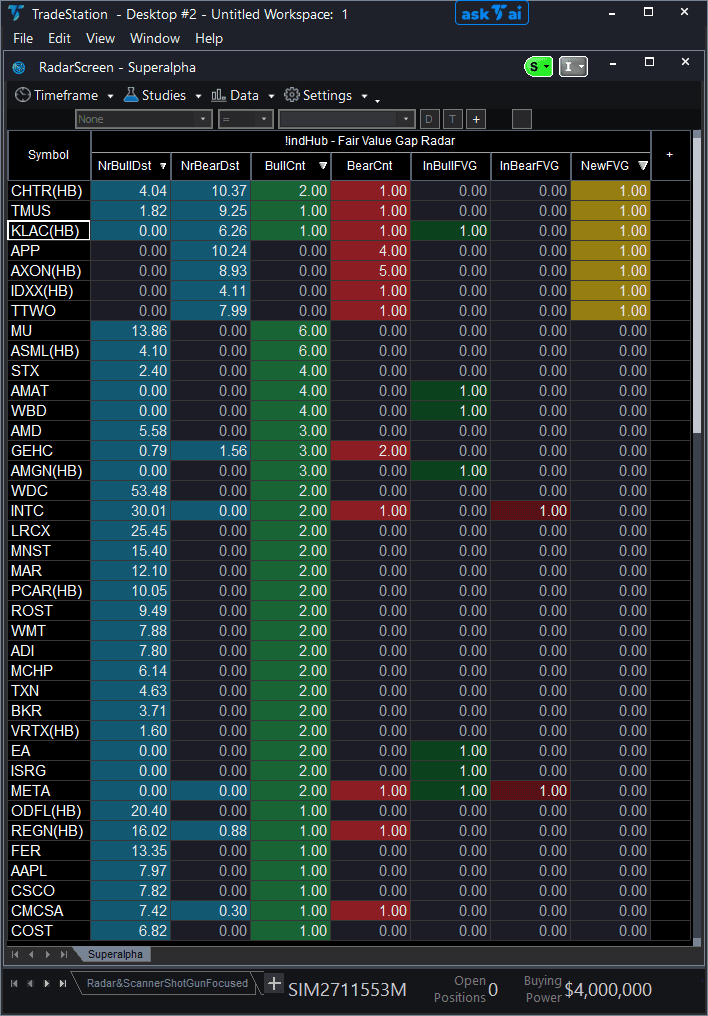
Example chart showing Fair Value Gap RadarScreen on a live trading session
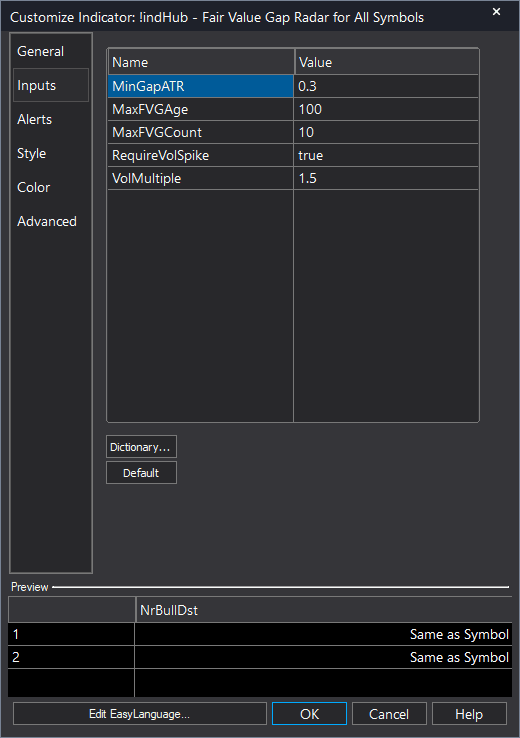
Example chart showing Fair Value Gap RadarScreen on a live trading session
Installation Guide
Step 1: Download the indicator file
After purchase, download fair-value-gap-bundle-radarscreen.eld from your confirmation email or account download page. Save it somewhere easy to find like your Desktop or Downloads folder.
Step 2: Open the Import Wizard
Open TradeStation. Click the File menu in the top-left corner, then select Import/Export EasyLanguage to launch the Import/Export Wizard.

Step 3: Select the import type
In the Import/Export Wizard, select "Import EasyLanguage file (ELD, ELS or ELA)" from the list. Click Next to continue.

Step 4: Browse for the file
Click the Browse button to open a file browser where you can locate your downloaded .ELD file.

Step 5: Select and open the file
Navigate to the folder where you saved the .ELD file. Select fair-value-gap-bundle-radarscreen.eld and click Open.

Step 6: Open the Studies menu
Open your RadarScreen window. Click the Studies dropdown in the toolbar and select Add Study.
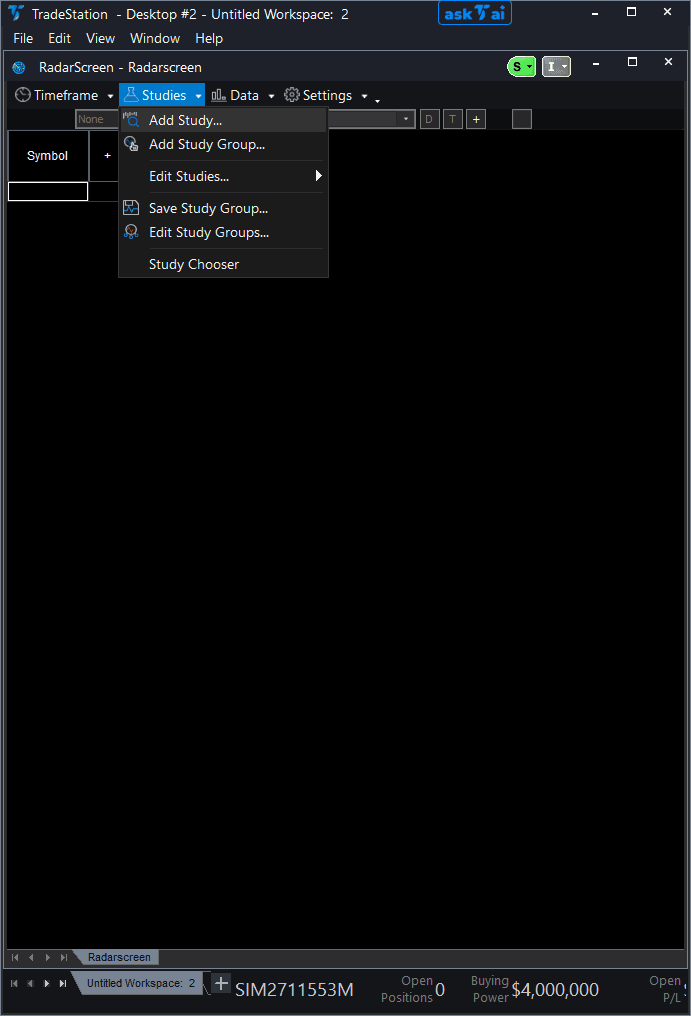
Step 7: Select the indicator
In the Add Study dialog, make sure Indicator is selected in the Study Type dropdown. Find "!IndHub-RS_FairValueGap_v1" in the Available list, select it, and click Add. Click OK to apply.
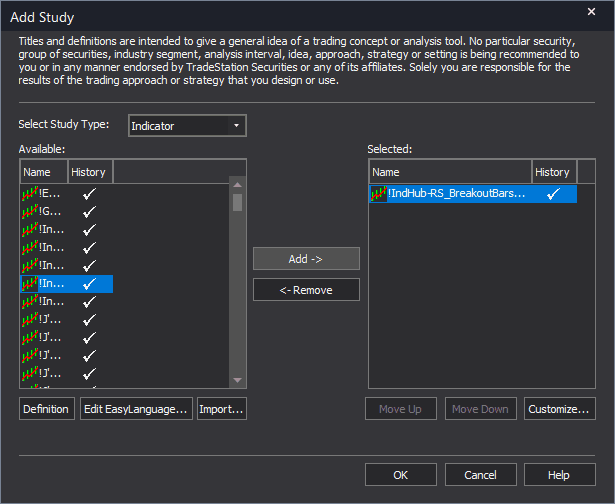
Step 8: Configure your watchlist and columns
Add your symbols to the RadarScreen watchlist. Adjust column widths by dragging column borders. Key inputs: MinGapATR (default 0.1), MaxFVGAge (default 100), MaxFVGCount (default 10), RequireVolSpike (default false). Sort by InBullFVG or InBearFVG to find active gap-fill setups.
Common Issues
All columns show zeros. Nothing is loading.
FVG detection needs enough bars to identify 3-candle gap patterns. Ensure your RadarScreen has sufficient data loaded. Also verify that MinGapATR is not set too high for your instruments — start with the default 0.1 and adjust upward only if you see too many signals.
InBullFVG shows 1 but when I open the chart I do not see the zone.
This is likely a timeframe mismatch. RadarScreen calculates on the interval set in the interval selector (bottom-right corner). Match the RadarScreen interval to your chart timeframe to see the same FVG zones.
I am getting too many NewFVG signals. How do I filter them?
Increase MinGapATR to reject small gaps (try 0.25 or 0.5). Enable RequireVolSpike to only flag gaps backed by above-average volume on the middle candle. These filters will reduce signals to only the highest-conviction institutional gaps.
For additional help, contact support.