Fair Value Gap PaintBar
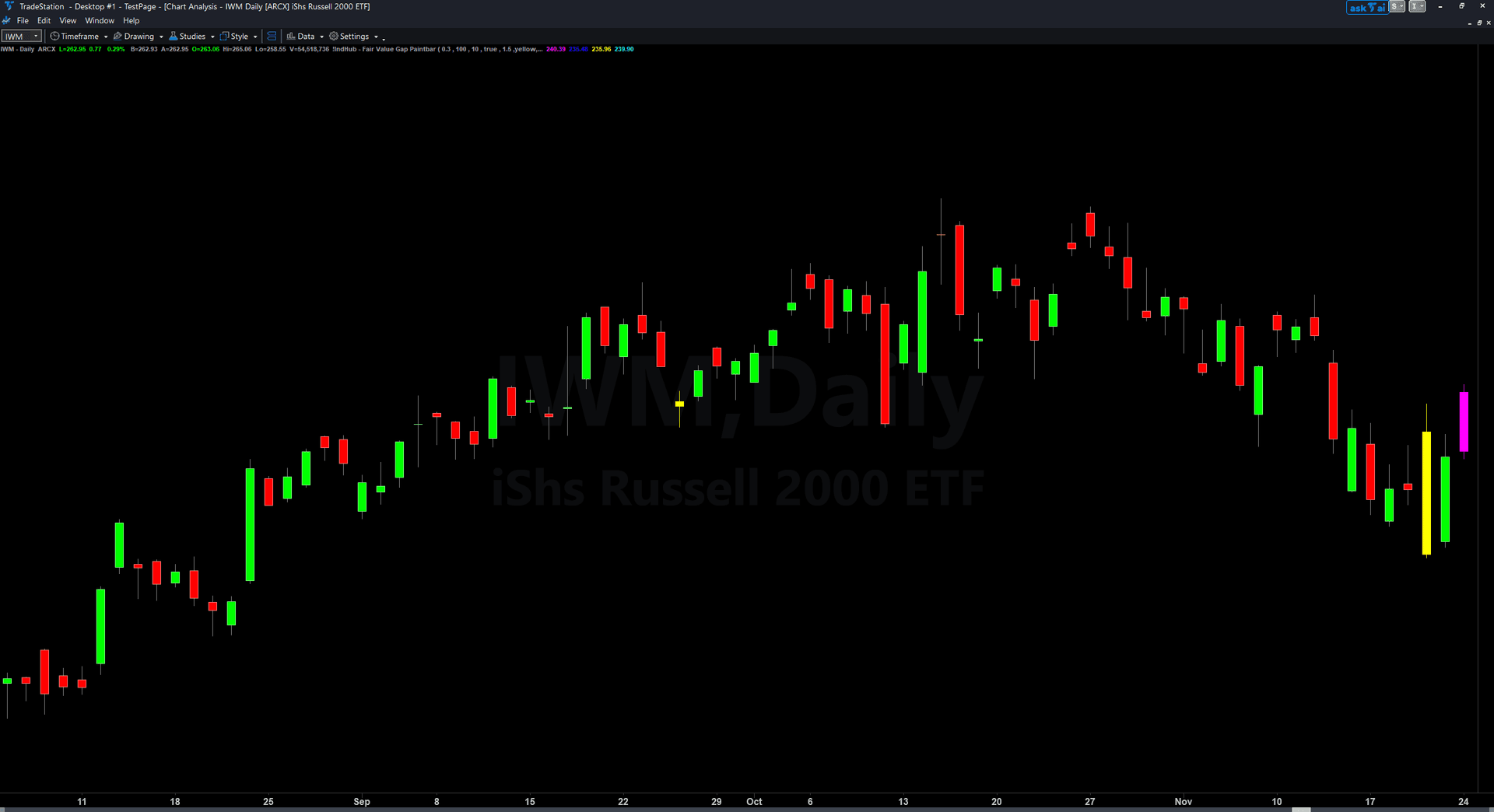
Fair Value Gap PaintBar adds an unmissable visual layer to your chart by coloring entire price bars when the close is inside an active FVG zone. Green bars signal price is inside a bullish FVG demand zone — institutional imbalance favoring upside. Red bars signal price is inside a bearish FVG supply zone — institutional imbalance favoring downside. Bars outside all zones retain their normal candlestick colors.
- ●Green-colored bars appear when price closes inside a bullish Fair Value Gap — potential long entry area where the gap may be filled
- ●Red-colored bars appear when price closes inside a bearish Fair Value Gap — potential short entry area where the gap may be filled
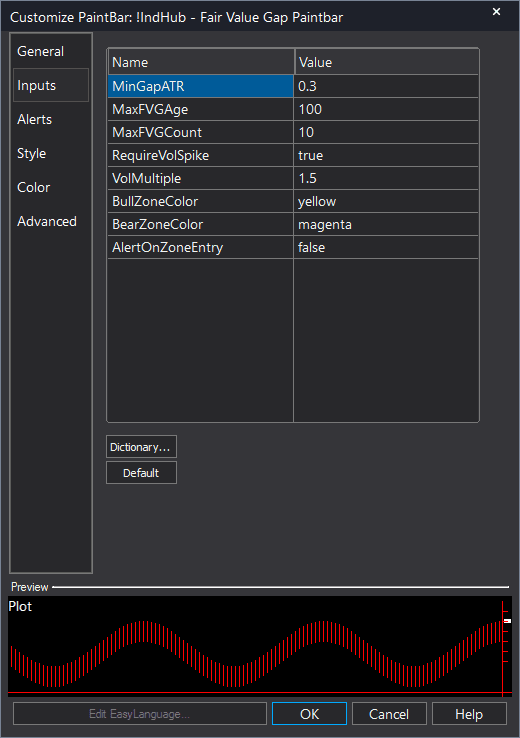
- ●BullZoneColor and BearZoneColor inputs let you customize the highlight colors to match your chart theme
- ●Optional AlertOnZoneEntry fires an alert on the first bar entering a zone
- ●Tracks entry state per zone — alerts fire only once per zone visit, not on every bar inside
- ●Includes the same quality filters as the chart indicator: MinGapATR and optional RequireVolSpike
- ●Bullish takes priority if price is inside both bullish and bearish FVGs simultaneously
The PaintBar is the fastest visual layer in the bundle. At a glance — even in peripheral vision across multiple charts — you can see which bars are interacting with institutional gaps by their color.
All signals are guaranteed non-repainting. Once a bar is colored on close, the color will never change.
30-Day Money-Back Guarantee
Try it risk-free. Not satisfied? Full refund, no questions asked.
Part of the Fair Value Gap Bundle
Get all 4 study types for $65 — save $50
Who This Is For
Fair Value Gap PaintBar is designed as a visual confirmation layer that works alongside the chart indicator and ShowMe study. Use it when you want instant awareness of when price is interacting with FVG zones.
Apply it to the same chart as the Fair Value Gap chart indicator. The zones show you where institutional gaps are, and the painted bars show you exactly which bars are inside those gaps. Add the ShowMe study for CE midpoint touch signals.
Particularly effective on 1-minute to 5-minute charts during active trading sessions when you need split-second recognition across multiple chart windows. The color contrast between green/red zone bars and normal candlestick colors makes gap interaction visible even when scrolling quickly.
See It in Action
Example chart showing Fair Value Gap PaintBar on a live trading session
Installation Guide
Step 1: Download the indicator file
After purchasing, you will receive a download link via email. Click the link and save the fair-value-gap-bundle-paintbar.eld file to your computer. Save it somewhere easy to find like your Desktop or Downloads folder.
Step 2: Open the Import Wizard
Open TradeStation. Click the File menu in the top-left corner, then select Import/Export EasyLanguage to launch the Import/Export Wizard.

Step 3: Select the import type
In the Import/Export Wizard, select "Import EasyLanguage file (ELD, ELS or ELA)" from the list. Click Next to continue.

Step 4: Browse for the file
Click the Browse button to open a file browser where you can locate your downloaded .ELD file.

Step 5: Select and open the file
Navigate to the folder where you saved the .ELD file. Select fair-value-gap-bundle-paintbar.eld and click Open.

Step 6: Open the Studies menu
On your chart, click the Studies dropdown in the toolbar and select Add Study.

Step 7: Select the PaintBar study
In the Add Studies dialog, click the PaintBar tab on the left side. Find "!IndHub-PB_FairValueGap_v1" in the list, select it, and click OK to apply.

Step 8: Configure settings (optional)
Right-click anywhere on the chart, go to Studies > Edit Studies..., select the study, and click the Inputs tab. Key inputs: BullZoneColor (default Green) and BearZoneColor (default Red) control the bar colors. AlertOnZoneEntry (default false) enables alerts. Detection settings (MinGapATR, MaxFVGAge, MaxFVGCount, RequireVolSpike) control which zones are tracked.
Common Issues
I do not see any colored bars. The indicator is applied but nothing is painted.
The PaintBar only colors bars when the close is inside an active FVG zone. If no active gaps exist near the current price, no bars will be painted. Check the chart indicator to see where FVG zones are relative to current price. You can also lower MinGapATR to detect more gaps.
Can I change the zone colors?
Yes. Right-click anywhere on the chart, go to Studies > Edit Studies..., select the study, and click the Inputs tab. Change BullZoneColor and BearZoneColor to any TradeStation color name (Cyan, Magenta, Yellow, etc.) or RGB values. Choose colors that contrast well with your candlestick colors.
For additional help, contact support.