EMA Stack Scanner
EMA Stack Scanner brings multi-EMA trend analysis to your watchlist scanning workflow, eliminating the need to open chart after chart to check EMA alignment. This RadarScreen version tracks four exponential moving averages (8, 21, 50, 200) and scores trend quality in sortable columns with a composite TrendScore ranging from -100 (perfect bear) to +100 (perfect bull).
- ●Nine scannable columns cover EMA stacking order, rising/falling momentum, price position, fan-out dynamics, volume confirmation, plus Alert Date and Alert Time so you know exactly when each signal fired
- ●Sort by TrendScore descending to instantly find symbols with perfect bullish EMA stacks and strong volume
- ●Filter by TrendState to group symbols into StrongBull, Bull, WeakBull, Neutral, WeakBear, Bear, and StrongBear categories
- ●Color-coded cells make scanning effortless: dark green for strong bullish trends (+80 to +100), dark red for bearish (-80 to -100), yellow for transitional zones
- ●Works alongside the EMA Stack Chart indicator (sold separately) for complete workflow coverage
Sort by TrendScore descending to see the highest-probability trend continuation setups at the top of your list. Use RadarScreen to find the top 5-10 trending symbols, then switch to the chart version for visual EMA stack confirmation and entry timing. Both indicators use identical EMA calculations.
All calculations use completed bar data only, ensuring scores never change retroactively. Non-repainting guaranteed.
Secure checkout powered by Stripe. No account required.
Who This Is For
Built for trend traders and swing traders managing 50-150 symbol watchlists who trade momentum continuation in strong trending stocks. Use daily or 4-hour chart scanning to identify symbols with perfect EMA alignment and filter large watchlists down to the top 5-10 highest-probability candidates.
Add EMA Stack Scanner to your main watchlist window. During your morning routine (9:00-9:30 AM ET pre-market), sort TrendScore descending to see the strongest bullish trends at the top. Focus on symbols with TrendScore 60+ (dark green cells) and all component columns showing green. For short candidates, sort TrendScore ascending and look for scores -60 or lower with all red cells.
Use pre-market (9:00-9:30 AM ET) for initial daily scan. Re-scan mid-day (12:00-1:00 PM ET) to catch new trends developing during lunch. Review TrendScore changes at market close (4:00-4:30 PM ET) to identify tomorrow's candidates.
This RadarScreen indicator pairs with EMA Stack Chart (sold separately). Use RadarScreen to filter your watchlist to the top 10 trending symbols by TrendScore, then open chart view to see visual EMA stack, price action structure, and entry pullback opportunities. Both use the same EMA calculations (8, 21, 50, 200) for seamless workflow.
See It in Action
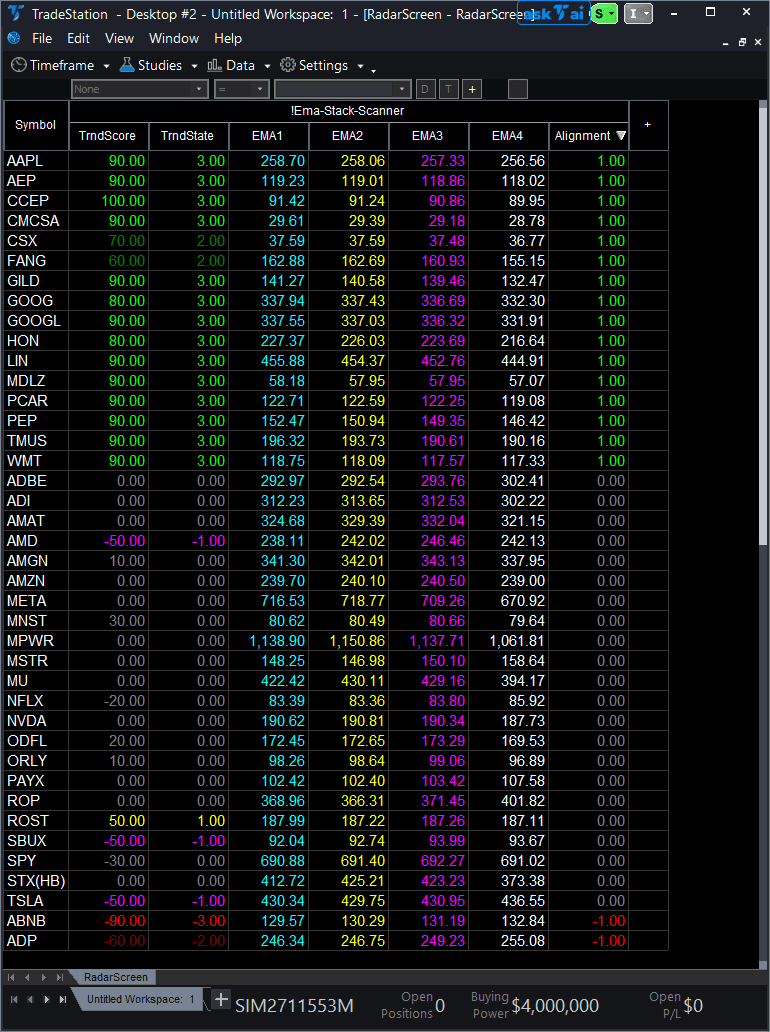
Example chart showing EMA Stack Scanner on a live trading session

Example chart showing EMA Stack Scanner on a live trading session
Installation Guide
Step 1: Download the indicator file
After purchase, download ema-stack-scanner.eld from your confirmation email or account download page. Save it to a location you will remember (Desktop or Downloads folder works well).
Step 2: Import into TradeStation
Open TradeStation. Go to File > Import > EasyLanguage Document. Browse to your downloaded .eld file and click Open. TradeStation will confirm successful import with a message listing EMA Stack Scanner as imported. Click OK.
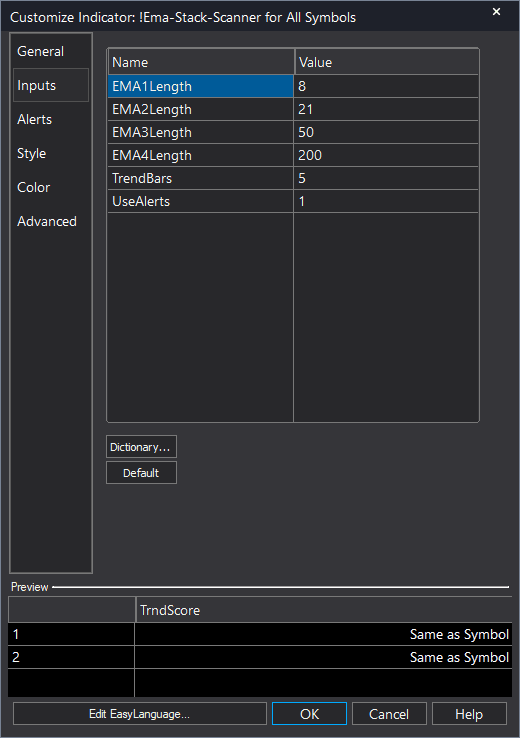
Step 3: Apply to RadarScreen
Open your RadarScreen window (or create new: View > RadarScreen). Right-click any column header and select Insert Indicator. In the indicator list, search for "EMA Stack Scanner". Select it and click OK. TradeStation will add all seven plot columns (TrendScore, TrendState, Alignment, AllRising, PriceAbvAll, FanOut, VolAbvAvg) to your RadarScreen.
Step 4: Configure your watchlist and columns
Add your symbols to the RadarScreen watchlist (type ticker and press Enter, or import from existing list). Adjust column widths by dragging column borders. To customize EMA periods, right-click the indicator name in the column header area and select Format Indicator. Modify inputs: EMA1Length (default 8), EMA2Length (default 21), EMA3Length (default 50), EMA4Length (default 200), VolAvgLength (volume lookback, default 50). Default settings (8/21/50/200 EMAs) are industry-standard and work well for most trend trading.
Full Color Customization
Every indicator ships with a professional dark color palette designed for extended trading sessions. But your workspace is yours — so we include a complete RGB Color Guide with every purchase that goes far beyond TradeStation's built-in color picker.
5 Ready-Made Palettes
Swap the entire look in minutes. Choose from Midnight Blue, Earth Tones, Neon Subdued, Grayscale, or Monochrome Green — each palette is tested for readability and eye comfort during long sessions.
70+ Individual Colors
Mix and match from a curated library of dark-optimized colors across greens, reds, blues, ambers, magentas, and neutrals. Every value is pre-tested to keep text readable on dark backgrounds.
Color Mixing Guide
Learn the RGB system with simple rules for making colors darker, warmer, cooler, or more muted. Build your own signature palette that matches your charts and workspace.
Copy-Paste Ready
Every color comes with the exact RGB code you need. Copy the value, paste it into the indicator source, done. No guessing, no trial and error.
Included free with every indicator purchase
Common Issues
TrendScore shows 0 or low values (20 to -20) for every symbol. I expected higher scores. Why?
Low TrendScore indicates choppy, non-trending market conditions. Perfect EMA alignment is rare—most symbols are in consolidation or transitional states most of the time. Try scanning larger watchlists (100+ symbols) to find the few strong trends each day. Alternatively, check a different timeframe—a symbol choppy on 5-minute charts may show perfect alignment on 4-hour or daily charts. Strong TrendScore values (60+) appear during trending market regimes, not all the time.
Alignment shows 1 (perfect bullish stack) but TrendScore is only 40. Shouldn't it be higher?
TrendScore combines six factors, not just Alignment. A symbol can have perfect EMA stacking order but score lower if: (1) EMAs are not all rising (AllRising=0), (2) price is below some EMAs (PriceAbvAll=0), (3) EMAs are compressing instead of fanning out (FanOut=0), or (4) volume is below average (VolAbvAvg=0). Check the other component columns to see which factors are missing. A score of 40 is still Bull trend (TrendState=2)—tradeable, just not perfect setup.
How do I filter my watchlist to show only strong bullish trends (TrendScore 60+)?
Sort TrendScore descending (click header once). Symbols with scores 60+ (dark green cells) will appear at the top. Scan down the list until you reach scores below 60 (color changes from dark green to lighter green/yellow). TradeStation doesn't support numeric filtering in RadarScreen, so visual scanning by cell color is the easiest method. Alternatively, export RadarScreen data to Excel and filter TrendScore >= 60.
Can I change the EMA periods to 9/21/55/100 instead of 8/21/50/200?
Yes. Right-click the indicator name in the column header area and select Format Indicator. Change EMA1Length to 9, EMA3Length to 55, EMA4Length to 100. Click OK. The indicator will recalculate using your custom EMA periods. Note that TrendScore thresholds (what counts as StrongBull/Bull/etc.) remain the same—these are based on alignment quality, not specific EMA values.
For additional help, contact support.