Breakout Bar ShowMe
Breakout Bar ShowMe marks the exact bars where breakout signals fire, giving you a clean visual layer on your chart with three display modes. Dots mode places colored markers above bullish breakouts and below bearish breakouts for a minimal, uncluttered view. Range percentage mode shows how much the breakout bar's range exceeds the average — a label reading "+150%" means the bar is 2.5x the average range. Volume percentage mode shows the same metric for volume.
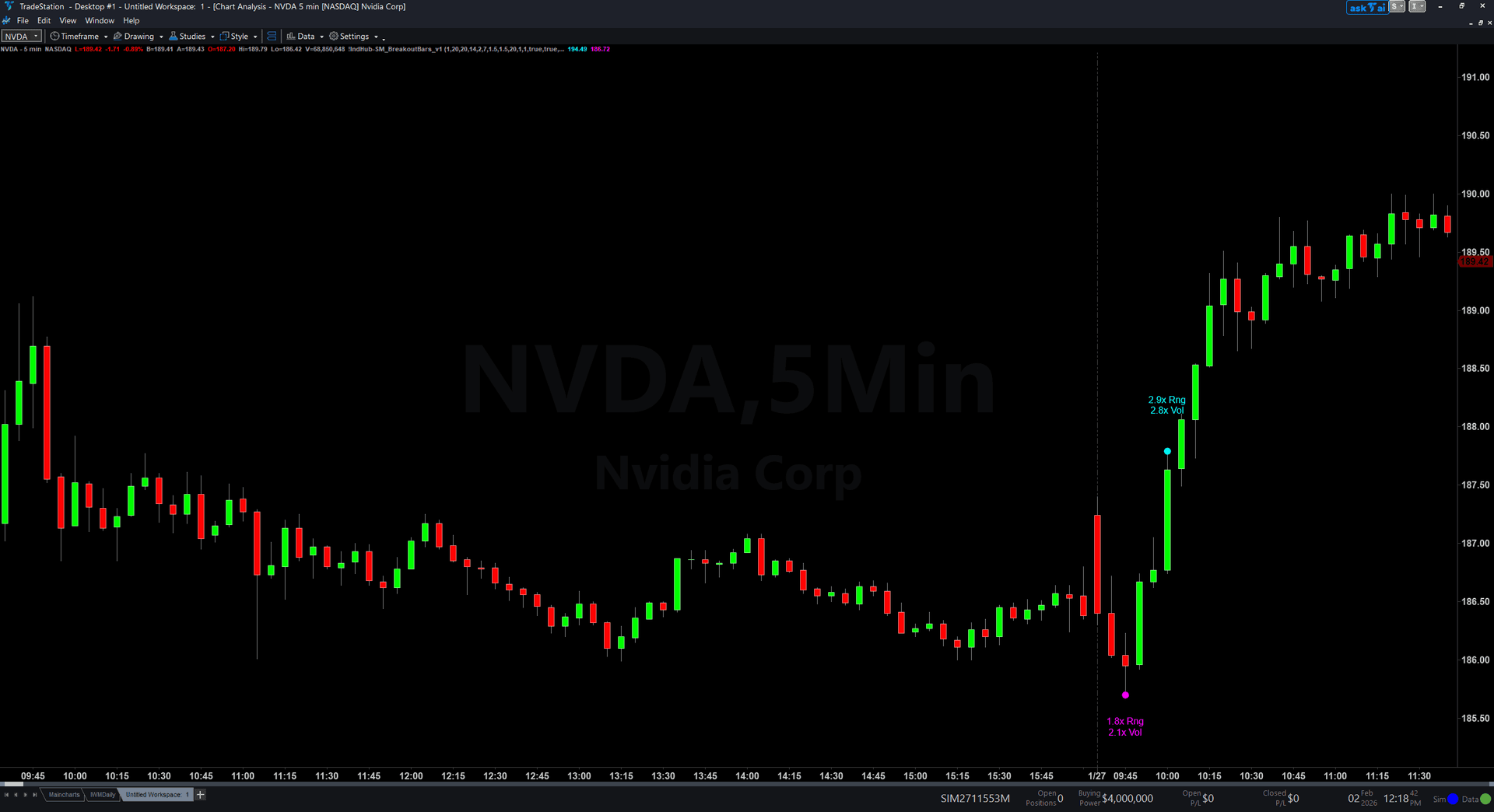
- ●iPlotMode = 1 (Dots): Clean colored dots above/below breakout bars — cyan for bullish, magenta for bearish
- ●iPlotMode = 2 (Range %): Text labels showing the bar's range as a percentage above the average range
- ●iPlotMode = 3 (Volume %): Text labels showing the bar's volume as a percentage above the average volume
- ●Customizable offset keeps markers clear of price bars on busy charts
- ●Uses the same four-method detection engine as the full bundle — N-Bar Lookback, Donchian, ATR Band, or Narrow Range
The percentage modes are particularly useful for comparing breakout quality. A breakout with +200% range and +300% volume is far more significant than one with +50% range — the numbers give you objective conviction measurement at each signal.
All signals are guaranteed non-repainting. Once a dot or label plots on a completed bar, it will never disappear.
30-Day Money-Back Guarantee
Try it risk-free. Not satisfied? Full refund, no questions asked.
Part of the Breakout Bar Bundle
Get all 3 study types for $65 — save $-5
Who This Is For
Breakout Bar ShowMe is designed for traders who want objective, quantified confirmation at breakout points. Layer it on top of your price chart to see exactly which bars qualified as breakouts and how strong the spike was.
Use Dots mode (iPlotMode = 1) for a clean chart where you just need to know when breakouts occurred. Switch to Range % (mode 2) or Volume % (mode 3) when you want to compare signal quality — higher percentages indicate stronger conviction behind the move.
Works on any timeframe from 1-minute scalping to daily swing trades. Apply to the same chart with the PaintBar study for a two-layer visual system: painted bars for instant recognition, ShowMe dots or percentages for detailed signal data. Performs best on liquid markets where range and volume comparisons are meaningful.
See It in Action
Example chart showing Breakout Bar ShowMe on a live trading session
Installation Guide
Step 1: Download the indicator file
After purchasing, you will receive a download link via email. Click the link and save the breakout-bar-bundle-showme.eld file to your computer. Save it somewhere easy to find like your Desktop or Downloads folder.
Step 2: Open the Import Wizard
Open TradeStation. Click the File menu in the top-left corner, then select Import/Export EasyLanguage to launch the Import/Export Wizard.

Step 3: Select the import type
In the Import/Export Wizard, select "Import EasyLanguage file (ELD, ELS or ELA)" from the list. Click Next to continue.

Step 4: Browse for the file
Click the Browse button to open a file browser where you can locate your downloaded .ELD file.

Step 5: Select and open the file
Navigate to the folder where you saved the .ELD file. Select breakout-bar-bundle-showme.eld and click Open. The file name shown may differ from the screenshot — look for your downloaded indicator file.

Step 6: Open the Studies menu
On your chart, click the Studies dropdown in the toolbar and select Add Study.

Step 7: Select the ShowMe study
In the Add Studies dialog, click the ShowMe tab on the left side. Find "!IndHub-SM_BreakoutBars_v1" in the list, select it, and click OK to apply.

Step 8: Verify the study is applied
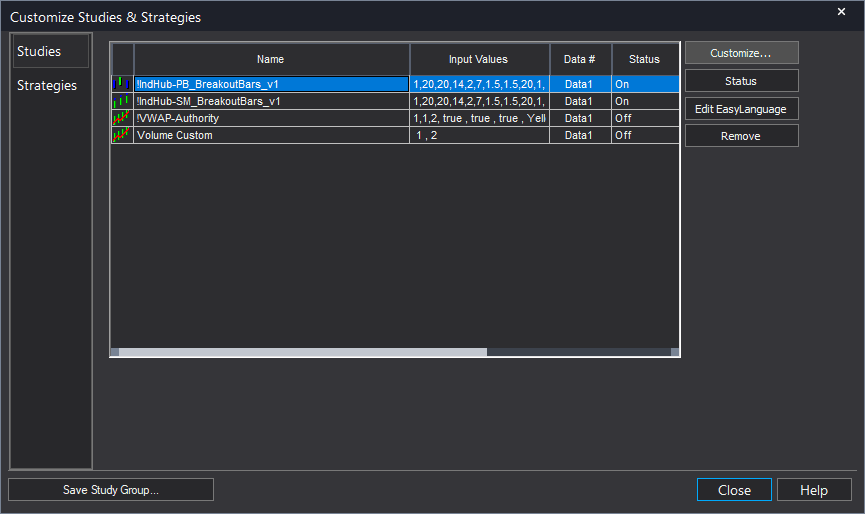
To confirm the study is active, click Studies > Edit Studies in the toolbar. You should see "!IndHub-SM_BreakoutBars_v1" listed with Status set to On.
Step 9: Configure settings (optional)
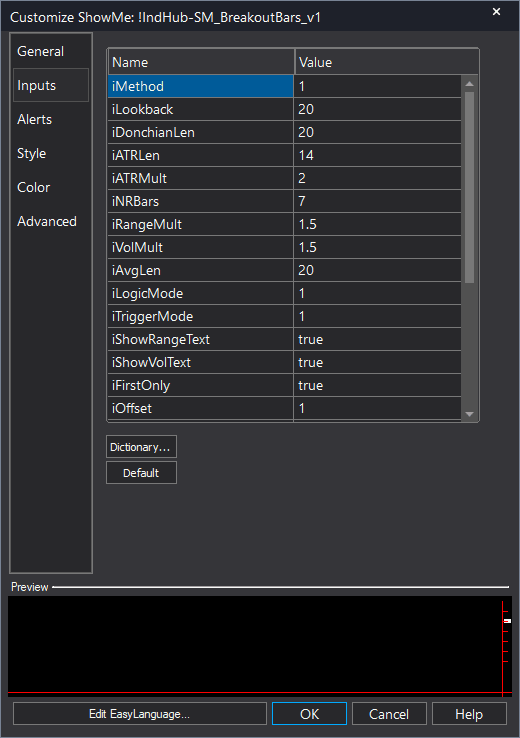
Right-click anywhere on the chart, go to Studies > Edit Studies..., select the study, and click the Inputs tab. Key inputs: iPlotMode (1=Dots, 2=Range %, 3=Volume %), iOffset (marker distance from bars), iMethod (range calculation method), iRangeMult/iVolMult (spike thresholds). For Dot mode, go to the Plots tab and set the plot style to Point with your preferred weight.
Common Issues
The text labels from Range % or Volume % mode are cluttering my chart.
Text objects from Mode 2 and Mode 3 accumulate over time as new breakouts occur. Remove and re-apply the study to clear old labels. Alternatively, switch to Mode 1 (Dots) for a cleaner look that does not create text objects.
I see dots but they are hard to see against my chart colors.
Change the cBullPlot and cBearPlot color inputs to colors that contrast with your chart background and candlestick colors. For dark chart backgrounds, cyan and magenta (the defaults) work well. For light backgrounds, try darker colors. You can also increase the plot Weight in the Plots tab to make dots larger.
How does this differ from the PaintBar study in the same bundle?
The ShowMe marks breakout bars with dots or data labels above/below the bar, while the PaintBar colors the entire price bar. They complement each other: the PaintBar gives instant visual recognition, while the ShowMe (especially in percentage mode) tells you how strong the spike was. Many traders use both together.
For additional help, contact support.