
Auto Trend Lines
Auto Trend Lines removes the subjectivity of manual trend line drawing by automatically identifying pivot highs and pivot lows and connecting them with clean, color-coded lines. Yellow lines track resistance from pivot highs. Cyan lines track support from pivot lows. As new pivots form, the indicator updates in real time, giving you an always-current picture of the trend structure.
- ●Yellow resistance lines connect pivot highs, showing you exactly where overhead selling pressure lives
- ●Cyan support lines connect pivot lows, marking the levels where buyers have historically stepped in
- ●LeftStrength and RightStrength inputs control pivot sensitivity — higher values find only the most significant turning points, lower values capture more granular structure
- ●Anchor Only mode filters out minor pivots entirely, showing only the key structural levels that matter most for swing trading
- ●Optional EMA filter (9/20 crossover) limits trend lines to those aligned with the broader trend direction, reducing noise in choppy markets
- ●IgnoreGapPivots option skips pivots caused by overnight gaps that may not represent genuine supply and demand levels
The best setups appear when price approaches a well-established trend line — one that has been tested multiple times and connects cleanly across multiple pivots. When that line finally breaks, you get a high-probability directional signal. Combine with the ShowMe and PaintBar studies in this bundle for immediate break confirmation with volume and range data.
All trend line calculations use completed bar data. Break signals on closed bars are guaranteed non-repainting.
30-Day Money-Back Guarantee
Try it risk-free. Not satisfied? Full refund, no questions asked.
Part of the Auto Trend Lines System
Get all 4 study types for $65 — save $30
Who This Is For
Auto Trend Lines is built for technical traders who rely on trend line analysis but want to eliminate the subjectivity and time cost of drawing lines manually. If you find yourself spending the first 30 minutes of every session redrawing trend lines across multiple charts, this indicator does that work instantly.
Use it on intraday charts (1-minute to 15-minute) for day trading breakout and breakdown setups. The default LeftStrength/RightStrength settings of 5/3 work well for 1-minute and 5-minute charts on liquid stocks and futures. For swing trading on hourly or daily charts, increase the strength values to 8/5 or higher to focus on major structural pivots only.
The indicator performs best on liquid markets with clean price action: NASDAQ-100 stocks, S&P 500 components, index futures (ES, NQ), and high-volume ETFs. Markets with frequent gaps or thin liquidity may produce less reliable pivot points.
Look for converging trend lines — when a support line and resistance line are squeezing toward the same price level, a breakout is imminent. When the break happens, enter in the direction of the break and use the broken trend line as your stop-loss reference.
See It in Action
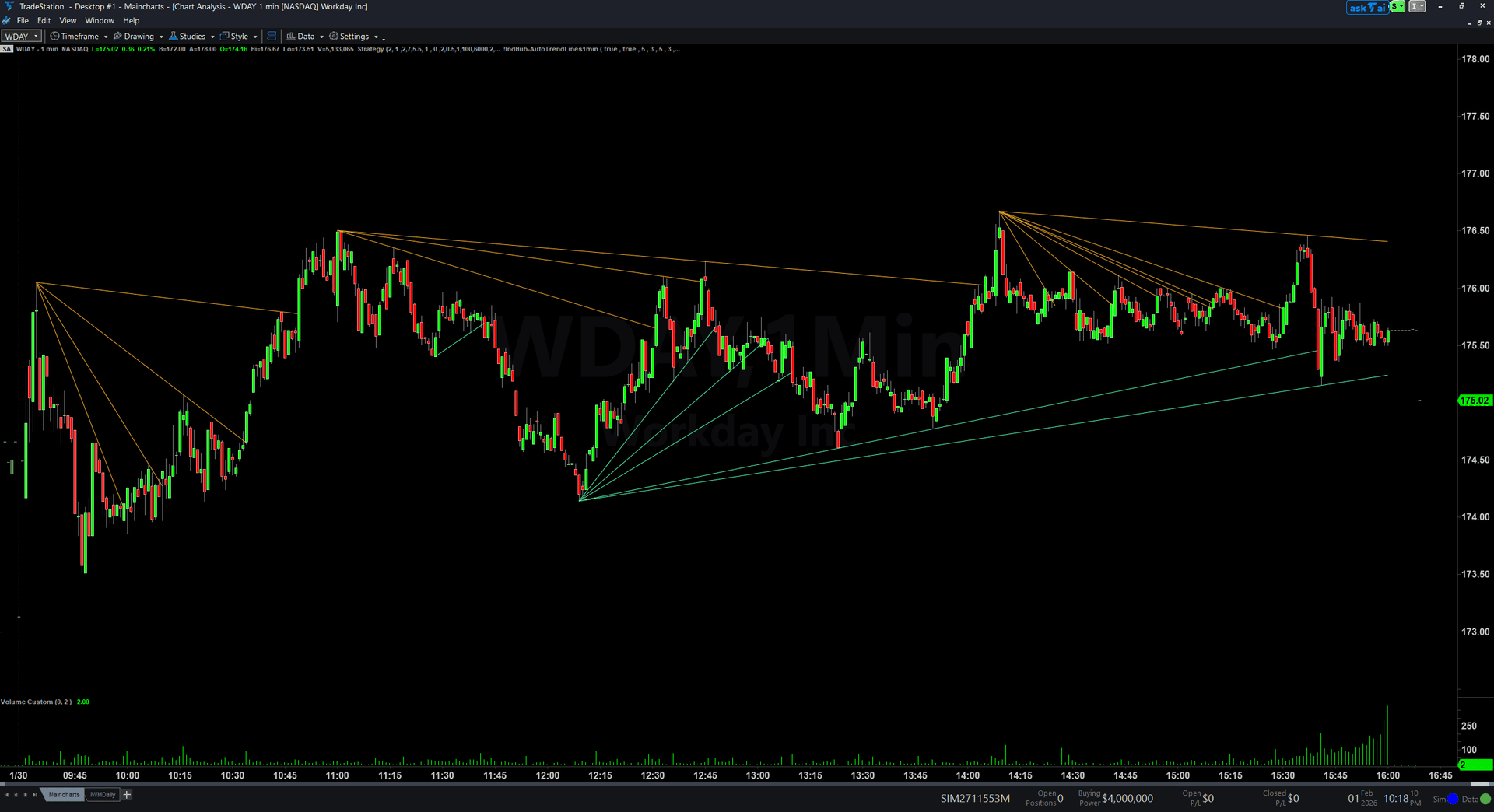
Example chart showing Auto Trend Lines on a live trading session
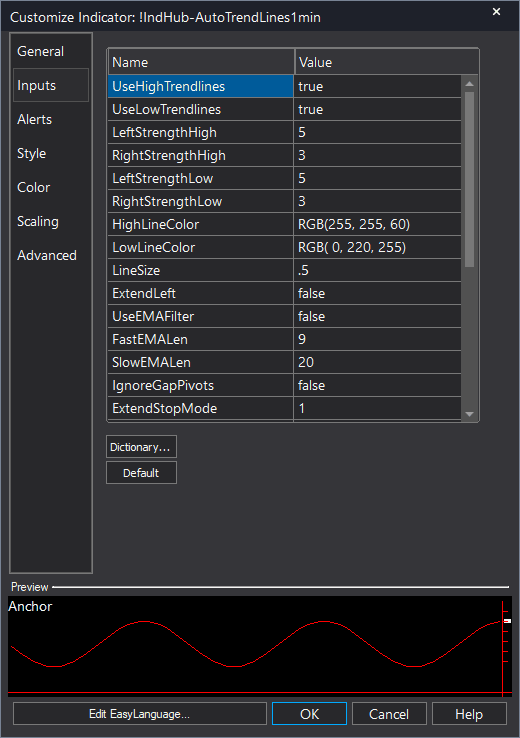
Example chart showing Auto Trend Lines on a live trading session
Installation Guide
Step 1: Download the indicator file
After purchasing, you will receive a download link via email. Click the link and save the auto-trend-lines-chart.eld file to your computer. Save it somewhere easy to find like your Desktop or Downloads folder.
Step 2: Open the Import Wizard
Open TradeStation. Click the File menu in the top-left corner, then select Import/Export EasyLanguage to launch the Import/Export Wizard.

Step 3: Select the import type
In the Import/Export Wizard, select "Import EasyLanguage file (ELD, ELS or ELA)" from the list. Click Next to continue.

Step 4: Browse for the file
Click the Browse button to open a file browser where you can locate your downloaded .ELD file.

Step 5: Select and open the file
Navigate to the folder where you saved the .ELD file. Select auto-trend-lines-chart.eld and click Open. The file name shown may differ from the screenshot — look for your downloaded indicator file.

Step 6: Open the Studies menu
On your chart, click the Studies dropdown in the toolbar and select Add Study.

Step 7: Select the indicator
In the Add Studies dialog, make sure the Indicator tab is selected on the left side. Find "IIndHub-AutoTrendLines" in the list, select it, and click OK to apply.

Step 8: Configure settings (optional)
Right-click anywhere on the chart, go to Studies > Edit Studies..., select the indicator, and click the Inputs tab. You can customize: UseHighTrendlines/UseLowTrendlines (toggle high or low lines), LeftStrengthHigh/RightStrengthHigh (default 5/3, pivot sensitivity for highs), LeftStrengthLow/RightStrengthLow (default 5/3, pivot sensitivity for lows), HighLineColor (default yellow) and LowLineColor (default cyan), UseEMAFilter (optional 9/20 EMA filter), and IgnoreGapPivots. Most traders start with defaults.
Common Issues
The trend lines look cluttered with too many lines on my chart. How do I clean it up?
Increase the LeftStrength and RightStrength values to find only the most significant pivot points. The defaults of 5/3 work well for 1-minute charts but may produce too many lines on higher timeframes. Try 8/5 for 5-minute charts or 10/7 for 15-minute and above. You can also enable AnchorOnlyMode to show only the major structural levels.
The indicator looks best on 1-minute charts but lines look odd on daily charts. Is this normal?
Yes. The default pivot strength settings are optimized for short to mid-term timeframes (1-minute to 60-minute charts). For daily or weekly charts, increase the LeftStrength and RightStrength values significantly (15/10 or higher) to match the scale of the price action. The indicator adapts to any timeframe but the sensitivity settings need to match.
Can I show only support lines or only resistance lines?
Yes. Set UseHighTrendlines to false to hide resistance lines, or UseLowTrendlines to false to hide support lines. This is useful when you only want to focus on one side of the market.
What does the EMA filter do?
When UseEMAFilter is set to true, the indicator only draws trend lines that align with the direction of a 9/20 EMA crossover. In an uptrend (fast EMA above slow EMA), only support lines are drawn. In a downtrend, only resistance lines appear. This reduces noise in choppy markets but may hide valid levels during transitions.
How do I install the TradingView/PineScript version?
Copy the Pine Script code from your download file. In TradingView, open the Pine Editor (tab at the bottom of the chart), create a new indicator, paste the code, and click 'Add to Chart'. The indicator compiles and applies instantly. See the full setup guide on the individual study page.
Does the TradingView version include RadarScreen scanning?
TradingView does not have a RadarScreen equivalent. However, the TradingView version includes a built-in Data Panel that displays current trendline prices, break flags, break times, and volume/range percentages directly on the chart. For multi-symbol scanning on TradingView, you can add the indicator to multiple chart tabs or use TradingView's built-in screener.
Can I use the TradingView version on crypto and forex?
Yes. The PineScript version works on any market available in TradingView — stocks, futures, forex, crypto, indices, and more. The core algorithm is identical. For 24-hour markets like crypto, consider disabling the time window filter by setting 'Intraday Only' to false so trendlines carry across sessions.
For additional help, contact support.